



Setting Evaluation Forms as Graduation Criteria
Introduction
Evaluation Forms can function as thresholds for idea graduation.
How to Set an Evaluation Form as a Graduation Criteria
1. From the Administration page, click Idea Management > Graduation Workflow.
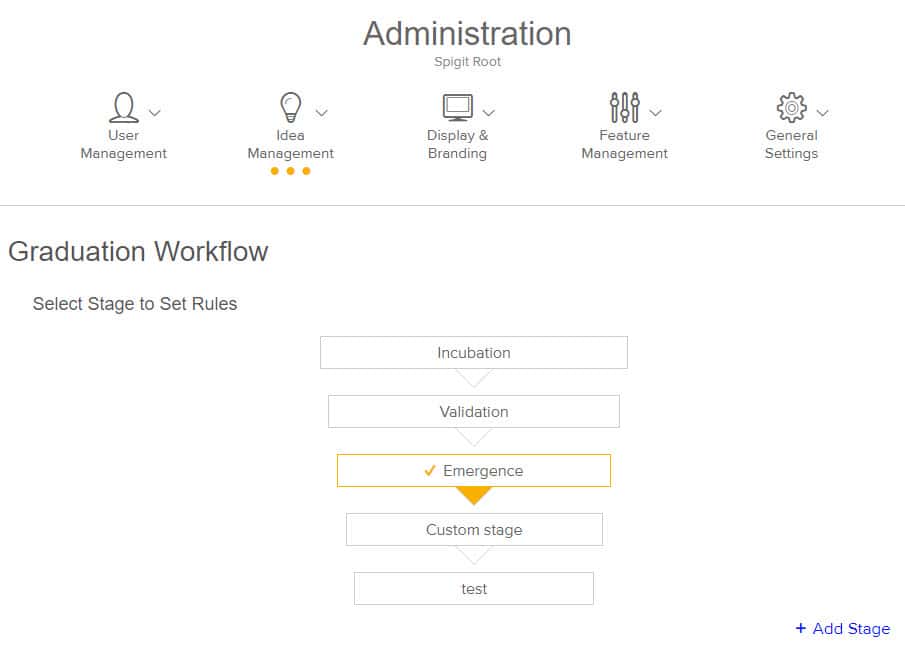
2. Select the stage for which you are setting graduation criteria.
3. Scroll down to the Evaluation Form section. Click +Evaluation Form.

4. Enter a number in the Evaluation Form Count field.
5. Optionally, set a due date period. This is the number of days from when the idea reaches this stage that the criteria is due to be completed.
6. Select a defined Evaluation Form from the drop down menu.
7. Designate the Role or Roles required to fill out the form.
-
To select multiple roles, use the <Ctrl> and <Shift> keys while selecting roles. Use the<Shift> key to select multiple contiguous roles, and the <Ctrl> key to select multiple non-contiguous roles.
-
Note that permission to post a given evaluation form may include other roles besides the designated role, but the task is only considered complete when the designated role(s) fill out the form.
-
The default value is Administrator.
8. Click Update to store your changes.