



Portfolios/ProjectPlace Integration: Version 2
This Product Help content is available to all users. To access PRISMS content, contact your Planview administrator for details.

These short segments deal with the version 2 integration with Portfolios from the perspective of the ProjectPlace user experience. For more in depth information about the connector as a whole including the Portfolios user experience, please see here.
IMPORTANT
The version 2 integration between ProjectPlace and Portfolios requires that your organization leverages Planview Admin and runs sufficiently updated Portfolios software (Earliest: May 2024).
How do I connect an existing workspace with Portfolios?
Here's how to connect an existing workspace to Planview Portfolios:
- Click the Administration tab in a workspace.
- Click Planview Portfolios Integration in the drop down menu that appears.
- In the resulting view, click the "+ Select" to bring up a drop down menu of parent structure codes that you have access to in Planview Portfolios.
- Once you have selected a "Parent structure code" from the drop down, the input field below will reflect its ID.
- When satisfied with your choice in parent structure code, click the Sync button.
Only workspace head administrators may initiate sync with Portfolios.
Info: A Parent Structure Code designates a specific place in the Portfolios work hierarchy which can contain a Project.
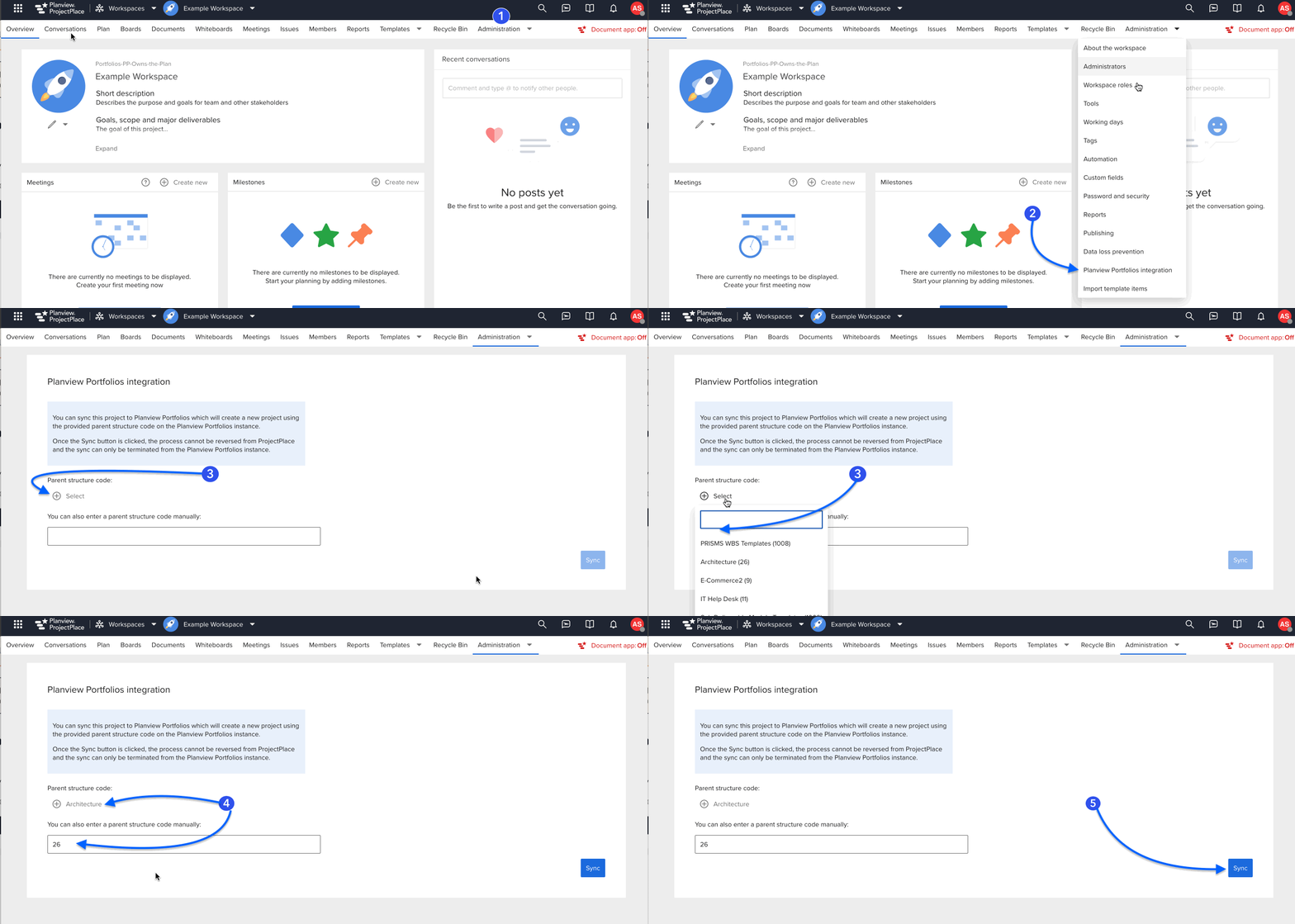
Once you click the Sync button:
- You are informed that the connection is currently being established.
- Once done, you are notified that it has been successfully established.
- Reload the page to see updated information.
That's it! Your ProjectPlace workspace is now connected with a Planview Portfolios project. By default the plan is managed by ProjectPlace.


How do I create a workspace from a synced template?
ProjectPlace workspace templates can be synced with Portfolios project templates. When you create a workspace from such a template, it inherits content from ProjectPlace, while the linked Portfolios project reflects most elements from its own template (e.g., allocations). This sync can now be initiated directly from ProjectPlace—previously, it had to start from Portfolios.
Steps:
- In the New Workspace dialog, choose a template with the Portfolios icon.
- Select "Yes" under Planview Portfolios Integration.
- Choose a Parent Structure Code.
- Click Create and wait for the sync to complete.
- You'll receive a notification once it's done.
Known issue:
Initial sync can take several minutes. Improvements are in progress to reduce this time.


How do I switch which system manages the plan?
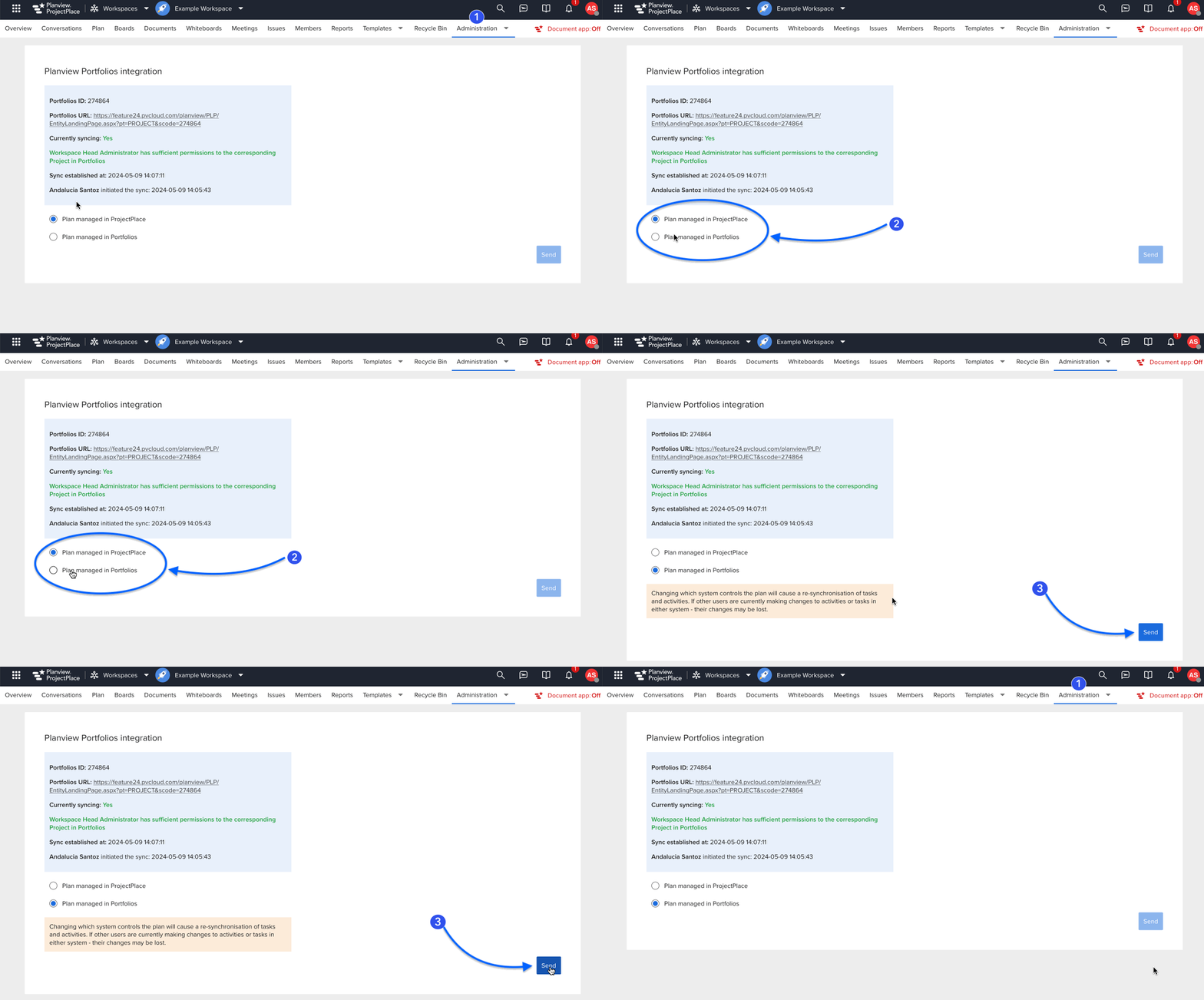
- In a workspace, navigate to Administration > Planview Portfolios Integration.
- Select the system that should manage the plan.
- Click the Send button.
Once you have clicked Send, we recommend that you reload the page.
Only workspace head administrators may change which system manages the plan.
What Portfolios calendars are supported when ProjectPlace manages the plan?
(This documentation pertains to changes released 30 April, 2026. Previously only STANDARD calendar was supported.)
Planview Portfolios allows detailed customization of working days and hours, including partial days. ProjectPlace only supports fully open or fully closed days. However, ProjectPlace is aware of Portfolios calendars and adapts accordingly.
When ProjectPlace manages the plan: ProjectPlace uses the calendar specified on the project in Portfolios. Days closed in Portfolios are also unavailable in ProjectPlace. If a day has any open time in Portfolios, it appears as fully open in ProjectPlace. ProjectPlace uses the full calendar details when communicating dates and durations back to Portfolios.
Example:
- In Portfolios, a calendar is defined as: Monday through Friday have 8 hours open per day; Saturday has 4 hours open.
- In ProjectPlace, Monday through Saturday appear as open. A task spanning Monday to Saturday (inclusive) has a duration of 6 days in ProjectPlace.
- In Portfolios, the dates match precisely, but the duration will be 5.5 days (since Saturday only contributes 4 of the typical 8-hour workday).
- If someone then closes Saturday entirely in Portfolios, ProjectPlace detects the change and extends the task to span Monday to the following Monday (inclusive). The duration remains 6 days in ProjectPlace.
- The corresponding task in Portfolios now also shows a duration of 6 days.
What we guarantee: Dates match precisely, down to the minute, regardless of calendar configuration. Durations are not guaranteed to match, since ProjectPlace does not account for partial-day hours. Duration by days in Portfolios is also governed by what is the stated average workday time.
When Portfolios manages the plan: ProjectPlace treats all days as working days. Dates will align between the two systems, but durations may differ. For example, a task running from Friday morning to Monday afternoon shows as two days in Portfolios but four days in ProjectPlace.
Only workspace head administrators may resync calendars.
NOTE
When a calendar is updated in Portfolios, many connected ProjectPlace workspaces may be affected. ProjectPlace automatically queries Portfolios for calendar changes every three hours and updates affected workspaces in bulk.
To trigger an immediate sync:
- Go to Workspace > Administration > Portfolios Integration.
- Click Sync calendar.
This starts a background job that fetches all calendars from Portfolios and updates all affected workspaces with new calendar information. The manual sync can only be run once every 15 minutes.

What are overlapping dependencies and why do they appear?
Occasionally, in connected workspaces where ProjectPlace manages the plan, you may experience:
- An alert indicating overlapping dependencies in the plan.
- A button labeled "Fix dependencies" to assist in resolving these issues.

What does this mean?
An overlapping dependency occurs when a task is scheduled to start before its predecessor finishes, which is illogical. An alert notifies editors of the plan to address this issue. The accompanying button provides options to adjust dates, delete dependencies, or ignore the issue for manual correction later.
Why does it happen?
Overlapping dependencies can occur because of progression runs in Planview Portfolios. These are scheduled tasks that update various elements, including plan dates, typically outside of regular hours. These updates change dates in a connected project without considering existing dependencies, which may result in overlaps.
Persistence of the Alert:
This alert and button reappear for all editors every time the plan is accessed until the overlapping dependencies are resolved.
Can I get rid of the alert/button?
Yes, an account administrator can contact customer support to set an organization-wide default action, either automatically adjusting dates to resolve dependencies or deleting them. Currently, it's not possible to set default actions for specific workspaces. Once a default is established, informational alerts will replace the alert message and button, indicating the adjustments or deletions made.
How do I fix dependencies?
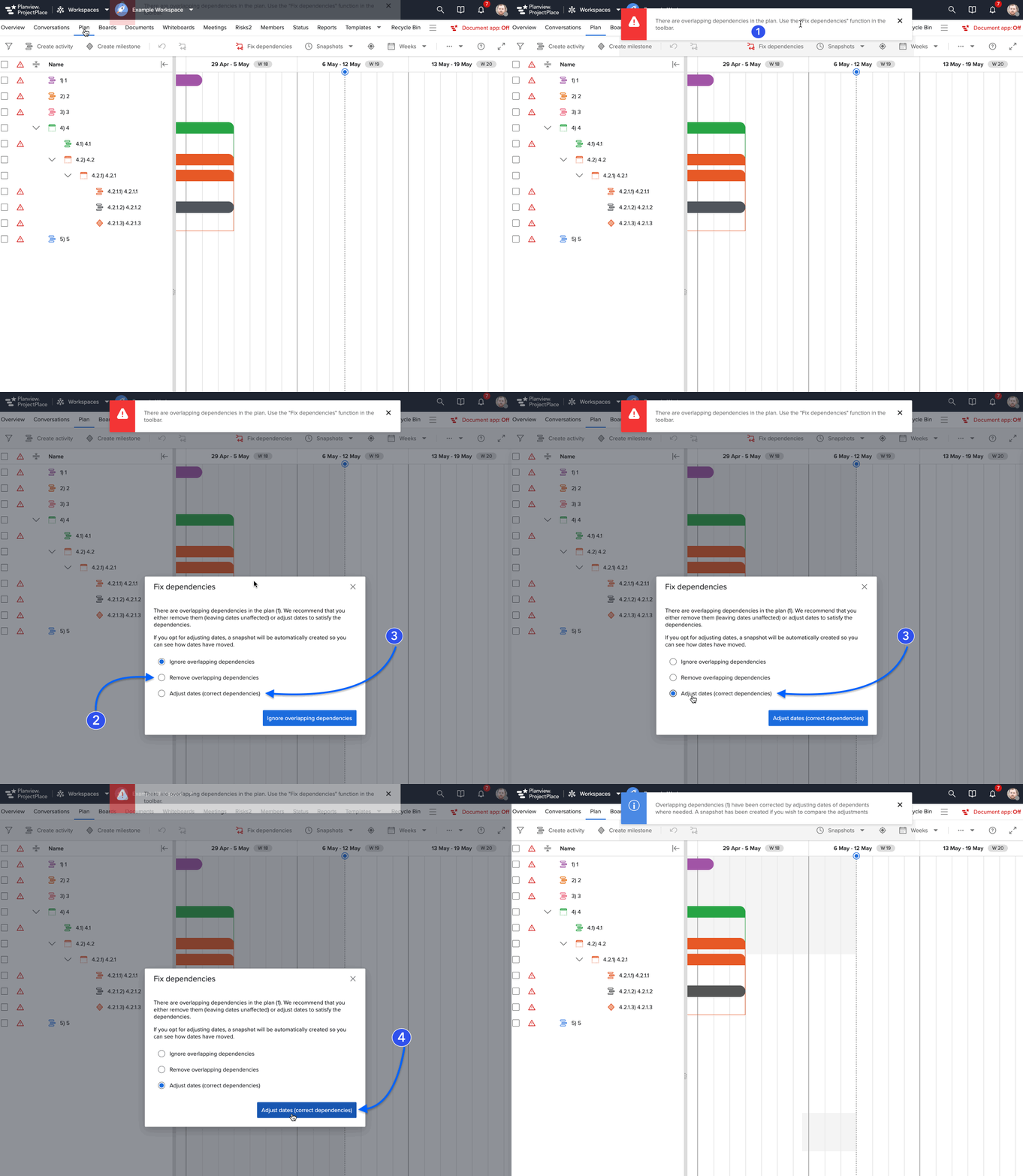
- Click the Fix dependencies button in the toolbar upon seeing the alert.
- Choose to either remove overlapping dependencies,
- or adjust dates.
- Confirm your choice by clicking the button.
- Once complete, the plan data refreshes automatically, and a confirmation message verifies the successful resolution.
- Adjusting dates involves shifting dependent activities forward until they start after their predecessors have finished. This action automatically generates a snapshot before the adjustment, allowing you to review and manually tweak the changes. Benefit: Keeps dependencies intact and provides a reference for adjustments.
- Removing overlapping dependencies involves deleting relationships where a dependent activity starts before the predecessor has finished. Benefit: Keeps original dates unchanged. Drawback: Deletes the dependencies causing the overlap.
Why is the plan locked even though I have edit permissions?
There are three possible reasons:
- The plan is managed in Portfolios - and therefore the plan is locked for everybody in ProjectPlace.
- The plan is managed in ProjectPlace - but there are insufficient permissions in Portfolios to allow editing.
- the head administrator of the workspace MUST have at least read permission to the corresponding Project in Portfolios for anyone to be able to edit the plan
- workspace members must have edit permissions both within ProjectPlace and in Portfolios to edit activities and milestones,
- workspace members must be members of the organizational account to qualify for edit permissions.
- The plan is managed in ProjectPlace - but the corresponding project in Portfolios is marked as Cancelled, Denied, On Hold or Completed. At that point we prevent updates in ProjectPlace from occuring at all. The corresponding project must first be re-opened in Portfolios. The workspace head administrator can re-open directly from ProjectPlace.
How can I tell what permissions I have to edit the plan?
Begin by accessing the plan tool in your workspace and check the toolbar.
- If you see options to add activities and milestones, you have permission to edit the plan.
- If there's a Planview Portfolios logo and the tooltip says, "The plan in this workspace is syncing with Planview Portfolios," the plan is managed by Portfolios.
- If the logo appears with a tooltip stating, "You lack edit permissions for the corresponding Project in Planview Portfolios," this indicates the plan is managed in ProjectPlace but you do not have the necessary permissions to edit it as per ProjectPlace and/or Portfolios requirements.

How can I check who can edit a connected plan?
(This is relevant only for workspaces managed by ProjectPlace)
As a workspace administrator, you can verify which members can edit the plan in a connected workspace by navigating to Administration > Planview Portfolios Integration.
- If managed by ProjectPlace,
- the bottom part of the page will display a table listing workspace members.
- This table shows whether each member has edit permissions in both Portfolios and ProjectPlace.
- Edit permissions in Portfolios are checked several times daily. You can manually update this check by clicking the "Refresh" button.
- The "Last updated" column indicates the last permission check in Portfolios.
NOTE
The list includes only workspace members who are also part of your organization as configured in Planview Admin.
