


Managing User Licenses
Overview
The Licenses module gives Admin users a centralized view of all AdaptiveWork and Add-On licenses purchased by your organization. From this module, you can:
- View all licenses assigned to users and the number of unassigned licenses
- Identify users on a Trial license
- Assign or revoke licenses
- View Add-On licenses
- Review associated Purchase Orders and dates
- Export license data to Excel or print it for your records

To review a summary of your organization's Purchase Orders, click the Your Purchase Orders button in the top-right corner of the module.
Accessing the Licenses Module
There are two ways to access the Licenses module.
From the Navigation Bar
If the Licenses module has been added to your Admin profile, it appears directly in the navigation panel on the left.

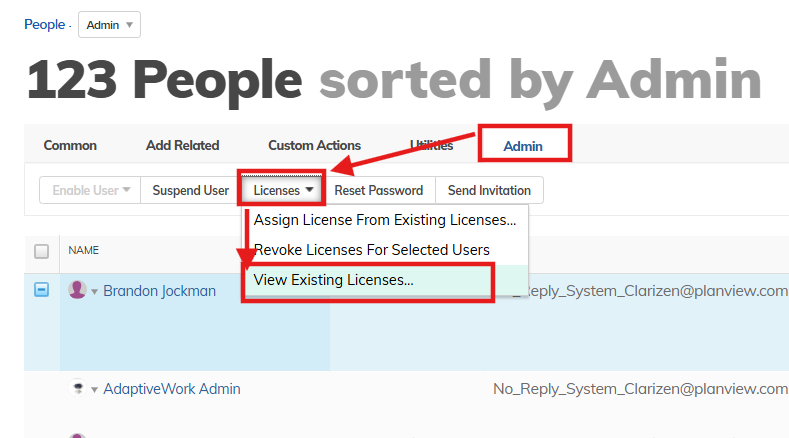
From the People Module
- Go to the People module and switch to the grid view.
- Click the Admin tab.
- Click Licenses.
- Select View Existing Licenses...
Assigning Licenses
Every user in AdaptiveWork must have a license type assigned, which determines which modules and features they can access. The available license types are Full User, Team Member, External Collaborator, and None. For a full breakdown of module access by license type, see License Types.
Trial Licenses
When a new user is created or invited, AdaptiveWork automatically grants them a Full User license for a 30-day trial period. This behavior can be changed in two ways:
- Set a different default in System Settings under New user default license type.
- Assign a specific license type at the point of user creation.
Trial licenses are visually flagged in the Licenses module. Once the trial period expires, the user is automatically assigned a permanent license from the available pool — matching their assigned license type — upon their next login.
Manually Assigning a License
To assign a permanent license to a user before their trial expires:
- Go to the People module and open the user's record.
- Click the Admin tab.
- Click Licenses > Assign License from Existing Licenses...

Once a permanent license is assigned:
- The Trial flag is removed from the user's record.
- The trial license is removed from the license pool.
- The user gains access to the application areas corresponding to their license type.
Revoking Licenses
Revoking a license immediately removes the user's access to AdaptiveWork. It does not affect any existing assignments or records the user is associated with — their work history, task assignments, and project memberships are preserved.
You can revoke a license from either of two places:
From the People Module
- Go to the People module and open the user's record.
- Click the Admin tab.
- Click Licenses > Revoke License.

From the Licenses Module
- Open the Licenses module.
- Locate the user in the license list.
- Click the revoke action for that user.

NOTE
You cannot revoke a license from users who have Admin, Super User, or Financial permissions. Remove those permissions from the user first, then revoke the license.
.