



How to run Month Locking
Example:
- A task is 30 days duration, with 240 hours work, assigned to a resource.
- The resource reported:
| Date | Hours |
| Nov 11 | 10 |
| Nov 12 | 10 |
| Nov 13 | 10 |
| Total | 30 |
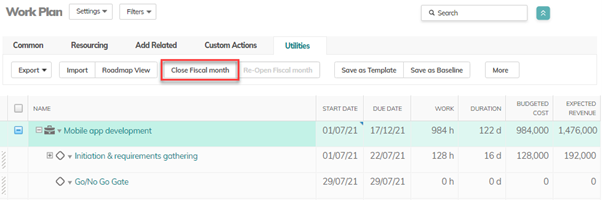
Step 1: Access the Project Utilities
In the Project Utilities tab, the system displays a Close Fiscal Month button when:
-
The project has a valid fiscal calendar
-
A current fiscal month start date exists
Step 2: Select the New Fiscal Month Start Date
Clicking Close Fiscal Month opens a dialog:
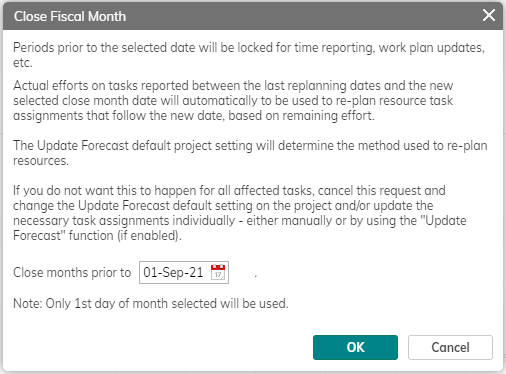
The default date shown is:
-
The first day of the next fiscal month, based on either
-
The project’s current fiscal month start date, or
-
The project start date (if locking for the first time)
-
If you choose an alternative date, the system automatically adjusts it to the first day of that fiscal month.
Step 3: Apply Forecast Update Settings
The project’s Update Forecast Default setting determines how resource plans are adjusted after locking.

Step 4: Confirm Lock
Once you click OK:
-
Update Forecast is run based on the field 'Update Forecast Default'
-
Financial data is recalculated based on the re-planning rules
-
The Start Date of the Current Fiscal Month is updated
-
All data before that month becomes locked and read-only
-
Validation messages appear if users try to update locked data
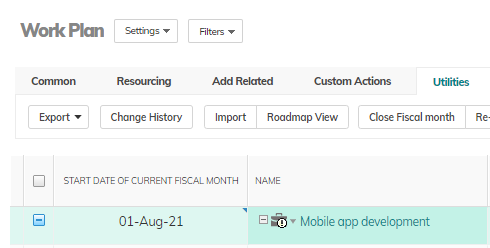
The exclamation mark (!) on the icon indicates recalculation will occur.
How This Fits Into Month Locking in the Application
Month Locking is applied at the project level by setting the Start Date of the Current Fiscal Month.
Once a month is locked:
-
Data in prior periods cannot be updated
-
System-driven changes (such as rate updates) do not affect locked data
-
Forecasting and planning continue only in open months
This approach allows organizations to balance financial control with ongoing project execution.
What Happens When a Month Is Locked
Except for fields explicitly excluded (“frozen” fields), locking triggers the following behaviors:
-
Actuals → Forecast Copy: Actual hours and costs are copied into forecasting fields.
-
Forecast Updates: A forecast recalculation process may run depending on project settings.
-
Reopening Restrictions: A locked month can only be reopened by authorized users.
Example