



Smart Staffing
Overview
The Staffing Optimizer is an intelligent resource-matching feature built directly into the existing Add Resource panel in Planview. It helps project managers and resource managers identify the best-fit people resources for a given work item — going beyond manual search by applying configurable filters, weighting, and a data-driven matching score.
Rather than browsing through a list of available people, users define what an ideal resource looks like for their work item. The Staffing Optimizer then scores every qualifying candidate and surfaces them in ranked order, giving decision-makers a fast, evidence-based way to staff their projects.

Key Concepts
Staffing Optimizer Tab
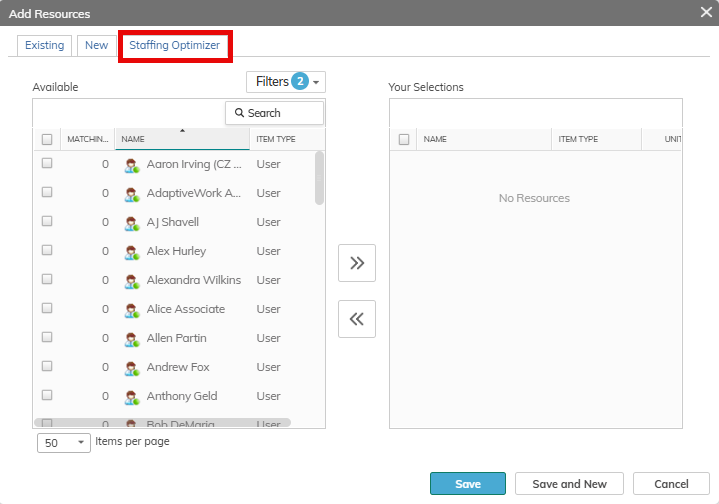
The Staffing Optimizer is introduced as a new tab inside the existing Add Resource panel, alongside the current Existing and New tabs. It is exclusively focused on People resources — Assets, User Placeholders, Asset Placeholders, Groups, and Group Job Titles are excluded from this view.
Filter-Based Candidate Qualification
As in the Existing resource tab, users configure filters to describe the characteristics of the resource they need. These filters draw on standard and custom fields from Resource Link, encompassing both user-level attributes and work item context.
Within the Staffing Optimizer, each filter can be applied in one of two modes:
- Must-Have filters act as hard exclusion criteria. Any resource that does not satisfy every Must-Have filter is removed entirely from the candidate list — they are neither displayed, considered, nor scored. Must-Have filters applied on the Existing resource tab (on People module) will apply on the Staffing Optimizer tab and vice versa.
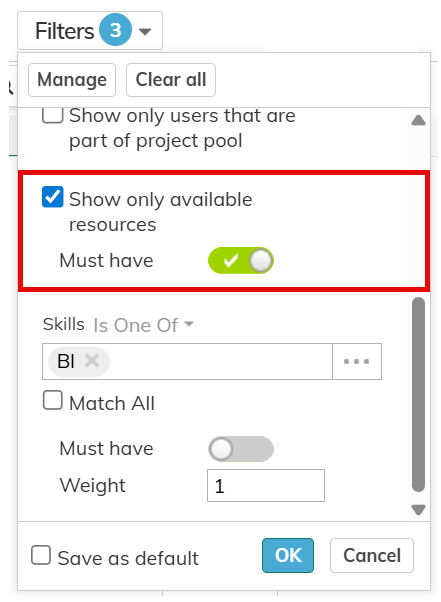
- Scoring filters (non-Must-Have) do not gate eligibility, but instead determine how candidates are ranked. Resources that pass all Must-Have requirements are evaluated against these filters and assigned a Matching Score that reflects how well they meet the defined criteria. The more closely a candidate aligns with the scoring filters, the higher their score. Scoring filters defined on the Staffing Optimizer tab, will not impact the filter criteria on the Existing resource tab.

This two-tier approach gives users precise control: Must-Have filters narrow the pool to only viable candidates, while scoring filters surface the best fit among them.
Weight Indicator
Each non-Must-Have filter carries a Weight Indicator that reflects its relative importance in the overall matching score. Weights can range from 0 to 100 and default to 1. Users can adjust the weight on any individual filter to increase or decrease its contribution to the final score.
For example, if Skills alignment is more critical than Cost Rate for a particular work item, the Skills filter can be given a higher weight so that it contributes more heavily to how candidates are ranked.

Rank Indicator
For value range filters where either a minimum or maximum value is set, a Rank Indicator defines the direction of preference:
• Max to Min: The lower end of the range is preferred. Candidates closer to the minimum value receive a better score contribution from this filter.
• Min to Max: The higher end of the range is preferred. Candidates closer to the maximum value receive a better score contribution.
📝 Note: The Rank Indicator applies only to non-Must-Have filters. Must-Have filters are binary — a candidate either passes or is excluded.
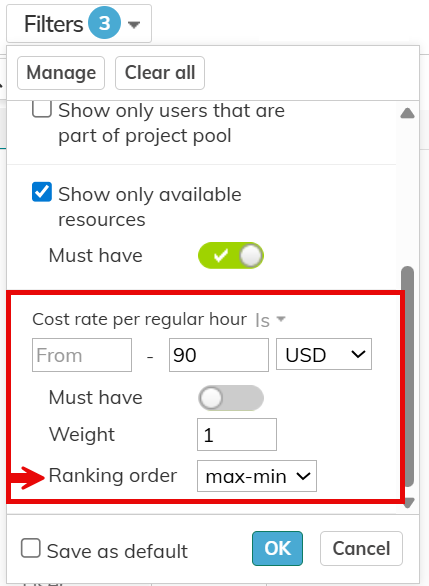
For value range filters where minimum and maximum values are set, the Rank Indicator is not applied as resource candidates that are within range will score higher than resource candidates that are not within range.
Filter Settings Management
Users interact with filters through a dedicated Filters button on the Staffing Optimizer tab. This opens the filter configuration panel where fields, operators, Must-Have status, Rank Indicators, and Weights can be set.
Once configured, clicking Set applies the filter definitions and triggers score calculation. Users also have the ability to save their current configuration as a Default, so the same filters are pre-populated the next time the Staffing Optimizer is opened.
Matching Score
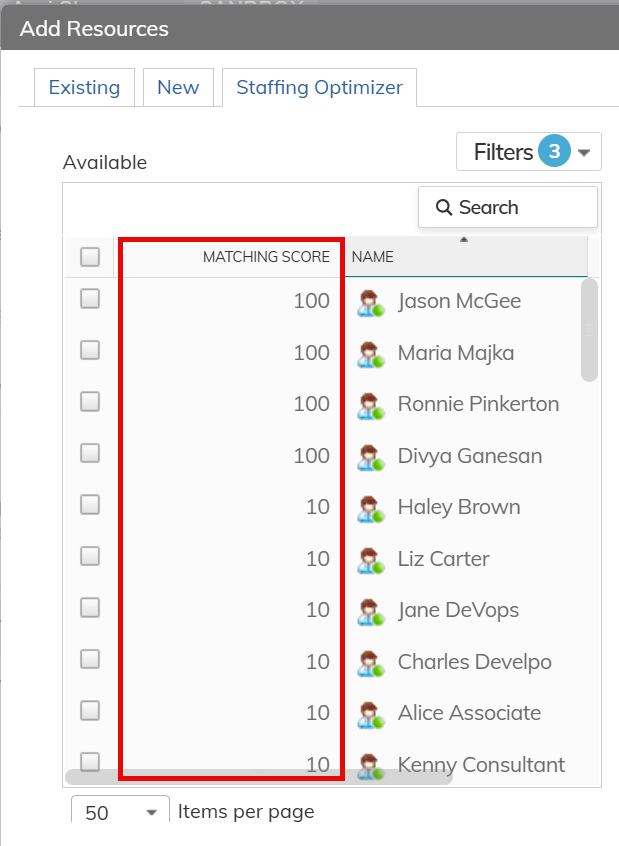
The Matching Score is the central output of the Staffing Optimizer. It expresses, as a percentage, how well a resource candidate satisfies the non-Must-Have filters configured and relevant for the work item.
The Matching Score is calculated and displayed once non-Must-Have filters have been set.
Score Calculation
Each non-Must-Have filter produces an individual score in the range of 0 to 1:
- Value, defined Range, and Reference filters: Return 1.0 if the candidate matches the criteria, otherwise 0.
- Range with only min or max value: Return fractional score
- Link filters (AllMatched = false): Return 1.0 if the candidate links to at least one of the specified objects.
- Link filters (AllMatched = true): Return a fractional score — the number of matched values divided by the total number of required values.
The overall score is then calculated as:
|
Overall Score = (Σ filter score × weight) ÷ number of filters ÷ maximum weight |
Normalizing by the maximum weight ensures the final score always falls between 0 and 1 (0%–100%), regardless of how many filters are configured or what weights are assigned.
Score Display and Tooltip
The Matching Score is always (and only) displayed on the Staffing Optimizer tab. It cannot be hidden or removed. Each candidate's score is accompanied by a tooltip that shows a breakdown of each filter's individual contribution - helping users understand why a particular candidate scored higher or lower than others.

When is the Score Calculated?
Matching Score calculation is triggered once the user has finished defining and applying their matching filters. Candidates are then evaluated against those filters and displayed in descending order of their score.
Candidate List
Once filters are applied, the Staffing Optimizer displays a ranked list of qualified resource candidates — those who passed all Must-Have requirements. Candidates are sorted in descending order of their Matching Score.
This ranked view gives users an at-a-glance comparison of all eligible people resources, allowing them to make a selection based on who best meets the work item's needs.

Resource Selection
After reviewing the candidate list, the user selects one or more resources. The selection screen then shows:
- Selected resource: Always displayed and cannot be removed.
- Matching Score at time of selection (optional): Always displayed and cannot be removed. This preserves the score as it was at the moment of selection, even if filters are subsequently changed.
- Additional columns (optional): Users may be able to add more columns via profile settings.
- Comments field (optional): A free-text field allowing the user to document their reasoning for the selection.
📝 Note: The optional features above are listed as stretch goals for the MVP phase and may be delivered in a subsequent iteration.
Behavior Summary
|
Behavior |
Description |
|
Resource types shown |
People resources only. Assets, Placeholders, Groups, and Group Job Titles are excluded. |
|
Must-Have filters |
Hard exclusion. Candidates who fail any Must-Have are removed entirely from the list. |
|
Non-Must-Have filters |
Contribute to the Matching Score via their individual scores, weights, and rank preferences. |
|
Score display |
Always visible on the Staffing Optimizer tab; cannot be removed. |
|
Score format |
Displayed as a percentage (0%–100%) with a tooltip. |
|
Sort order |
Candidates sorted by Matching Score, highest first. |
|
Score trigger |
Score is calculated when the user applies filter definitions via the Set button. |
|
Save as Default |
Users can save filter configurations to be reloaded automatically in future sessions. |
Known Considerations and Limitations
The following aspects of the Matching Score carry inherent limitations in this phase:
• Available Resources: Scored as min(UserWork, WIWork) / WIWork. Users who can complete all the work on the task receive a score of 1.0; others are scored proportionally. If the filtered time period is shorter than the task duration, the score may never reach 1.0. This approach is preliminary and may be revisited.
Next Steps
-
The upcoming GA version will follow the UI/UX definitions of the Planview Design System (PVDS)