Permissions in Month Locking
1. Required Permissions
-
Project Permissions:
You must have sufficient permissions on the project(s) you want to close the fiscal month for. Typically, this means you need to be a Project Manager, Financial Manager, or have a custom role with the appropriate rights. -
Action Permissions:
The Close Fiscal Month action is only available to users who have been granted access to this specific action. If you do not see the action, you likely lack the required permissions. -
Feature Flag:
The feature flag MonthLocking (and for API, MonthLockingApi) must be enabled for your organization. If not, you will receive an authorization error.
2. Bulk Action Permissions
-
When running the action on multiple projects, the system checks your permissions for each project individually.
-
Projects where you lack permission will be skipped, and you will be notified.
3. Error Messages
If you lack permissions, you may see errors such as:
-
“You are not authorized to perform this operation.”
-
“You do not have permission to close the fiscal month for project <Project Name>.”
Administration
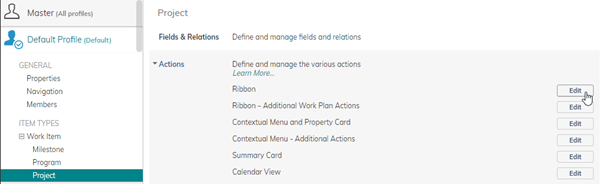
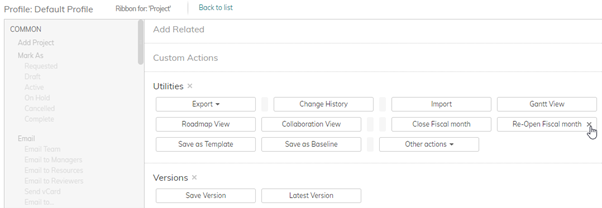
Administrators can block access to the Close Fiscal Month and Re-Open Fiscal Month functions by modifying Profile Settings and removing the functions from the list of available ribbon actions shown on the Utilities menu.