



Administrator Setup - 2.Sync Users
After the basic setup, it is now important to sync AdaptiveWork users to PV Admin.
As AdaptiveWork users are uniquely identified by their Username, it is important to enable the corresponding setting in PV Admin first
1. Navigate to Settings tab > Organization profile > check Enable usernames under Configuration Options:

Note: For successful user sync, it is important to ensure that the list of people in AdaptiveWork have First and Last Names populated and a valid email address.
2. Navigate to Products > click Manage product in the Planview AdaptiveWork tile:

3. On the Mapped Users tab > click on Sync users

4. Once sync action has completed, the Unmapped Users tab should indicate 0
5. In case Unmapped Users tab does indicate >0 unmapped users, meaning that users were not successfully synced, you need to take the following steps:
- Go to the Details tab
- Review the list of Errors to understand reasons for sync failure

- Go to Unmapped Users tab
- Review the list of unmapped users for potential manual mapping and click the 3 dots next to the listed user

- You are presented with the following options:
- Ignore - in case you do not wish to map the particular user (e.g. a non-licensed user that is not meant to access AdaptiveWork or a dummy user)

- + Map to - in case you do wish to manually map the particular user

- Check if the user is a person that already has a Planview Admin user account established - not necessarily in the context of this particular AdaptiveWork instance:
- Review or search in the list of users for an existing Planview account

- If you do find an existing Planview account, select user by clicking the row > click Save (this will associate the user and credentials to an existing Planview Admin user account and will allow the user to switch between different AdaptiveWork instances and different Planview products & services)
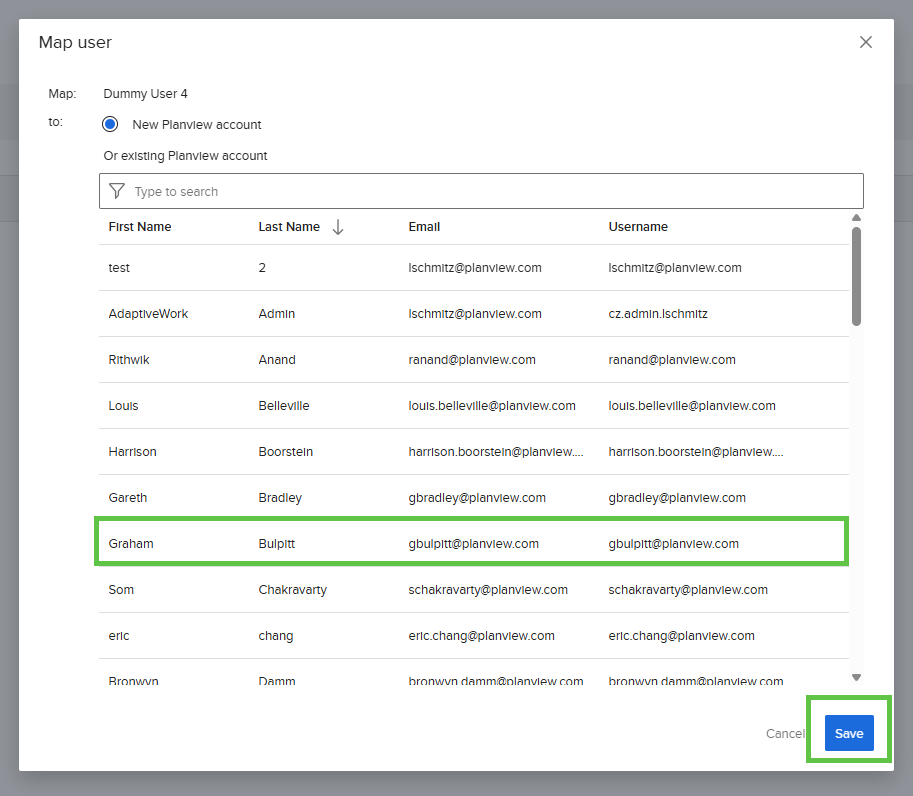
- If you don't find an existing Planview account, click the New Planview account option > click Save (this will create a new user account in Planview Admin)

- Ignore - in case you do not wish to map the particular user (e.g. a non-licensed user that is not meant to access AdaptiveWork or a dummy user)