

Update Forecast
Update Forecast
Overview
Update Forecast recalculates future task work and assignments based on actual progress and a selected recalculation method.
This capability helps keep project plans accurate over time while supporting different delivery models such as fixed-scope projects, prepaid contracts, and agile execution.
Update Forecast can be triggered automatically or manually and can be applied at the task or project level.
Important Limitation
If all task assignments were manually entered and were not generated by the system:
-
The Keep Manually Set Effort Values option does not apply.
-
During Update Forecast, the system will override existing values as part of the recalculation process.
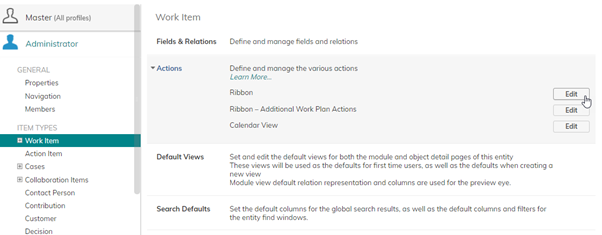
Administrators can block access to the Update Forecast action by modifying Profile Settings and removing it from the list of available ribbon actions that are displayed on the Resources menu for any Work Item type.
Additional Update Forecast Behavior and Considerations
Manually Set Resource Assignments
When Update Forecast is run on a task, the system creates manually set resource assignments between the task Start Date and the selected Forecast Date, based on Actual Effort reported.
If Update Forecast is run again on the same task with an earlier Forecast Date:
-
Previously created manually set assignments are preserved if Keep manually set effort values is selected.
-
These assignments are reset only if Keep manually set effort values is not selected.
Availability of Update Forecast Methods by Work Level
-
Options 1 and 2 are available at all levels of a work plan:
-
Project
-
Milestone
-
Task
-
Multiple selected work items
When applied, they affect all tasks and resources under the selected level in the hierarchy.
-
-
Option 3 – Update work for the entire task is available only for individual tasks.
-
It is not supported when multiple tasks would be impacted (for example, at the Project, Milestone, grouped task, or multi-selection level).
-
Work Distribution and Task Dates
Future task work is distributed according to the Task Work Policy.
In some cases, this may cause the task Due Date to change, for example:
-
When the amount of work to be planned exceeds the capacity of the assigned resource(s) within the original timeframe.
Resource Removal After Actuals Are Reported
If a resource is removed from a task and Actual Effort exists before the Last Replanning Date, the system presents the following options:
-
Make resource inactive
-
Removes assignment information from the Last Replanning Date onward
-
Retains historical Actuals and Budget/Forecast data
-
-
Delete resource and all related time entries
-
Removes all assignment and time entry data
-
Retains only actual financial information
-
Work and Estimate at Completion (EAC)
Task Work is calculated as Estimate at Completion (EAC):
**EAC = Actual Effort before the Last Replanning Date
Planned task assignments from the Last Replanning Date onward**
“Original” Fields Behavior
Fields prefixed with “Original” are populated only the first time Update Forecast is applied to a task.
-
They are set using the values from their corresponding planned or budget fields at that time.
-
If Update Forecast is run for a specific task only, then only the Original fields for that task are updated.
Timesheet Considerations
-
Only Approved timesheet hours are considered when calculating task work.
-
Unapproved or rejected timesheet entries are not included.
When Timesheets Are Not Used
If timesheets are not enabled and Actual Effort or % Complete is updated directly:
-
Actual effort hours are evenly distributed between:
-
The task Start Date, or
-
The Last Replanning Date (if Update Forecast was previously run),
and the newly selected replanning date.
-
-
Only the difference in Actual Effort since the last replanning is considered.
-
Future task work is then recalculated and distributed according to the selected Update Forecast method and task work policy.
When Tasks Cannot Be Replanned
You may receive a message indicating that tasks cannot be automatically replanned.
This can occur when tasks have manual constraints, such as:
-
Fixed Duration
-
Due Date constraints
-
A Fixed Duration task work policy
and the selected replanning date extends beyond the task’s Due Date.
To proceed with replanning:
-
Adjust or remove the relevant task constraints
-
Run Update Forecast again