

Update Forecast
Update Forecast
Overview
Update Forecast recalculates future task work and assignments based on actual progress and a selected recalculation method.
This capability helps keep project plans accurate over time while supporting different delivery models such as fixed-scope projects, prepaid contracts, and agile execution.
Update Forecast can be triggered automatically or manually and can be applied at the task or project level.
How Update Forecast Is Triggered
Month Locking (Project Level)
When a month is locked on a project, the system automatically runs Update Forecast using the value defined in the Update Forecast Default field.
Task-Level Update
A user can manually run Update Forecast on a specific task.
Only the selected task is recalculated.
Navigation:
Resourcing → Update Forecast
Project-Level Update
A user can manually run Update Forecast on an entire project.
All tasks within the project are recalculated.
Navigation:
Resourcing → Update Forecast
The default Update Forecast method for projects is defined in System Settings (7.12) and can be overridden at the project level.
Update Forecast Methods
The following methods determine how total work and future assignments are recalculated.
| Option | Method Description | Total Work Estimate | Future Assignments | Typical Use Case |
|---|---|---|---|---|
| 1 | Retain total work estimate and spread future work | Remains the same | The difference between total work and actual work completed is redistributed across future periods | Fixed-scope or contracted work |
| 2 | Retain future planned work assignments | May change based on differences between planned and actual past work | Remains the same | Prepaid or contracted support hours |
| 3 | Update work for the entire task | May change based on differences between planned and actual past work | Updated based on the value entered by the user | Agile or operational work |
Method Examples
Option 1 – Retain Total Work Estimate and Spread Future Work
Behavior
-
The total work on the task remains unchanged.
-
Work already completed is taken into account.
-
The difference between total work and completed work is redistributed across future periods.
Example
-
Total task work: 100 hours
-
Actual work completed: 40 hours
-
Planned future periods: Next 4 weeks
After Update Forecast:
-
Total work remains 100 hours
-
The work corresponding to the future periods is recalculated and spread across the remaining weeks, based on the selected planning logic.
Typical Scenario
Fixed-price or fixed-scope projects where the overall effort must not change, even if progress deviates from the original plan.
Option 2 – Retain Future Planned Work Assignments
Behavior
-
Future planned assignments remain exactly as they are.
-
The total work estimate may increase or decrease to reflect differences between planned and actual past work.
Example
-
Planned work for future weeks: 10 hours per week for 5 weeks
-
Actual work so far exceeded the plan by 8 hours
After Update Forecast:
-
The future weekly assignments remain unchanged.
-
The total task work increases to reflect the additional effort already spent.
Typical Scenario
Prepaid support contracts or service entitlements where future allocations must remain fixed, regardless of past overruns or underruns.
Option 3 – Update Work for the Entire Task
Behavior
-
The user explicitly enters a new value for task work.
-
The system recalculates future assignments based on this new value and actual work already completed.
Example
-
Actual work completed: 30 hours
-
User updates task work to: 60 hours
After Update Forecast:
-
The system recalculates future assignments so that the total task work aligns with the newly entered value.
Typical Scenario
Agile or operational tasks where work is frequently reassessed, such as daily Scrum activities or ongoing operational tasks.
Keep Manually Set Effort Values
The Keep Manually Set Effort Values option is available for all Update Forecast methods.
When enabled:
-
Effort values manually entered for specific periods are preserved.
-
This is useful for fixed events such as meetings, workshops, or scheduled activities that must not change.
-
After preserving the manually set values, the system recalculates and distributes the remaining portion of the task work across the rest of the planning period.
Resource-Level Work Distribution
Update Forecast behavior is influenced by the Leaf Task Progress Reporting Policy on the task. This policy determines how task work is managed across assigned resources:
-
Shared – Task work is shared across all assigned resources.
-
Individual – Task work is tracked separately for each resource.
The default value is defined at the system level under:
System Settings → Work Management → Task Reporting Policy
Preventing Reassignment to Inactive Resources
To prevent work from being reassigned to a resource that is no longer working on a task, set the Leaf Task Progress Reporting Policy to Individual at the task level.
Important Limitation
If all task assignments were manually entered and were not generated by the system:
-
The Keep Manually Set Effort Values option does not apply.
-
During Update Forecast, the system will override existing values as part of the recalculation process.
Administrators can block access to the Update Forecast action by modifying Profile Settings and removing it from the list of available ribbon actions that are displayed on the Resources menu for any Work Item type.
-
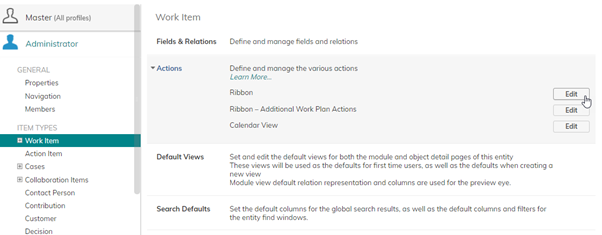
- The Update Forecast process can also be initiated through configuration using the Update Forecast action
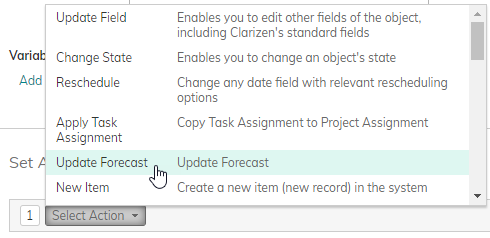
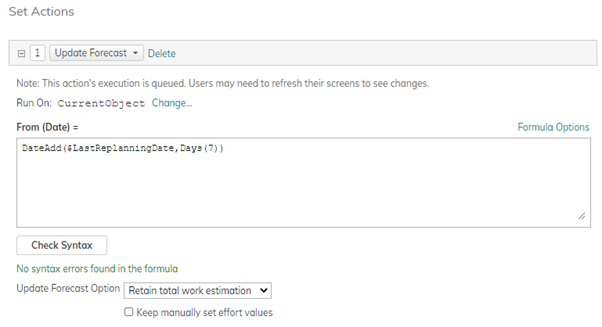
- The action can be run on any Work Item
- The Update remaining effort for the entire task option is not available through configuration
Notes
- Use of the Update Forecast feature on a task will create manually set resource assignments between the Start Date and the selected Forecast Date, based on Actual Effort reported. If Update Forecast is repeated on the same task, but with an earlier selected Forecast Date, the manually set resource assignments (previously created by applying Actual Effort to the task) will only be reset if the “Keep manually set effort values” checkbox is NOT selected
- Options 1 and 2 above are available at any level of a work plan - Project, Milestone, Task, or multiple Work Items, and affect all tasks and resources below the selected level in the hierarchy.
- Option 3 (Update remaining effort for the entire task) is not applicable where multiple tasks will be impacted (i.e. on Projects, Milestones, group Tasks and multiple task selections), and so is available only for individual tasks.
- Remaining effort for future periods is spread based on the Task work policy. This is important to know because in some cases the Due Date of a task may change (e.g. if the remaining effort is beyond the capacity of a resource to deliver in the original timeframe)
- If a Resource is deleted from a task and there are actual efforts reported prior to the Last Replanning Date, the following options are presented:
- Make resource(s) "inactive" – removes assignment information for the resource from the Last Replanning Date onwards, but retains previous Actual and Budget/Forecast information
- Delete resource(s) and all related time entries – removes all assignment information and retains only actual financial data
- Work = EAC (Estimate At Completion) = Actual Effort from dates prior to the Last Replanning Date + planned task assignments from the Last Replanning Date onwards
- The fields prefixed with the word “Original” only get updated the first time that Update Forecast is applied to a Task. They are updated with the values from their corresponding planned/budget fields at the time. If the update is run only for a specific Task, then only the “Original…” field values for the task are updated.
- For Timesheets, only Approved hours are considered for Remaining Effort calculations.
- If you do not use timesheets, and instead directly update Actual Effort or % Complete, the actual effort hours will be spread evenly over the period between the task’s start date (or the Last Replanning Date if Update Forecast has already been previously run) and the newly selected replanning date. Only the difference in Actual Effort between the Last Replanning Date and the newly selected replanning date will be used each time. The remaining effort is then calculated and spread as previously described.
- If you receive a message that tasks cannot be (automatically) replanned:
- This can occur when there are manually set constraints such as Duration, Due Date or Fixed Duration work policy, and the requested replanning date is beyond the due date of the task.
- If replanning is still needed, please modify the constraints of tasks that meet these conditions and then run "Update Forecast" again.
- See also how updating the forecast affects date effective rates.