



Planview Admin Authentication
Overview
Planview Admin is Planview's centralized identity and user-management platform available for Planview direct customers. It lets customers manage user authentication across all Planview products from a single console. To add a new Hub user, first add the user in Hub Cloud’s user-management view. Managing Hub user permissions from Planview Admin is not supported.
This page explains how to enable Planview Admin for all Hub users in your organization. For Planview Admin features, see Planview Admin: Getting Started.
Prerequisites
Before adding your Hub Cloud instance to your organization’s Planview Admin console, ensure you have:
-
Admin access to the existing Hub instance
-
Admin access to the Planview Admin organization
-
Hub URL (e.g., https://example.tasktop.net)
-
Email address for the Planview Admin organization owner
-
Ensure your Hub Cloud uses a Planview Direct edition license. OEM editions and on-premises Hub instances are not supported.
Adding Hub Cloud as a product in Planview Admin
To enable Hub Cloud as a product in Planview Admin, you must be a Hub Admin.
-
Follow the Planview Admin Enablement guide to get started.
-
After Hub Cloud is added, Planview Admin will ingest user information of the Hub Cloud’s user configuration. This process usually takes a few minutes to complete. The Hub user data migration to Planview Admin will not disrupt Hub's operation or affect logged-in users' interactions.
-
Note that Planview Admin will not sync a user who lacks an email address, first name, or last name in Keycloak.
-
-
Verify that the user migration completed by populated user data in Planview Admin. If any migration failed, check errors in Planview Admin’s Manage Product > Details view shown in the screenshot below.
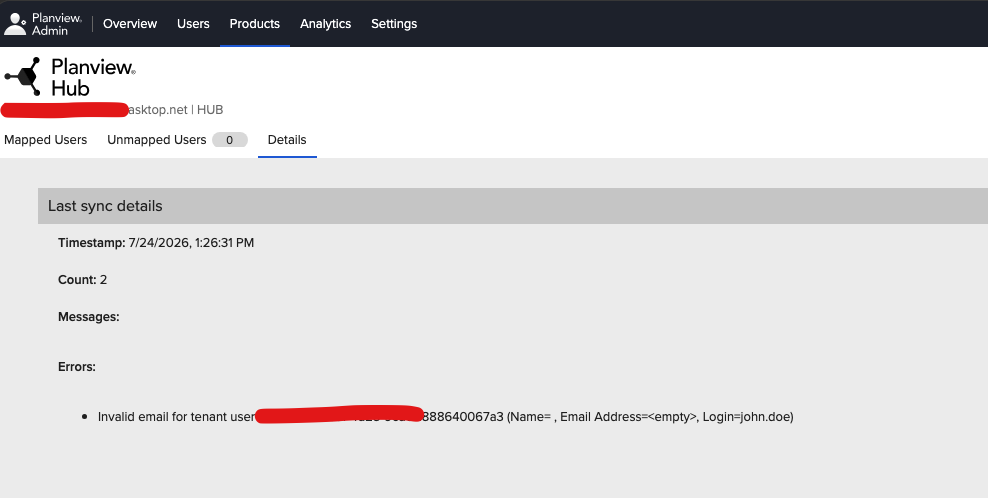
For more information about the user migration, see Synchronizing Users page in the Planview Admin Guide. This guide also explains how to map and unmap users from Hub.
Next Step: Enabling Planview Admin Authentication for Hub Cloud
After the user migration is complete, through Planview Admin Console, you can enable Planview Admin to provide Hub Cloud authentication.
Follow the Enabling Planview Admin Authentication guide.
Once Planview Admin Authentication is enabled, you can login to Hub Cloud through Planview Admin authentication with the following methods:
-
Enter the Hub URL in your browser. You will be redirected to Planview Admin, where you can authenticate using your Planview Admin credentials. After successful authentication, you will be logged in to Hub.
-
Go to the Planview Admin dashboard and click the Hub tile. This will log you directly in to Hub.
If you wish to switch back to Hub Cloud Keycloak authentication, go to the Planview Admin dashboard and disable Planview Admin authentication. For instructions, follow the Enabling and Disabling Planview Admin Authentication guide.
What You See After Enabling Planview Admin Authentication
Changes to Hub’s User Management menu
After Planview Admin authentication is enabled, a new option appears in Hub’s user management menu. Users can use this option to access their Planview Admin dashboard.

Accessing the Keycloak console after enabling Planview Admin authentication
Planview Admin is used only for the authentication. However, user and role management continues to be configured and processed by Hub via Keycloak.
To access the User Management console, use the existing user management menu options. When you navigate to the User management console, you will be prompted to enter your Hub username and password, even if you were authenticated by Planview Admin earlier. This is because the Hub user management authenticates user sessions independently from Planview Admin.

Automate Your Hub Management Workflows with the Hub REST API
To use Planview Admin authentication to call the Hub REST API for automating your Hub management workflow, configure OAuth2 client credentials in the Planview Admin dashboard.
Follow the OAuth2 Client Credentials guide to configure OAuth2 client.
You can generate OAuth2 credentials for Hub for different roles.

After the credentials are generated, create the bearer token by following the section Using OAuth2 credentials in the OAuth2 Client Credentials guide. You can then use this bearer token to make REST API calls to Hub.
Note: Hub REST APIs accept bearer tokens issued by Keycloak or Planview Admin.
NOTES
- To add a new Hub user, first add the user in Hub Cloud’s user management console. Managing Hub user permissions from Planview Admin (i.e. top-down user management) is not supported.
- To prevent importing an incorrect configuration into an instance not registered with Planview Admin, the Planview Admin configuration in Hub is excluded from configuration export and import functions in Hub. This also ensures importing an empty Planview Admin configuration does not remove the existing configuration in the target Hub instance.