



Planview Hub Cloud Migration FAQ
Last Updated: | Applicable Hub Versions: Cloud

Figure 1: The standard Hub Cloud infrastructure
This FAQ describes the step-by-step process for migrating existing on-prem Planview Hub deployments to a SaaS environment.
Hub supports the following databases for on-premise use:
- Microsoft SQLServer
- Oracle
- PostgreSQL
The key challenge in performing a Hub migration is importing the existing configuration and artifact data from the source database into the PostgresSQL service that Hub Cloud uses. The exact migration process varies depending on:
- The brand and version of the existing database
- The size of the existing database
Prerequisites
Before a cloud migration can begin, customers are required to upgrade their on-prem Hub deployments to a recent release. This is to ensure that no database schema changes need to be performed as a part of the cloud migration process (since, this would greatly impact the amount of downtime and therefore the size maintenance window required to perform the live migration).
Customers must also submit the following information:
- Source database: the vendor and version.
- Database size: the current size of the production database.
- Backup format: the format of the database backups currently in use. This matters most for Oracle, which can be backed up in several ways. Oracle users must provide their database backup file in DataPump format.
- Server resources: the memory and CPU allocations for both the Hub and database servers.
- Content volume: the total number of repositories and projects.
We use this information to determine the best migration plan for each customer.
Migrating a Small-Scale Hub Instance to Hub Cloud
When you migrate a small on-premises Hub instance with fewer than 1 million artifact associations to Hub Cloud, you can export the associations from the source instance and import them into the target instance. This preserves the relationships Hub has established between artifacts in connected systems when you move an integration from one instance to another. For detailed steps, see the [small-scale Hub Cloud migration guide].
Migrating a Medium-to-Large Hub Deployment
For Hub instances with more than 1 million artifact associations, we recommend migrating the database. This method imports your source database into a standard Hub Cloud Postgres database. The steps depend on the size and type of your source database.
Steps for All Source Databases
Whatever your database type, you must complete these three steps:
- Stop all of your integrations.
- Take a backup of your database.
- Upload the backup to the location the Plavview Support shared.
If you use Postgres and your backup is 10 GB or smaller, these steps are all you need to do. The database can usually be imported directly into the standard Hub Cloud database, with no intermediate steps or extra infrastructure.
Additional Steps for MySQL, Oracle, and SQL Server
If your source database is MySQL, Oracle, or SQL Server, the Hub team performs some extra steps after you upload your backup.
- Temporary infrastructure is created to import your backup.
- MySQL: The team creates an Amazon RDS instance that matches the version of your source database.
- Oracle and SQL Server: The team creates an Amazon RDS instance and an EC2 instance. The EC2 instance contains the utilities needed to import your backup into the RDS instance.
- The data is migrated. Hub Engineering runs an internal migration tool that moves the data from the temporary database to the standard Hub Cloud Postgres database.
Temporary Migration Infrastructure (in purple)
For Oracle and SQLServer users, we create a few temporary infrastructure components in order to ingest the source database backup. How the source database backup is delivered to our Hub Cloud Engineer depends on the size of the backup file:
- If the file is smaller than 2GB, it can be uploaded to Hub’s support-share service.
- If the file is larger than 2GB, it will need to be uploaded by the customer to an s3 bucket using the AWS CLI tools. The AWS Command-Line Interface provides the most-reliable means of delivering large payloads into the cloud
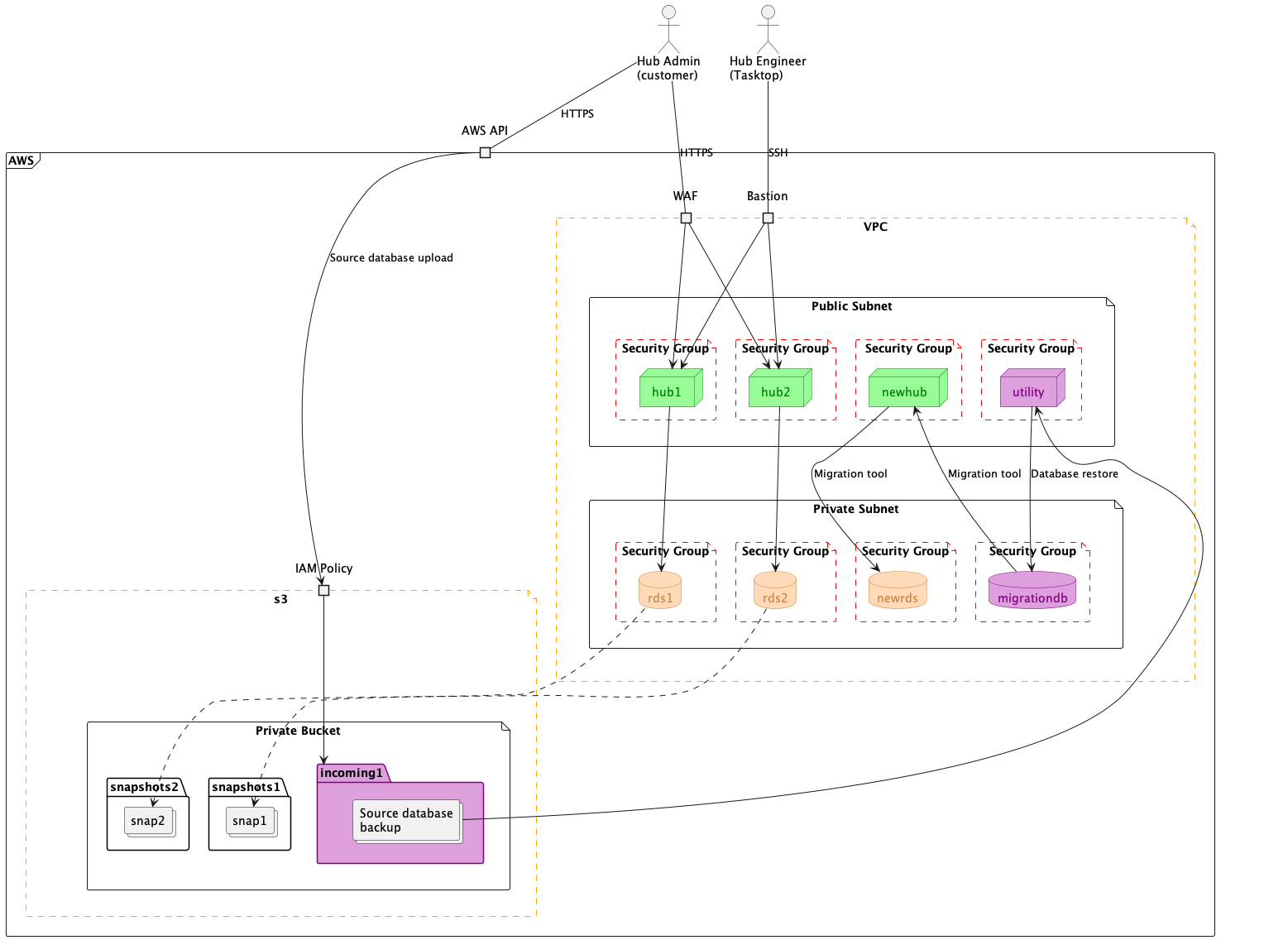
Figure 2:Temporary migration infrastructure
Migration Procedure
This process is performed twice over the course of the migration engagement: Once as a proof-of-concept (PoC) and once for the production migration.
- PoC infrastructure is created
- Production infrastructure is created (both PoC and Production are standard/new Hub Cloud infrastructure situated in the Production environment)
- Temporary migration infrastructure is created (purple); Note: for MySQL users, the migration database creation is deferred until after database backup is placed in Planview’s secure s3 bucket
- Database payload delivery instructions are provided to the customer; this could be either:
- Instructions for uploading to Planview’s support-share service
- Instructions for uploading to Planview’s secure AWS s3 bucket
- On-prem integrations are stopped; this is to ensure that integrations are not performed concurrently by the on-prem Hub and cloud instances
- On-prem database backup is taken
- For the POC migration, the on-prem integrations are resumed
- Database backup is uploaded to a temporary folder in Hub’s secure s3 bucket; Note: this is either done directly by the customer using AWS credentials provided by Planview, or by the Hub Engineer in cases where the backup was uploaded by the customer to the support-share site
- For MySQL users, the migration database is created here
- For Oracle and SQLServer users, the migration database is initialized from the source database backup using the utility ec2 instance (purple)
- Hub is reconfigured into migration mode; at this point, data is translated from the source database format into the Hub Cloud-native Postgres format and placed into either the PoC or Production database
- Hub is reconfigured to run in normal mode; this step requires that the master password used to encrypt stored credentials the source database be reset, which invalidates all of the repository credentials
- The customer logs into the Hub instance and:
- Enters credentials for all of the repositories (to ensure connectivity is good)
- Checks that the configuration was correctly migrated
- In the case of the Production migration, all integrations are started
- Health checks and log aggregation are enabled and confirmed to be functioning normally
- The customer and Planview stakeholders agree/sign-off that the migration was indeed successful
- All temporary infrastructure, credentials and backup files are destroyed
- In the case of the Production migration, the migration engagement is concluded
- In the case of the PoC migration, a maintenance window is scheduled and any adjustments to the migration process are documented
Database backup instructions
The backups for each type of database must be created according to the following specifications.
Postgres
Because Planview Hub Cloud uses Posgres RDS instances, backups produced by the native pg_dump utility are supported for ingest into Hub Cloud. See here for more information.
SQLServer
Plaview will support SQLServer database backups taken using the native SQLServer export format, and in BACPAC format in cases where the source SQLServer is hosted on Azure. See your vendor documentation for details on how to create these backups.
Oracle
Planview supports ingest of Oracle database backups made using Oracles DATA_PUMP backup method. Assuming your Hub database server is dedicated to Hub, you can take a complete backup by exporting the USERS tablespace:
expdp system/hub@orclcdb directory=data_pump_dir tablespaces=users dumpfile=db_export.dmp logfile=export.log indexes=n
Planview will also support ingesting DATA_PUMP backups taken using SCHEMA mode.