



Manage Events
Introduction
Events can be anything that occurs on a certain date and time. For example, meetings, accidents, when a decision was made, and so on.
The Event tab allows you to track the events associated with your Release. Events added under this tab will be displayed on the Release Calendar.
Pre-requisite
- To view the Event tab in a Release pop-up, ‘Enable Event Functionality’ must be selected in the Release Event Management.
- You must have the ‘View Enterprise Release Tabs – View Events Tab’ user permission enabled to view the ‘Event’ tab and ‘Add/Update/Delete Events in Enterprise Releases’ user permission to add events.
Navigation
Release > Manager
Access ‘Event’ tab
To access the Event tab:
- Navigate to the ‘Release Manager’ page.
- Search for the Release in which you want to manage the Events. You can use the filter options available on this page.
- Open the record by clicking on the Release ID or Release Name.
- Click on the Event tab.
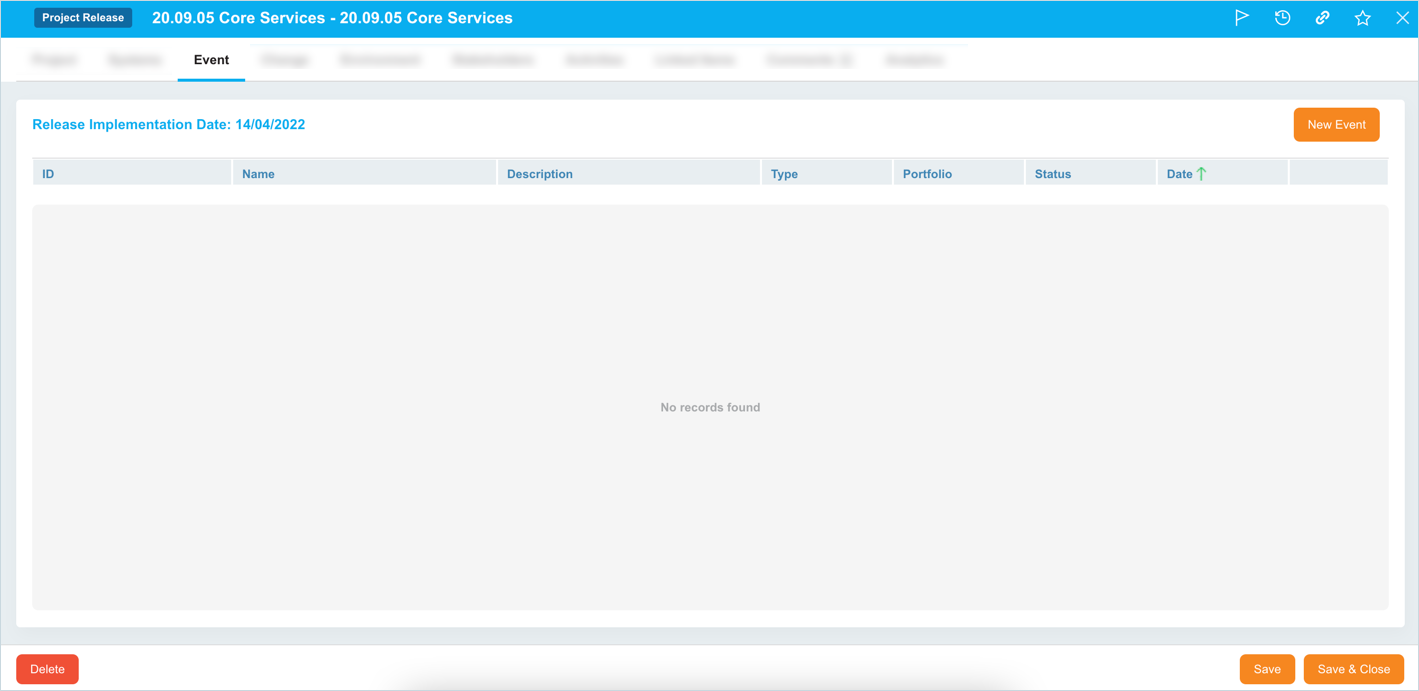
Add an Event
To add an Event, on the Event tab, click  and fill in the following details:
| Fields | Description |
|---|---|
| ID/Name/Description | Enter a unique ID, name, and description for the Event. |
| Type | Select a type from the drop-down. To customize these types, see Release Event Type |
| Portfolio | Select a portfolio from the drop-down. To customize these portfolio, see Release Event Portfolio |
| Status | Select a status from the drop-down. To customize, see Release Event Status |
| Date | Select the event date from the drop-down. The Release’s Implementation Date appears as the default date but it can be changed. |
Click  then click
 .
.

Edit Event
To edit an event, double click the Event and update the fields. Then click .png?revision=1) and
and .png?revision=1) .
.
Delete Event
To delete an Event, click  next to the Event.

Release & Verify will delete the Event.
More Information
Add/Remove Columns
Hover your mouse cursor over a column header to display  . Click Columns and then select or deselect column checkboxes to toggle column visibility.

Sort a column
To sort a column, click on the column header. ↑ or ↓ displays indicating the ascending or descending column sort.