



Release Event Management Customization
Release Event Management Customization allows administrators to toggle the Event tab in the Enterprise, Project or Independent Release pop ups.
Events can be anything that occurs on a certain date and time. For example, meetings, accidents, when a decision was made, and so on. Events can be viewed in the Release Calendar by toggling the Event radio button under Release Details. They can also be viewed in Event Reports.
Events in the Enterprise, Project or Independent Release pop ups can be categorized by Release Event Type, Release Event Portfolio, and Release Event Status.

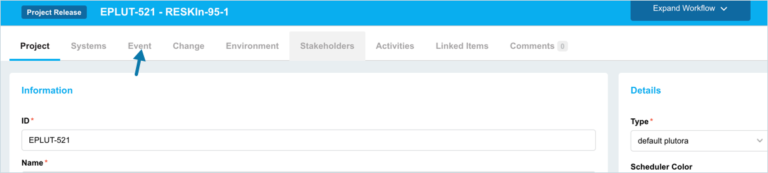
Location of the Event tab
To locate the Event tab:
- Go to Release > Manager.
- Open a Release.
- The Event tab appears on the Release.
Toggle Event Tab On
To toggle the Event tab on in the Enterprise, Project or Independent Release pop ups:
- Go to Settings
 > Customization > Releases.
 - Click Release Event Management.
- Click to select the Enable Event functionality checkbox.
- Click Submit.
The yellow Your changes have been saved pop up opens and closes.
If you click away from the Customization page without clicking Submit, your changes will not save.
Toggle Event Tab Off
To toggle the Event tab off in the Enterprise, Project or Independent Release pop ups:
- Go to Settings> Customization > Releases.
- Click Release Event Management.
- Click to deselect the Enable Event functionality checkbox.
- Click Submit.
The yellow Your changes have been saved pop up opens and closes.
If you click away from the Customization page without clicking Submit, your changes will not save.