



Insight Management Customization
The Insight Management Customization allows administrators to manage Insights Dashboard.

Location of the Insight Management Customizations
Insights Management Customization customizes the Insights Dashboard in the following locations:
- Due Soon:
- Go to Dashboard > Insights.
- Click a Harvey Ball under the Activities Summary & Progress column to open the Activities Summary and Progress pop up.
- Due Soon affects the count of Remaining Activities due soon or overdue.

- The start of the working week:
- Go to Dashboard > Insights.
- The start of the working week affects the areas of Insights Dashboard that say ‘This week’. For instance, the Activities due this week widget.

- Enable the Escaping Defects column:
- Go to Dashboard > Insights.
- Escaping Defects column is part of Insights Dashboard grid. To show Escaping Defects column if it is hidden:
- Click the left-hand side of a column header.

- Click Columns.
- Click to select the Escaping Defects checkbox.
- Click the left-hand side of a column header.
- Activity Compliance Setup:
- Go to Dashboard > Insights.
- To show the Activities completed on time widget if it is hidden:
- Click the blue cogwheel.
.png?revision=1)
- Click Manage Widgets.
- Drag the Activities completed on time widget into the top row.
- Click Manage Widgets again and click outside the menu to close it.
- Click the blue cogwheel.
-
NOTE
Click the Activities completed on time widget.

Manage Insights Dashboard
To manage Insights Dashboard:
- Go to Settings
.png?revision=1) > Customization > Insights.
> Customization > Insights. - Click Insight Management.
- Click Up
 or Down
 to change the day number for Due Soon.
 - Select a day of the week from The start of the working week is drop-down menu.
- Click to select or deselect the Enable the Escaping Defects column on the Insights Dashboard checkbox to make the Escaping Defects column appear in Insights Dashboard.
- Click Activity Compliance Setup:
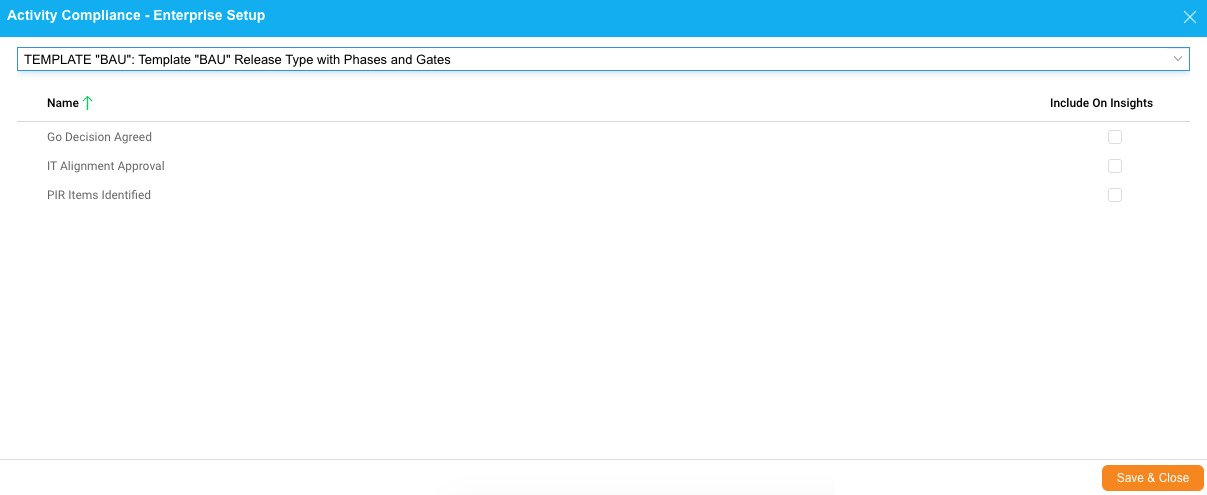
- Select a Release from the combo box.
- Click to select or deselect the Release Activity and Criterion Include on Insights checkboxes.
NOTE
Selected Release Activities and Criteria will appear in the Activities Completed on Time widget.
- Click Save & Close.
- Click Submit.
The yellow Your changes have been saved pop up opens and closes.
If you click away from the Customization page without clicking Submit, your changes will not save.
