TEBR Mandatory Details Customization
Introduction
TEBR Mandatory Details Customization allows you to choose which fields on the TEBR pop up are mandatory. The mandatory fields display an asterisk beside the field name and must be filled in before saving the TEBR.
Pre-requisite
To be able to customize the TEBR Mandatory Details, you must have ‘Access Customizations’ User Permission.
Navigation
Settings .png?revision=1) > Customization > Environments > TEBR Mandatory Details
> Customization > Environments > TEBR Mandatory Details
Enable/Disable TEBR Mandatory Fields
To toggle TEBR pop up fields mandatory or non-mandatory:
- Navigate to the ‘Customization’ page and click Environments.
- Click TEBR Mandatory Details.
- Select the checkbox of following fields to make the field mandatory:
| Fields | Description |
|---|---|
| Title | Title of the TEBR. Grayed-out field. This field is required for Release & Verify and is always mandatory. |
| Description | Description of the TEBR. |
| Type | TEBR Type. Grayed-out and mandatory if in TEBR Status 'Enable TEBR Workflow' checkbox is selected. |
| Start Date/Time | TEBR start date and time. Grayed-out field. This field is required for Release & Verify and is always mandatory. |
| Do not allow past dates to be selected | This prevents a TEBR from being booked in the past by graying out past calendar days when users select the Start Date/Time. |
| End Date/Time | TEBR end date and time. Grayed-out field. This field is required for Release & Verify and is always mandatory. |
| Do not allow Booking dates to be out of TEBR duration | When booking (or updating the bookings of) multiple Environments with different booking durations on a single TEBR without a Release, do not allow an Environment's booking to fall outside the start and end dates and times of the TEBR. The booking dates of TEBRs with a Release come from their Phases and Gates. |
| Assigned To | User to whom TEBR is assigned. Grayed-out field. This field is required for Release & Verify and is always mandatory. |
| Status | TEBR status. Grayed-out and mandatory if in TEBR Status 'Enable TEBR Workflow' checkbox is selected. |
| Booking with | This option allows administrators to force users to either book with a Project/Release or with an Environment only. You must select Booking with to enable 'Project/Release' or 'Environment Only' options. |
| Systems | Systems linked to TEBR. |
| Environment Selection | Environments linked to TEBR. |
- Click
.png?revision=1) .
.
Your changes will be saved and a confirmation message will display.
More Information
In TEBR clicking .png?revision=1) or
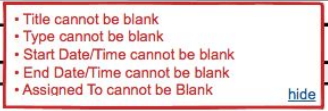
or .png?revision=1) without filling in the mandatory fields, a red pop up will display requesting that the respective field(s) cannot be blank.
without filling in the mandatory fields, a red pop up will display requesting that the respective field(s) cannot be blank.