



Setting Up Encryption
Release & Verify supports Single Sign On (SSO), a session/user authentication process that allows users to enter one name and password to access multiple applications.
Set Up Encryption
To set up SSO encryption:
- Type the following command into PowerShell v5.1 to create a certificate:
- PS C:WINDOWSsystem32> New-SelfSignedCertificate -Type SSLServerAuthentication -Provider “Microsoft Strong Cryptographic Provider” -DnsName “demo.plutora.co” -KeyUsage DigitalSignature -KeyAlgorithm RSA -KeyLength 2048 -CertStoreLocation “Cert:CurrentUserMy” -KeySpec KeyExchange -FriendlyName “demo.plutora.co”
TIP
DnsName “demo.plutora.co” and -FriendlyName “demo.plutora.co” should be equal address of site.

- PS C:WINDOWSsystem32> New-SelfSignedCertificate -Type SSLServerAuthentication -Provider “Microsoft Strong Cryptographic Provider” -DnsName “demo.plutora.co” -KeyUsage DigitalSignature -KeyAlgorithm RSA -KeyLength 2048 -CertStoreLocation “Cert:CurrentUserMy” -KeySpec KeyExchange -FriendlyName “demo.plutora.co”
- Export the certificate with the Yes, export the private key radio button selected.

- Export the public key and send to the owner of the Federation service.
The Federation service will use our public key to encrypt responses. - Record the Federation Service URL.
- Enable SSO in Release & Verify:
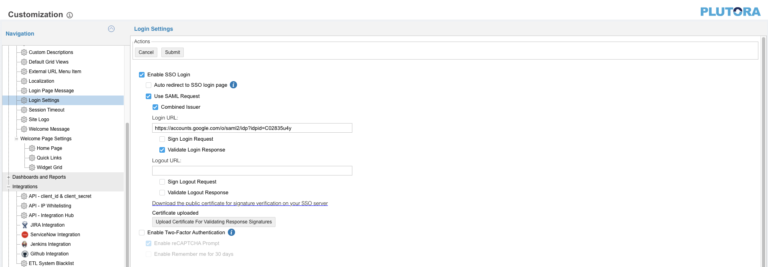
- Go to Settings
 > Customization > Login Settings in Release & Verify.
 - Click to select the Encrypt SSO checkbox.
- Click Upload SSO Certificate.
- Select the saved certificate and click Open or Upload.
- Click to select the Sign SSO request checkbox.
- Type the Federation Service URL.
- Click Submit.
- Go to Settings
- To work correctly, the Federation Service should return this attribute:
- <saml:NameID Format=”urn:oasis:names:tc:SAML:1.1:nameid-format:emailAddress”>user@email.com</saml:NameID>
- <saml:Attribute Name=”Given-name” NameFormat=”http://schemas.microsoft.com/LiveID/...ration/2008/05″> <saml:AttributeValue xsi:type=”xs:string” xmlns:xs=”http://www.w3.org/2001/XMLSchema” xmlns:xsi=”http://www.w3.org/2001/XMLSchema-instance”> Given-name </saml:AttributeValue> </saml:Attribute>
- <saml:Attribute Name=”Surname” NameFormat=”http://schemas.microsoft.com/LiveID/...ration/2008/05″> <saml:AttributeValue xsi:type=”xs:string” xmlns:xs=”http://www.w3.org/2001/XMLSchema” xmlns:xsi=”http://www.w3.org/2001/XMLSchema-instance”> Surname </saml:AttributeValue> </saml:Attribute>