Menu Setup Customization (Environments)
Introduction
Menu Setup customizes the terms ‘Environment’, ‘TECR’, ‘TEBR’, and ‘My Environment Booking’ throughout the site.
Pre-requisite
To be able to customize the Menu Setup, you must have ‘Access Customizations’ User Permission.
Navigation
Settings .png?revision=1) > Customization > Environments > Menu Setup
> Customization > Environments > Menu Setup
Customize Menu Setup
To customize a menu:
- Navigate to ‘Customization’ page and click Environments.
- Click Menu Setup.
- Click the radio button below the default menu names.
- Enter the new menu name in the empty field beside the radio button.
- Click
.png?revision=1) .
.
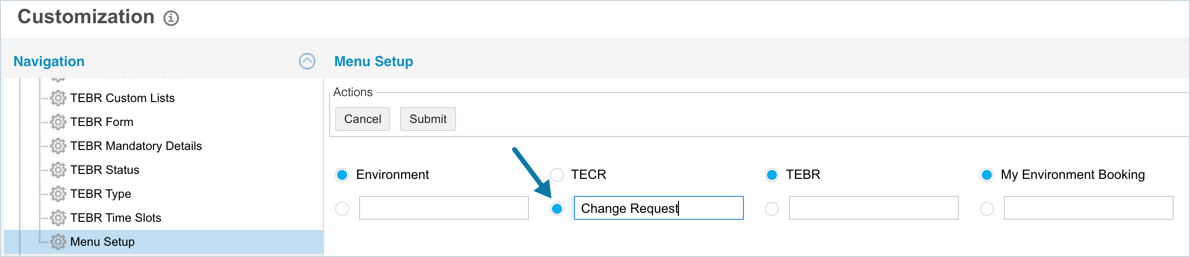
Your changes will be saved and a confirmation message will display.
Use the Default Menu Setup
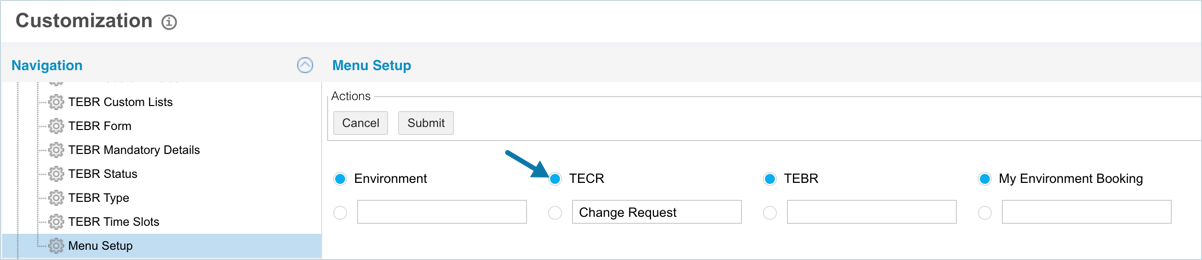
To use a default menu setup, navigate to the ‘Menu Setup’ page and click the radio button next to the default menu Name. Then click .
More Information
Location of the Menu Setup
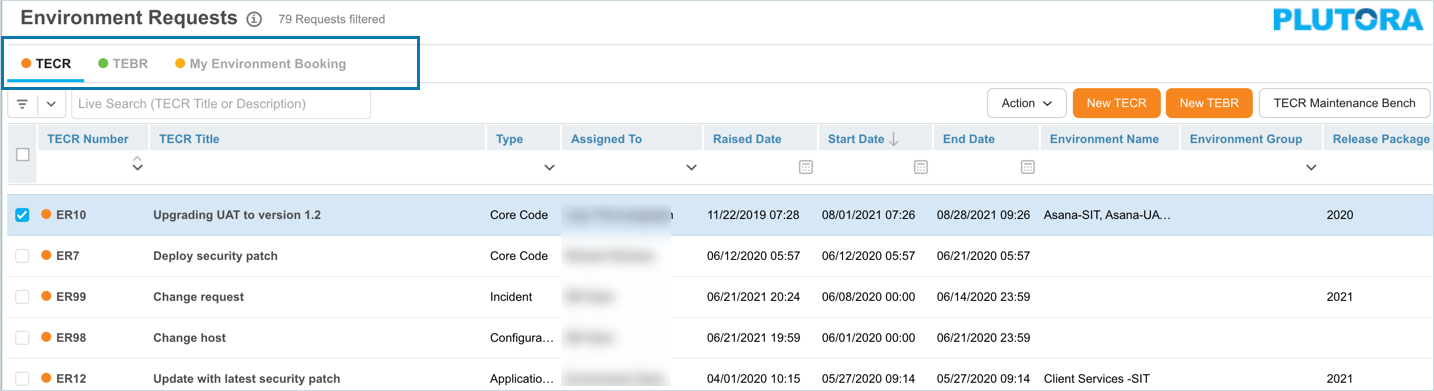
Menu Setup customizes the terms ‘Environment’, ‘TECR’, ‘TEBR’, and ‘My Environment Booking’ where they appear in the:
- Blue navigation menu.
- Environment Requests.
- TECR pop up.
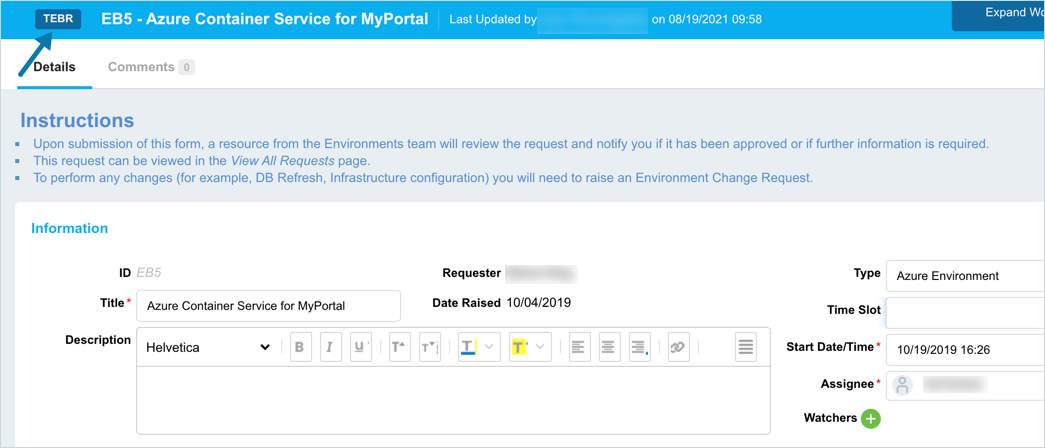
- TEBR pop ups (with and without a Release).
And anywhere else those words appear in Release & Verify. (But not customizations.)1

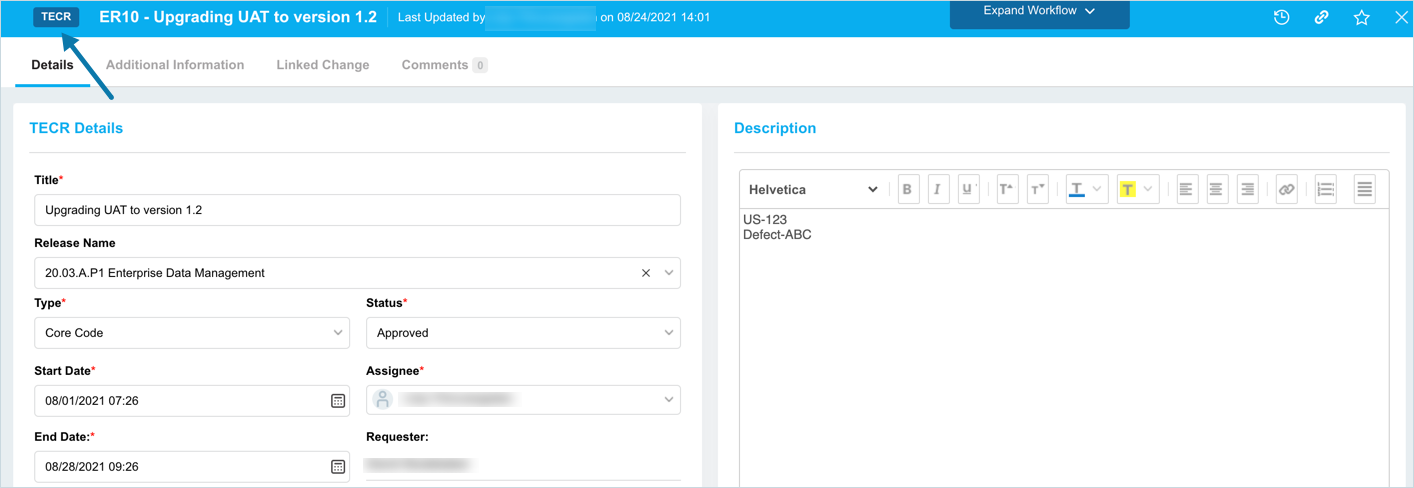
TEBR pop ups (with and without a Release).