



TEBR Workflow
Introduction
TEBR Workflow allows you to:
- Create a sequence of TEBR Statuses for each TEBR Type, from an initial status to an end status.
- Assign the privilege of setting that status to User Roles (Permission Roles) or User Groups.
If workflows are turned off, all TEBR Statuses will appear in the TEBR Status drop-down menus in Environment Requests. If workflows are turned on, only the TEBR Statuses set for that TEBR Type or the default TEBR Status will appear.
Pre-requisite
To be able to customize the TEBR Status, you must have ‘Access Customizations’ User Permission.
Navigation
Settings .png?revision=1) > Customization > Environments > TEBR Status
> Customization > Environments > TEBR Status
Create a Workflow
To create a workflow for a TEBR Type:
- Navigate to the ‘Customization’ page.
- Click Environments.
- Click TEBR Status.
- Click Open TEBR Workflow Diagram window. ‘TEBR Workflow Diagram’ dialog displays.
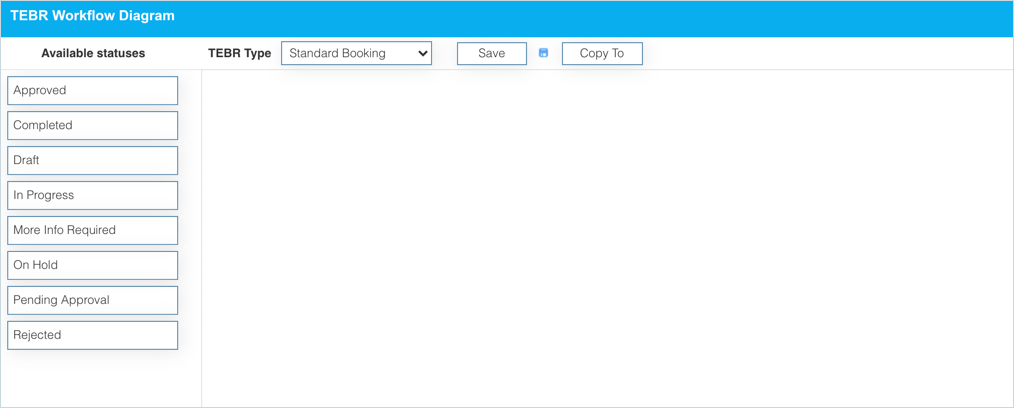
- Select a TEBR Type from the drop-down.
- Drag and drop statuses from the ‘Available statuses’ column for the workflow.
You can remove statuses from the workflow by clicking .png?revision=1) .
.
Connect the Statuses
Make connections between status boxes by clicking and dragging .png?revision=1) between status boxes.
between status boxes.
Delete the connections by double-clicking them.
Set ‘Initial Status’
Set Initial Status on one status box by clicking .png?revision=1) . Setting an initial status is mandatory. The initial status is auto-selected when you select a Type in Change Management.
. Setting an initial status is mandatory. The initial status is auto-selected when you select a Type in Change Management.

Set Status Order Priority
- Statuses must have an order priority number to appear in the workflow or the Status field.
- Numbers must be positive integers, for example, 1, 2, 3. Zero is also acceptable.
- Numbers must be unique. For example, if you enter 1, 2, 2, 3, only one of the ‘2′ Statuses appears in the Status drop-down menu.
Change Workflow Diagram Options
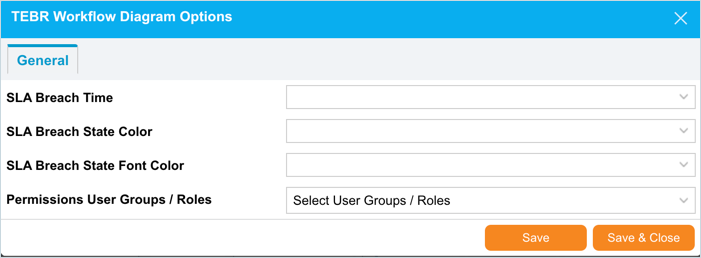
- Select an SLA Breach Time to set how much time users have to move to the next Status before it is in breach.
- Select an SLA Breach State Color from the drop-down menu.
- Select an SLA Breach State Font Color from the drop-down menu.
- Select the Permissions User Groups / Roles that may update the workflow.
- Select the Assigned To – Exclude User Groups checkbox to exclude User Groups from the Assignee field. If you have assigned a User Group in the two fields above, do not select this checkbox.
Click .png?revision=1) .
.
Copy a Workflow
You can save time by copying workflows instead of recreating them from scratch.
To copy a workflow:
- On TEBR Workflow Click
.png?revision=1) .
. - On ‘Copy Workflow for Change Type…’ dialog select a Changes Type from the Select Change Types drop-down menu.
- Click
.png?revision=1) .
.
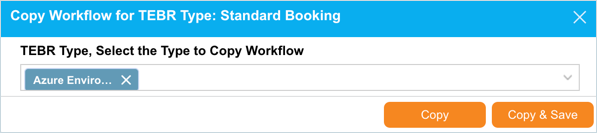
Your changes will be saved and a confirmation message will display.
More Information
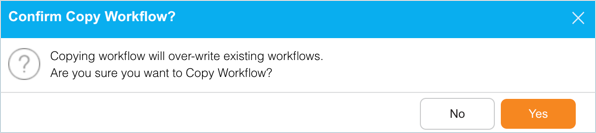
While copying a workflow to another, if you select a TEBR Type for which a workflow exists, the following alert message displays. In this case, click .png?revision=1) if you want to overwrite the existing workflow with the copied workflow.
if you want to overwrite the existing workflow with the copied workflow.
.png?revision=1)