



Release Type Group View Customization
The Release Type Group View Customization allows administrators to set up Harvey Balls by Release Type on the Insights Dashboard.
NOTE
If Harvey Balls are not appearing on Insights Dashboard, check that the Releases have Harvey Balls created for their Phases and Gates.
Location of Release Type Group View
To locate Release Type Group View View:
- Go to Dashboard > Insights.
- Each Phase or Gate is a Harvey Ball in the Activities Summary & Progress column. Release Type Group View lets you choose which Phases or Gates display as Harvey Balls for each Release Type.
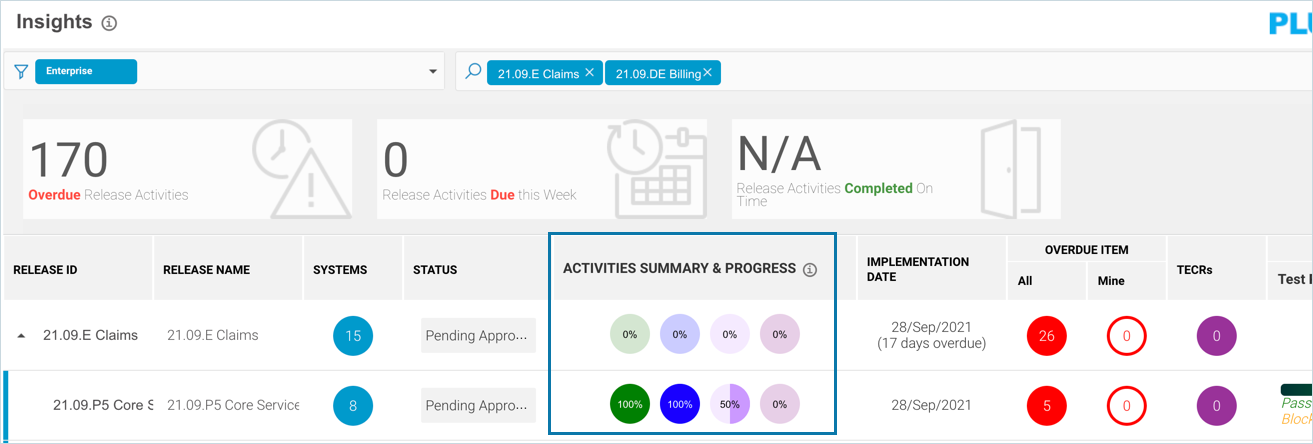
Set Up Harvey Balls by Release Type
To set up Harvey Balls on Insights Dashboard by Release Type:
- Go to Settings
.png?revision=1) > Customization > Insights.
> Customization > Insights. - Click Release Type Group View.
- Click to select the Enable to set up Harvey Balls by Release Type checkbox.
- Click Setup next to a Release Type.
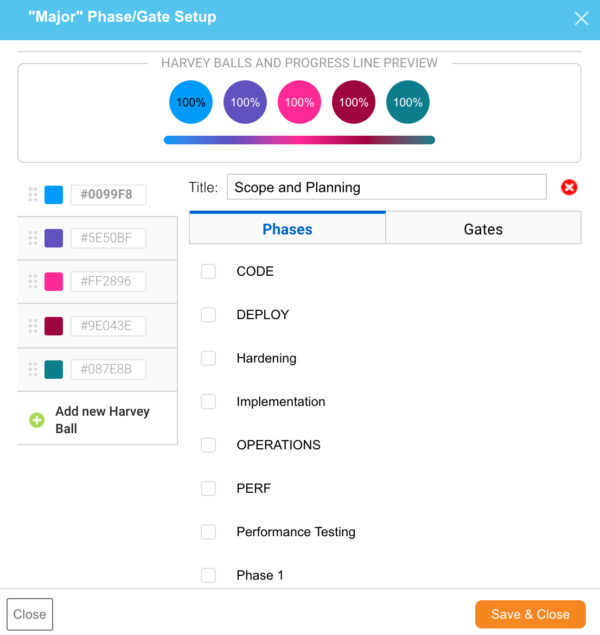
- Manage Harvey Balls:
- Add a Harvey Ball:
- Click +Add new Harvey Ball.
The new Harvey Ball appears in the Preview panel.
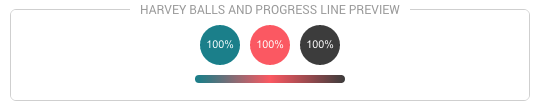
- Type a Title.
- Select a Harvey Ball color by clicking on the color swatch to open the palette drop-down menu or enter a Hex value.

- Click to select one or more Phases and Gates checkboxes under the Phases and Gates tabs.
- Click +Add new Harvey Ball.
- Edit a Harvey Ball:
- Click to select a Harvey Ball’s color swatch in the left-hand menu or enter a Hex value.
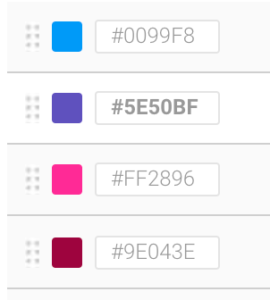
- Edit the Title
- Click to select or deselect one or more Phases and Gates checkboxes under the Phases and Gates tabs.
- Click to select a Harvey Ball’s color swatch in the left-hand menu or enter a Hex value.
- Sort Harvey Balls:
- Drag and drop a Harvey Ball’s color swatch in the left-hand menu by the sort handle
 (six dots)
The Harvey Balls in the preview panel will show the new order.
- Drag and drop a Harvey Ball’s color swatch in the left-hand menu by the sort handle
- Delete a Harvey Ball:
- Click to select a Harvey Ball’s color swatch in the left-hand menu.
- Click the delete button (red cross).

- Add a Harvey Ball:
- Click Save & Close.
- Click Submit.
The yellow Your changes have been saved pop up opens and closes.
If you click away from the Customization page without clicking Submit, your changes will not save.