



TEBR Form Customization
Introduction
TEBR Form customization enables you to edit:
- The Terms and Conditions TEBR landing page pop up.
- The ‘Comment’ section and questions.
Pre-requisite
To be able to customize the TEBR Form, you must have ‘Access Customizations’ User Permission.
Navigation
Settings .png?revision=1) > Customization > Environments > TEBR Form
> Customization > Environments > TEBR Form
Show Comments & Questions on TEBR Landing Page
You can enable or disable the Booking Form Comments and Booking Form Questions to appear on the TEBR Landing page.
To enable/disable the Comments & Questions on the TEBR Landing Page:
- Navigate to the ‘Customization’ page and click Environments.
- Click TEBR Custom Fields.
- Select or deselect the Show data on this page as TEBR landing page checkbox to toggle the Booking Form Comments and Booking Form Questions appearing on the TEBR Landing page:
- On a separate pop-up TEBR Landing Page (labeled Terms and Conditions).
- At the header and footer of the TEBR pop-up.
- Click
.png?revision=1) .
.
Add/Edit/Delete Booking Form Comments
On the ‘TEBR Form’ page enter or edit content in the Booking Form Comments section. This section is rich text, thus you can change the format of the Comments as required using the various options available (Hover over the style options to view the tooltip). Click .

Your changes will be saved and a confirmation message will display.
To delete the Comments, delete the content inside the Booking Form Comments section and click .
Add/Edit/Delete Booking Form Questions
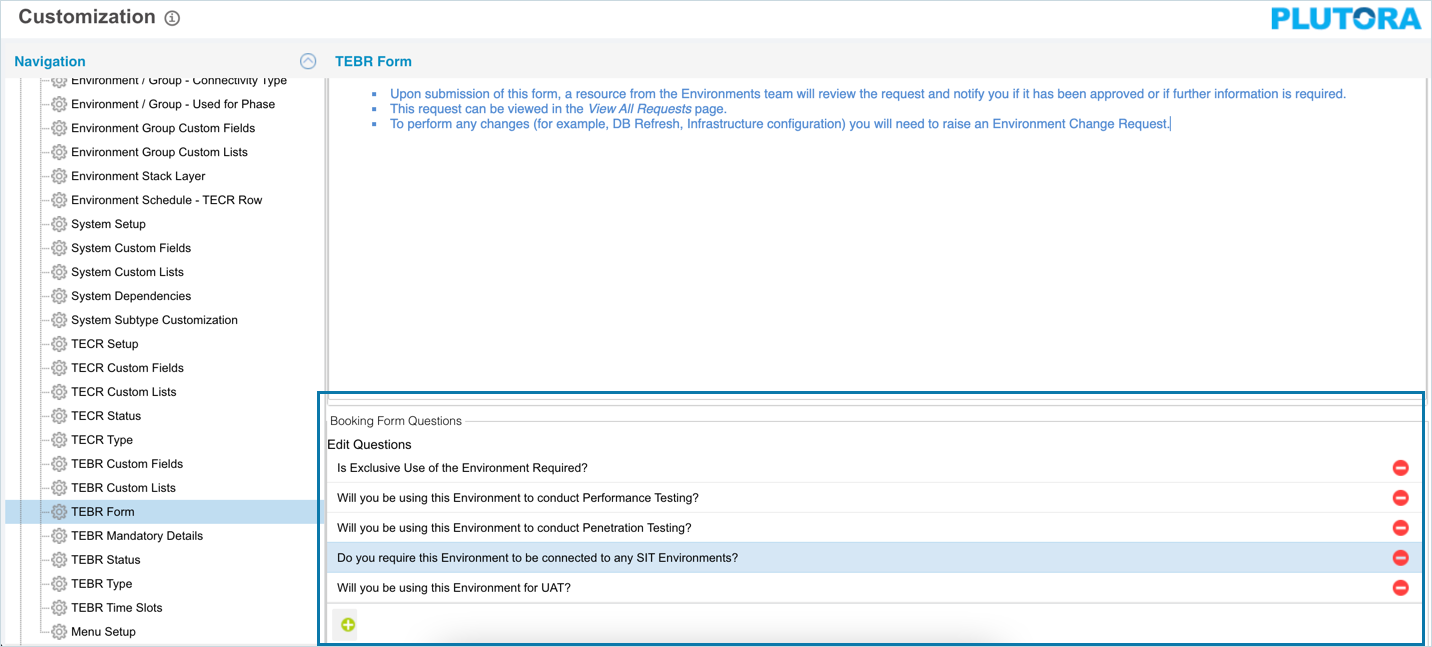
The Booking Form Questions appear as Yes/No radio button multiple choice questions. The default answer to all questions is ‘No’.
To add, edit or delete the booking form questions on the ‘TEBR Form’ page, scroll down to ‘Booking Form Questions’ section:
- To add a question, click
 and enter your question.
 - To edit a question, click on the question and edit as required.
- To delete a question, click
 .
.

After making the required change, click .
More Information
Location of TEBR Form
‘Show data on this page as TEBR landing page’ enabled:
When creating a new TEBR, the TEBR Landing Page (labeled ‘Terms and Conditions’) opens and displays the Booking Form Comments and Booking Form Questions.

