

KeyedIn Configuring PowerPoint Templates - Adding a PowerPoint template
From the Reports item on the left menu, a sub menu item PowerPoint Templates is available. Select this item to navigate to the search screen for the templates.

The PowerPoint template search screen appears like other search screens and allows filters to be applied to restrict the items displayed.

Press the + Add button to add a new PowerPoint template.

This displays the Add PowerPoint template form.

- Name to identify the report on screen.
- Active to set the report to inactive (it will then not be visible to users).
- PowerPoint File selects the file name of the PowerPoint template to be used for your report.
- Project Levels selects which level/s of the Projects dashboard the report is available on.
- Login Groups to select which login group/s the report is available to.
Slide Limits
There is a limit of 10 slides per pptx Template file. This may result in more slides when the PowerPoint report is generated due to repeating slides. The limit on these is 50.
MORE:
Further Template Configuration - Adding Tables to the template
Adding Charts to the PowerPoint template
Further Template Configuration
Adding Tables to the template
Add a table to your PowerPoint template and add column titles to the first line. On the second line (or the first line of the body of the table) enter the names of the fields to be displayed from your report, in square brackets and prefixed with the unique reference.
e.g.

Enter the maximum number of records to be displayed by entering the corresponding number of table rows. Any empty table rows will be removed when the report is generated, but if there are not enough rows to fit all the data, the additional data will not be shown.
Adding Charts to the PowerPoint template
Add a chart to your PowerPoint template, set the title text and add a placeholder to the end of the title to reference the report to be used for the chart. This is the unique reference for the report within square brackets e.g. [PPT02].

Next, edit the data for your chart.

Or

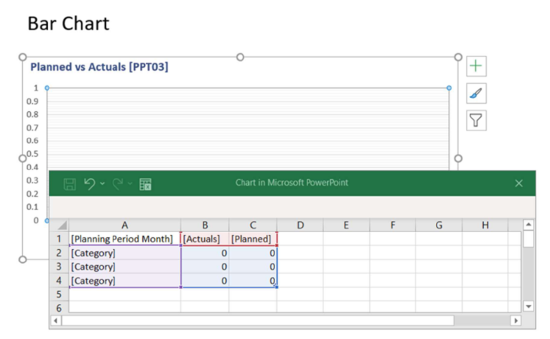
Set the column headings to be the fields from your report, e.g. [Status] and [Count].
In the status column set the status categories to be displayed, this can either be done by naming the specific categories to be displayed or by specifying the [Category] placeholder, in which case the report will pick up the category names from the report (Note: The chart will only display the number of categories that you specify, if the data contains 5 categories but you only specify the [Category] placeholder 4 times, the last category will be excluded)
In the count column enter 0s (This data will be automatically retrieved and replaced from the data report when the PowerPoint report is run)
- Note: Using Dates for categories If you use dates as categories for your chart these will need to be formatted as text in the report for the PowerPoint template to recognise them.
Multiple series of data can be added in the same way. In the example below there are two series of data, Actuals and Planned.
The following standard chart types within PowerPoint can be used:
Clustered Column
Stacked Column
Percent Stacked Column
Clustered Column 3D
Stacked Column 3D
Percent Stacked Column 3D
Column 3D
Line
Stacked Line
Percent Stacked Line
Line with Markers
Stacked Line with Markers
Percent Stacked Line with Markers
Line 3D
Pie
Pie 3D
Percent Stacked Bar
Clustered Bar 3D
Clustered Bar
Stacked Bar
Stacked Bar 3D
Percent Stacked Bar 3D
Area
Stacked Area
Percent Stacked Area
Area3D
StackedArea3D
PercentsStackedArea3D
Doughnut
Radar
Radar with Markers
Filled Radar
Series of Mixed Types (Can only contain the above chart types)
Repeating Slides
Slides can be set to repeat for each row of data returned by the report. For example, if the report is run at Program level the report could contain the same slide(s) for each of the Projects contained within the program.
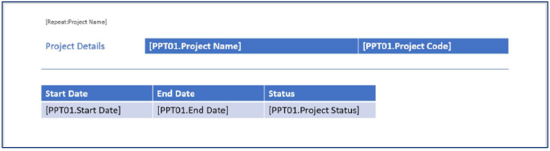
This is achieved by adding the placeholder [Repeat: Field Name] to the top of the slide to be repeated. Field Name identifies which field the slide is repeated for, in the example below the slide will be repeated for each Project Name.
Repeating Slides with Nesting
Repeating slides can be nested to allow grouping of data. For example, we can insert a slide which repeats by Project Status and then have detailed slide(s) which repeats by Project name. This will result in a Status slide for each status and within that group slides for all the Projects at that status.


Search Screen Inline Menus
On the search screen, inline menus allow the user to Open, Clone, Delete or Download existing PowerPoint templates.

- Open selects an existing PowerPoint template to allow data amendments. See Amending a PowerPoint template below.

- Clone: Creates a copy of a PowerPoint template by selecting the Clone option from the inline menu on the search screen. The Add Template form is displayed, pre-populated with the details from the cloned template.
- Delete: Deletes an existing PowerPoint template.
- Download: downloads the PowerPoint (pptx) template attached to an existing PowerPoint template.
Linking a PowerPoint template to an action
A PowerPoint template can be linked to an Action Type in much the same way that a report can be. Once a PowerPoint report has been chosen, the Create Archive Report option will become available which will store a copy of the report against the action when it is created.
