



2026.02
This document describes the enhancements, corrected issues, and new features that have been implemented in Planview ProjectAdvantage 2026.02, both in the Core product and in the Default Configuration.
Planview ProjectAdvantage 2026.02 is a maintenance release of Planview ProjectAdvantage 2026.
In the Core product, 4 enhancements have been implemented and 36 issues have been fixed.
In the Default Configuration, 3 enhancements have been provided and 26 issues have been fixed.
In order to access the different sections, please click on the following links:
- Important Reminders for upgrade
- Core Product Enhancements
- Core Product Corrected Issues
- Default Configuration Enhancements
- Default Configuration Corrected Issues
- System Requirements
Important Reminders for upgrade
- To improve the performance of views displaying the Health Score of multiple projects, we are now using a Health Score that is pre-calculated upon publishing a project as opposed to on the fly. Therefore, upon upgrading to 2021.03 (or higher), please make sure you run once the following Scheduled Job to initialize the project Health Score values: Initialize Project Static Health Score.
Important: For systems with an overwritten Publish command, please make sure to add the new dedicated Command List for the Health Score pre-calculation upon publishing a project: “Project - Publish Project - Continue - Capture Health Score”.
- From the 2023.01 version, the Project Dashboards workspace should be added again in the User Roles section of the Designer as the Dashboards workspace doesn't exist anymore.
- In order to complete the upgrade to newer Planview ProjectAdvantage versions, administrators must update the “Popup” column with the correct Forms in the Designer, Search view, as follows:
- “Global Actions” Category → Popup - Action Card (Briefs)
- “Global Change Requests” Category → Popup - Change Request Card (Briefs)
- “Global Deliverables” Category → Popup - Deliverable Card (Briefs)
- “Global Issues” Category → Popup - Issue Card (Briefs)
- “Global Risks” Category → Popup - Risk Card
- From the 2025.12 version, OpenJDK21 is required to launch the Planview ProjectAdvantage Designer and the Java Legacy APIs. For more information, please refer to the “Move to Java 21” product notice.
Core Product Enhancements
Administration Calendar
#SCI-7756 - Calendar workspace now available in multiple languages
The new Calendar workspace, available under the Administration module and allowing administrators to create and modify calendars directly into the HTML5 Client, is now available in the other supported languages: French, German, Hebrew, Japanese, and Spanish.

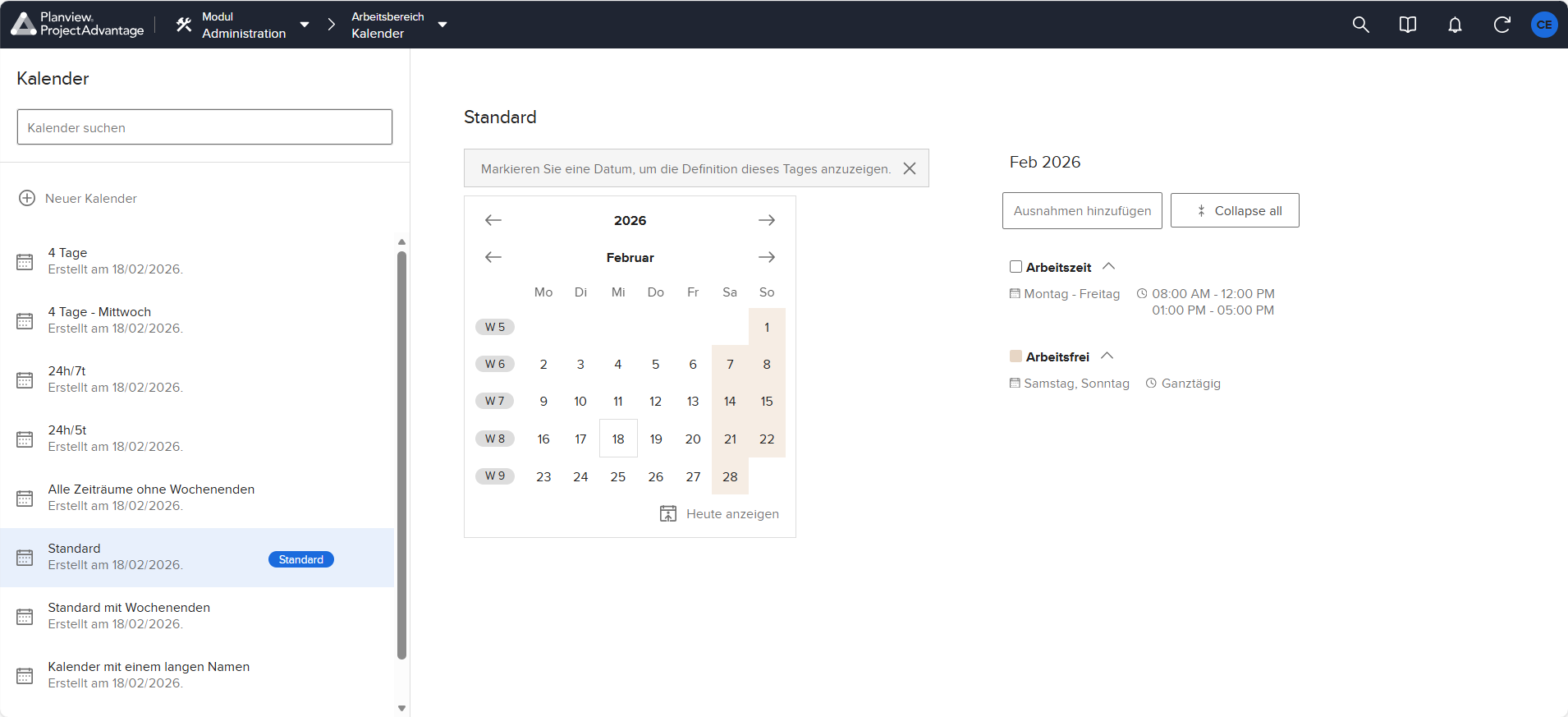
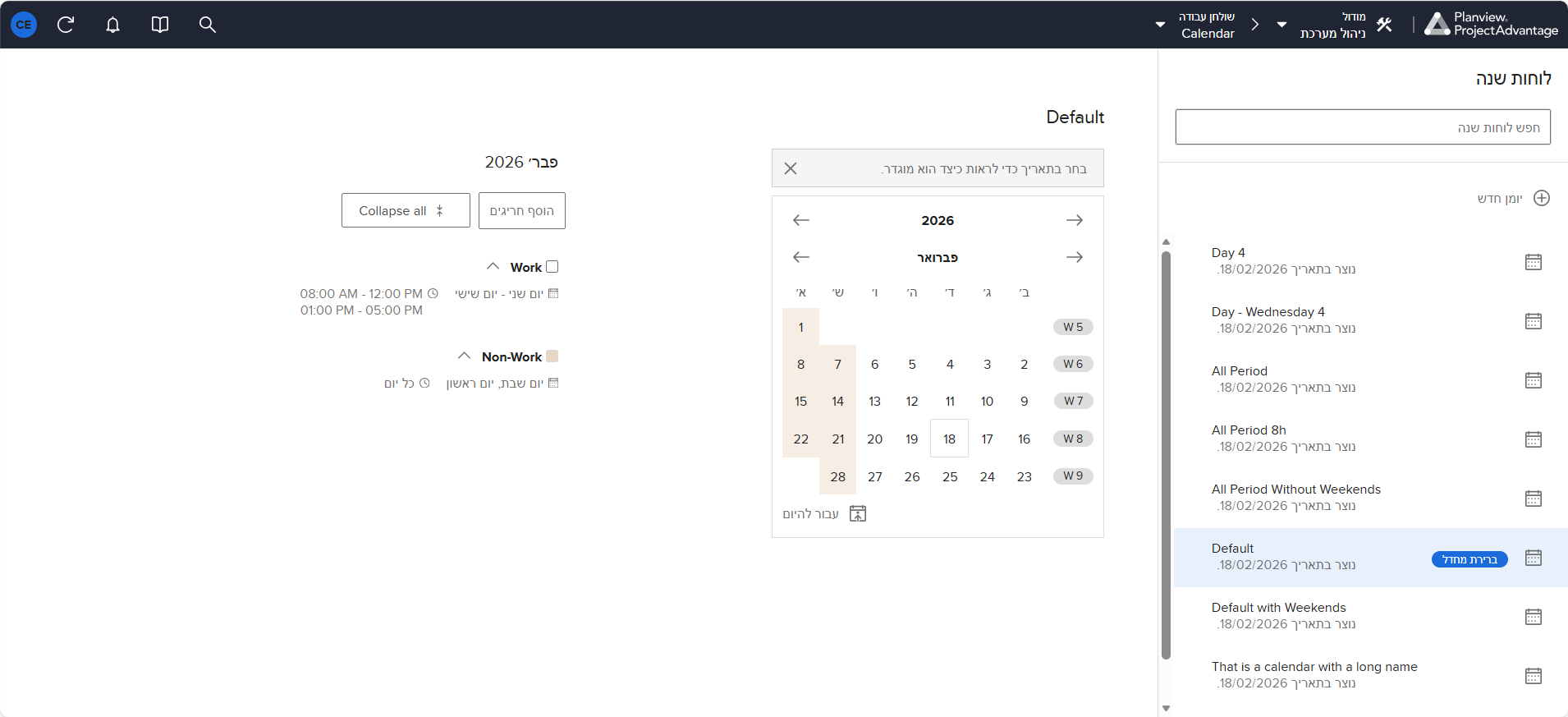


For more information, please refer to the Calendar workspace documentation.
Authentication
#SCI-6594 - Planview Admin integration
Planview Admin has been integrated into the ProjectAdvantage product, so that administrators and users can simply access and manage multiple Planview products. With Planview Admin, users can sign in to multiple Planview products with one account from a single location, providing the organization's users with a shared sign-in experience.
The following steps are required to migrate the authentication and user management for the organization from Project Advantage to Planview Admin.
Activate the Planview Admin account
The Planview Admin organization must be created by Planview, with one of the ProjectAdvantage Administrators as the initial user. The initial user will receive a welcoming email when his/her account is ready to be activated.
The initial user must click on the Create Planview Account button in the email to set up his/her credentials.
Link the Planview Admin organization and the Project Advantage organization
Important: For this step, the user must have the Super User role in ProjectAdvantage. He/she must be the same user who was configured as the initial administrator of the Planview organization.
The user must go to https://us.id.planview.com, and use his/her Planview Admin credentials (created in the previous step) to log in.
In a new browser tab, the user must go to the Getting Started page on the Planview Success Center (https://success.planview.com/Planvie...etting_Started), and follow the instructions from step 4 to add ProjectAdvantage to the list of products list in Planview Admin.
Note: For organizations having more than one instance, for instance a Customer Organization and a Customer Organization - Test, the instructions from step 4 must be followed for all instances. Planview Admin will automatically detect that one of the instances is a Sandbox organization.
Synchronize ProjectAdvantage users to Planview Admin
Once the Planview Admin and ProjectAdvantage accounts are linked, Planview Admin will synchronize the list of users in ProjectAdvantage to Planview Admin.
Note: This task is automated. It should be relatively quick, but it is necessary to let it finish before continuing.
Once all users are listed in the Mapped Users section, the administrator must check the Details tab.
- If no errors are displayed, this means all users are synced, and it is possible to proceed to the next step.
- If some errors are displayed, the user must create a ticket (https://support.planview.com/).
Users added to Planview Admin will receive a welcoming email, prompting them to complete the setup of their account inviting them to complete the setup of their account.
Enable Planview Admin authentication
Important: Since enabling Planview Admin authentication requires users to use their Planview Admin credentials, it is strongly recommended that they be informed of this before proceeding with this step.
Once all users are synced to Planview Admin and no errors are displayed in the Details tab, the administrator must click on the Enable Planview Admin authentication button to modify the login flow for all users in the organization, so all log ins are done with the Planview Admin credentials.
The administrator must then navigate to the Products tab. The dot displayed in the upper right corner of the product card will be green.
Note: The Planview Admin authentication can be disabled from here.
Note: If the dot is displayed in gray, the Planview Admin authentication is not live. Please contact your ProjectAdvantage System Administrator or your Account Manager.
Note: Users added to Planview Admin will receive a welcoming email inviting them to complete the setup of their account. They must click on the Create Planview Account button in the email to set up their credentials.
Once the above process is completed, users will be able to connect to their instance using the SSO login, and the Planview Product Switcher button will be displayed at the far left of the ProjectAdvantage top navigation bar.


Designer
#SCI-8127 - New option to display or hide breadcrumb
In the Designer, Forms view, Selector Management dialog box, a new “Show Bread Crumb” option has been added.

When deselected, the breadcrumb is not displayed in the Projects Center workspace and user will be able to navigate between projects by clicking on the down arrow ( ) to display the dropdown selector.
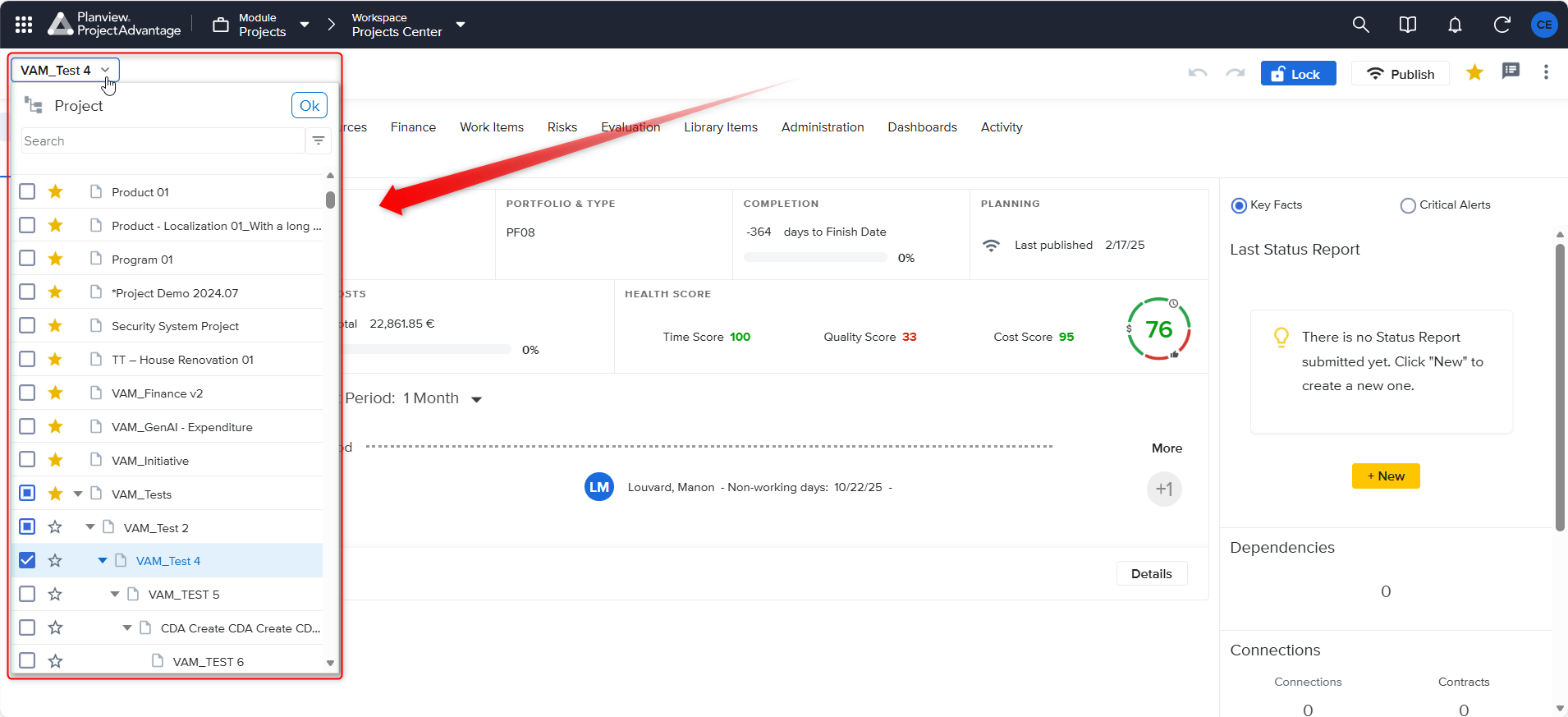
When selected, the breadcrumb is displayed and clicking on Projects Center allows the user to navigate back to the Projects Center workspace, to the view initially selected before accessing the Project Card. In other words, if the user did access the Project Card from the Grid view, clicking on “Projects Center” will allow him to navigate back to the Projects Center workspace, Grid view.


#SCI-8111 - Ability to rename Expenditures
In the Designer, Forms view, Edit Grid Properties dialog box, Columns tab, a new “Attempt to make text cells with commands editable” option has been added.

When enabled, if a command list is configured for a text column (for instance, a Name field), the cell will be made editable, therefore the text contained in cells will be editable.
Consequently, in the Projects Center workspace, Project Card, Forecast tab, Expenditure sub-tab, users are now able to edit the expenditure names.


Note: The possibility to edit cells respects all other settings that may affect the editability, for instance if the field is read only.
Important: The aforementioned option is disabled by default for existing grids, and enabled by default for new grids.
Core Product Corrected Issues
Authentication
#SCI-7444
In the HTML5 Client, after a session had timed out, a 404 error page was displayed when users were clicking on the “Sign In” button. Similarly, in the Resource Validation workspace, Timesheets tab, a 404 error page was also displayed when users were clicking on the Submit button. This issue has been fixed.
Built-in Timesheet
#SCI-8429
In the Timesheet (built-in) workspace, an error message could be displayed when users were trying to submit their timesheets which included pinned tasks. This issue has been fixed.
#SCI-8096
In the Timesheet (built-in) workspace, Rework Comments were incorrectly displayed in the Tasks panel, even when the Resource Manager or the Project Manager had not entered any comment to his/her Team Member. This issue has been fixed.
#SCI-7802
In the Timesheet (built-in) workspace, users were able to apply their planned effort for future dates, even when the “Allow Actions on Future Assignments (Projects)” setting was deactivated. This issue has been fixed.
Note: The aforementioned setting is available in the System Settings workspace, Project Settings folder, Time Tracking Options tab, Timesheet Options section.
Corporate Data
#SCI-7415
In the Corporate Data workspace, Resources tab, Resource Identification dialog box, Cost & Availability section, when users were adding a date in the “End Date” field, then were clicking on the Hamburger ( ) icon to check the availability history, the row related to the Start Date was no longer displayed. This issue has been fixed.
Data Snapshots
#SCI-7033
In the Data Snapshots workspace, when users were downloading files containing over 2 million cells in CSV format, integer and decimal columns could be incorrectly formatted, causing data processing issues. This issue has been fixed.
Data Visualization
#SCI-8170
In the HTML Client, when users were clicking on the down arrow ( ) to display the dropdown selector, no text was displayed if no item was selected. This issue has been fixed. From now on, the name of the selector will be displayed, as illustrated below.
When one item is selected in the dropdown selector
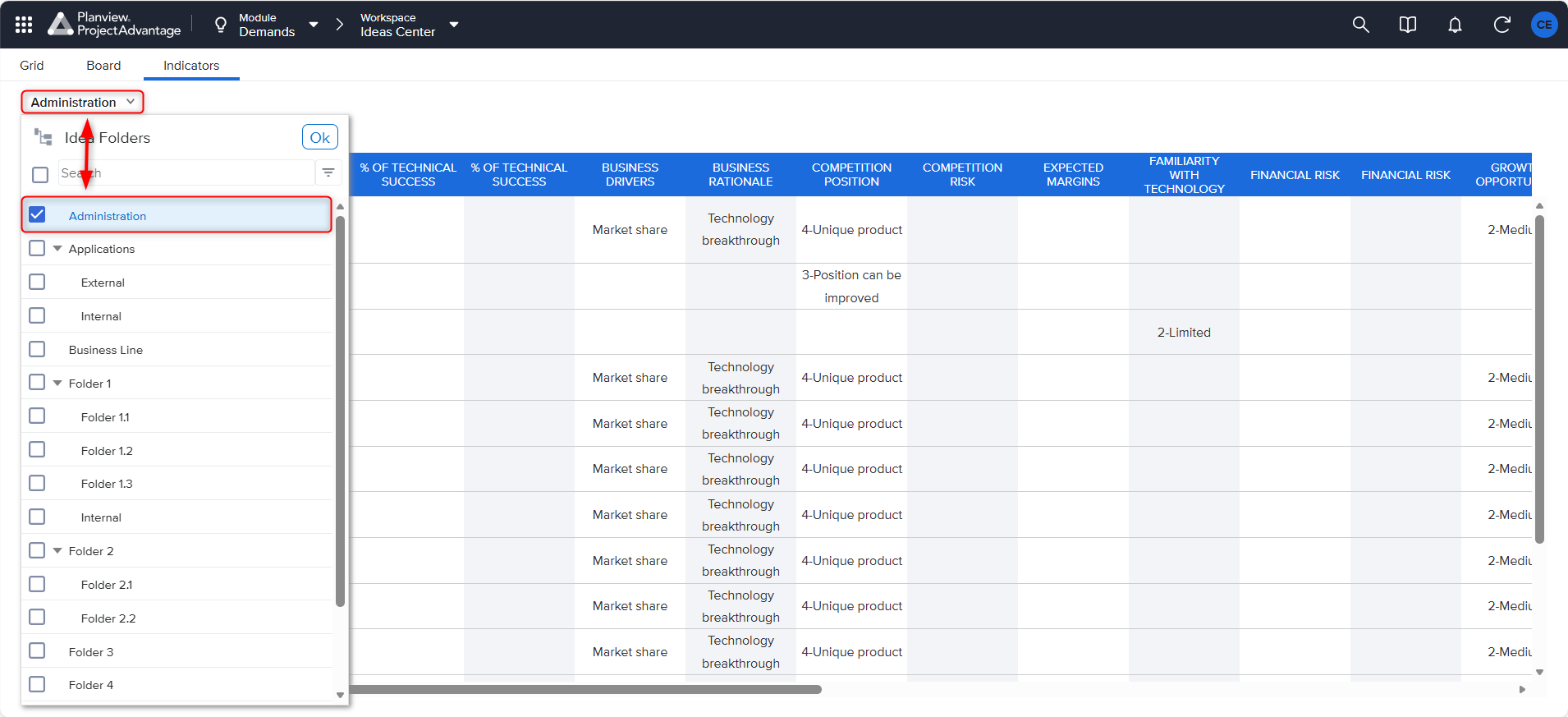
When no item is selected in the dropdown selector

Designer
#SCI-8117
In the Designer, Email view, Batch Messages tab, an error message informing users the email system was being disabled was prompted, despite emails being enabled. This issue has been fixed.
Designer - Object/Field Edits
#SCI-7975
In the Designer, Command Lists view, Edit Command dialog box, it was not possible to modify the Task Link “Logic” field through a formula that returned text. This issue has been fixed.
Health Check
#SCI-7949
In some scenarios, environments could experience some downtime and performance issues, with a focus on database and container health. This issue has been fixed.
Legacy API
#SCI-7867
In the API workspace, a NullPointerException error could occur when users were applying actuals. This issue has been fixed.
Legacy Timesheet
#SCI-8114
In the legacy Timesheet workspace, in some scenarios, the “Yes” and “No” buttons were not displayed in the prompted confirmation popup when users were submitting their timesheet. This issue has been fixed.
Mobile Timesheets
#SCI-8205
In the Timesheets Mobile Application, an error message could be displayed after users had logged in. This issue has been fixed.
Other Tasks
#SCI-7744
In some scenarios, excessive server logs were generated by the legacy APIs and the Designer. This issue has been fixed.
Portfolio Center
#SCI-8231
In the Portfolio Center workspace, when users were clicking on the Gear ( ) icon, then selecting the “Export to Excel” command, some rows could be missing in the exported Excel file if the grid contained rich text fields. This issue has been fixed.
Portfolio Dashboards
#SCI-7479
In the Portfolio Dashboards workspace, in some scenarios, an error message was displayed when users were trying to launch custom reports. This issue has been fixed.
Projects Center
#SCI-8229
In the Projects Center workspace, Project Card, Agile tab, an error message could be displayed when users were clicking on the “Jump to Board” button. This issue has been fixed.
#SCI-8166
In some scenarios, views created by users could be lost in the Center workspaces after an upgrade. This issue has been fixed.
#SCI-8131
In the Projects Center workspace, Project Card, Gantt tab, Task panel, Transactions & Cost Items tab, Transaction Card, when users were clicking on the Hamburger ( ) icon to link a transaction to an expenditure, the expenditures available in the Expenditure popup were incorrectly not limited to the current project. This issue has been fixed.
#SCI-7913
In the Projects Center workspace, Filters popup, when filtering using the “Modified By” field, the display of the name (for instance, Will 01 Smith) was not consistent with the other “Modified By” fields (Smith, Will 01) throughout the solution, causing the filter to not return any results. This issue has been fixed.
#SCI-7894
In the Projects Center workspace, Project Card, when users were increasing the zoom, the “More” button indicating there were other tabs was not translated and did not work when connected in Hebrew. This issue has been fixed.
#SCI-7737
In the Projects Center workspace, Project Card, when users were clicking on the down arrow ( ) to display the dropdown selector, then scrolling down, the list of projects could take a long time to load. This issue has been fixed.
Projects Center - Project Card - Gantt
#SCI-8204
In the Projects Center workspace, Project Card, Gantt tab, when users were setting the time interval to weeks, the same week number could be displayed twice. This issue has been fixed.
#SCI-7465
In the Projects Center workspace, Project Card, Gantt tab, Gantt chart preferences popup, the “Show date Constraints” Gantt chart display option was incorrectly translated in German. This issue has been fixed.
Projects Center - Project Card - Overview
#SCI-6949
In the Projects Center workspace, Project Card, Overview tab, Status Reports sub-tab, Submitted Status Report Details view, not all rows were visible when users were clicking on View More in the To Be Discussed section. This issue has been fixed.
Projects Center - Project Card - Resources
#SCI-8251
In the Projects Center workspace, Project Card, Resources tab, when the intervals were set to weeks, the number of weeks displayed for 2026 was 52 instead of 53. This issue has been fixed.
Projects Center - Project Card - Risks
#SCI-8213
In the Projects Center workspace, Project Card, Risks tab, an error message was sometimes displayed when users were clicking on the “Identify Risks” button. This issue has been fixed.
#SCI-7561
In the Projects Center workspace, Project Card, Risks tab, Risks full screen view, in some scenarios, an error message was displayed when users were navigating to the Board tab. This issue has been fixed.
Reports
#SCI-8248
In the Reports workspace, reports containing more than a thousand rows could take a long time to be displayed. This issue has been fixed; the loading performance has been improved for large datasets.
#SCI-8050
In the Reports workspace, when users were modifying the columns order or deleting the chart, the columns order was not preserved, even if they had clicked on the “Save” button. This issue has been fixed.
#SCI-7462
In the Reports workspace, the “Save” button could take a long time to be displayed when the user was modifying the columns order. This issue has been fixed.
REST API
#SCI-7245
In the System Data workspace, Organizations, Job Classifications, Skills, and Portfolio Folders tabs, new data was created when an error should have been returned following POST requests containing invalid data. This issue has been fixed.
Scheduled Jobs
#SCI-8124
In the Designer, Scheduled Jobs view, in some scenarios, when running a scheduled job, the job could fail due to a potential Class Cast Exception. This issue has been fixed.
#SCI-7732
In the Designer, Scheduled Jobs view, in some scenarios, an error message was returned when users were running the “Update Project Exposed Fields” scheduled job. This issue has been fixed.
Security
#SCI-7921
A security vulnerability in Apache Commons FileUpload was identified. This issue has been fixed by updating to the latest version.
Self-Service Reports
#SCI-8215
In the Reports workspace, when users were performing an action that triggered the Save button to appear, it could take some time for it to be displayed. This issue has been fixed. Performance has been improved so that the Save button is displayed instantly.
Default Configuration Enhancements
Projects Center - Project Card - Library Items
#MIL-5873 - Template attachments now included in new projects
In the Projects Center workspace, when creating a project from a template, users are able to import the template attachments to the new project by activating the “Import Attachments” switch button in the Create a new project popup.

Once the new project is created, the imported attachments are visible in the Project Card, Library Items tab, Attachments sub-tab.

Projects Center - Project Card - Work Items
#MIL-5916 - Redesign of the Work Items and Risks tabs
In the Projects Center workspace, Project Card, the Work Items and Risks tabs have been redesigned to include a layout common to the Center workspaces in the solution, therefore improving the overall user experience.
Note: For the new UI to be displayed, the “Enable Centers UI in Project Work Objects Tabs” setting must be activated in the System Settings workspace, Work Management Settings folder, Global Options tab, Global Options section.

Note: This setting is activated by default.
Work Items tab
The Work Items tab available in the Project Card provides all the relevant information and tools to manage the selected project's Work Items: Actions, Issues, Deliverables, and Change Requests.
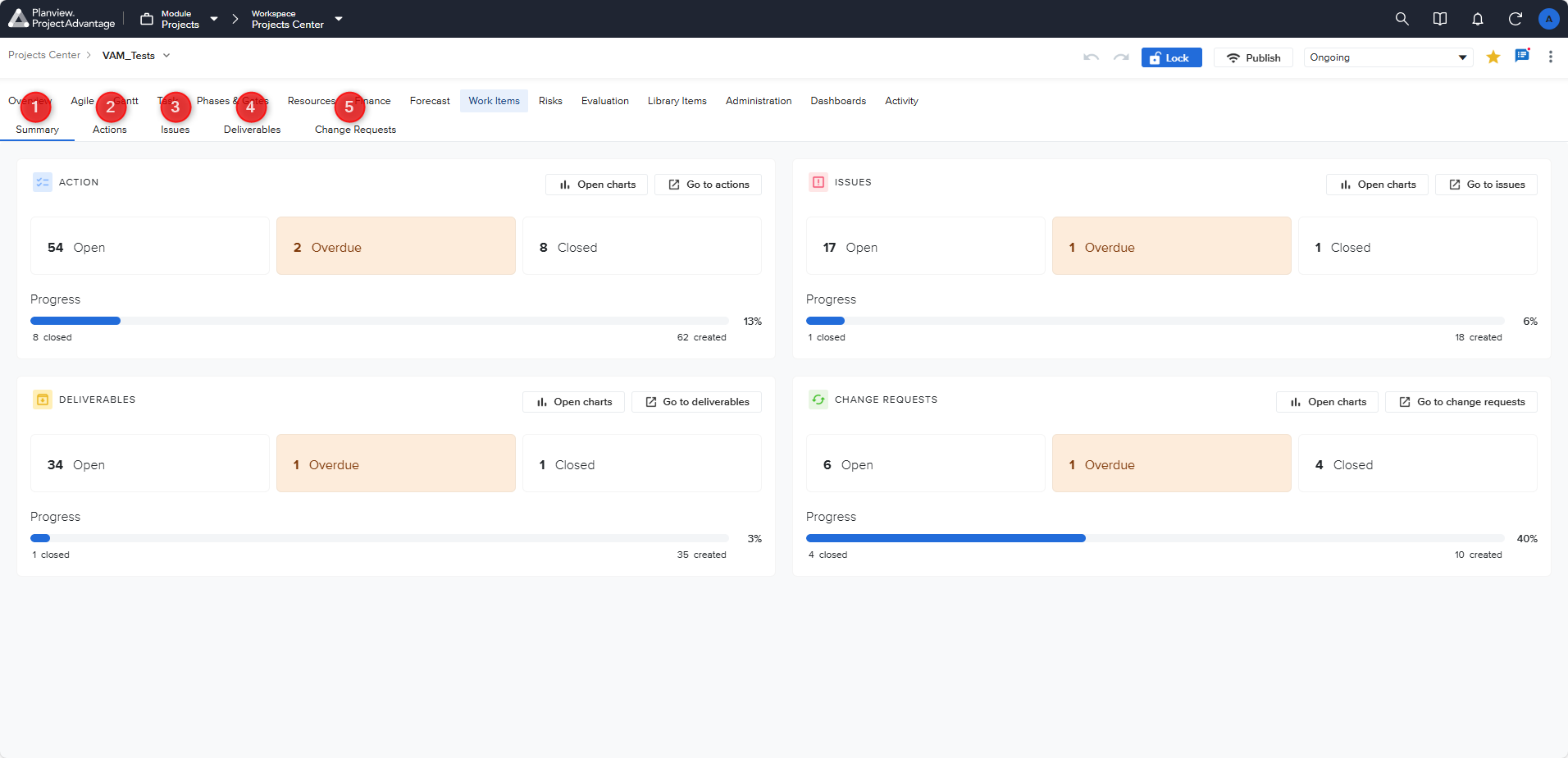
It is made up of the following sub-tabs:
- Summary
- Actions
- Issues
- Deliverables
- Change Requests
Note: For the Actions, Issues, Deliverables, and Change Requests sub-tabs to be displayed, the corresponding project settings must be activated in the Project Card, Administration tab, Setup sub-tab, Work Features section.

Summary sub-tab
The Summary sub-tab available in the Project Card, Work Items tab provides the key information regarding the project’s work items.

It is made up of the following sections:
- Actions
- Issues
- Deliverables
- Change Requests
Each section is made up of the following elements:
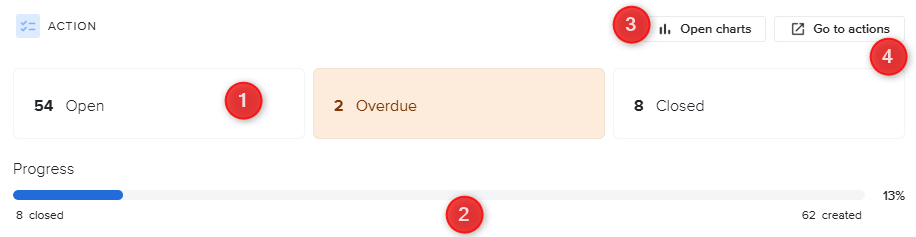
- Tiles
- Progress indicator
- Open charts button
- Go to work items button
Tiles
Three tiles are displayed in each work items section:
- Open – Displays the number of open work items. Clicking on the Open tile prompts the Open work items popup.
Note: By default, work items whose workflow state is “New” or “Open” are accounted for.
- Overdue – Displays the number of overdue work items. Any work item is considered as overdue if its workflow state is “Open”, and if their committed date (or due date if the “Committed Date” field is empty) precedes today’s date. Clicking on the Overdue tile prompts the Overdue work items popup.
Note: If no work items are overdue, the tile is highlighted in green. If the number of overdue work items is greater than 0, the tile is highlighted in orange.
- Closed – Displays the number of closed work items. Any work item is considered as closed if its workflow state is “Closed”. Clicking on the Closed tile prompts the Closed work items popup.
Progress indicator
The progress indicator displays the work items progress, by comparing the number of closed items against the total number of created items for a given category.
Open charts button
Clicking on the Open charts ( ) button located in the upper right corner opens the Work items charts popup, providing a series of charts for the user to quickly review the progress of the selected project Work Items.

These charts are the following:
- Work Items by Workflow State – Shows the number of Work Items by Workflow State.
- Work Items Outlook – Shows the number of Work Items by Due Date.
- Work Items by Assignee – Shows the number of open Work Items by Assignee.
- Created Work Items – Shows the number of newly created Work Items over time.
The Close ( ) button displayed in the upper right section allows the user to close the popup.
Note: If the Show Closed () display option is activated, the number of closed Work Items over time will be displayed as well.
Go to work items button
Clicking on the Go to work items ( ) button located in the upper right corner switches the view to the Project Card, Work Items tab, Actions, Issues, Deliverables, or Change Requests sub-tab.
Note: If only one work item type is selected in the Project Card, Administration tab, Setup sub-tab, Work Features section, the selected work items section is displayed over the entire width of the screen, as illustrated below.

Work Items sub-tabs
The Work Items sub-tabs display all the Work Items of the selected project, and provide all the relevant information and tools to manage the Work Items.

The switch button located at the far left of the toolbar allows the user to select the Grid view or the Board view.

When the Grid view or the Board view is selected, the content of the view is identical to the Grid and Board views available in the Work Items Center workspace.
Important: The Board tab is available only when Visual Collaboration is activated. For more information, please contact your ProjectAdvantage System Administrator or your Account Manager.
Work Items tab (multi project)
When in multiple-project selection, the Work Items tab provides five sub-tabs:

- Overview
- Actions
- Issues
- Deliverables
- Change Requests
The Overview sub-tab provides the user with the key Work Item information for each project.
The Work Items sub-tabs display all the Work Items of the selected projects, and provide all the relevant information and tools to manage the Work Items. When the Grid view or the Board view is selected, the content of the view is identical to the Grid and Board views available in the Work Items Center workspace.
Risks tab
The Risks tab available in the Project Card provides all the tools needed to manage the Risks of a project.

It is made up of the following sub-tabs:
- Summary
- Register
- Simulation
Summary sub-tab
The Summary sub-tab available in the Project Card, Risks tab provides the key information regarding the project’s risks.

It is made up of the following sections:
- Risks
- Time & Cost Impact
- Mitigation & Contingency
- Risks Matrix
Risks section
The Risks section is made up of the following elements:

- Tiles
- Progress indicator
- Open charts button
- Go to register button
Tiles
Three tiles are displayed in each work items section:
- Open – Displays the number of open risks. Clicking on the Open tile prompts the Open risks popup.
Note: By default, risks whose workflow state is “New” or “Open” are accounted for.
- Overdue – Displays the number of overdue risks. Any risk is considered as overdue if its workflow state is “Open”, and if its committed date (or due date if the “Committed Date” field is empty) precedes today’s date. Clicking on the Overdue tile prompts the Overdue risks popup.
Note: If no risks are overdue, the tile is highlighted in green. If the number of overdue risks is greater than 0, the tile is highlighted in orange.
- Closed – Displays the number of closed risks. Any risk is considered as closed if its workflow state is “Closed”. Clicking on the Closed tile prompts the Closed risks popup.
Progress indicator
The progress indicator displays the risks progress, by comparing the number of closed risks against the total number of created risks.
Open charts button
Clicking on the Open charts ( ) button located in the upper right corner opens the Risks charts popup, providing the following series of charts to review the overall status of the Risks.

These charts are the following:
- Risks by Type – Shows the number of Risks by Type.
- Risks by Workflow State – Shows the number of Risks by Workflow State.
- Risks by Severity – Shows the number of Risks by Severity.
- Risks by Probability – Shows the number of Risks by Probability.
The Close ( ) button displayed in the upper right section allows the user to close the popup.
Note: If the Show Closed () display option is activated, the number of closed Risks over time will be displayed as well.
Go to register button
Clicking on the Go to register ( ) button located in the upper right corner switches the view to the Project Card, Risks tab, Register sub-tab.
Time & Cost Impact section
The Time & Cost Impact section is made up of two tiles:

- Time impact tile – Sum of the Time impact values of all risks related to critical tasks.
- Cost impact tile – Sum of the Cost impact values of all risks.
Mitigation & Contingency section
The Mitigation & Contingency section is made up of four tiles:
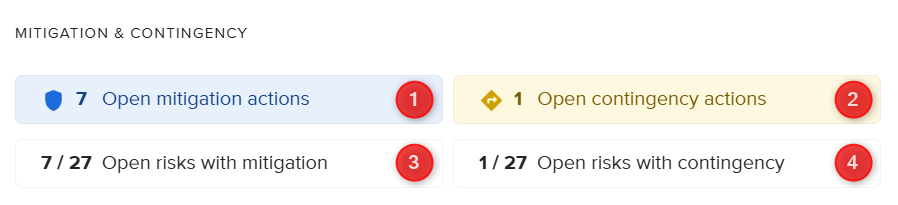
- Open mitigation actions – Displays the number of open actions related to risk mitigation. The tile is displayed with a blue background. Clicking on the Open mitigation actions tile prompts the Open mitigation actions popup.
- Open contingency actions – Displays the number of open actions related to risk contingency. The tile is displayed with a yellow background. Clicking on the Open contingency actions tile prompts the Open contingency actions popup.
- Open risks with mitigation – Displays the number of open risks with mitigation out of the number of risks created. Clicking on the Open risks with mitigation tile prompts the Open risks with mitigation popup.
- Open risks with contingency – Displays the number of open risks with contingency out of the number of risks created. Clicking on the Open risks with contingency tile prompts the Open risks with contingency popup.
Note: If the “Actions” project setting is deactivated in the Project Card, Administration tab, Setup sub-tab, Work Features section, an empty state is displayed, as illustrated below.

Risks Matrix section
The Risks Matrix section allows the user to easily identify the number of Risks for each Severity and Probability combination.

Clicking on a number of Risks in a matrix cell prompts the Open risks popup, where only the Risks with the selected combination of Severity and Probability are displayed.
Register sub-tab
The Register sub-tab displays all the Risks of the selected project, and provides all the relevant information and tools to manage the Risks.

The switch button (1) located at the far left of the toolbar allows the user to select the Grid view or the Board view.

When the Grid view or the Board view is selected, the content of the view is identical to the Grid and Board views available in the Risks Center workspace.
Important: The Board tab is available only when Visual Collaboration is activated. For more information, please contact your ProjectAdvantage System Administrator or your Account Manager.
The Identify Risks button (2) allows users to use Anvi to generate risks for projects.
Note: The Identify Risks button is available only when the “Enable Risks Creation with Anvi” setting, located in the System Settings workspace, Work Management Settings folder, Risks tab, Risks section, is enabled. If this setting is not available, please reach out to your Account Manager.
Simulation sub-tab
The Simulation sub-tab allows users to estimate the possible impacts Risks could have on a project’s cost and duration.

It is made up of two tabs:
- Simulation Scenarios – Provides a spreadsheet that allows the user to create various scenarios by combining various Risks.
- Schedule Impact – Provides a Gantt view, which allows the user to examine the impact of a selected scenario (as of its last execution) on each task in the current project.
Risks tab (multi project)
When in multiple-project selection, the Risks tab provides two sub-tabs:

- Overview
- Register
The Overview sub-tab allows the user to quickly review the number of Risks and their corresponding Mitigation/Contingency Actions for each selected project.
The Register sub-tab displays all the Risks of the selected projects, and provides all the relevant information and tools to manage the Risks. When the Grid view or the Board view is selected, the content of the view is identical to the Grid and Board views available in the Risks Center workspace.
Gantt tab > Task panel > Work Objects tab
The Task panel, Work Objects tab, which allows to create and manage the Work Objects of a selected Task, has also been redesigned.


For each Work Object category, a card is displayed with the following information:
- Work Object category icon
- Work Object category Name
- Number of open Work Objects for the category for the selected task. A red dot will be displayed if at least one Work Object in the category features one of the following alerts: Overdue, Planned beyond Due Date, and Estimated in the Past.
- Create new (
 ) button – Opens the corresponding Work Item (or Risk) Card, allowing the user to create a new Work Object for the selected category (attached to the selected task).
- Open (
 ) button – Opens the corresponding Task Work Objects popup, displaying all the Work Objects related to the selected task.

The switch button located at the far left of the toolbar allows the user to select the Grid view or the Board view.

When the Grid view or the Board view is selected, the content of the view is identical to the Grid and Board views available in the Work Items Center or the Risks Center workspaces.
Important: The Board tab is available only when Visual Collaboration is activated. For more information, please contact your ProjectAdvantage System Administrator or your Account Manager.
Styling
#MIL-5896 - Update of workflow status colors
In ProjectAdvantage, the workflow status colors have been updated for all objects (projects, ideas, actions, change requests, issues, deliverables, risks, and tasks).

Default Configuration Corrected Issues
Deliverables Center
#MIL-5950
In the Deliverables Center workspace, Deliverable Card, an unwanted scrollbar could be displayed in the Workflow State field. The Action Card, Issue Card, Change Request Card, Risk Card, Idea Card, and Task Card were also affected. This issue has been fixed.
Ideas Center
#MIL-5876
In the Ideas Center workspace, when changing an idea workflow state “Submitted” to “New project”, the workflow state was still incorrectly displayed as “Submitted” in the Idea Card after the project had been created. This issue has been fixed.
Legacy Timesheet
#MIL-5795
In the legacy Timesheet workspace, users were not able to submit their timesheet if it had already been partially submitted, and when the “Timesheet Modifiable Start” setting was set to a day other than the start of the submitted period. This issue has been fixed.
Note: The aforementioned setting is located in the System Settings workspace, Project Settings folder, Time Tracking Options, Timesheet Options section.
Localization
#MIL-6010
In the Projects Center workspace, Project Card, Gantt tab, Task panel, Transactions & Cost Items tab, when connected in French, an error occurred when users were creating a new transaction. This was due to the “Forecast” status, which was incorrectly translated. This issue has been fixed.
Portfolio Dashboards
#MIL-5874
In the Portfolio Dashboards workspace, Controlling theme, Budget Controlling report, the charts were not retrieving data from projects if the “Cost Values” field was set to "Budget". This issue has been fixed.
Projects Center
#MIL-5993
In the Projects Center workspace, Grid view, the “Status Report Created On” field was not cleared when the status report was deleted from the Project Card, Overview tab, Status Reports sub-tab. This issue has been fixed.
#MIL-5910
In the Projects Center workspace, Project Card, when clicking on Projects Center in the breadcrumb, users were redirected to the wrong view. This issue has been fixed. From now on:
- Clicking on Projects Center in the breadcrumb switches the view back to the Projects Center workspace, Grid view if the user originally accessed the Project Card from the Grid view.
- Clicking on Projects Center in the breadcrumb switches the view back to the Projects Center workspace, Board view if the user originally accessed the Project Card from the Board view.
- Clicking on Projects Center in the breadcrumb switches the view back to the Projects Center workspace, Roadmap view if the user originally accessed the Project Card from the Roadmap view.
#MIL-5904
In the Projects Center workspace, when completing the process of creating new Initiative-type projects, the Project Card (light display) would immediately close without any action on the part of the user. This issue has been fixed.
#MIL-5849
In the Create a new project popup, when the "Enable Projects Hierarchy" setting was activated, the "Parent" field was incorrectly translated when the user was connected in German. This issue has been fixed.
Note: The aforementioned setting is located in the System Settings workspace, Project Settings folder, Global Options tab, Hierarchy sub-tab.
#MIL-5703
In the Projects Center workspace, Project Card, Resources tab, Resources Assignments sub-tab, in some scenarios, pages were not refreshing correctly when using the time navigation toolbar. This issue has been fixed. This issue has been fixed.
Projects Center - Project Card - Finance
#MIL-5938
In the Projects Center workspace, Project Card, Finance tab, Budget dialog box, the distributed intervals displayed in the Budget spreadsheet were not reflecting the intervals selected in the time navigation toolbar. This issue has been fixed.
Projects Center - Project Card - Gantt
#MIL-5861
In the Projects Center workspace, Project Card, Gantt tab, an error message was displayed when users were selecting the “Create Critical Chain Sub-Project” command in the Gantt spreadsheet, then clicking on the “Create & Define” button in the Create a new project popup. Consequently, the “Finish Constraint” was not currently set for the new project. This issue has been fixed.
Projects Center - Project Card - Phases & Gates
#MIL-5902
In the Projects Center workspace, Project Card, Phases & Gates tab, Details sub-tab, the report header row, displaying the project attributes (Name, Manager 1, Total Cost, Duration, % Completed, Savings, and Workflow State) could cause confusion with the Phases and Gate attributes row (Name, Manager 1, Total Cost, Duration, % Completed, Savings, and Workflow State). This issue has been fixed; the header row has been removed.
Projects Center - Project Card - Resources
#MIL-5917
In the Projects Center workspace, Project Card, Resources tab, Resources Assignments sub-tab, Grid View pivot, the Search ( ) display option was not working as expected. This issue has been fixed.
Projects Center - Project Card - Task
#MIL-5991
In the Projects Center workspace, Project Card, Task tab, Tracking sub-tab, when users were selecting the "Specific Week" pivot, the title of the prompted selection popup was incorrectly translated into French. This issue has been fixed.
#MIL-5808
In the Projects Center workspace, Project Card, Task tab, Tracking sub-tab, By Tasks view mode, an error message was sometimes displayed when users were selecting the “Approve & Apply” command to approve timesheets. This issue has been fixed.
Projects Legacy - Home Page
#MIL-5841
In the Home Page workspace, Monthly Status tab, the description displayed in the Accomplishments This Month section was truncated. This issue has been fixed.
Projects Legacy - Home Page - Dependencies
#MIL-5897
In the Home Page workspace, Dependencies tab, when users were clicking on the Gear ( ) icon, then selecting the “Open Source Object” command, the Focus Mode full screen view was displayed for the project initially selected in the project selector, and not the project selected in the Inbound Dependencies view mode. This issue has been fixed.
Resource Allocations
#MIL-5826
In the Resource Allocations workspace, Resource Allocations full screen view, Hard Allocations tab, Resources Overview sub-tab, when the "Show Availability" display option was empty or set to "None", colored indicators could be incorrectly displayed for resources with no availability in the displayed time period. This issue has been fixed.
Resource Dashboards
#MIL-6003
In the Resource Dashboards workspace, Team theme, Team Status report, the “Utilization > %” and “Utilization < %” filters were not properly working. This issue has been fixed.
#MIL-5909
In the Resource Dashboards workspace, Workload theme, Resource Utilization report, the distributed intervals displayed in the time navigation toolbar were incorrectly displayed when users were connected in a language other than English. This issue has been fixed.
Resource Fulfillment
#MIL-5999
In the Resource Fulfillment workspace, the available effort could be inaccurate when the “Total Effort” Effort Values and “Soft Assignments” display options were selected. This issue has been fixed.
#MIL-5898
In the Resource Fulfillment workspace, when users were selecting the “Current Month” preset option in the time navigation toolbar, the dates were not correctly set to the start and end dates of the month. All screens containing a time navigation toolbar were affected. This issue has been fixed.
Templates Center
#MIL-5980
In the Templates Center workspace, Template Card, Resources tab, Project Resources sub-tab, Project Team tab, when users were adding team members to the project team, the newly added team members only appeared after refreshing the page. This issue has been fixed.
Timesheet (built-in)
#MIL-5884
In the HTML5 Client and on the Success Center, the translations for the following terms were incorrect when users were connected in German:
- Fixed Duration
- Fixed Rate
- Fixed Effort
- Fixed Duration-Effort
- Fixed Rate-Effort
- Fixed Effort Rate
This issue has been fixed.
Work Package Center
#MIL-5936
In the Work Package Center workspace, Contract tab, Contract view mode, when users were creating new deliverables, the newly created deliverables were not displayed under the Deliverables section. This issue has been fixed.
System Requirements
There are frequent changes and additions to the set of specific versions of operating systems, application servers and database servers for which Planview ProjectAdvantage has been tested and certified. Please contact our teams for the latest information in this area.
Note: Users' system clocks must be regularly and accurately synchronized with the internet.
Servers
- Application Server: Apache Tomcat 10.1 with Oracle Java 21 or OpenJDK21
Important: OpenWebStart is required to open the jnlp file.
- Data Server: PostgreSQL 14, PostgreSQL16
HTML5 Clients
- Display resolution: 1366 x 768 (technical minimum), 1600 x 1050 (minimum recommended), 1920 x 1080 or higher (generally recommended).
- Minimum of 4GB RAM allocated (8GB recommended).
- Browser
- Microsoft Edge
- Google Chrome
- Mozilla Firefox
- Apple Safari
Planview ProjectAdvantage Designer
- Recommended language: English
- Display resolution: 1366 x 768
- Minimum of 4GB RAM allocated
- Disk space: 200MB minimum available for Planview ProjectAdvantage.
- Oracle Java 21 or OpenJDK 21
- Operating Systems:
- Windows 7, 8.1, 10 or 11
- Mac OS X Lion or newer
- Alpine Linux 3.16.1
REST API
- Supported language: English
Timesheets Mobile Application
- Being hosted by Planview ProjectAdvantage
- Product version: 2022.08 and upper versions
Planview ProjectAdvantage platform
Users will need to enable third-party cookies to work within Planview ProjectAdvantage. For more information regarding third-party cookies, please refer to the “How to allow third-party cookies” documentation.
For customers who subscribed only to ProjectAdvantage
- Installation:
- POD 11 is required if hosted by Planview ProjectAdvantage
- An Hydra server is required if on premise
- Product version: 2023.01 and upper versions
For customers who subscribed to ProjectAdvantage and Deliver
- Installation:
- POD 11 is required if hosted by Planview ProjectAdvantage
- An Hydra server is required if on premise
- HPV2 activated on Deliver modules (activated by default for all new Deliver Clients after 2021 Q3)
- Product version: 2023.01 and upper versions
- Users will need to allow third-party cookies in their browser
Limitations
The data connector:
- Does not work in load balanced environments.
- Is not compatible with Cloud Scheduled Jobs.
- Is not compatible with dedicated API servers.
- Is not compatible with the Java API.