



2026.03
This document describes the enhancements, corrected issues, and new features that have been implemented in Planview ProjectAdvantage 2026.03, both in the Core product and in the Default Configuration, and in Deliver.
Planview ProjectAdvantage 2026.03 is a maintenance release of Planview ProjectAdvantage 2026.
In the Core product, 3 enhancements have been implemented and 20 issues have been fixed.
In the Default Configuration, 5 enhancements have been provided and 16 issues have been fixed.
In Deliver, 1 enhancement has been provided and 4 issues have been fixed.
In order to access the different sections, please click on the following links:
- Important Reminders for upgrade
- Core Product Enhancements
- Core Product Corrected Issues
- Default Configuration Enhancements
- Default Configuration Corrected Issues
- Deliver Enhancements
- Deliver Corrected Issues
- System Requirements
Important Reminders for upgrade
- From the 2023.01 version, the Project Dashboards workspace should be added again in the User Roles section of the Designer as the Dashboards workspace doesn't exist anymore.
- In order to complete the upgrade to newer Planview ProjectAdvantage versions, administrators must update the “Popup” column with the correct Forms in the Designer, Search view, as follows:
- “Global Actions” Category → Popup - Action Card (Briefs)
- “Global Change Requests” Category → Popup - Change Request Card (Briefs)
- “Global Deliverables” Category → Popup - Deliverable Card (Briefs)
- “Global Issues” Category → Popup - Issue Card (Briefs)
- “Global Risks” Category → Popup - Risk Card
- From the 2025.12 version, OpenJDK21 is required to launch the Planview ProjectAdvantage Designer and the Java Legacy APIs. For more information, please refer to the “Move to Java 21” product notice.
Core Product Enhancements
Administration Calendar
#SCI-7916 - Calendar permissions
In the Designer, User Roles view, Access tab, Object Edit Rights sub-tab, a new “Write Calendar” data object category has been added, allowing to determine which users have write permissions on the calendars available under the Administration module, in the Calendar workspace.

If both the “Write Configuration Data” and the “Write Calendar” data object categories are selected for a specific user role, users who are granted that user role are able to:
- View calendars
- Create calendars
- Update their own calendar
- Delete their own calendar
- Update other users’ calendars
- Delete other users’ calendars
Those permissions should typically be granted to users having the “Super User” role.
If only the “Write Calendar” data object categories is selected for a specific user role, users who are granted that user role are able to:
- View calendars
- Create calendars
- Update their own calendar
- Delete their own calendar
If neither the “Write Configuration Data”, nor the “Write Calendar” data object categories are selected for a specific user role, users who are granted that user role are only able to view calendars.
| User type | View calendars | Create calendars | Update own calendar | Delete own calendar | Update other calendars | Delete other calendars |
|---|---|---|---|---|---|---|
| Super User (Admin) | ✅ | ✅ | ✅ | ✅ | ✅ | ✅ |
| Editor (non Admin) | ✅ | ✅ | ✅ | ✅ | ❌ | ❌ |
| Read-only | ✅ | ❌ | ❌ | ❌ | ❌ | ❌ |
Designer
#SCI-8508 - New Logged-in User Read/Write Access built-in fields for Data Views
In the Designer, Data View Definition view, Data View Definition dialog box, a new “Add Logged-in User Read and Write Access columns” option has been added.
When activated, the “Logged-in User Read Access” and “Logged-in User Write Access” fields are automatically added to the data view.

The fields are also consequently available as standard fields within the category in the Fields view, Fields tab.
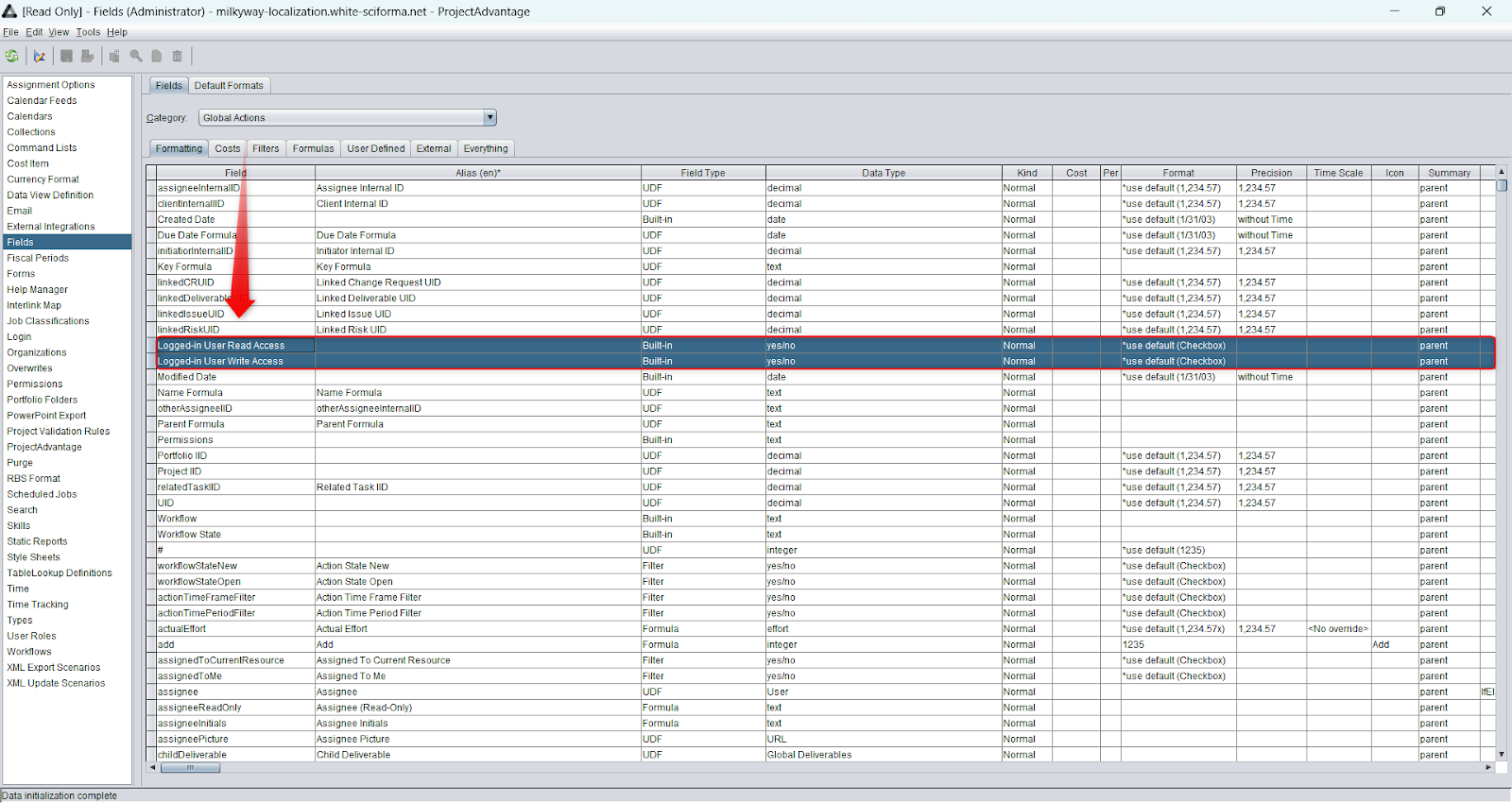
These fields allow administrators to leverage which information users can access. They can be used in forms logic and formulas within parent forms to determine the behavior available to the end-user.
MS Teams
#MSTEAMS-225 - Updated ProjectAdvantage MS Teams app
The latest version of the ProjectAdvantage Microsoft Teams app is now available in the MS Teams store.

With this updated version, users can:
- Interact with the ProjectAdvantage Bot
- Get notified about workflow state updates for objects assigned to them
- Update the workflow state directly from the chat


Important: To ensure optimal use of the bot, please verify that the email address used for ProjectAdvantage login matches your Teams email address.
For more information, please refer to the ProjectAdvantage Teams application documentation.
Core Product Corrected Issues
Build
#SCI-8599
In some scenarios, an error occurred during the on premise installation of the ProjectAdvantage 2026.02 version on Linux with OpenJDK 21. This issue has been fixed.
Data Visualization
#SCI-6764
In the HTML5 Client, in custom workspaces, horizontal lines were incorrectly not displayed, even when the “Grid” option was set to “Full” in the Designer, Forms view, Edit Chart Block dialog box. This issue has been fixed.
Deliverables Center
#SCI-5759
In the Deliverables Center workspace, Board view, the view could take a long time to load when too many cards were to be displayed. This issue has been fixed.
Designer
#SCI-7418
In the Designer, Forms view, Edit Gantt Block and Edit Grid Block dialog boxes, the “Reset column display for all users” button was not working as expected. This issue has been fixed.
News Page
#SCI-8359
In the System Data workspace, News Page tab, News Feed folder, the text color applied in the Create News Article description was not retained and reverted to black after editing or shortly after saving. This issue has been fixed.
Other Tasks
#SCI-8444
In some scenarios, an error message was displayed when users were clicking on deep links in system emails. This issue has been fixed.
Portfolio Center
#SCI-8202
In the Portfolio Center workspace, in some scenarios, an error message was displayed when users were activating display options in custom tabs.This issue has been fixed.
Portfolio Dashboards
#SCI-8375
In the Portfolio Dashboards, the Download .xlsx icon displayed could be incorrect after updating the collection in the Designer. This issue has been fixed.
Projects Center
#SCI-8327 (*Added 08/04/2026)
In the Projects Center workspace, Project Card, Activity tab, when users were performing actions, the time displayed in the Timestamp update column was different from the computer’s local time. This issue has been fixed.
#SCI-8724
In the Projects Center workspace, Project Card, Billing tab, in some scenarios, an error message was displayed when users were navigating to the Transactions sub-tab when connected in French. This issue has been fixed.
#SCI-8175
In the Projects Center workspace, when users were filtering the view by Nature, then were switching the language from English to French, no projects were displayed. This issue has been fixed.
Projects Center - Project Card - Finance
#SCI-8443
In the Projects Center workspace, Project Card, Finance tab, Cost Transactions tile, an error message was displayed when users were clicking on the More ( ) button to open the Cost Transactions dialog box if they were connected in a language other than English. This issue has been fixed.
Projects Center - Project Card - Library Items
#SCI-7928
In the Projects Center workspace, Project Card, Library Items tab, Attachments sub-tab, users were incorrectly able to overwrite existing files, even when their permissions were set as read only in the Designer, Permissions view, Global Attachments category, Global Attachments Permissions dialog box. This issue has been fixed.
#SCI-7668
In the Projects Center workspace, Project Card, Library Items tab, Attachments sub-tab, when users were adding attachments, the names of files were incorrectly not displayed. This issue has been fixed.
Projects Center - Project Card - Resources
#SCI-6686
When users were modifying the name of a task in the Projects Center workspace, Project Card, Gantt tab, the change was not immediately reflected in the Resources tab, Tasks Assignments sub-tab when the “Entire Project” preset was selected. This issue has been fixed.
Reports
#SCI-8358
In the HTML5 Client, some performance issues could be observed when users were trying to export reports to Excel after starting their instance. This issue has been fixed.
REST API
#SCI-8376
Users were unable to correctly define relationships between transactions when creating or updating data views via the REST API. Fields such as transaction references and parent links were not populated as expected. This issue has been fixed.
#SCI-8119
In the Corporate Data workspace, Resources tab, in some scenarios, when updating a resource’s availability using a PATCH request, an extra, unintended record could be created. This record was displayed with a start date of 01/01/1970 and was not part of the request. This issue has been fixed.
#SCI-8060
In the Resource Validation workspace, Calendars tab, Calendar Details full screen view, in some scenarios, calendar entries were not loaded due to missing pending calendar data. This issue was due to REST API PUT requests, which were successful according to logs, but whose results were not visible in the user interface. This issue has been fixed.
Scheduled Jobs
#SCI-8451
In the Designer, Scheduled Jobs view, in some scenarios, the execution of “Generate Static Reports” jobs could fail after upgrading to newer versions. This issue has been fixed.
Default Configuration Enhancements
Administration Calendar
#SCI-8496 - Possibility to add exceptions on week rows or columns in Calendar workspace
In the Calendar workspace, the administrator can now select an entire row or an entire column, meaning exceptions can be added on all the occurrences of a day in a month or all days of a certain week number at once.
All occurrences of a specific day can be selected by clicking on the day-of-the-week header.

The selection is then highlighted in light blue.

The selection can be undone by clicking on the same day-of-the-week header.
Similarly, all days of a certain week can be selected by clicking on the row header corresponding to the specific week.

The selection is then highlighted in light blue.

The selection can be undone by clicking on the same row header corresponding to the specific week.
Once the selection is made, when clicking on the + Add Exceptions button, in the Add Exceptions popup, the “Start Date” and “End Date” are pre-filled. The start date is set to the first day of the occurrence, and the end date is set to the last day of the occurrence.
The Repeat field is also set to “No”.

Multiple columns or rows can be selected at once.


For more information, please refer to the Calendar workspace documentation.
Commands
#SCI-5947 - New Excel import feature
A new Excel import feature has been implemented, allowing users to create and update data in bulk by importing Excel files directly into ProjectAdvantage. It provides an efficient way to manage large volumes of data without having to enter them manually via the user interface.
The Excel import feature uses a standardized Excel template format (.xlsx) that matches the structure of data exported from ProjectAdvantage, ensuring consistency and reducing errors.
It is available in:
- The Projects Center workspace
- The Portfolio Center workspace
- The Organization Center workspace
- The Actions Center workspace
- The Change Requests Center workspace
- The Deliverables Center workspace
- The Issues Center workspace
- The Risks Center workspace
- The Ideas Center workspace
- User defined categories (with the Unique ID column)
- The Project Card, Task tab, Task List sub-tab
Important: This feature is not supported in:
- Grids displaying multiple categories of objects simultaneously (loop, subloop)
- Grids with distributed sections displayed
Prerequisites
Before using the Excel import feature, users must ensure they have:
| User Permissions | Write permissions for the relevant Center workspace/category.Note: If the user does not have the appropriate permissions, the Import command will not be displayed. |
|---|---|
| Technical Requirements |
|
Note: The Import command is only available when clicking on the More () button when the Import view control is enabled in the Designer, Edit View Control dialog box.
Import process
To start importing data, for instance to create three actions, users must follow the process below.
Step 1: Download the template
- Log in to the HTML5 Client.
- Navigate to the Actions Center workspace.
- In the main toolbar, click on the More (
 ) button, then select the Import command.

- In the prompted Import Excel File popup, click on the Download (
 ) icon to download the template Excel file.

- A message will be displayed confirming that the file was successfully downloaded.

Step 2: Prepare the data
- Open the Excel template file.
- Add the three actions, starting from row 2.

Note: The “Universal ID” field can be displayed in the grids using the Display button in the main toolbar. It ensures consistent and unique identification of all ProjectAdvantage objects through a standardized format, and is generated automatically.
Each artifact is uniquely identified using the following structured format:
{artifact_type}-{ID1}-{ID2}-...-{IDn}
- Multiple IDs are separated by hyphens (-)
- The number and meaning of IDs vary depending on the artifact type
- For hierarchical objects (e.g., Tasks under Projects), the order of IDs is fixed:
- The first ID represents the parent object
- Subsequent IDs represent child objects in hierarchy order
Examples
- PRJ-1001
Represents a Project with ID 1001 - TSK-1001-2001
Represents a Task with ID 2001 under Project ID 1001 - UDC-3211-4411
Represents a record with ID 4411 under UDC ID 3211
- Save the file in .xlsx format.
Step 3: Import the file
- Return to the Actions Center workspace.
- In the main toolbar, click on the More (
 ) button, then select the Import command.
- In the prompted Import Excel File popup, add the Excel file using the drag & drop functionality, from the computer to the Drop a file droppable zone, or click on the droppable zone to upload the file from your computer.

Step 4: Review the results
Once imported, a notification toaster is displayed (green = success, yellow = warnings, red = error).

Click on the Notification ( ) icon located in the top navigation bar to prompt the Notification center popup, and download the feedback report for details.

Step 5: Verify
- In the top bar, click on the Refresh (
 ) button.

- The three actions are now displayed in the grid.
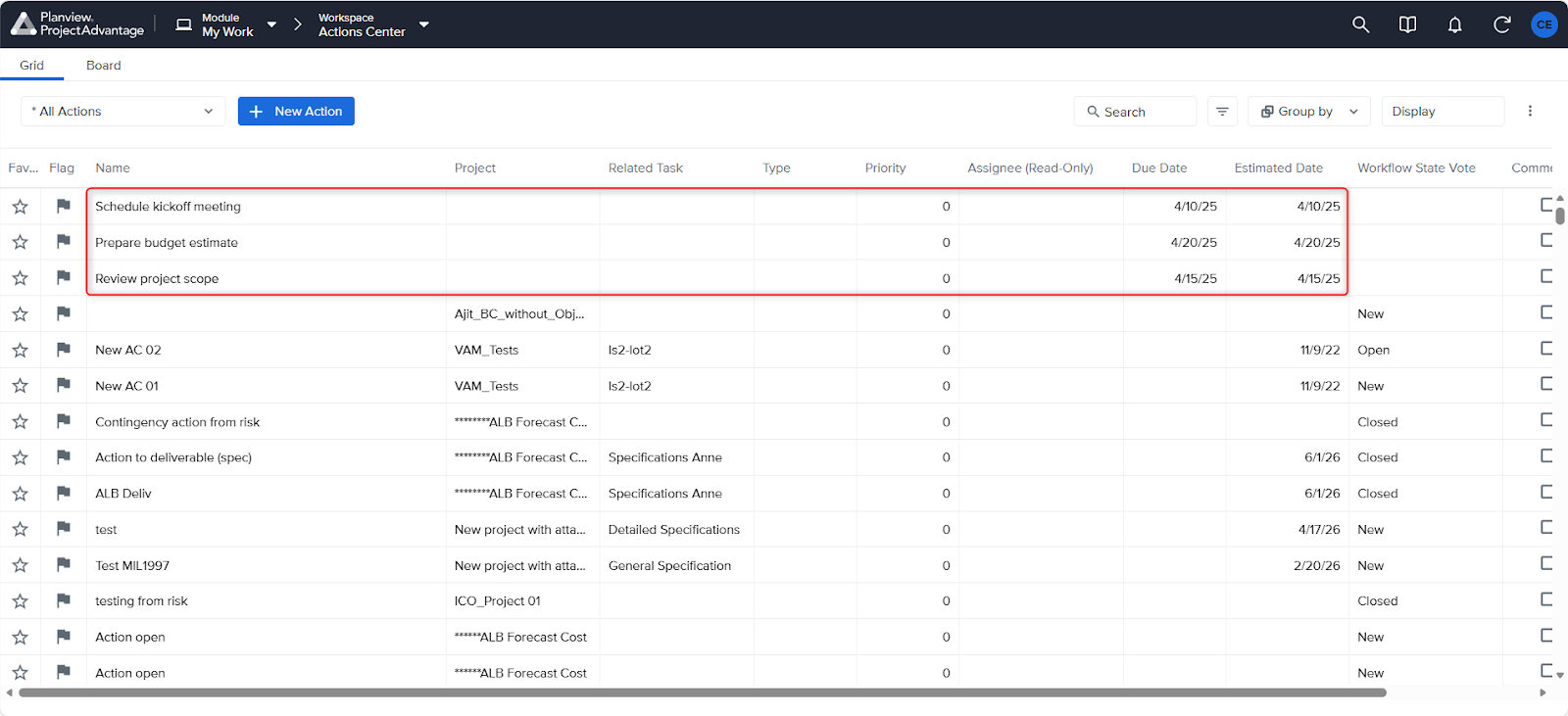
Design
#MIL-6012 - Improved UI for toolbars
In the HTML5 Client, toolbars have been improved to remove the extra space displayed between the New button and the other buttons. The following workspaces have been updated:
- Reports
- Projects Center
- Projects Center > Gantt > Task Brief > Work Objects
- Projects Center > Gantt > Right Panel > Work Objects
- Projects Center > Finance > Transactions
- Projects Center > Forecast > Labor (Commitment and Request & Commitment)
- Projects Center > Forecast > Expenditure
- Projects Center > Work Items > Actions, Change Requests, Deliverables, Issues
- Projects Center > Risks > Register
- Template Center
- Template Center > Transactions
- Actions Center
- Change Requests Center
- Deliverables Center
- Issues Center
- Risks Center
- Ideas Center


Reports
#SCI-7158 - New PowerPoint Export feature (*Modified 09/04/2026)
ProjectAdvantage now supports exporting Project status reports directly to PowerPoint, allowing users to generate fully formatted PowerPoint presentations directly from ProjectAdvantage.
Two PowerPoint templates are available:
- A “One Pager”, which provides the key data of the project’s status report,
- A “Full Report”, which includes information about the work items, the risks, and some graphs.
To run a PowerPoint export, users must navigate to the Project Card, Overview tab, Status Reports sub-tab and create a status report or select an existing one.
Then, in the Submitted Status Report Details view, they must click on the PowerPoint ( ) icon available in the upper right corner of the view, and select one of the two options.


Once downloaded, the PowerPoint report is saved in the Downloads folder:
- Full Template:

- One Pager:

Important: Only Status Reports created starting from the 2026.03 version contain all the necessary fields and data to generate PowerPoint files.
Administrators can also configure their own templates with the data they wish to export at any level (Portfolios, Projects, Organizations, Ideas, Work Items, etc.).
Important: Administrators must ensure the data they wish to include in the PowerPoint report is available in the system. To add special KPIs or indicators, the necessary forms must be created first.
Note: For more information about how to configure PowerPoint templates, please refer to the documentation available on the right hand-side of this view.
Work Items
#MIL-6011 - Footers now aligned in all Work Object Cards
In the Work Object (Action, Change Request, Deliverable, Issue, and Risk) Cards, the footer is now aligned for all work objects.
When creating a work object using the + New Work Object button located in the main toolbar, or from the Work Object Card, Details tab, Connections section, the following buttons are available in the bottom right section of the card:
- Create – Allows the user to complete the work object creation and closes the card.
- Cancel – Closes the card without creating the work object.

Default Configuration Corrected Issues
Corporate Data
#MIL-5927
In the Corporate Data workspace, Resources tab, when creating new resources, the skills previously selected in the New Resource dialog box, Demographics section, were not automatically populated in the Resource Identification dialog box, Definition tab, Advanced Skills section unless users were clicking on the Initialize command. This issue has been fixed; skills are now automatically populated.
Note: The Advanced Skills section is only available if the “Enable Resource Advanced Skills Definition” setting is activated in the System Settings workspace, Administration Settings folder, Display Preferences tab, Corporate Data section.
Ideas Center
#MIL-6025
In the Ideas Center workspace, Grid view, Idea Card, when clicking on the Attach ( ) button to attach a type to the idea, types whose workflow state vote was defined as “Closed” were incorrectly available for selection in the Global Idea Types popup. This issue has been fixed.
Note: Workflow state votes can be defined by the administrator in the System Data workspace, Ideas tab, Idea Types sub-tab.
Portfolio Center
#MIL-6030
In the Portfolio Center workspace, Home tab, the values displayed in the Finance (current year) section could be incorrect. This issue has been fixed.
#MIL-6007
In the Portfolio Center workspace, Home tab, multi-portfolio folder selection, when users were clicking on one of the chart’s bars to open the corresponding Portfolio Health Score Details dialog box, the filtered projects were incorrect. This issue has been fixed.
Portfolio Simulation
#MIL-6021
In the Portfolio Simulation workspace, after capturing a scenario, the Gantt chart displayed in the Simulation ( ) mode was empty, even when the “Include Projects” parameters had previously been activated in the Scenario Definition popup, and the user needed to refresh the page for the Gantt chart to be properly displayed. This issue has been fixed.
Projects Center
#MIL-6031
In the Projects Center workspace, when creating a new project, the “Nature” field was empty in languages other than English when the "Set Project Creation Default Nature" setting was set to "Project". This issue has been fixed.
Note: The aforementioned setting is located in the System Settings workspace, Project Settings folder, Project Creation Options tab, Nature Options section.
Projects Center - Project Card - Resources
#MIL-6018
In the Projects Center workspace, Project Card, Resources tab, Tasks Assignments sub-tab, hard assignments were no longer displayed after upgrading the collections to a newer version. This issue has been fixed.
#MIL-6017
In the Projects Center workspace, Project Card, Resources tab, Project Allocations sub-tab, Project Allocations full screen view, Allocations tab, Resources Overview sub-tab, in some scenarios, the hard allocations’ organization, job classification and skills were not aligned with those of the the actual resource allocated to the project. This issue has been fixed.
Projects Center - Project Card - Task
#MIL-6020
In the Projects Center workspace, Project Card, Task Tab, Tracking sub-tab, By Tasks view mode, Collapsed view mode, no data was displayed when the selected project was in “Published” version. This issue has been fixed.
#MIL-6019
In the Projects Center workspace, Project Card, Task tab, Tracking sub-tab, By Resources view mode, the intervals were not correctly displayed when a custom time frame was selected when users were connected in a language other than English. This issue has been fixed.
#MIL-5797
In the Projects Center workspace, Project Card, Task tab, Tracking sub-tab, By Resources view mode, when users were clicking on the “Jump to timeframe” button in Outstanding Timesheets in the past popup, the time frame dates were incorrectly set when the “Month” pivot was selected. This issue has been fixed.
Resource Allocations
#MIL-6029
In the Resource Allocations workspace, Resource Allocations full screen view, Requests tab, Requests Overview sub-tab, when clicking on the Brief button, the Project Brief dialog box was not displaying information about the correct project if a request had previously been fulfilled. This issue has been fixed.
Resource Fulfillment
#MIL-6024
In the Resource Fulfillment workspace, when multiple organizations were selected, resources belonging to parent organizations were displayed, even if they were not managed by the logged-in user. This issue has been fixed.
#MIL-6002
In the Resource Fulfillment workspace, when the “Soft Assignments” display option and the “Organization” group by option were selected, the name of the organization was incorrect if it had previously been changed in the System Data workspace. This issue has been fixed.
Resource Validation
#MIL-6028
In the Resource Validation workspace, Timesheets tab, Timesheet Details full screen view, when a “Month” interval was selected, the warning message usually displayed at the bottom of the view was missing. This issue has been fixed.
Work Items
#MIL-5839
In the Work Items Center workspaces, Work Items Cards, Definition tab, all users were able to edit information, even if they did not have the required write permissions. This issue has been fixed.
Deliver Enhancements
Other
#DELIVER-1786
A new command has been introduced to validate the integrity of the freeze/unfreeze process across systems.
Deliver Corrected Issues
Other
#DELIVER-1728
During migration, when a project contained only linked attachments (i.e., no directly uploaded files or embedded attachments within RTF content), the Attachment API returned no data. This issue has been fixed.
Performance
#DELIVER-1744
In some scenarios, production environments were not accessible, and a timeout error message was displayed when users were trying to login or the environment was not loading up. This issue has been fixed.
Synchro V3
#DELIVER-1767
In some scenarios, nightly synchronizations were failing. This issue has been fixed.
#DELIVER-1766
In some scenarios, full synchronization was failing when a cluster parent field did not exist anymore. This issue has been fixed.
System Requirements
There are frequent changes and additions to the set of specific versions of operating systems, application servers and database servers for which Planview ProjectAdvantage has been tested and certified. Please contact our teams for the latest information in this area.
Note: Users' system clocks must be regularly and accurately synchronized with the internet.
Servers
- Application Server: Apache Tomcat 10.1 with Oracle Java 21 or OpenJDK21
Important: The use of OpenWebStart is mandatory to open the Designer.
- Data Server: PostgreSQL 14, PostgreSQL16
HTML5 Clients
- Display resolution: 1366 x 768 (technical minimum), 1600 x 1050 (minimum recommended), 1920 x 1080 or higher (generally recommended).
- Minimum of 4GB RAM allocated (8GB recommended).
- Browser
- Microsoft Edge
- Google Chrome
- Mozilla Firefox
- Apple Safari
Planview ProjectAdvantage Designer
- Recommended language: English
- Display resolution: 1366 x 768
- Minimum of 4GB RAM allocated
- Disk space: 200MB minimum available for Planview ProjectAdvantage.
- Oracle Java 21 or OpenJDK 21
- Operating Systems:
- Windows 7, 8.1, 10 or 11
- Mac OS X Lion or newer
- Alpine Linux 3.16.1
REST API
- Supported language: English
Timesheets Mobile Application
- Being hosted by Planview ProjectAdvantage
- Product version: 2022.08 and upper versions
Planview ProjectAdvantage platform
Users will need to enable third-party cookies to work within Planview ProjectAdvantage. For more information regarding third-party cookies, please refer to the “How to allow third-party cookies” documentation.
For customers who subscribed only to ProjectAdvantage
- Installation:
- POD 11 is required if hosted by Planview ProjectAdvantage
- An Hydra server is required if on premise
- Product version: 2023.01 and upper versions
For customers who subscribed to ProjectAdvantage and Deliver
- Installation:
- POD 11 is required if hosted by Planview ProjectAdvantage
- An Hydra server is required if on premise
- HPV2 activated on Deliver modules (activated by default for all new Deliver Clients after 2021 Q3)
- Product version: 2023.01 and upper versions
- Users will need to allow third-party cookies in their browser
Limitations
The data connector:
- Does not work in load balanced environments.
- Is not compatible with Cloud Scheduled Jobs.
- Is not compatible with dedicated API servers.
- Is not compatible with the Java API.