



2026.04
This document describes the enhancements, corrected issues, and new features that have been implemented in Planview ProjectAdvantage 2026.04, both in the Core product and in the Default Configuration.
Planview ProjectAdvantage 2026.04 is a maintenance release of Planview ProjectAdvantage 2026.
In the Core product, 2 enhancements have been implemented and 27 issues have been fixed.
In the Default Configuration, 3 enhancements have been provided and 12 issues have been fixed.
In order to access the different sections, please click on the following links:
- Important Reminders for upgrade
- Core Product Enhancements
- Core Product Corrected Issues
- Default Configuration Enhancements
- Default Configuration Corrected Issues
- System Requirements
Important Reminders for upgrade
- From the 2023.01 version, the Project Dashboards workspace should be added again in the User Roles section of the Designer as the Dashboards workspace doesn't exist anymore.
- In order to complete the upgrade to newer Planview ProjectAdvantage versions, administrators must update the “Popup” column with the correct Forms in the Designer, Search view, as follows:
- “Global Actions” Category → Popup - Action Card (Briefs)
- “Global Change Requests” Category → Popup - Change Request Card (Briefs)
- “Global Deliverables” Category → Popup - Deliverable Card (Briefs)
- “Global Issues” Category → Popup - Issue Card (Briefs)
- “Global Risks” Category → Popup - Risk Card
- From the 2025.12 version, OpenJDK21 is required to launch the Planview ProjectAdvantage Designer and the Java Legacy APIs. For more information, please refer to the “Move to Java 21” product notice.
Core Product Enhancements
Designer
#SCI-8667 - New icons available for Project natures
In the Designer, Forms view, Edit Field dialog box, Extras tab, Choose Icon dialog box, new icons have been added for project natures in the Project category.

Mobile Application
#SCI-7255 - Mobile app ProjectAdvantage rebranding
The former “ProjectAdvantage” product name has been replaced by the new “ProjectAdvantage” name in the iOS App Store (Apps for iPhone - App Store) and the Google Play Store (Android Apps on Google Play), and logos, icons, and mentions have been updated.

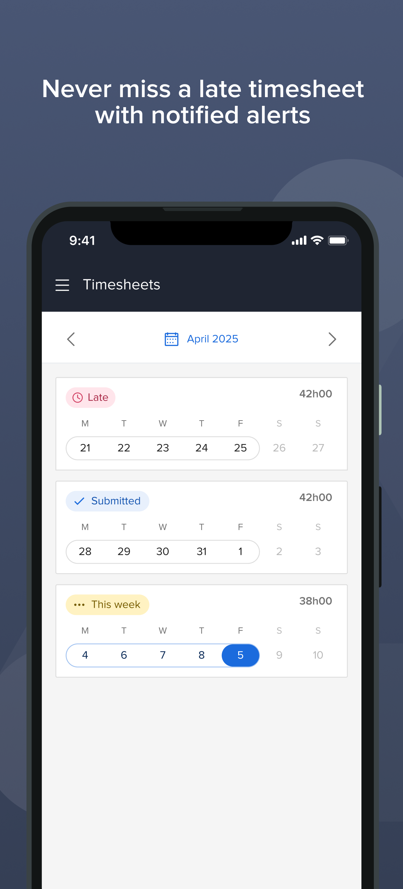
In addition, the mobile Timesheet has been updated with the Planview theme.




Core Product Corrected Issues
Built-in Timesheet
#SCI-8782
In the Timesheet (built-in) workspace, when users were submitting their timesheet, planned tasks with no actuals were incorrectly not displayed anymore. This issue has been fixed.
#SCI-7691
In the Calendar workspace, when a calendar was approved with a non-working day that fell within the date range of an already-submitted timesheet, the timesheet displayed in the Timesheet (built-in) workspace was not updated to reflect the calendar change, even when the change fell within the timesheet modifiable range. This issue has been fixed.
#SCI-5467
In the Timesheet (built-in) workspace, the expected weekly effort was incorrect, even when the “Expected effort field” control was set to “Available Effort on Base Calendar” in the Designer, Time Tracking view. This issue has been fixed.
Designer
#SCI-8804
In the Designer, Command Lists view, in some scenarios, the command lists were not properly sorted. This issue has been fixed.
Import Excel
#SCI-8239
In the Ideas Center workspace, Grid view, when users were importing an Excel file, all fields were not tracked in the Idea Card, Activity dialog box. This issue has been fixed.
Legacy API
#SCI-8556
In some scenarios, error logs were incorrectly generated during an upgrade to the latest ProjectAdvantage version, even though the application functionality was not affected. This issue has been fixed.
Localization
#SCI-8623
In the Designer, Localization Grid, Hebrew translations were incorrectly not retained after saving and were not displayed in the HTML5 Client across the affected forms. This issue has been fixed.
Performance
#SCI-8881
In the HTML5 Client, some loading performance issues could be observed when users were navigating to the Projects Center workspace. This issue has been fixed.
#SCI-8509
In some scenarios, some issues could be observed, causing a degraded performance, some slowness, and the application instability under high-load conditions. This issue has been fixed; memory optimization strategies have been implemented to reduce peak memory consumption and improve the application stability under high-load conditions.
Portfolio Center
#SCI-8201
In some scenarios, no portfolio folders were displayed in the selector when users were navigating to the Portfolio Center workspace. This issue has been fixed.
Portfolio Dashboards
#SCI-8822
In the Portfolio Dashboards workspace, Reports List, when users were clicking on the Download .xls ( ) button, some columns were incorrectly grayed out in the downloaded report. This issue has been fixed.
#SCI-8712
In the Portfolio Dashboards, Projects Dashboards, and Resource Dashboards workspaces, the “Launch Report in a new Browser Tab” was not working as expected when using the Microsoft Edge browser. This issue has been fixed.
Projects Center
#SCI-8887
In the Projects Center workspace, in some scenarios, an error message was displayed when users were trying to access projects or their objects. This issue has been fixed.
#SCI-6556
In the Projects Center workspace, Grid view, when Rich Text fields were added as columns, row heights were unexpectedly expanded by default, making the view harder to read and navigate. This issue has been fixed.
#SCI-6254
In the Projects Center workspace, Project Card, Activity tab, when users were performing actions, the time displayed in the Timestamp update column was different from the computer’s local time. This issue has been fixed.
Projects Center - Project Card - Gantt
#SCI-6774
In the Projects Center workspace, Project Card, Gantt tab, Resource panel, an error message was displayed when users were clicking on the Gear ( ) icon, then selecting the “Export to Excel” command. This issue has been fixed.
Projects Center - Project Card - Overview
#SCI-8643
In the Projects Center workspace, Project Card, Overview tab, Definition sub-tab, an error message was sometimes displayed when users were adding an image in the Description section. This issue has been fixed.
Projects Center - Project Card - Status Reports
#SCI-8753
In the Projects Center workspace, Project Card, Overview tab, Status Reports sub-tab, Submitted Status Report Details view, when users were clicking on the Print ( ) command, the full status report was not opening in a new browser tab when using the Microsoft Edge browser. This issue has been fixed.
Projects Center - Project Card - Task
#SCI-7887
In the Projects Center workspace, Project Card, Task tab, Tracking sub-tab, By Resources view mode, when a custom time frame was selected, the completion percentage could incorrectly be lower than 100% for applied timesheets, even though it displayed correctly when viewed on a weekly basis within the same time period. Additionally, the “Apply Both” command was not working as expected for the said resource. This issue has been fixed.
PV Admin
#SCI-8549
In the Corporate Data workspace, Users tab, when users were created without a user role, then were subsequently assigned a user role, they were not synched automatically to Planview Admin. This issue has been fixed.
Resource Forecast
#SCI-8915
In the Resource Forecast workspace, when users were selecting the “Commit” command, an error message was displayed and the request workflow state was not changed to “Committed”. This was due to the command check being set to project managers permissions instead of resource manager permissions. This issue has been fixed.
Resource Validation - Calendars
#SCI-7515
In the Resource Validation workspace, Calendars tab, attempting to approve or rework the calendar for certain resources resulted in an error. This issue has been fixed.
Resource Validation - Timesheets
#SCI-7868
In the Resource Validation workspace, Timesheets tab, Timesheet Details full screen view, when users were pinning assignments, their status was incorrectly changed to “Submitted” and the actual data was remaining empty after the timesheet was submitted. In addition, when there was no assignment or actual data for a task, it was not deleted from the timesheet. This issue has been fixed.
REST API
#SCI-8618
In some scenarios, an issue where forecast data submitted through the Project Forecasts interface was intermittently rejected on the first attempt, then accepted the following day with no changes to the submitted data. This affected customers using automated integrations to push forecast cost data into the system. This issue has been fixed.
#SCI-8355
In some scenarios, the “/rest/health” REST API endpoint was incorrectly reporting the environment status as “DOWN” due to an irrelevant “disk_space” probe failure, even when the application was fully operational and all other API calls were functioning normally. This affected customers whose applications are deployed in PODS (cloud/hosted environments). This issue has been fixed. The API response for POD-based deployments has been simplified to include only the information relevant to application health. This change does not affect customers with on-premise deployments, whose API behavior remains unchanged.
Scheduled Jobs
#SCI-8028
In the Designer, Scheduled Jobs view, in some scenarios, the “Update Search Index” scheduled job was randomly failing. This issue has been fixed.
#SCI-7895
In the Designer, Scheduled Jobs view, Cloud scheduled jobs were randomly failing when performing heavy operations on the cache due to an Infinispan bug. This issue has been fixed.
Default Configuration Enhancements
Project Administration
#MIL-6126 - Re-designed toolbar in Project Administration workspace
In the Project Administration workspace, the toolbar has beenre-designed to include a layout common to the main toolbars available in the Center workspaces in the solution, thus improving the overall user experience.
The following commands and display options are available:


| Views | Allows the user to select a view. | |
|---|---|---|
| New Project | Allows the user to create a new project. | |
 | Publish | Allows the user to publish the selected Working project(s). |
 | Deactivate | Allows the user to deactivate active projects. Only available when active projects are selected. |
| Activate | Allows the user to reactivate deactivated projects. Only available when deactivated projects are selected. | |
 | Save As | Allows the user to save a project by changing its Name, ID, and Version. |
| Search | Allows the user to filter the items in the grid by searching for a specific name. | |
| Filters | Opens the Filters popup, which offers the capability to filter the items in the grid according to various criteria. | |
| Group by | Groups the items in the grid according to the option selected. | |
| Display | Displays the list of attributes that can be shown, hidden, or reordered in the grid. | |
 | More | Provides access to the following commands:
|
 ) – Opens the grid in a new browser tab and displays the Print dialog box, in which users can select a printer.
 ) – Opens the Import Excel File popup, allowing users to create and update data in bulk by importing Excel files.
 ) – Downloads the current view in Excel format.
Reports
#MIL-6037 - Report grid enhanced to support distributed data
In the Reports workspace, a new Distribution button is available in the main toolbar. It displays a panel listing the fields that can be shown or hidden in the grid, allowing users to visualize distributed data.

To hide a field, click on the  icon available on the right-hand side of the field name.
To show a field, click on the  icon available on the right-hand side of the field name. Consequently, the field name will be placed in the “Shown Distributed Field” section of the panel.
If the user clicks again on the  icon, the newly selected field will be placed in the “Shown Distributed Field” section of the panel, and the previously selected field will be placed in the lower part of the panel.
Important: Only one distributed field can be displayed at once.
Once a field is shown in the grid, the report display can be saved by clicking on the Save button in the main toolbar.

Upon clicking on the Distribution button and clicking on the  icon to display a field, the time navigation toolbar is displayed in the upper section of the grid.

Note: The time navigation toolbar is not available for the following categories: Actions, Change Requests, Deliverables, Issues, and Risks.
The following fields are available:
| Labor Assignments |
|
|---|---|
| Portfolio Folders |
|
| Projects |
|
| Tasks |
|
| Timesheets |
|
Resource Forecast
#SCI-8827 - Requests & Commitments feature enhancements
The Requests & Commitments flow has been updated to include a recall feature for Project and Resource Managers.

- After submitting a request, the project manager can click on the “Recall” button to make adjustments to the request. This changes the workflow state of the request from “To be committed” to “In progress”.
- After committing a request, the resource manager can click on the “Recall” button to make adjustments to the commitment. This changes the workflow state of the request from “Committed” to “To be committed”.
Labor sub-tab (Requests & Commitments)
The new Recall button has been implemented in the main toolbar.

Note: The button is visible only when one or several request(s) is(are) selected in the grid. To select one or several request(s), the user will need to tick the relevant checkbox(es) located in the leftmost column of the grid.
Similarly, clicking on the More ( ) button available on the right hand-side of each resource request field cell provides access to the Recall (
 ) command, allowing the user to recall the request.
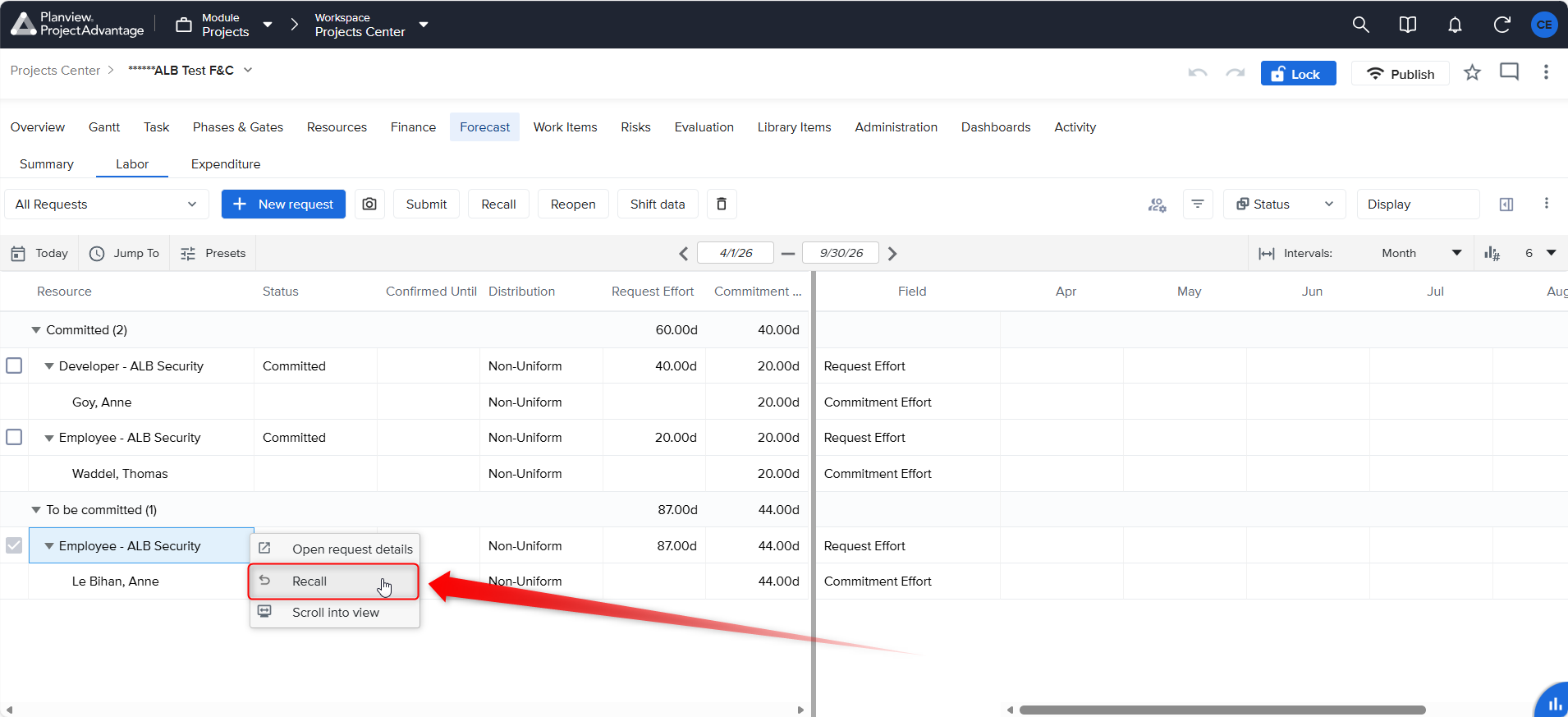
Upon clicking on the Recall button or upon selecting the Recall ( ) command, the selected request(s) whose workflow state is "To be committed" is(are) moved to the "In progress" workflow state.
Important: The “Recall” button and command are available for requests whose workflow state is “To be committed” only.
Resource Forecast workspace (Requests & Commitments)
The new Recall button has been implemented in the main toolbar.

Note: The button is visible only when one or several commitment(s) is(are) selected in the grid. To select one or several commitment(s), the user will need to tick the relevant checkbox(es) located in the leftmost column of the grid.
Similarly, clicking on the More ( ) button available on the right hand-side of each resource request field cell provides access to the Recall (
 ) command, allowing the user to recall the request.

Upon clicking on the Recall button or upon selecting the Recall ( ) command, the selected request(s) whose workflow state is "Committed" is(are) moved to the "To be committed" workflow state.
Important: The “Recall” button and command are available for requests whose workflow state is “Committed” only.
In addition, the behavior of the Commit button/command has been updated, so that resource managers cannot commit requests for which no committed effort has been entered.
When one or several request(s) is(are) selected in the grid, upon clicking on the Commit button in the main toolbar, a flash message indicating that the request has not been committed is now displayed.

First, resource managers must fulfill the request using the Fulfill request ( ) command, which is available when clicking on the More (
 ) button available on the right hand-side of the resource request field cell.
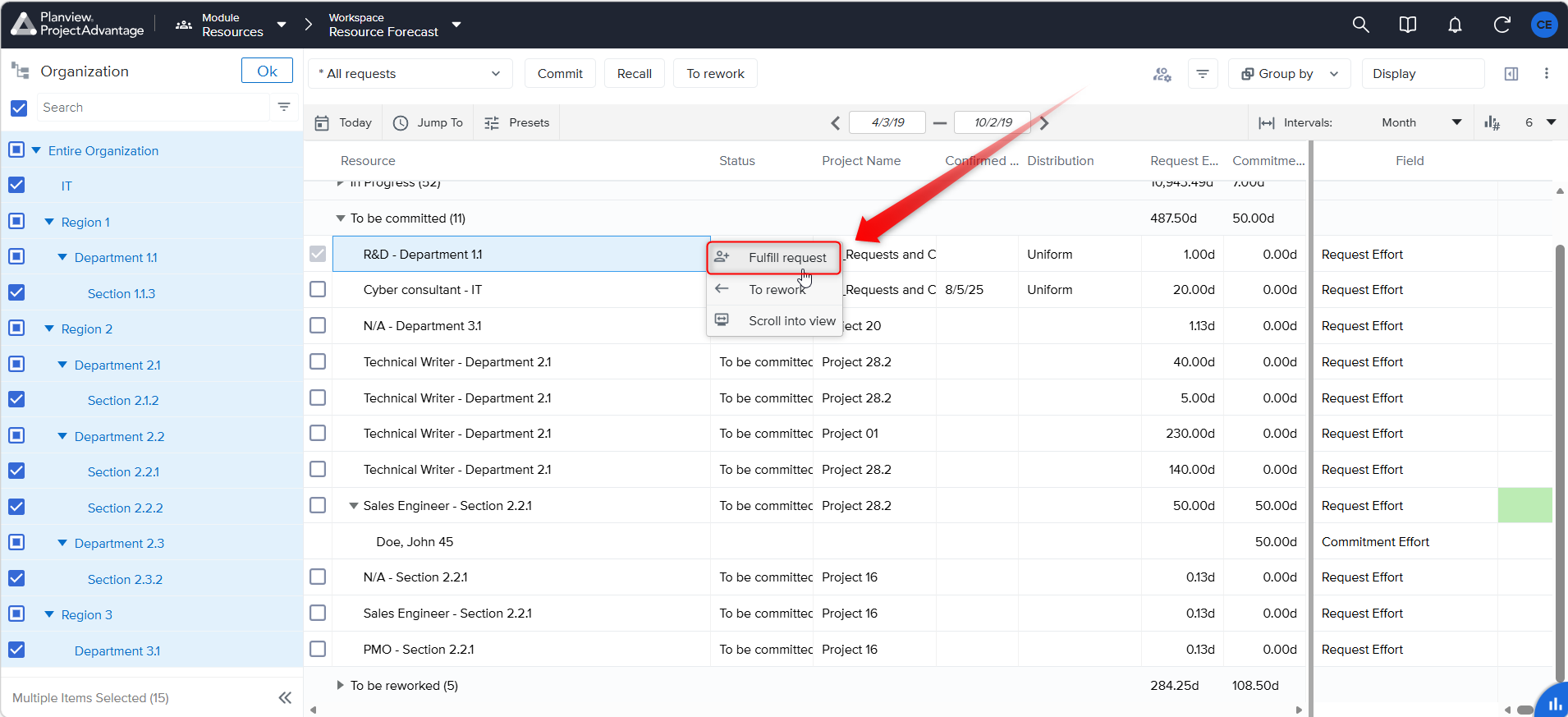
In addition, when clicking on the More ( ) button available on the right hand-side of each resource request field cell, the Commit (
 ) command is now only available if the request was previously fulfilled.
Create generic Commitment & Create nominative Commitment dialog boxes
A new Custom section has been added in the Create generic Commitment and the Create nominative Commitment dialog boxes.


Note: The Custom section is displayed only when the “Enable Requests and Commitments creation Pop-ups Custom section” is activated in the System Settings workspace, Resource Settings folder, Allocations & Commitments tab, Requests & Commitments Options section.

Important: The Custom section can be overwritten in the Designer, Forms view. The following forms must be used:

- For the Create generic Commitment dialog box → Custom (Projects/Project Card/Resources/Resource Forecast/Commitments/Common)_Overwritable
- For the Create nominative Commitment dialog box → Custom (Projects/Project Card/Resources/Resource Forecast/Requests and Commitments/Popup - New Request)_Overwritable
Default Configuration Corrected Issues
Actions Center
#MIL-6069
In the Actions Center workspace, users were able to create actions without selecting a type if clicking on the Close ( ) button in the Action Card when the “Enable Actions Type Verification” setting was activated. All the other work objects (change requests, deliverables, issues, and risks) were also affected. This issue has been fixed.
Note: The aforementioned settings are located in the System Settings workspace, Work Management Settings folder, Work Items and Risks tabs.
Corporate Dashboards
#MIL-5674
In the Corporate Dashboards workspace, Session Statistics tab, in some scenarios, when users were exporting statistics to Excel, some records could be missing in the exported file if a reorganization had been previously applied in the Designer, Organizations view. This issue has been fixed.
Designer
#MIL-6109
In the Designer, Command Lists view, the looping function caused an error for the “Scheduler - Assign Resources - Resources” command list. This issue has been fixed.
Legacy Timesheet
#MIL-6084
In the legacy Timesheet workspace, when users were submitting their timesheet, planned tasks with no actuals were incorrectly not displayed anymore. This issue has been fixed.
Projects Center - Project Card - Dashboards
#MIL-6077
In the Projects Center workspace, Project Card, Dashboards tab, the time frame selected in the Most frequently used options panel was not honored for custom reports under the Work theme. This issue has been fixed.
Projects Center - Project Card - Finance
#MIL-6048
In the Projects Center, Project Card, Finance tab, Cost Transactions dialog box, transaction names were not fully visible in the table. This issue has been fixed.
Projects Center - Project Card - Gantt
#MIL-6053
In the Projects Center workspace, Project Card, Gantt tab, Task Card, an error was displayed when clicking on the Comments ( ) button to open the Task Comments popup if the logged-in user did not have the required permissions. This issue has been fixed.
#MIL-6038
In the Projects Center workspace, Project Card, Gantt tab, Task panel, Transactions & Cost Items tab, when connected in Spanish, an error message was displayed when users were creating a new transaction. This error was due to the “Forecast” status, which was incorrectly translated. This issue has been fixed.
Projects Center - Project Card - Overview
#MIL-6086
In the Projects Center workspace, Project Card, Overview tab, Status Reports sub-tab, Submitted Status Report Details view, when users were clicking on the Export PowerPoint ( ) button, some values were incorrect in the exported PowerPoint file. This issue has been fixed.
Projects Center - Project Card - Resources
#MIL-6097
In the Projects Center workspace, Project Card, Resources tab, Resources assignments sub-tab, Assignment Details full screen view, Hard Assignments tab, Resource Card, Utilization tab, the colored indicators displayed in the Resource Assignments spreadsheet were incorrect. This issue has been fixed.
Projects Center - Project Card - Risks
#MIL-6104
In the Projects Center workspace, Project Card, Risks tab, Summary sub-tab, Overdue risks popup, attributes could not be edited in the grid. All the other overdue work items were also affected. This issue has been fixed.
#MIL-6103
In the Projects Center workspace, Project Card, Risks tab, Register sub-tab, Risk Card, Risk Evaluation tab, Snapshot History popup, the More ( ) button was missing for the Used as Initial snapshot. This issue has been fixed.
System Requirements
There are frequent changes and additions to the set of specific versions of operating systems, application servers and database servers for which Planview ProjectAdvantage has been tested and certified. Please contact our teams for the latest information in this area.
Note: Users' system clocks must be regularly and accurately synchronized with the internet.
Servers
- Application Server: Apache Tomcat 10.1 with Oracle Java 21 or OpenJDK21
Important: The use of OpenWebStart is mandatory to open the Designer.
- Data Server: PostgreSQL 14, PostgreSQL16
HTML5 Clients
- Display resolution: 1366 x 768 (technical minimum), 1600 x 1050 (minimum recommended), 1920 x 1080 or higher (generally recommended).
- Minimum of 4GB RAM allocated (8GB recommended).
- Browser
- Microsoft Edge
- Google Chrome
- Mozilla Firefox
- Apple Safari
Planview ProjectAdvantage Designer
- Recommended language: English
- Display resolution: 1366 x 768
- Minimum of 4GB RAM allocated
- Disk space: 200MB minimum available for Planview ProjectAdvantage.
- Oracle Java 21 or OpenJDK 21
- Operating Systems:
- Windows 7, 8.1, 10 or 11
- Mac OS X Lion or newer
- Alpine Linux 3.16.1
REST API
- Supported language: English
Timesheets Mobile Application
- Being hosted by Planview ProjectAdvantage
- Product version: 2022.08 and upper versions
Planview ProjectAdvantage platform
Users will need to enable third-party cookies to work within Planview ProjectAdvantage. For more information regarding third-party cookies, please refer to the “How to allow third-party cookies” documentation.
For customers who subscribed only to ProjectAdvantage
- Installation:
- POD 11 is required if hosted by Planview ProjectAdvantage
- An Hydra server is required if on premise
- Product version: 2023.01 and upper versions
For customers who subscribed to ProjectAdvantage and Deliver
- Installation:
- POD 11 is required if hosted by Planview ProjectAdvantage
- An Hydra server is required if on premise
- HPV2 activated on Deliver modules (activated by default for all new Deliver Clients after 2021 Q3)
- Product version: 2023.01 and upper versions
- Users will need to allow third-party cookies in their browser
Limitations
The data connector:
- Does not work in load balanced environments.
- Is not compatible with Cloud Scheduled Jobs.
- Is not compatible with dedicated API servers.
- Is not compatible with the Java API.