



2025.05
This document describes the enhancements, corrected issues, and new features that have been implemented in ProjectAdvantage 2025.05, both in the Core product and in the ProjectAdvantage Default Configuration, in Vantage and in Deliver.
ProjectAdvantage 2025.05 is a maintenance release of ProjectAdvantage 2025.
In the Core product, 4 enhancements have been implemented and 36 issues have been fixed.
In the ProjectAdvantage Default Configuration, 5 enhancements have been provided and 14 issues have been fixed.
In Vantage, 1 enhancement has been implemented and 2 issues have been fixed.
In order to access the different sections, please click on the following links:
- Important Reminders for upgrade
- Core Product Enhancements
- Core Product Corrected Issues
- Default Configuration Enhancements
- Default Configuration Corrected Issues
- Vantage Enhancements
- Vantage Corrected Issues
- System Requirements
Important Reminders for upgrade
- To improve the performance of views displaying the Health Score of multiple projects, we are now using a Health Score that is pre-calculated upon publishing a project as opposed to on the fly. Therefore, upon upgrading to 2021.03 (or higher), please make sure you run once the following Scheduled Job to initialize the project Health Score values: Initialize Project Static Health Score.
>Important: For systems with an overwritten Publish command, please make sure to add the new dedicated Command List for the Health Score pre-calculation upon publishing a project: “Project - Publish Project - Continue - Capture Health Score”. - From the 2023.01 version, to support the implementation of the new Vantage navigation and modules, the Project Dashboards workspace should be added again in the User Roles section of the Designer as the Dashboards workspace doesn't exist anymore.
Core Product Enhancements
Data Visualization
#SCI-5840 - Audit Logs on Labor Assignments
The Activity Logs feature has been rolled out for Labor Assignments. It allows Project Managers and Resource Managers to track all changes made to resources (definition, utilization, and assignments), and therefore ensure accountability and transparency in resource management across projects and tasks.
Those changes are captured and displayed in the Task Card, Activity dialog box, where the users are able to view a detailed history of the modifications applied to a labor assignment.

The information displayed in the Activity dialog box includes:
- Any changes made at the task level for hard, soft, and generic assignments;
- Any changes made in the Labor Assignment dialog box.
The Activity dialog box is made of a toolbar and a grid.
The toolbar contains the Filters display option, which opens the Filters popup, offering the capability to filter according to various criteria. Clicking on the + Add Filter button displays a dropdown list, enabling users to select all fields on which they can filter the object. By default, the following filters are available:
- Action
- Category
- Field Name
- New value
- Object
- Old value
- Timestamp update
- User
By default, the grid available in the Activity dialog box provides a spreadsheet in which the following columns are displayed: Timestamp update, Field Name, Object, Action, Old value, New value, and User.
Note: For the Activity option to be displayed in the Task Card, the “Enable Task Activity” setting must be enabled in the System Settings workspace, General Settings folder, General Options tab, Activity Options section.

Designer
#SCI-6192 - Fiscal Period Management
In the Designer, Command Lists view, Edit Command dialog box, Parameters dialog box, when editing a Fiscal Calendar command, the "Fiscal Period Field" parameter name has changed to "Column Fiscal Period Field”, and a new "Preset Fiscal Period Field" parameter has been added. When a "Current X", "Previous X", or "Specific X" command is executed, the configured "Preset Fiscal Period Field" is set to the fiscal time scale used to span the start/finish dates (the "X" from the preset").

#SCI-6177 - Implementation of new Search capabilities
In the Designer, new Search capabilities have been implemented in the Command Lists, Overwrites, and Stylesheets views.
#SCI-6160 - Fiscal Period Management
In the Designer, Command Lists view, Edit Command dialog box, Parameters dialog box, a setting has been added to configure a “Preset Name Field”. This text field is set as the name of the preset when the user selects a preset from the menu in the HTML5 Client.

Core Product Corrected Issues
Authentication
#SCI-5616
In the HTML5 Client, in some scenarios, the session timeout functionality was not working. This issue has been fixed.
Built-in Workspaces - External Applications
#SCI-6091
In the External Applications workspace, an error message was displayed when users were clicking on the “Create” button in the New Application popup. This was due to duplicate notification entries being created in the setup, causing an “Update Table” operation and external application creation failure. This issue has been fixed.
Built-in Workspaces - Timesheet
#SCI-6320
In some scenarios, no usage events were retrieved for the Timesheet (built-in) workspace. This issue has been fixed.
#SCI-6229
In the Timesheet (built-in) workspace, when clicking on the “+ Tasks” button, projects for which the logged-in users did not have the relevant permissions were incorrectly visible in the Add to Timesheet popup. This issue has been fixed.
#SCI-6193
In the Timesheet (built-in) workspace and in the System Settings workspace, General Settings folder, General Options tab, Format Controls section, when the “Default Time Distribution” setting was defined as “Fiscal Period” or “Both”, the “Fiscal Month” period was available, even though it was not selected in the Designer, Fields view, Fields tab, Global category for the “defaultTimesheetFiscalPeriod” field. This issue has been fixed.
#SCI-5910
In the Timesheet (built-in) workspace, when users were trying to import projects and tasks from the previous week using the “Import projects and tasks with data” command, all actuals were incorrectly not imported. This issue has been fixed.
#SCI-5874
In the Timesheet (built-in) workspace, an error message was displayed when users were trying to navigate to the last fiscal period in the fiscal period calendar. This issue has been fixed.
Data Visualization
#SCI-6581 (*Added on 07/21/2025)
In the HTML5 Client, in some scenarios, when columns were frozen in grids, users were unable to scroll vertically and visualize all rows. This issue has been fixed.
#SCI-6202
In the Projects Center workspace, Project Card, Gantt tab, after the user had published a project, the Tasks Comments were sorted abnormally when used in the Sum or List functions for a User Defined Formula. This issue has been fixed; user defined categories are now loaded in ascending order based on the created date and Unique Id if available in the data view.
#SCI-2296
In the Projects Center workspace, Project Card, Gantt tab, when users were connected in Hebrew, the “Add More Tasks” button located in the bottom of the Gantt spreadsheet was not properly visible. This issue has been fixed.
Designer
#SCI-5567
In the Designer, Collections view, when users were updating a collection, in some scenarios, specific filters were not being validated during the installation process. This issue has been fixed.
Documents
#SCI-5987
In the Projects Center workspace, Project Card, Library Items tab, Attachments sub-tab, when users were adding a URL link, the URL field was incorrectly displayed as empty. This issue has been fixed.
#SCI-5228
In the Change Requests Center workspace, Board view, Change Request Card, when users were connected in any language other than English, both the “Upload File” and “Link URL” options were available for selection in the prompted popup when clicking on the “+ Add Attachment” button, even when the “Attachments Settings” setting was set to “Only External Link”. This issue has been fixed.
Note: The aforementioned setting is located in the System Settings workspace, General Settings folder, General Options tab, Attachments section.
Execution - Timesheet
#SCI-6159
In the legacy Timesheet workspace, when users were clicking on the “+ Assignment” button, certain tasks were incorrectly not available for selection in the prompted Task popup, even if the logged-in user was allocated to the relevant project. This was due to the popup being filtered by Project and Task exposed formulas. This issue has been fixed; Exposed Field Filters are now supported for the “+ Assignment” capability. The filters are:
- “addAssignmentProjectFilterExposed” at the Project Level
- “addAssignmentTaskFilterExposed” at the Task level
#SCI-5839
In the legacy Timesheet workspace, in some scenarios, timesheets were reworked after users had re-submitted their calendar. This issue has been fixed.
Import/Expport CFG
#SCI-6284
In the Designer, Command Lists view, Edit Command dialog box, field values could be incorrectly missing after users had imported a patch file. This issue has been fixed.
Mobile Timesheets
#SCI-6197
In some scenarios, an error message was displayed when users were logging out of the Mobile Timesheets application. This issue has been fixed.
Portfolio - Capacity Planning
#SCI-4731
In the Capacity Planning workspace, the arrow, normally displayed in the top right corner of the data selector when one or several portfolio(s) was(were) selected, was not visible in the Firefox browser. This issue has been fixed.
Portfolio - Portfolio Center
#SCI-5927
In the Portfolio Center workspace, children portfolio folders were incorrectly not selected when users were double-clicking on the parent portfolio folder checkbox. A similar issue was affecting the Organization selector. This issue has been fixed.
Portfolio - Portfolio Dashboards
#SCI-6251
In the Portfolio Dashboards, in some scenarios, clicking on the “Launch” button has no effect. This issue occurred after the Collections upgrade, causing some command lists to have empty Set Field Values. This issue has been fixed.
Portfolio - Portfolio Ranking
#SCI-5692
In the Portfolio Ranking workspace, when connected in French, the default interval picklist value was incorrectly displayed in English in the time navigation toolbar even when the language was set to French. This issue has been fixed.
Projects - Projects Center
#SCI-6140
In the Projects Center workspace, Project Card, users were unable to add projects to their favorites when they were locked by another user. This issue has been fixed.
#SCI-5996
In the Projects Center workspace, when users were adding views to their favorites, the views were incorrectly not listed in the My Home Page workspace, My favorite views block, Projects tab. This issue has been fixed.
#SCI-5685
In the Projects Center workspace, Project Card, Gantt tab, Manage Baselines dialog box, the “Saved Date” was incorrectly empty if the corresponding task had previously been removed. This issue has been fixed.
#SCI-5337
In the Projects Center workspace, Grid view, if a column had been previously moved, when users were selecting a different view then returning to the original view, the previously moved column was displayed back in its original place. This issue has been fixed.
Projects Legacy - Work
#SCI-5584
In the Work workspace, users with read permission on certain projects were unable to see them. This issue has been fixed.
#SCI-5084
In the Work workspace, Gantt tab, an error message was sometimes displayed when users were trying to indent tasks. This was due to tasks with assignments being previously set as parent tasks from the API. This issue has been fixed.
Projects Legacy - Work - Task List
#SCI-6219
In the Work workspace, Task List tab, an error message was sometimes displayed when users were trying to delete generic tasks. This issue has been fixed.
Project Scheduler
#SCI-6234
In the Projects Center workspace, Project Card, Gantt tab, in some scenarios, when users were creating generic assignments, the assignment was empty and the data (for instance skills, job classification, organization, etc.) were not retrieved. This issue has been fixed.
Resource - Resource Dashboards
#SCI-5791
In the Resource Dashboards workspace, Time Tracking theme, Overview report, the Working Actual Effort was incorrectly computed when the interval was set to “Month”. This issue has been fixed.
Security
#SCI-6196
The following libraries have been upgraded for security reasons:
- software.amazon.awssdk from 2.29.52 to 2.31.36
- org.apache.commons:commons-vfs2 from 2.9.0 to 2.10.0
- org.apache.pdfbox from 2.0.25 to 2..0.34
- org.apache.poi from 5.2.4 to 5.4.1
Default Configuration Enhancements
Execution
#MIL-5452 - Discussion Thread
In the Actions Center workspace, the "Notes" column has been renamed "Comments" for consistency with the recent implementation of the Comments Thread feature.

Note: This modification has been deployed to all the other Center workspaces (Projects Center, Change Requests Center, Deliverables Center, Issues Center, Risks Center, and Ideas Center).
#MIL-5434 - New Card Layout (*Amended 06/18/2025)
Some sections and tabs have been redesigned in the Work Item (Action, Change Request, Deliverable, and Issue), Risk, and Task Cards for better overall user experience.
In the Work Item (Action, Change Request, Deliverable, and Issue) Cards, Details tab, Connections section, users can now click on the Work Objects chips to display the corresponding list of connected work objects.

The following buttons are provided:
- + Create New – Allows the user to create a new object that will be automatically connected to the current object.
- Add existing – Allows the user to connect the current object to another object.
The spreadsheet displayed lists all existing connections for a given work object. The following attributes are provided: Relation, Name, Key, Type, Status, and Assignee.
For each connection, the More ( ) button available at the end of each row provides access to the following commands:
- Remove Connection – Allows the user to delete the selected connection.
- Connection Details – Opens a popup displaying the name of the Creator of the connection, and the Created Date.
In addition, in the Time Tracking tab, the Effort section has been improved.

Clicking on the + Add effort button adds a new entry in the spreadsheet for the user to fill in. By default, the Effort spreadsheet displays the following information: User, Date, Actual Effort, and Comments. The User and Date fields will be automatically filled in with the name of the logged-in user and today’s date. Clicking on the Delete ( ) button deletes the selected Effort entry.
Similarly to the Work Item Card, in the Risk Card, Details tab, users can now click on the Work Objects chips to display the corresponding list of connected work objects.

The following buttons are provided:
- + Create New – Allows the user to create a new object that will be automatically connected to the current Risk.
- Add existing – Allows the user to connect the current Risk to another object.
The spreadsheet displayed lists all existing connections for a given Risk. The following attributes are provided: Relation, Name, Key, Type, Status, and Owner.
For each connection, the More ( ) button available at the end of each row provides access to the following commands:
- Remove Connection – Allows the user to delete the selected connection.
- Connection Details – Opens a popup displaying the name of the Creator of the connection, and the Created Date.
Additionally, in the Risk Evaluation tab, the Mitigation and Contingency sections have been enhanced.
In the Mitigation section, the Mitigation Items and Mitigation Actions sub-sections have been added; they can be expanded or collapsed upon clicking on the  and
 icons. The Mitigation Items and Mitigation Actions sub-sections allow the user to define the items or actions to be completed in order to mitigate the Risk (and, therefore, reach the Mitigated Risk level).

In the Contingency section, the Contingency Items and Contingency Actions have been added; they can be expanded or collapsed upon clicking the  and
 icons. The Contingency Items and Contingency Actions allow the user to define the items or Actions to be completed in order to limit the negative consequences of the Risk.

In the Risk Factors tab, users can now click on the Current or Mitigated chips to display the corresponding information:
- Current – Shows the current values of the Risk and Risk Factors indicators.
- Mitigated – Shows the mitigated values of the Risk and Risk Factors indicators.

In the Risk Factors section, the + Create new button allows the user to add new risk factors. The spreadsheet provides a list of the Risk Factors with the following attributes: Name, Category, Probability, Severity, Time Impact, Cost Impact, and Quality Impact.

Upon clicking on the Details ( ) button, the Risk Factor Details popup is displayed.
Clicking on the Delete ( ) button allows the user to delete the selected Risk Factor(s).
Moreover, in the Idea Card, the Connections tab has been redesigned for better clarity.

The following buttons are provided:
- Create a new Project – Allows the user to create a new Business Case, Project, Program, or Product to which the current Idea is then automatically connected.
- Add existing – Allows the user to connect the current idea to an existing Business Case, Project, Program, or Product.
The spreadsheet displayed lists all existing connections for a given idea. The following attributes are provided: Relation, and Name.
Additionally, the spreadsheet provides the following tools for each connection:
- Notes – Indicates whether or not there are new notes, and opens the Notes dialog box.
- Details – Provides detailed information regarding the object.
- Delete – Allows the user to delete the selected connection.
- Link – Switches the view to the detailed information page for the corresponding object.
Finally, in the Task Card, the Link, Work Objects, Assignments, Transactions, Cost Items, and Steps tabs have also been redesigned.
In the Link tab, the Predecessors and Successors sections have been reorganized for better clarity.
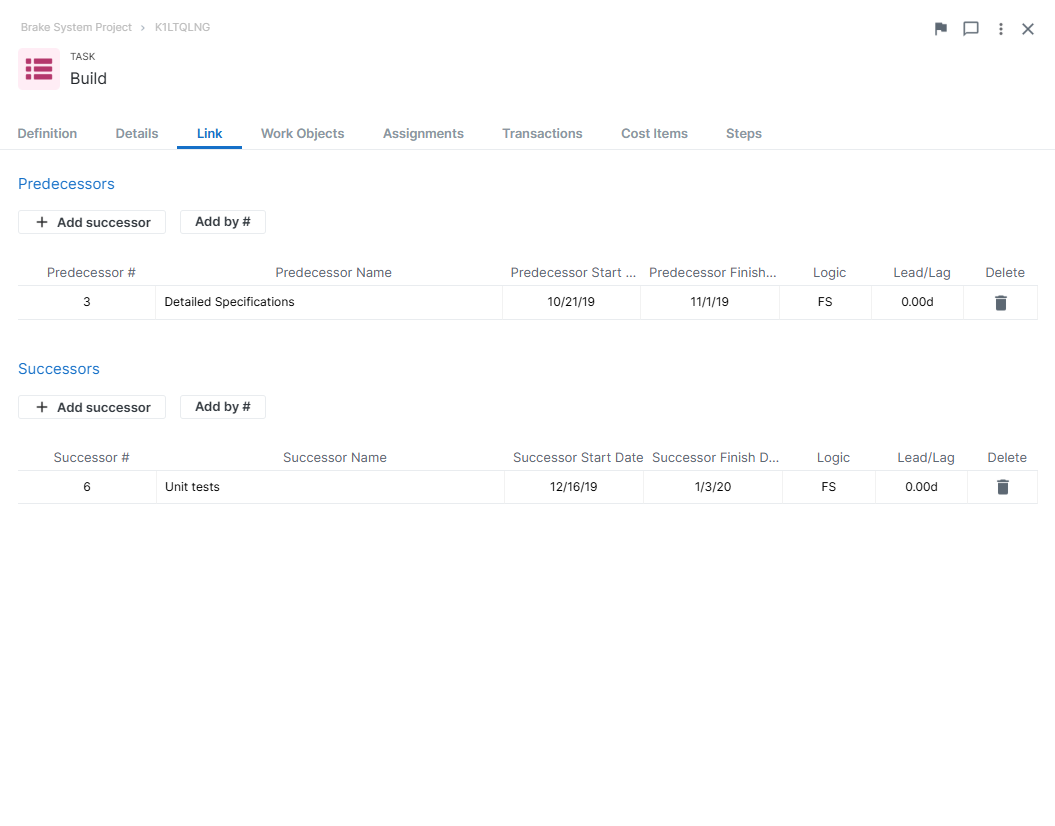
In each section, the following buttons are provided:
- Add predecessor/successor – Opens a Task list so that the user can select the predecessor/successor of the currently selected task.
- Add by # – Allows the user to create a link by directly entering the number of the task to be linked.
The spreadsheets displayed list all existing predecessor(s)/successor(s) for a given task. The following attributes are provided: Predecessor #/Successor #, Predecessor/Successor Name, Predecessor/Successor Start Date, Predecessor/Successor Finish Date, Logic, and Lead/Lag.
Clicking on the Delete ( ) button allows the user to delete the selected Predecessor/Successor.
In the Work Objects tab, users can now click on the Work Objects chips to display the Work Objects whose “Related Task” is the currently selected task.

Once a Work Object chip is selected, the view is made of:
- A main toolbar, where the following commands and display options are available: Views, + New Object, Search, Filters, Sort by, Group by, and Display.
- The Objects grid, which provides a spreadsheet listing the Objects (Actions, Change Requests, Deliverables, Issues, or Risks) and some of their attributes.
The Assignments tab enables users to assign resources and enter information regarding Resources Scheduling and Resources Tracking.

Clicking on the + New assignment button adds a new row to the spreadsheet, allowing the user to create a new labor assignment.
Users will be able to view and edit the following information in the Labor Assignments spreadsheet: Resource Name, Organization, Job Classification, Skills, Distribution Type, Rate, Actual Effort, Remaining Effort, and Total Cost (read-only). Clicking on the Details ( ) icon opens the corresponding Labor Assignment dialog box.
The Transactions tab is now made of a toolbar, which includes the following commands:
- New Transaction – Allows the user to either create a Cost (time-distributed or not) or a Saving Transaction.
- New recurring Transaction – Upon clicking on the New recurring Transaction button, then selecting either the Project Transaction option or Task Transaction option, the Insert Recurring Transaction dialog box is displayed.
 – Allows the user to delete the selected assignment(s). This command is only available if at least one assignment is selected (i.e., the corresponding checkbox is ticked).
The spreadsheets displayed list all existing transactions. The following attributes are provided: Name, Type, Cost Center, Status / Completed Date, Date, and Amount.
Clicking on the Details ( ) icon opens the corresponding Transaction dialog box.

Similarly, the Cost Items tab is now made of a toolbar, which includes the following commands:
- + New cost item – Adds a new row to the spreadsheet, allowing the user to create a new cost item assignment.
 – Allows the user to delete the selected assignment(s). This command is only available if at least one assignment is selected (i.e., the corresponding checkbox is ticked).
The spreadsheets displayed list all existing cost items. Users will be able to view and edit the following information: Cost Item Name, Distribution Type, Rate, Actual Units, Remaining Units, Baseline Units, Fixed Cost, Actual Cost, Remaining Cost, and Baseline Cost.
Clicking on the Details ( ) icon opens the corresponding Cost Item Assignment dialog box.

Finally, the Steps tab has also been redesigned to include a toolbar, including the following commands:
- + New step – Adds a new row to the spreadsheet, allowing the user to create a new step.
 – Deletes the selected step(s). This command is only available if at least one step is selected (i.e., the corresponding checkbox is ticked).
The Steps tab also includes a spreadsheet which, in addition to the Task Step Name field, also displays a pair of checklists, Started and Finished, which are used to indicate whether each task step was started or finished.

Caution: In order to complete the upgrade to ProjectAdvantage version 2025.05, administrators must update the “Popup” column with the correct Forms in the Designer, Search view, as follows:
- “Global Actions” Category → Popup - Action Card (Briefs)
- “Global Change Requests” Category → Popup - Change Request Card (Briefs)
- “Global Deliverables” Category → Popup - Deliverable Card (Briefs)
- “Global Issues” Category → Popup - Issue Card (Briefs)
- “Global Risks” Category → Popup - Risk Card (Briefs)
- “Idea” Category → Popup - Idea Card (Briefs)

For more information, please refer to the Work Item Card, Risk Card, Idea Card, and Task Card documentation.
#MIL-5223 - Activity Logs on Work Items and Risks
The Activity Logs feature has been rolled out for Work Items and Risks with the implementation of a new Activity option available under the More ( ) button in the upper section of the Action Card, Change Request Card, Deliverable Card, Issue Card, and Risk Card.
When selecting the Activity option, the Activity dialog box is displayed, in which users are able to view a detailed history of the modifications applied to an action, a change request, a deliverable, an issue, and a risk.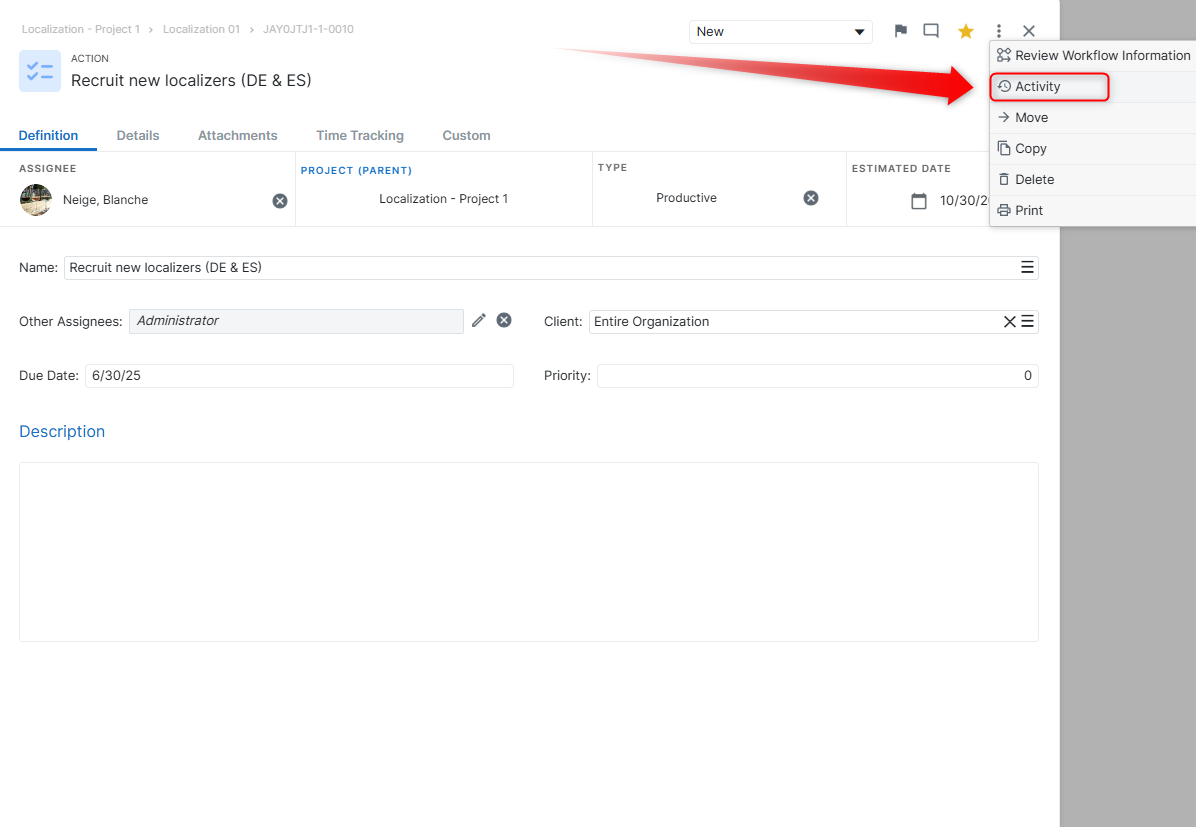
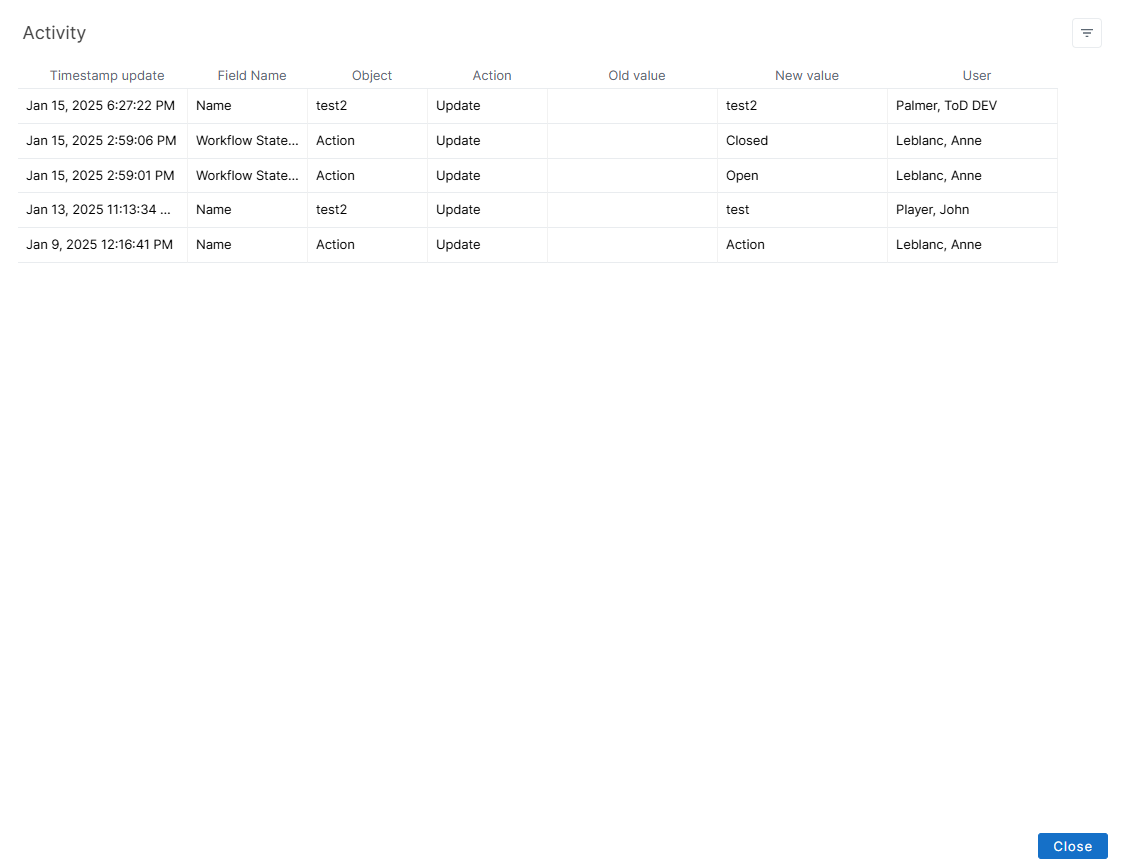
The information displayed in the Activity dialog box includes:
- The Work Item, or Risk creation
- Any changes made to the Work Item, or Risk fields
As a reminder, Work Items or Risks creation/deletion are also updated in the Project Card, Activity tab.
The Activity dialog box is made of a toolbar and a grid.
The toolbar contains the Filters display option, which opens the Filters popup, offering the capability to filter according to various criteria. Clicking on the + Add Filter button displays a dropdown list, enabling users to select all fields on which they can filter the object. By default, the following filters are available:
- Action
- Category
- Field Name
- New value
- Object
- Old value
- Timestamp update
- User
By default, the grid available in the Activity dialog box provides a spreadsheet in which the following columns are displayed: Timestamp update, Field Name, Object, Action, Old value, New value, and User.
Note: For the Activity option to be displayed, the following settings must be enabled in the System Settings workspace, General Settings folder, General Options tab, Activity Options section:
- “Enable Actions Activity” for Actions
- “Enable Change Requests Activity” for Change Requests
- “Enable Deliverables Activity” for Deliverables
- “Enable Issues Activity” for Issues
- “Enable Risks Activity” for Risks
These settings can be enabled for specific User Roles.

Important: Further enhancements will be added in future releases. For now, the following actions are out of scope:
Task Card
- Command Lists
Action Card
- Flag
- Comments
- Add to favorites
- Attachments tab: upload file, URL link
- Time Tracking tab: Effort section
- Details tab: Related Task, Connections
- Definition tab: Add Assignee, Type, Other Assignees, Description
- Command Lists
Change Request Card
- Flag
- Comments
- Add to favorites
- Definition tab, Impact section: only the first field update is logged when multiple fields are updated simultaneously
- Details tab: Related Task, Connections
- Attachments tab: upload file, link URL
- Time Tracking tab: Effort section
- Command Lists
Deliverable Card
- Flag
- Comments
- Add to favorites
- Definition tab: Add Assignee, Type, Other Assignees, Description
- Details tab: Related Task, Connections
- Attachments tab: upload file, link URL
- Time Tracking tab: Effort section
- Command Lists
Issue Card
- Flag
- Comments
- Add to favorites
- Definition tab: Add Assignee, Type, Other Assignees, Description
- Details tab: Related Task, Connections
- Attachments tab: upload file, link URL
- Time Tracking tab: Effort section
- Command Lists
Risk Card
- Flag
- Comments
- Add to favorites
- Definition tab: Add Owner, Type, Cause, Description
- Details tab: Connections
- Risk Evaluation tab: Create Snapshot, Manage Snapshots, Copy to Current button, Mitigation Items > Create New button, Mitigation Action > Create New button, Contingency Items, Contingency Action
- Risk Factors tab: Create New
- Attachments tab: upload file, link URL
- Command Lists
Resource - Resource Allocations
#MIL-5456 - Resource Allocations performance
In the Resource Allocations workspace, Resource Allocations full screen view, Hard Allocations tab, Resources Details sub-tab, the data loading performance has been improved when users select a resource.
Resource - Resource Validation
#MIL-5227 - Fiscal Period Management
In the Resource Validation workspace and in the Projects Center workspace, Project Card, Tasks tab, Tracking sub-tab, fiscal calendars are now available as time frame selection options. Users are able to select the Current, Previous or Specific fiscal period of their choice, as well as the usual Previous and Next period options to navigate in the views.


Note: In order to use custom fiscal calendars, the following fields have been provided to be overwritten by similar fields containing the custom fiscal calendars:
- Tracking Intervals All Calendars_Overwritable (to be used to set built-in calendars and custom fiscal calendars)
- Tracking Intervals Fiscal Calendars Only_Overwritable (to be used to set custom fiscal calendars only)

Important: Fiscal calendars are only visible when the “Default Time Distribution” is set to either “Fiscal Period”, or “Both” in the System Settings workspace, General Settings folder, General Options tab, Format Controls section.
Default Configuration Corrected Issues
Administration - Corporate Data
#MIL-5416
In the HTML5 Client, when users were using the “Group by” option, the grouping rows were not entirely readable. This issue has been fixed.
Administration - Project Administration
#MIL-5466
In the Project Administration dialog box, Attachments folder, the legacy Attachment mechanism was displayed instead of the recently deployed one. This issue has been fixed.
Execution - Deliverables Center
#MIL-5467
In the Deliverables Center workspace, Deliverable Card, the Custom tab was not displaying the correct form as set in the Designer, Forms view, Edit General Object dialog box, Form tab. This issue has been fixed.
Execution - My Home Page
#MIL-5377
In the Projects Center workspace, Project Card, Gantt tab, when users were assigning another user as Hard Assignment on a task, then were publishing the project, the task was not displayed in the My Home Page workspace, My assigned Tasks for the assignment user. This issue has been fixed.
Projects - Projects Center
#MIL-5478
In the Projects Center workspace, Project Card, Resources tab, Project Allocations tab, Project Allocations full screen view, Requests tab, Requests Inbox sub-tab, when users were creating a new allocation request, the value was displayed in “FTE”, even when the "Set allocation Unit" setting was set to “FTE%”. This issue has been fixed.
Note: The aforementioned setting is located in the System Settings workspace, Resource Settings folder, Allocations & Commitments tab, Allocations Options section.
#MIL-5476
In the Projets Center workspace, when users were creating a project from a template, the Allocation Requests were not imported, even when the corresponding import option was enabled. This issue has been fixed.
#MIL-5471
In the Projects Center workspace, Project Card, Resources tab, Project Allocations sub-tab, Project Allocations full screen view, Requests tab, Requests Overview sub-tab, project managers were incorrectly able to submit empty requests. This issue has been fixed.
#MIL-5470
In the Projects Center workspace, Project Card, Resources tab, Project Allocations tab, Project Allocations full screen view, Requests tab, Requests Inbox and Requests Overview sub tabs, there was no distinction when the allocation period was outside the project boundary. This issue has been fixed; from now on, it is displayed with yellow cells.
#MIL-5460
In the Projects Center workspace, Project Card, Resources tab, Project Allocations sub-tab, Project Allocations full screen view, Allocations tab, Resources Overview sub-tab, an error occurred when users were trying to assign allocated resources using the “Assign” button available in the toolbar. This issue has been fixed.
#MIL-5459
In the Projects Center workspace, Project Card, Resources tab, Project Allocations sub-tab, Project Allocations full screen view, Allocations tab, Resources Overview sub-tab, clicking on the “Add to Project Team” button in the toolbar had no effect. This issue has been fixed.
#MIL-5444
In the Projects Center workspace, Project Card, Finance tab, Dashboards full screen view, Budget tab, when the Cost Centers breakdown was enabled, the label of the indicators’ tooltips were incorrect when the “Enable Mixed Budget Type“ setting was enabled. In addition, it was possible to click on the green indicators, causing an unnecessary reload of the view. This issue has been fixed.
Note: The aforementioned setting is located in the System Settings workspace, Budget/Finance Settings folder, Budget section.
#MIL-5428
In the Projects Center workspace, Project Card, Resources tab, Project Allocations sub-tab, Project Allocations full screen view, Requests tab, Requests Overview sub-tab, the “Shift Data” command was not properly working when the "Set allocation Unit" setting was set to “FTE%” and when a custom fiscal period was used. This issue was also affecting the Resource Allocations workspace, Resource Allocations full screen view, Hard Allocations and Soft Allocations tabs. This issue has been fixed.
Note: The aforementioned setting is located in the System Settings workspace, Resource Settings folder, Allocations & Commitments tab, Allocations Options section.
#MIL-5420
In the Projects Center workspace, Project Card, Resources tab, Project Allocations sub-tab, Project Allocations full screen view, in the Requests tab, Requests Inbox and Requests Overview sub-tabs, as well as in the Allocations tab, My Allocated Resources sub-tab and My Allocated Resources Details popup, users were incorrectly able to modify the values of fields of Published projects. This issue has been fixed.
#MIL-5404
In the Project Centers workspace, Project Card, in some scenarios, the Task tab and the Monitoring sub-tab were not properly displayed. This issue has been fixed.
Vantage Enhancements
Projects - Projects Center
#VAN-1390 - Discussion Thread
In the Projects Center workspace, Project Card, Comment Thread panel, the new “View More” feature has been implemented for long comments, allowing users to expand the comment and view it entirely.


The “View More” feature has also been implemented in:
- The Project Card (light display)
- The Task Card
- The Idea Card
- The Work Item (Action, Change Request, Deliverable, and Issue) Card
- The Risk Card
Note: For the Comments Thread feature to be active, the “Switch to Comment Thread” setting must be enabled in the System Settings workspace, General Settings folder, General Options tab, Notes Options section.

Vantage Corrected Issues
Data Connector
#VAN-1304
In Plan, some slowness could be observed due to a bug in the data connector, which incorrectly increased the size of the database. This issue has been partially fixed by a better handling of the data connector sessions.
Discussion Thread
#VAN-1406
In the Comments Thread panel, when users were typing the “@” sign then typing some text to identify the other user to be mentioned, the system was searching by last name. This issue has been fixed; from now on, the search is displayed by first name.
System Requirements
There are frequent changes and additions to the set of specific versions of operating systems, application servers and database servers for which ProjectAdvantage has been tested and certified. Please contact our teams for the latest information in this area.
Note: Users' system clocks must be regularly and accurately synchronized with the internet.
Servers
- Application Server: Apache Tomcat 9 with Oracle Java 8 or OpenJDK
- Data Server: PostgreSQL 14, PostgreSQL16
HTML5 Clients
- Display resolution: 1366 x 768 (technical minimum), 1600 x 1050 (minimum recommended), 1920 x 1080 or higher (generally recommended).
- Minimum of 4GB RAM allocated (8GB recommended).
- Browser
- Microsoft Edge
- Google Chrome
- Mozilla Firefox
- Apple Safari
ProjectAdvantage Designer
- Recommended language: English
- Display resolution: 1366 x 768
- Minimum of 4GB RAM allocated
- Disk space: 200MB minimum available for ProjectAdvantage.
- Oracle Java 8 or OpenJDK 8
- Operating Systems:
- Windows 7, 8.1, 10 or 11
- Mac OS X Lion or newer
- Alpine Linux 3.16.1
REST API
- Supported language: English
Timesheets Mobile Application
- Being hosted by ProjectAdvantage
- Product version: 2022.08 and upper versions
Vantage platform
Users will need to enable third-party cookies to work within Vantage. For more information regarding third-party cookies, please refer to the “How to allow third-party cookies” documentation.
For customers who subscribed only to Plan
- Installation:
- POD 11 is required if hosted by ProjectAdvantage
- An Hydra server is required if on premise
- Product version: 2023.01 and upper versions
For customers who subscribed to Plan and Deliver
- Installation:
- POD 11 is required if hosted by ProjectAdvantage
- An Hydra server is required if on premise
- HPV2 activated on Deliver modules (activated by default for all new Deliver Clients after 2021 Q3)
- Product version: 2023.01 and upper versions
- Users will need to allow third-party cookies in their browser
Limitations
The data connector:
- Does not work in load balanced environments.
- Is not compatible with Cloud Scheduled Jobs.
- Is not compatible with dedicated API servers.
- Is not compatible with the Java API.