



2025.04
This document describes the enhancements, corrected issues, and new features that have been implemented in ProjectAdvantage 2025.04, both in the Core product and in the ProjectAdvantage Default Configuration, in Vantage and in Deliver.
ProjectAdvantage 2025.04 is a maintenance release of ProjectAdvantage 2025.
In the Core product, 4 enhancements have been implemented and 23 issues have been fixed.
In the ProjectAdvantage Default Configuration, 3 enhancements have been provided and 18 issues have been fixed.
In Vantage, 1 enhancement has been implemented.
In Deliver, 1 issue has been fixed.
In order to access the different sections, please click on the following links:
- Important Reminders for upgrade
- Core Product Enhancements
- Core Product Corrected Issues
- Default Configuration Enhancements
- Default Configuration Corrected Issues
- Vantage Enhancements
- Deliver Corrected Issues
- System Requirements
Important Reminders for upgrade
- To improve the performance of views displaying the Health Score of multiple projects, we are now using a Health Score that is pre-calculated upon publishing a project as opposed to on the fly. Therefore, upon upgrading to 2021.03 (or higher), please make sure you run once the following Scheduled Job to initialize the project Health Score values: Initialize Project Static Health Score.
Important: For systems with an overwritten Publish command, please make sure to add the new dedicated Command List for the Health Score pre-calculation upon publishing a project: “Project - Publish Project - Continue - Capture Health Score”.
- From the 2023.01 version, to support the implementation of the new Vantage navigation and modules, the Project Dashboards workspace should be added again in the User Roles section of the Designer as the Dashboards workspace doesn't exist anymore.
Core Product Enhancements
Built-in Workspaces - Timesheet
#SCI-5873 - Fiscal Period Management
In the Timesheet (built-in) workspace, the value of the default selected fiscal period is now based on the “defaultTimesheetFiscalPeriod” field available in the Designer, Fields view, Fields tab, Global category, Formatting tab.


Data Visualization
#SCI-5785 - Favorite Objects
The Favorite Objects feature has been implemented across various objects within the solution to improve user experience and accessibility. By allowing users to add objects to their favorites, they can quickly access important or frequently used Projects, Work objects (Actions, Change Requests, Deliverables, Issues, and Risks), and Ideas.
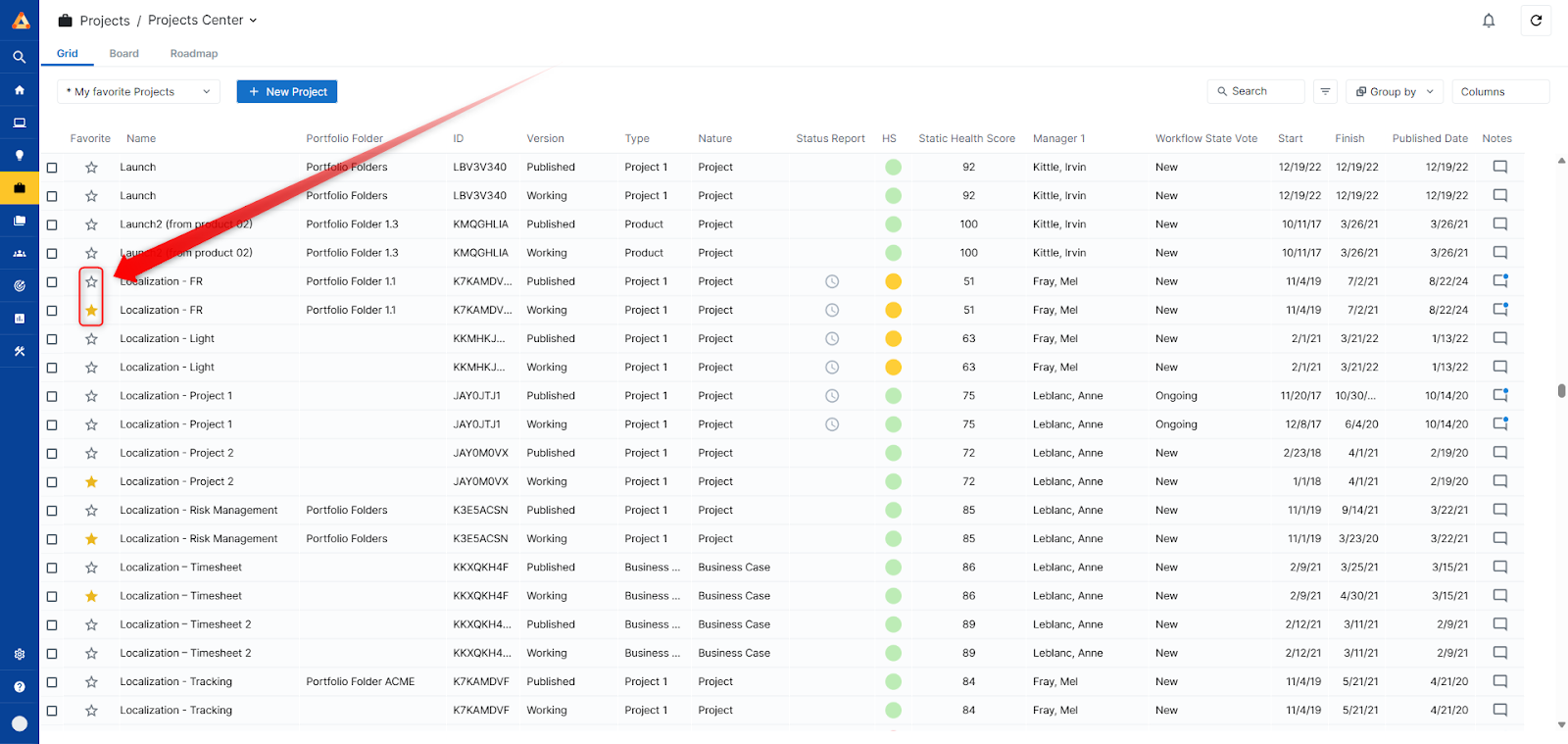
In the Projects Center workspace, Grid view, users can easily add projects to their favorites by clicking on the Star ( ) icon located in the newly added Favorite column. A project added to the favorites will be displayed with a Yellow star (
 ) icon in the Projects Grid.
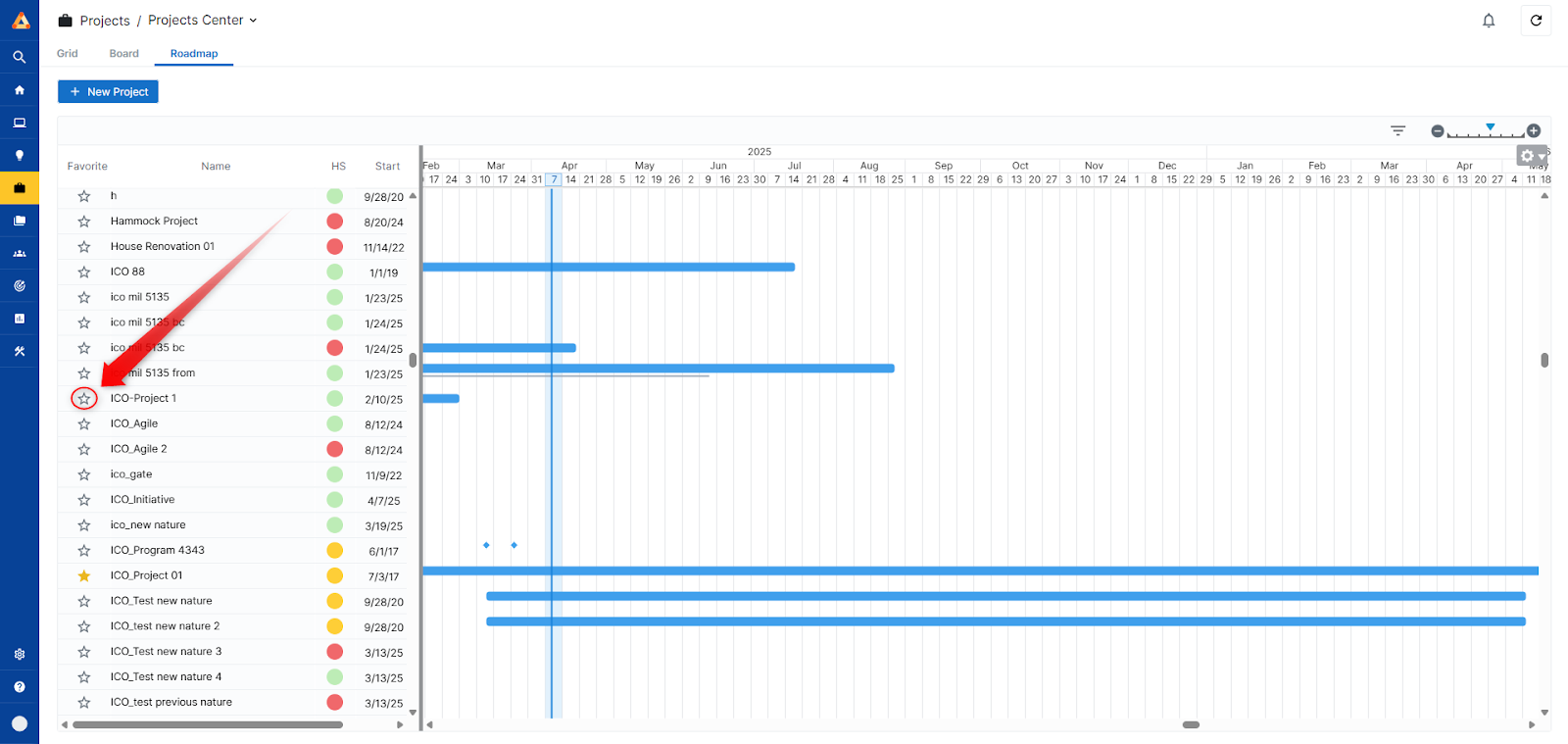
Similarly, projects can be added to the favorites by clicking on the Star ( ) icon in the Board and Roadmap views. Once added to the favorites, they will be displayed with a Yellow star (
 ) icon.

In the Projects Center workspace, Grid and Board views, a new “My favorite Projects” default view has been added. It allows users to display all the projects they have added to their favorites.


In addition, in the Projects Center workspace, Grid and Board views, a new “Favorite” filter option has been added in the Filters popup, which offers the capability to filter the projects that have been added to the favorites by the logged-in user.


In the Projects Center workspace, Grid view, a new “Favorite” Group by option has been added, allowing users to group the projects previously added to their favorites.

In parallel, the “Favorite” column is now available in the Projects Center workspace, Grid view, so the Favorite column can be shown, hidden, or reordered in the Projects Grid.
- To hide the Favorite column, click on the
 button available on the right-hand side of the field name.
- To show the Favorite column, click on the
 button available on the right-hand side of the field name. Consequently, the field name will be placed in the lower part of the list.
- To reorder the Favorite column, hover the left-hand side of the field row, then drag and drop the row to the desired position.

In accessing the Project Card, a Favorite ( or
 , depending whether the project was already added to the favorites or not) icon has been added in the main toolbar located on the top of the view, allowing users to add the project to or remove the project from his/her favorites.


The Favorite Objects feature has also been deployed to all the other Center workspaces (Actions Center, Change Requests Center, Deliverables Center, Issues Center, Risks Center, and Ideas Center).
In the Grid view, users can easily add objects to their favorites by clicking on the Star ( ) icon located in the newly added Favorite column. An object added to the favorites will be displayed with a Yellow star (
 ) icon in the Objects Grid.

In the Board view, objects can be added to the favorites by clicking on the Star ( ) icon. Once added to the favorites, they will be displayed with a Yellow star (
 ) icon.

In the Objects Center workspaces (Actions Center, Change Requests Center, Deliverables Center, Issues Center, Risks Center, and Ideas Center), Grid and Board views, a new default view has been added, allowing users to display all the objects they have added to their favorites. This option is:
- “My favorite Actions” for Actions
- “My favorite Change Requests” for Change Requests
- “My favorite Deliverables” for Deliverables
- “My favorite Issues” for Issues
- “My favorite Risks” for Risks
- “My favorite Ideas” for Ideas”

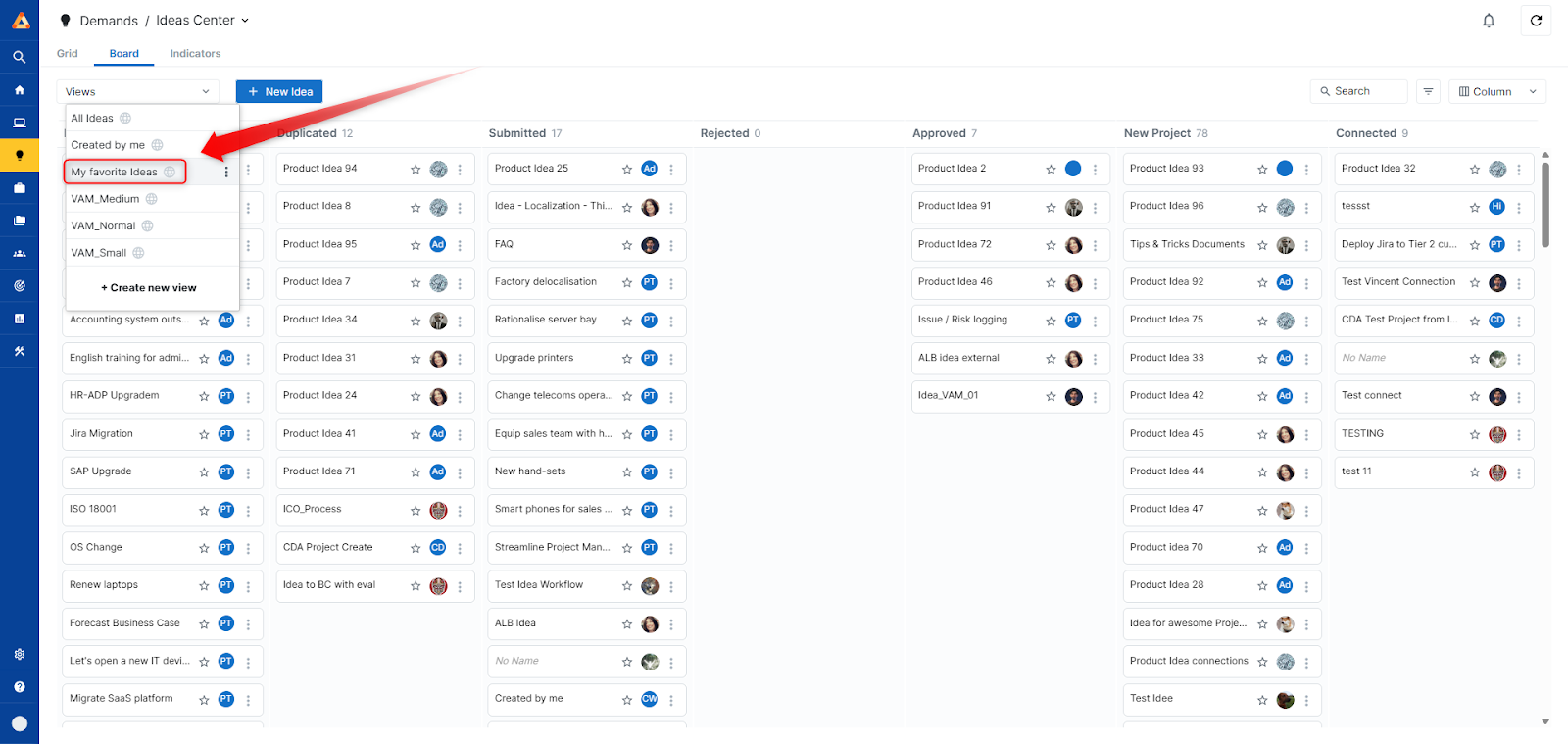
In addition, in the Objects Center workspaces (Actions Center, Change Requests Center, Deliverables Center, Issues Center, Risks Center, and Ideas Center), Grid and Board views, a new “Favorite” filter option has been added in the Filters popup, which offers the capability to filter the objects that have been added to the favorites by the logged-in user.


In the Objects Center workspaces (Actions Center, Change Requests Center, Deliverables Center, Issues Center, Risks Center, and Ideas Center), Grid view, a new “Favorite” Group by option has been added, allowing users to group the objects previously added to their favorites.

In parallel, the “Favorite” column is now available in the Objects Center workspaces (Actions Center, Change Requests Center, Deliverables Center, Issues Center, Risks Center, and Ideas Center), Grid view, so the Favorite column can be shown, hidden, or reordered in the Objects Grid.
- To hide the Favorite column, click on the
 button available on the right-hand side of the field name.
- To show the Favorite column, click on the
 button available on the right-hand side of the field name. Consequently, the field name will be placed in the lower part of the list.
- To reorder the Favorite column, hover the left-hand side of the field row, then drag and drop the row to the desired position.

Furthermore, a new My favorite objects block has been implemented in the My Home Page workspace. It displays all the objects (Projects, Ideas, Actions, Change Requests, Deliverables, Issues, and Risks) the logged-in user added to his/her favorites.
By default, it displays the ten first favorite objects, sorted alphabetically (from A to Z), one row per view. If the number of favorite objects is greater than ten, the See all button is displayed in the lower part of the My favorite objects block. Clicking on it displays the relevant Center workspace.
Clicking on the Open button available on the right-hand side of the object Name opens the relevant Card or the relevant workspace.

Note: The My favorite objects block is only displayed when the “Enable My favorite objects” setting is activated in the System Settings workspace, My Home Page Settings folder, Global Options tab, My Favorite Objects Block section. Administrators will then be able to display/hide tabs by activating/deactivating the following settings:
- “Enable Projects” for Projects
- “Enable Ideas” for Ideas
- “Enable Actions” for Actions
- “Enable Change Requests” for Change Requests
- “Enable Deliverables” for Deliverables
- “Enable Issues” for Issues
- “Enable Risks” for Risks
These settings can be enabled for specific User Roles.

Important: The “Enable Actions”, “Enable Change Requests”, “Enable Deliverables”, and ”Enable Issues” settings are not displayed when the "Activate Work Management" setting is disabled in the System Settings workspace, General Settings folder, Meta Settings tab, Meta Settings section.
For more information, please refer to the following documentation:
- Projects Center workspace
- Project Card
- Actions Center workspace
- Change Requests Center workspace
- Deliverables Center workspace
- Issues Center workspace
- Work Item Card
- Risks Center workspace
- Risk Card
- Ideas Center workspace
- Idea Card
- My Home Page workspace
Designer
#SCI-6025 - New reference fields in Project category
In the Designer, Fields view, new fields have been added in the Project category to manage hierarchical projects. When building a Project formula, the 4 new reference fields are: [Other Versions], [All Descendants], [Direct Descendants], and [Parent List].
MS Teams
#SCI-4447 - Embedded MS Teams Chat
A new feature has been implemented, allowing Microsoft Teams chats to be linked directly to projects, ideas and work objects. For this feature to be active, the “Enable Microsoft Teams Chat” setting must be enabled in the System Settings workspace, General Settings folder, General Options tab, Microsoft Teams Chat Option section.

Important: The connection between MS Teams and ProjectAdvantage must be configured on the customer’s side. To configure the connection between MS Teams and ProjectAdvantage, customers will need to configure an application in Azure (Azure > Microsoft Entra ID > App registration).
Once the aforementioned setting is enabled, a new Teams Chat tab is available in the Projects Center workspace, Project Card.

Users will first need to click on the “Connect your account” button.
Clicking on the “Start the conversation” button displays the Add popup, allowing you to enter the name of the user you wish to start a conversation with.

Once added, click on the Add button and type your message in the bottom text box, then click on the Arrow ( ) to send your message.

The message sent is then automatically displayed as illustrated below.

The conversation is automatically synchronized with your Microsoft Teams chat application.

To add other users to the conversation, click on the button located in the top right corner of the page, then on the Add people ( ) command.

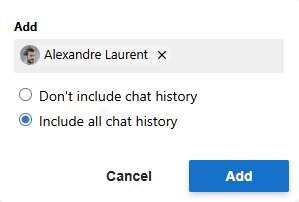
When adding another user, you will be prompted to choose whether you wish to include all chat history or not in the Add popup.
If another user already initiated a conversation, the following screen will be displayed, inviting the user to contact the chat owner.

The Microsoft Teams chat ( ) button has also been added throughout the application, for instance in the Projects Center workspace, Project Card, Gantt tab, Task panel, as illustrated below.

The Microsoft Teams chat ( ) button is also available in the header in:
- The Task Details dialog box
- The Idea Card
- The Action Card
- The Change Request Card
- The Deliverable Card
- The Issue Card
- The Risk Card
Note: When the “Switch to Comment Thread” setting is activated in the System Settings workspace, General Settings folder, General Options tab, Notes Options section, the Teams Chat tab displayed in the Project Card is hidden and is available instead in the Comments Thread panel on the right-hand side of the screen.

Similarly, when the aforementioned setting is activated, the Microsoft Teams chat ( ) button is replaced with the Teams Chat tab available in the Comments Thread panel on the right-hand side of:
- The Task Details dialog box
- The Idea Card
- The Action Card
- The Change Request Card
- The Deliverable Card
- The Issue Card
- The Risk Card

For more information, please refer to the Microsoft Teams Chat documentation. Administrators will need to refer to the Microsoft Teams Chat configuration documentation.
Core Product Corrected Issues
Administration - Corporate Data
#SCI-5838
In the Corporate Data workspace, Resources tab, Resource Identification dialog box, Definition tab, Cost & Availability section, setting an empty “End Date” could result in some Resource Availability data loss. This issue has been fixed.
Data Visualization
#SCI-5721
In some scenarios, the grids available on custom environments were not refreshing when users were editing the display options (Search, Group by, Sort, Columns) in the main toolbar. This occurred only in popups. This issue has been fixed.
#SCI-5577
In the Corporate Data workspace, Resources tab, Resource Identification dialog box, Definition tab, Cost & Availability section, it was not possible to modify the time for the “Start Date” and “End Date” fields. This issue has been fixed.
#SCI-4653
In the Projects Center workspace, Project Card, Gantt tab, Task Details dialog box, Labor Assignments folder, when users were clicking on the  icon to open the Labor Assignment dialog box for a given resource, a different resource’s name was incorrectly displayed in the header. This issue has been fixed.
#SCI-2799
In the Designer, Forms view, Edit Bubble Block dialog box, Grid Parameters dialog box, when users were uploading a picture in the Grid Background section using a Windows computer, it was not correctly rendered in the Project Card, CCPM tab, Fever Chart sub-tab. This issue has been fixed.
Designer
#SCI-5930
In the Designer, Command Lists view, when users were modifying a command list, then were trying to modify an object’s workflow state, an error message was sometimes displayed. This was due to the “Commands” workflow, which was not properly updated consecutively to the modification of the command list. This issue has been fixed.
Designer - Object/Field Edits
#SCI-5951
In the Designer, when users were importing a CFG file, in some scenarios, some configurations were removed from the imported Forms. This issue has been fixed.
#SCI-4573 (Updated on 05/14/2025)
In the Corporate Data workspace, Users tab, an error message was sometimes displayed when users were trying to update information in the Users table. This was due to the REST API creating invalid resources/users. This issue has been fixed by providing a workaround allowing corrupted entries to be cleaned up through the "update tables" operation.
Execution - Actions Center
#SCI-5732
In the Actions Center workspace, when users were creating a new action, the workflow data was lost when the server was restarted, when connected in French. This issue has been fixed.
#SCI-5623
In the Actions Center workspace, when users were selecting the “Assigned to me” view, all actions were displayed, and not only the actions where the logged-in user was the assignee. This issue has been fixed.
Import/Export CFG
#SCI-5742
After importing a CFG file which did not contain any Data View Definition, the Global Resource Allocations table was losing reference to the Global Reference field. This issue has been fixed.
Legacy API
#SCI-5779
In some scenarios, no 404 error code was returned when users were waking up their environment, causing the instance to stall. This issue has been fixed; a retry mechanism has been added and a timeout has been set.
Projects - Projects Center
#SCI-5913
In the Projects Center workspace, Project Card, Gantt tab, Gantt chart preferences dialog box, in some scenarios, the application was freezing when users were pressing the “Esc” key. This issue has been fixed.
#SCI-5741
In the Projects Center workspace, Project Card, Resources tab, Resources assignments sub-tab, when users were selecting a new Presets option in the time navigation toolbar, the Intervals option was not changing accordingly. This issue has been fixed.
#SCI-5684
In the Projects Center workspace, when connected in Spanish, an error message was displayed when users were trying to create a new project. This issue has been fixed.
#SCI-5568
In the Projects Center workspace, in some scenarios, the project’s Start and Finish dates were incorrectly changing when users were switching from English to any other language. This was due to the critical path being stored only in the cache instead of the database. This issue has been fixed.
#SCI-5337
In the Projects Center workspace, if a column had been moved by clicking on the Columns button, when users were selecting a different view then returning to the original view, the previously moved column was back to its original place. This issue has been fixed.
#SCI-3820
In the Project Card, an error message was sometimes displayed when users were clicking on the Arrow ( ) icon to navigate back to the Projects Center workspace. This issue has been fixed.
Projects Legacy - Work
#SCI-5722
In the Work workspace, an error message was sometimes displayed when users were opening a project. This issue has been fixed.
Resource - Resource Fulfillment
#SCI-6028
In the Projects Center workspace, Project Card, Gantt tab, the drag & drop functionality was not working when using the Safari browser. This issue has been fixed.
Scheduled Jobs
#SCI-6061
In some scenarios, on non load-balanced environments, Cloud Scheduled Jobs were not running anymore after upgrading to a newer version. This issue has been fixed.
#SCI-5073
In the Designer, Scheduled Jobs view, in some scenarios, an error message was displayed when users were running Cloud “Execute Command List” job types. This issue has been fixed.
#SCI-4368
In the Designer, Scheduled Jobs view, in some scenarios, Cloud Scheduled Jobs were taking a long time to complete. This issue has been fixed.
Default Configuration Enhancements
Designer
#MIL-5408 - New overwritable Command Lists
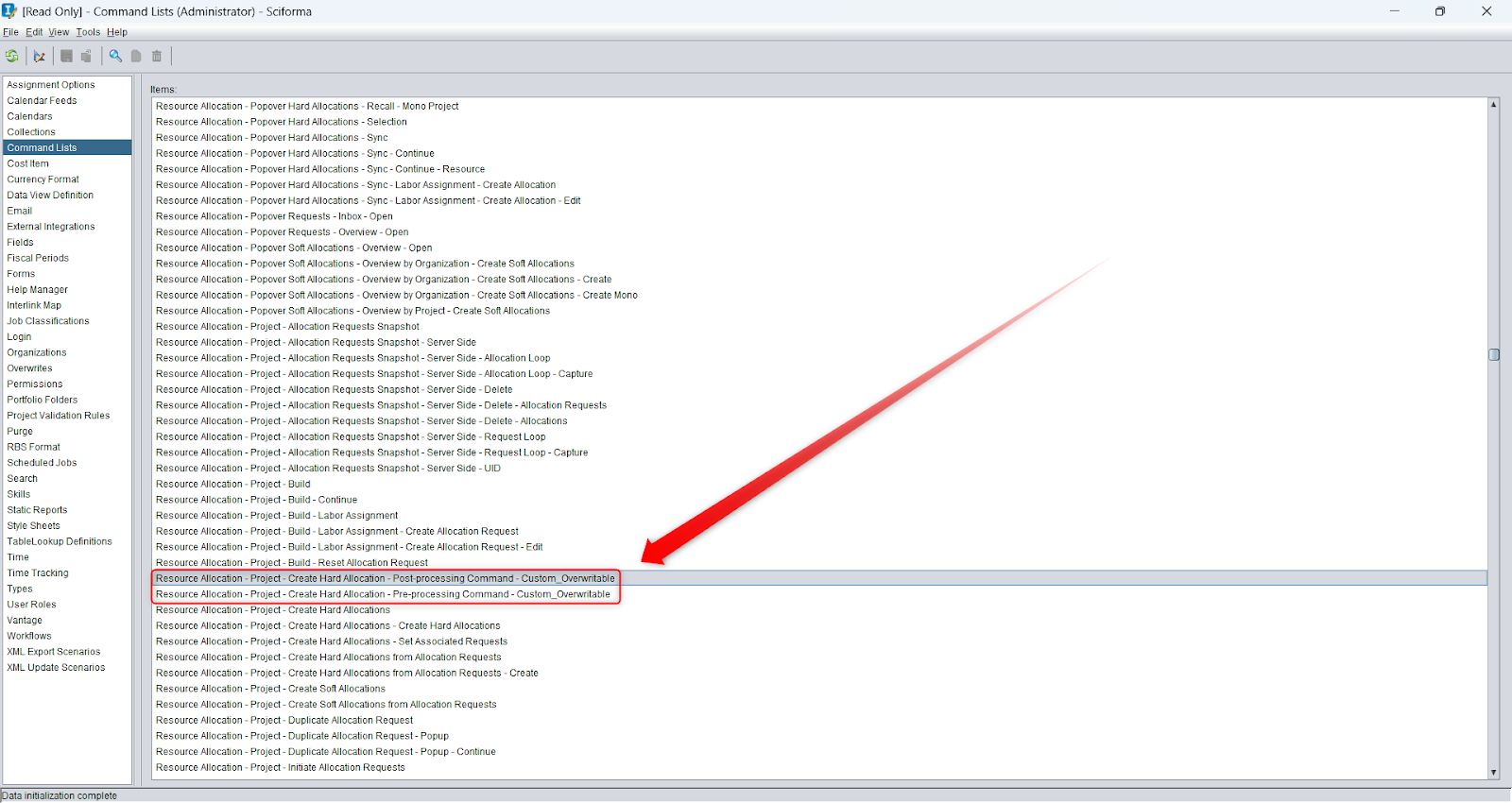
In the Designer, Command Lists view, two new overwritable commands have been created so that custom attributes can be set when creating new Hard Allocations in the Projects Center workspace, Project Card, Resources tab, Project Allocations sub-tab, Project Allocations full screen view, Allocations tab, My Allocated Resources sub-tab. The two new command lists are:
- "Resource Allocation - Project - Create Hard Allocation - Pre-processing Command - Custom_Overwritable"
- "Resource Allocation - Project - Create Hard Allocation - Post-processing Command - Custom_Overwritable"
Execution
#MIL-5387 - New light display Project Card Layout
The Project Card has been redesigned to provide a light display layout, specifically designed for basic user roles (team members, etc.), and common to other cards (Work Item, Risk, and Idea Cards) in the solution. In the new light display layout Project Card, information is organized in the form of tabs, which have been implemented to simplify the navigation.
In accessing the light display layout Project Card, the user is able to define and edit the attributes of a given Project. The Card is made up of:
- A header, which provides the Project’s key information and commands,
- A series of tabs, which further categorize and organize information and tools.
The light display layout Project Card is made up of the following tabs:
- Definition
- Actions
- Project Team
- Forecast
- Attachments


Important: A new Initiative nature has been created in the System Data workspace, Project Natures tab. When users open a project from the Projects Center workspace for which nature is defined as Initiative, the Project Card is displayed with the new light display layout. For other project natures, the Project Card is displayed in full screen.
#MIL-5330 - New Task Card Layout (*Amended on 05/26/2025)
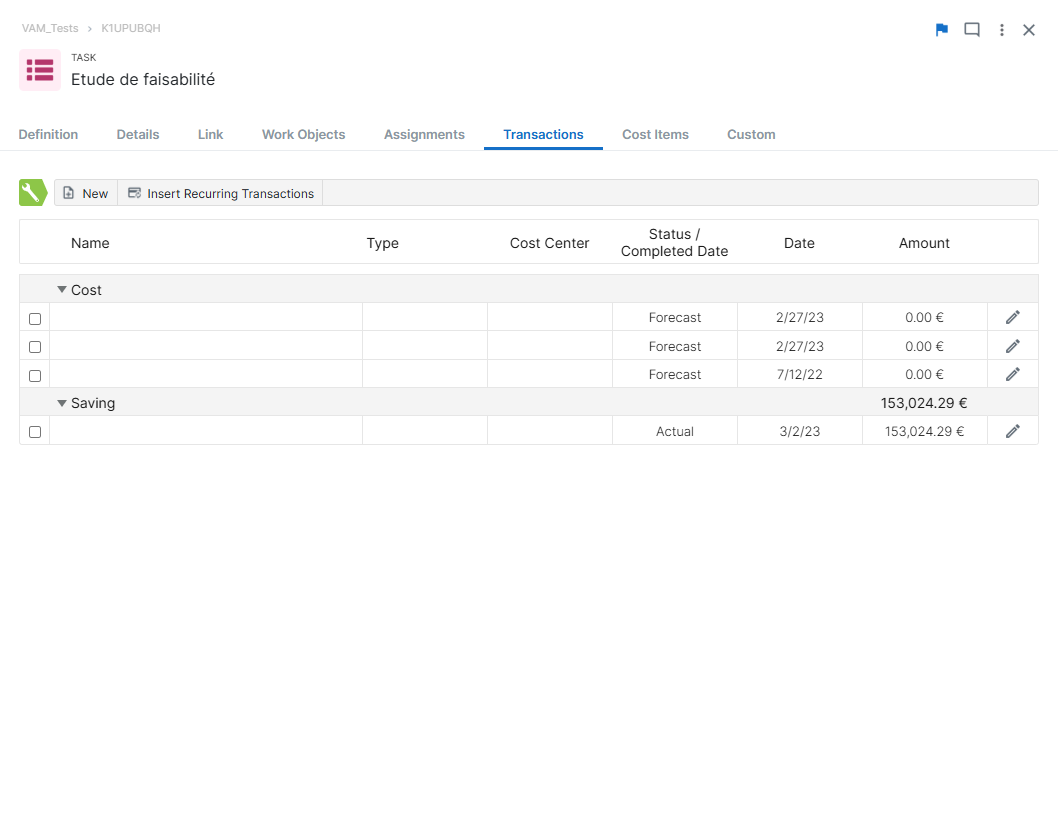
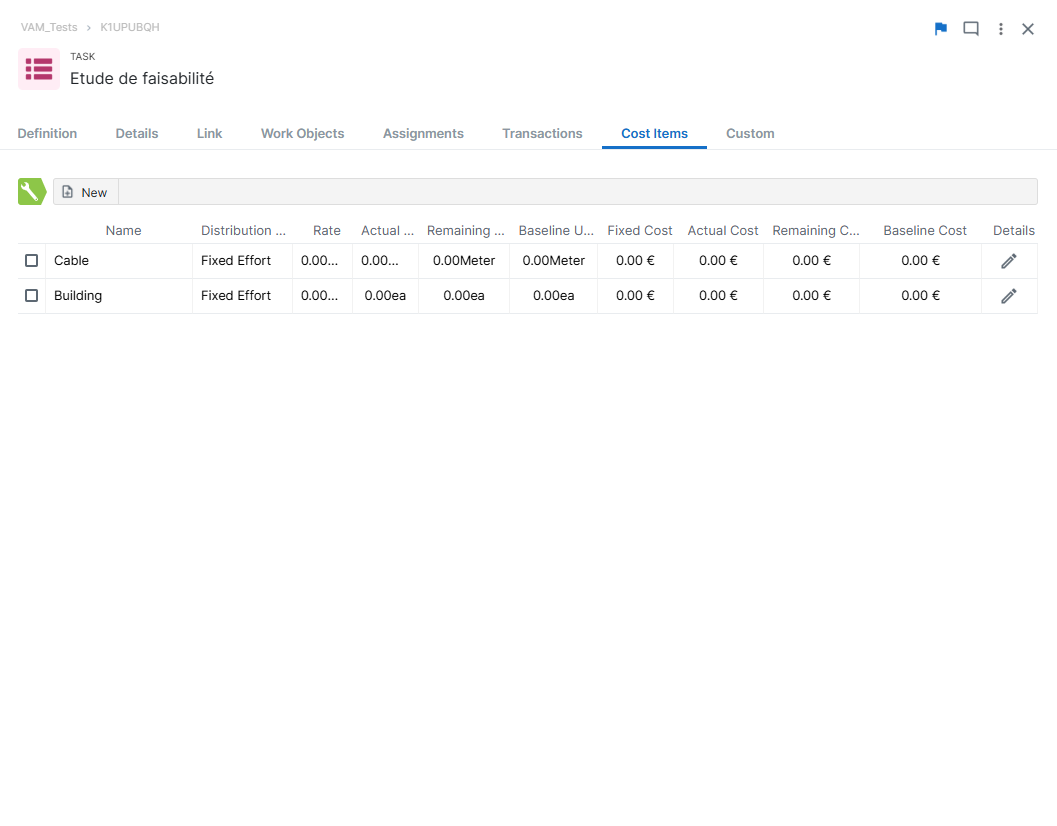
The Task Card has been redesigned to include a layout common to other cards (Work Item, Risk, and Idea Cards) in the solution, thus improving the overall user experience. Specifically, information is now organized in the form of tabs, which have been implemented to simplify the navigation.
In accessing the Task Card, the user is able to define and edit the attributes of a given Task. The Card is made up of:
- A header, which provides the Task's key information and commands,
- A series of tabs, which further categorize and organize information and tools.
The Task Card is made up of the following tabs:
- Definition
- Details
- Link
- Work Objects
- Assignments
- Transactions
- Cost Items

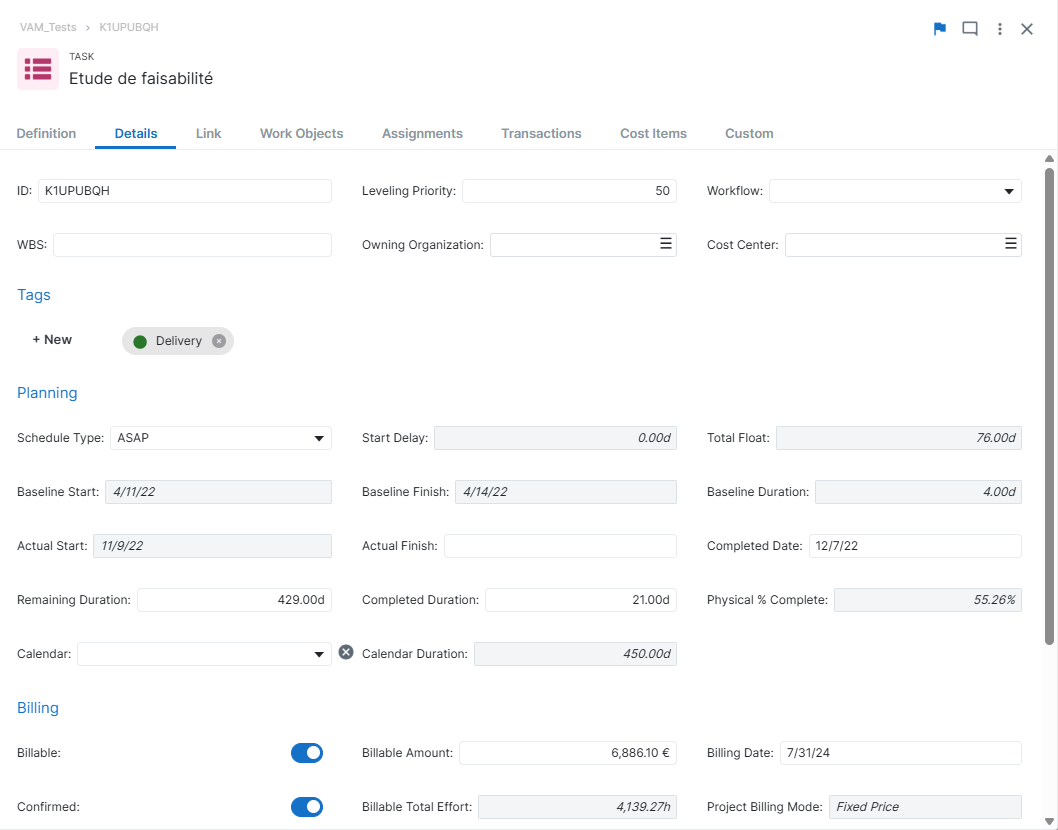


Note: The Tag Task command, previously available under the More () button, has been moved to the Tags section in the Details tab.
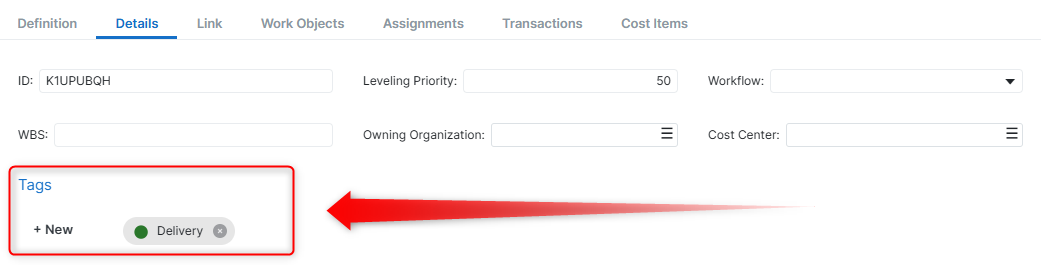
Also previously accessible under the Activity folder, the Activity Logs feature is now available through a new Activity option under the More ( ) button in the upper section of the Task Card.

When selecting the Activity option, the Activity dialog box is displayed, in which users are able to view a detailed history of the modifications applied to a task.

As a reminder, changes related to tasks are displayed in:
- The Project Card, Activity tab
- Task creation
- Task deletion
- Task Linking, Unlinking & Logics
- The Task Card, Activity dialog box
- Task creation
- Task field updates
Note: For the Activity option to be displayed in the Task Card, the “Enable Task Activity” setting must be enabled in the System Settings workspace, General Settings folder, General Options tab, Activity Options section.
Important: A Custom tab can be added in the Task Card. It can be displayed in first position by activating the First position? setting in the System Settings workspace, Project Settings folder, Display Preferences tab, Project Work section, Gantt & Task List sub-section.


Deactivating this setting will display the Custom tab in the last position.

In addition, a Steps tab can also be added in the Task Card. It can be displayed by activating the “Enable Tasks Steps Tab” setting in the System Settings workspace, Project Settings folder, Display Preferences tab, Project Work section, Gantt & Task List sub-section.

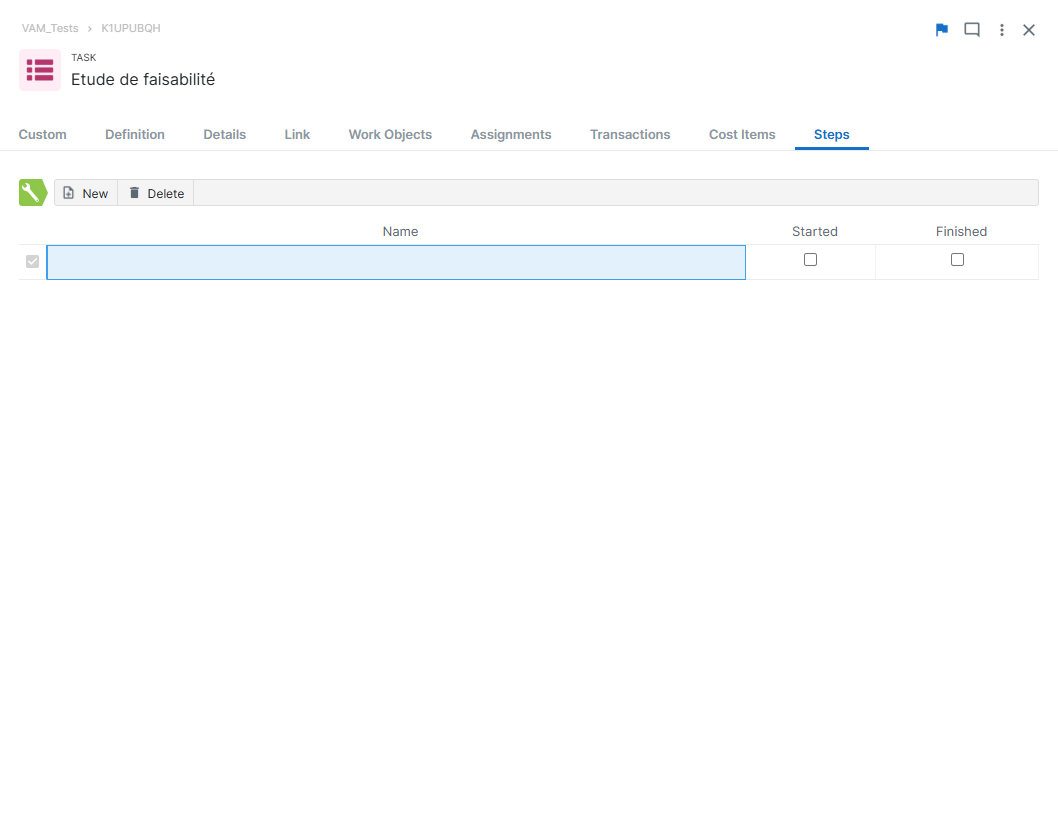
For more information, please refer to the Task Card documentation.
Default Configuration Corrected Issues
Budget/Finance
#MIL-5356
In the HTML5 Client, in certain project budget related distributed tables, the dates displayed in the headers were not aligned with the selected intervals. The following screens were affected:
- The Portfolio Center workspace, Budget tab, Portfolio Budget view mode
- The Projects Center workspace, Project Card, Finance tab, Savings dialog box, Savings tab
- The Projects Center workspace, Project Card, Finance tab, Dashboards full screen view, Costs tab
This issue has been fixed.
Portal - Ideas Center
#MIL-5410
In the Ideas Center workspace, Idea Card, the Custom tab was displayed twice when the “Enable Ideas Custom Tab” setting was only enabled for certain user roles. This issue has been fixed.
Portfolio - Portfolio Center
#MIL-5234
In the Portfolio Center workspace, Project Supervision tab, Focus Mode full screen view, Library Items tab, Lessons Learned sub-tab, Grid view mode, clicking on the + Lessons Learned button had no effect. In addition, if Lessons Learned had previously been created, they were incorrectly not displayed. Similarly, in the Attachments tab, users were unable to add attachments. These issues have been fixed.
Portfolio - Portfolio Simulation
#MIL-5407
In the Portfolio Simulation workspace, after playing a scenario, Simulation mode, the zoom out control was not working. This issue has been fixed.
#MIL-5405
In the Portfolio Simulation workspace, when users were capturing a new scenario, custom nature projects included in the portfolio were not displayed, even when the "Include Custom Natures" switch button had previously been activated in the Scenario Definition dialog box. This issue has been fixed.
#MIL-5361
In the Portfolio Simulation workspace, Compare Projects dialog box, when users were selecting the Edit the Object command, the Focus Mode full screen view was still displaying the former design and not the updated one. This issue has been fixed.
Projects - Projects Center
#MIL-5401
In the Projects Center workspace, Project Card, the Strategy tab was still displayed when the “Enable Project Objectives” and “Enable Project Benefits” settings were disabled. This issue has been fixed.
Note: The aforementioned settings are located in the System Settings workspace, Project Settings folder, Display Preferences tab, Project Home Page section.
#MIL-5378
In the Projects Center workspace, Project Card, Gantt tab, an error message was displayed when users were fulfilling a soft assignment which generated negative remaining effort. This issue has been fixed.
#MIL-5374
In the Projects Center workspace, Project Card, Administration tab, Setup sub-tab, Billing Advanced Attributes popup, when the Revenue Rate Source was set to "Project.Resource", it was possible to add inactive resources in the corresponding spreadsheet displayed at the bottom of the dialog box. This issue has been fixed.
#MIL-5360
In the Projects Center workspace, users whose user role was not enabled for project creation could still create sub-projects from a program or a product. This issue has been fixed.
#MIL-5241
In the Projects Center workspace, Project Card, Task tab, Tracking sub-tab, By Tasks view mode, Expanded Home Page display, when users were selecting all rows and clicking on the Approve & Apply command, the timesheets were approved but not applied as expected. This issue has been fixed.
Projects Legacy - Work - Gantt
#MIL-5334
In the Projects Center workspace, Project Card, Gantt tab, Task panel, some editable fields were incorrectly greyed out and therefore could not be edited. This issue has been fixed.
Resource - Resource Allocations
#MIL-5411
In the Resource Allocations workspace, Resource Allocations full screen view, Soft Allocations tab, an error message was sometimes displayed when users were trying to fulfill soft allocations, when the Allocations Units was set to “FTE%”. This issue has been fixed.
Note: The aforementioned setting is located in the System Settings workspace, Resource Settings folder, Allocations & Commitments tab, Allocations Options section.
#MIL-5409
In the Resource Allocations views, the allocations’ calculated start and finish dates were sometimes not accurate when the Allocations Units was set to “FTE%”. This issue has been fixed.
Note: The aforementioned setting is located in the System Settings workspace, Resource Settings folder, Allocations & Commitments tab, Allocations Options section.
#MIL-5400
In the Projects Center workspace, Project Card, Resources tab, Project Allocations sub-tab, Project Allocations full screen view, Allocations tab, My Allocated Resources sub-tab, when users were creating new Hard Allocations on multiple selected resources without activating the Override toggle, only one allocation was created instead of as many resource allocations as selected resources with the same Allocated Effort or FTE per resource. This issue has been fixed.
#MIL-5342
In the Resource Allocations workspace, Resource Allocations full screen view, Hard Allocations, Soft Allocations and Requests tabs, as well as in the Projects Center workspace, Project Card, Resources tab, Project Allocations tab, Project Allocations full screen view, Resources Overview and My Allocated Resources tabs, there was no distinction when the allocation period was outside the project boundary. This issue has been fixed.
Resource - Resource Validation
#MIL-5418
In the Resource Validation workspace, Timesheets tab, Review Options popup, the “Timesheet Review Period” field was truncated when the "Custom Period" option was selected when users were connected in French. This issue has been fixed.
Resource Assignments
#MIL-5354
In the Projects Center workspace, Project Card, Resources tab, Resources assignments sub-tab, Grid View, when the "Show Distribution" option was activated, selecting the "Scroll Into View" command had no effect on the grid. This issue has been fixed.
Vantage Enhancements
Discussion Thread
#VAN-902 - Discussion Thread (*Amended on 07/08/2025)
A new Comment Thread has been implemented, enabling threaded discussions within business objects. Designed for better engagement, it ensures a smooth collaboration around the different processes. The Comment Thread is available throughout the solution and replaces the Notes feature for the following objects:
- Projects
- Tasks
- Ideas
- Work Items (Actions, Change Requests, Deliverables, and Issues)
- Risks
For this feature to be active, the “Switch to Comment Thread” setting must be enabled in the System Settings workspace, General Settings folder, General Options tab, Notes Options section.

Once the aforementioned setting is enabled, clicking on the  icon opens the Object (Project, Idea, Action, Change Request, Deliverable, Issue, or Risk) Card, with the Comment Thread displayed in the panel on the right hand-side. Users will need to type their comment in the rich text box, then click on the Send button, as illustrated below.

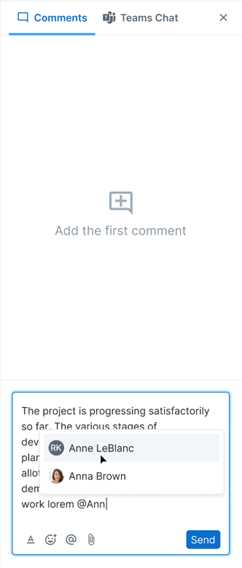
All users with read access to the object can post a comment, where no character limit is defined for the text input. It is also possible to mention other users with read access by typing @username – auto-suggestions are displayed as text is inputted, as illustrated below.

Note: Users mentioned in the Comment Thread will receive a notification in the Notifications Center (accessible upon clicking on the Notifications () button located on the top right-hand side of the screen) and/or by email only when the following settings are activated in the System Settings workspace, General Settings folder, Notifications tab:
- Notification – “Enable Comments Thread Mentions”, activated by default
- Email – “Enable Comments Thread Email notifications (Mentions)”, deactivated by default
Note: The Notifications () button is enabled when the Vantage platform is activated in the Designer, Vantage view.

Once posted, each comment includes the following features:
- Rich text formatting
- Sender information (name, profile picture)
- Creation/modification date
The comments are displayed in the Comment Thread in chronological order, i.e. with the newest comment at the bottom. When opening the Comment Thread, the panel automatically scrolls to the latest comment.
For more information, please refer to the Comment Thread documentation.
Deliver Corrected Issues
Gridboard
#DELIVER-1400
In the Gridboards, the “Add” button used to add or remove columns could be confusing for users. This issue has been fixed; it has been renamed “Apply” and been moved to the right-hand side of the popup.
System Requirements
There are frequent changes and additions to the set of specific versions of operating systems, application servers and database servers for which ProjectAdvantage has been tested and certified. Please contact our teams for the latest information in this area.
Note: Users' system clocks must be regularly and accurately synchronized with the internet.
Servers
- Application Server: Apache Tomcat 9 with Oracle Java 8 or OpenJDK
- Data Server: PostgreSQL 14, PostgreSQL16
HTML5 Clients
- Display resolution: 1366 x 768 (technical minimum), 1600 x 1050 (minimum recommended), 1920 x 1080 or higher (generally recommended).
- Minimum of 4GB RAM allocated (8GB recommended).
- Browser
- Microsoft Edge
- Google Chrome
- Mozilla Firefox
- Apple Safari
ProjectAdvantage Designer
- Recommended language: English
- Display resolution: 1366 x 768
- Minimum of 4GB RAM allocated
- Disk space: 200MB minimum available for ProjectAdvantage.
- Oracle Java 8 or OpenJDK 8
- Operating Systems:
- Windows 7, 8.1, 10 or 11
- Mac OS X Lion or newer
- Alpine Linux 3.16.1
REST API
- Supported language: English
Timesheets Mobile Application
- Being hosted by ProjectAdvantage
- Product version: 2022.08 and upper versions
Vantage platform
Users will need to enable third-party cookies to work within Vantage. For more information regarding third-party cookies, please refer to the “How to allow third-party cookies” documentation.
For customers who subscribed only to Plan
- Installation:
- POD 11 is required if hosted by ProjectAdvantage
- An Hydra server is required if on premise
- Product version: 2023.01 and upper versions
For customers who subscribed to Plan and Deliver
- Installation:
- POD 11 is required if hosted by ProjectAdvantage
- An Hydra server is required if on premise
- HPV2 activated on Deliver modules (activated by default for all new Deliver Clients after 2021 Q3)
- Product version: 2023.01 and upper versions
- Users will need to allow third-party cookies in their browser
Limitations
The data connector:
- Does not work in load balanced environments.
- Is not compatible with Cloud Scheduled Jobs.
- Is not compatible with dedicated API servers.
- Is not compatible with the Java API.