



2024.11
This document describes the enhancements, corrected issues, and new features that have been implemented in ProjectAdvantage 2024.11, both in the Core product and in the ProjectAdvantage Default Configuration, in Vantage and in Deliver.
ProjectAdvantage 2024.11 is a maintenance release of ProjectAdvantage 2024.
In the Core product, 6 enhancements have been implemented and 13 issues have been fixed.
In the ProjectAdvantage Default Configuration, 2 enhancements have been provided and 14 issues have been fixed.
In Vantage, 1 enhancement has been implemented and 4 issues have been fixed.
In Deliver, 4 issues have been fixed.
In order to access the different sections, please click on the following links:
- Important Reminders for upgrade
- Core Product Enhancements
- Core Product Corrected Issues
- Default Configuration Enhancements
- Default Configuration Corrected Issues
- Vantage Enhancements
- Vantage Corrected Issues
- Deliver Corrected Issues
- System Requirements
Important Reminders for upgrade
- To improve the performance of views displaying the Health Score of multiple projects, we are now using a Health Score that is pre-calculated upon publishing a project as opposed to on the fly. Therefore, upon upgrading to 2021.03 (or higher), please make sure you run once the following Scheduled Job to initialize the project Health Score values: Initialize Project Static Health Score.
Important: For systems with an overwritten Publish command, please make sure to add the new dedicated Command List for the Health Score pre-calculation upon publishing a project: “Project - Publish Project - Continue - Capture Health Score”.
- From the 2023.01 version, to support the implementation of the new Vantage navigation and modules, the Project Dashboards workspace should be added again in the User Roles section of the Designer as the Dashboards workspace doesn't exist anymore.
Core Product Enhancements
Global Search
#SCI-3833
A new global search function has been implemented in the Vantage navigation to allow users to search for and quickly access any object.
Clicking on the Search ( ) icon in the left-hand side navigation bar displays the Search popup. It is made of:
- a Search field, where users can type their search query.
- a Results section, where the search results appear.
- a right-hand side panel where users are able to specify in which category they wish to search the typed keyword.

To do a search, simply type the keyword you wish to search in the text input area, select the category you wish to search the entered keyword in, then press enter. The results will be shown as follows:

When doing a search, the system looks for the typed keyword in all the searchable exposed fields of the database.
Clicking on one of the search results opens the object in the relevant workspace.

Note: The data present in the search results can be specified and customized with four fields (Top-left label, Top-right label, Bottom-left label, and Bottom-right label) in the Designer, Search view.


Legacy Timesheet
#SCI-5130
Administrators are now able to set specific lock dates for past and future timesheet entries, ensuring that their teams cannot edit their timesheets outside of defined periods. The modifiable range can be either static, i.e. from a specific date and/or to a specific date, or rolling, i.e. a number of days/weeks/months/quarters/years from and/or to the current date.
The modifiable range can be defined in the Designer, Time Tracking view, “Timesheet modifiable range” section.

To set a static modifiable range, administrators will need to enter a start and/or finish date for the “Static Timesheet modifiable range” option.

Alternatively, it is possible to define a static modifiable range using the “Timesheet Modifiable Start” and/or “Timesheet Modifiable Finish” settings in the System Settings workspace, Project Settings folder, Time Tracking Options tab, Timesheet Options section.

To set a rolling modifiable date, administrators will need to enter a value preceded by a minus (-) sign as start and/or a value preceded by a plus (+) sign as finish, as well as select the desired interval (Day, Week, Month, Quarter, or Year).

Important: Rolling modifiable dates cannot be defined in the HTML5 Client, they can only be set in the Designer.
In the legacy Timesheet workspace, a warning message will appear at the bottom of the page indicating the range in which the timesheet can be modified and users will not be able to enter any actuals outside of the specified range.

Note: When submitting a timesheet, the process will automatically submit from Monday to Sunday, even if we hide the weekend in the UI. So, if the administrator locks the timesheet in the middle of the week by adding a lock date (whether it’s a start or finish date), the end-user will be able to edit it from or until the date the timesheet is locked. However, the “Submit” button will be greyed out for the entire week since it is not possible to submit a partial timesheet when a lock mechanism is in place. The best practice would be to lock from Sunday to the next Sunday.
Notifications
#SCI-4963
A new Notification Center has been implemented. It is accessible upon clicking on the Notifications ( ) button located on the top right-hand side of the screen, and displays all the logged-in user’s notifications in one place, helping him/her to stay organized and informed about important activities or events.

Notifications are displayed under two tabs: All and Unread. Clicking on a notification opens the object in the relevant workspace.
The notifications can be received by email and/or in the Notification center.
By default, notifications will be sent when the Workflow State is modified for Projects, Work Objects and Ideas, and when a user is added as the Assignee for Work Objects.
In the System Settings workspace, General Settings folder, a Notifications tab and new sections have been created to activate or not the notification messages in the Notification center.

Note: The "Enable Email notifications" setting has been moved from the Work Management Settings folder, Global Options tab, Global Options section to a new section in the General Settings folder, Notifications tab, Email settings section.
Note: The notification is generated in the language of the logged-in user who triggered the notification command, NOT the language of the logged-in user viewing the notification.
For more information, please refer to the Notification center documentation.
Timesheet (built-in)
#SCI-4919
Closed projects are not displayed anymore in the Add to timesheet popup in the Timesheet (built-in) workspace and in the Project popup in the legacy Timesheet workspace, preventing users from adding new tasks to their timesheets and entering their actuals on projects/tasks that are not active.
To close a project, administrator will need to activate the “Closed” switch button in the Projects Center workspace, Overview tab, Definition sub-tab, Dates section, then click on the “Publish” button located in the main toolbar on the top right-hand side of the screen, as illustrated below.


#SCI-4918
A set of new settings has been added to prevent resources from adding new projects or non-project assignments on future timesheets: "Allow Future Assignments (Projects)" and "Allow Future Assignments (Non-Projects)".
In the Timesheet (built-in) workspace, when the settings are enabled, users have the capacity to add Projects and Non-project assignments to their timesheets for future intervals.

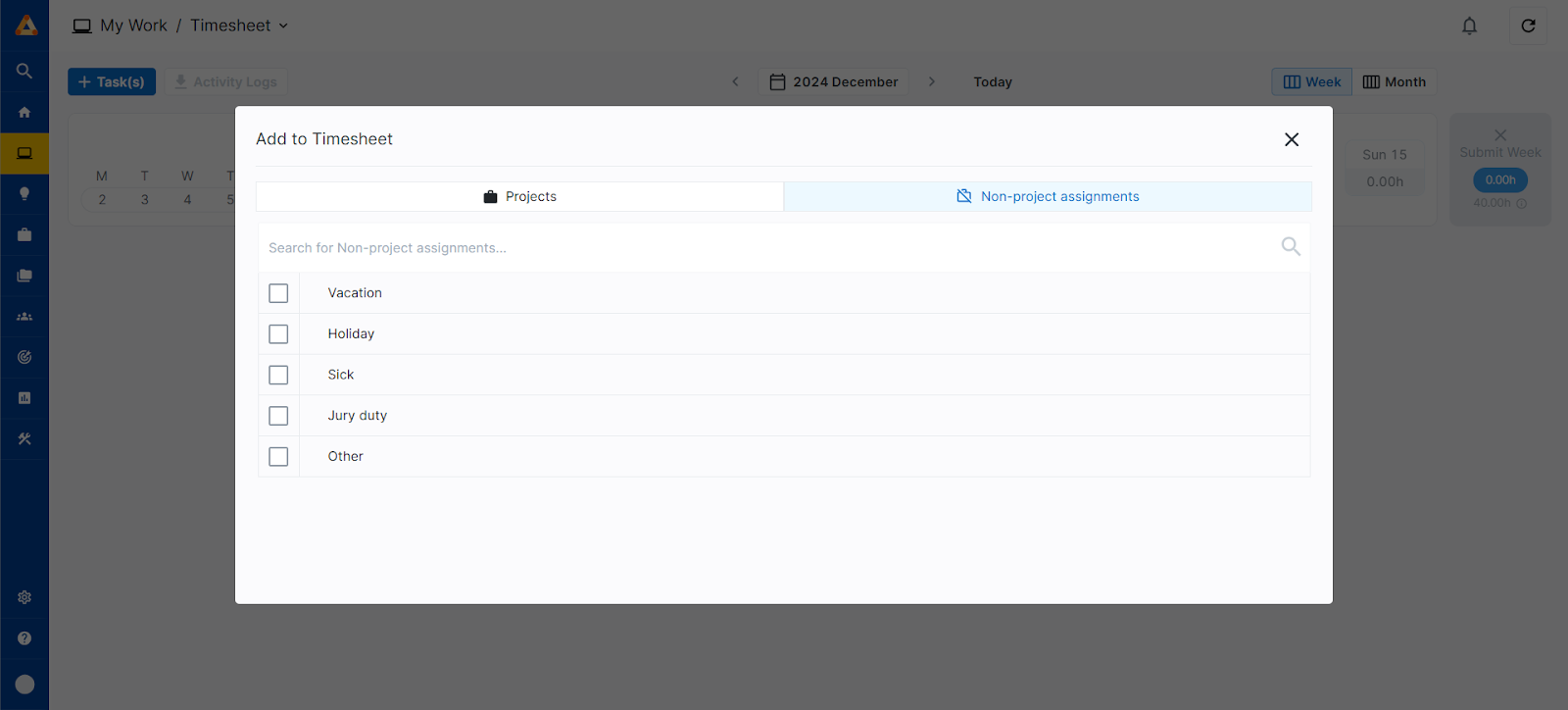
When the settings are disabled, users do not have the capacity to add Projects or Non-project assignments to their timesheets for future intervals.


In the legacy Timesheet workspace, those settings have been added to prevent resources from adding new assignments or non-project assignments on future timesheets.
When the settings are enabled, the “+ Assignments” and “+ Non-Project Assignments” are clickable.

When the settings are disabled, the “+ Assignments” and “+ Non-Project Assignments” are grayed out.

Note: These aforementioned settings are located in the System Settings workspace, Project Settings folder, Time Tracking Options tab, Timesheet Options section. They are only available if the corresponding "Enable Timesheet Add Assignment" and "Enable Non-Project Assignments" settings are activated.

#SCI-3006
The new Teams “ProjectAdvantage Plan” application is now available. It allows users to submit their timesheets directly from Microsoft Teams.

The application can be downloaded directly in the Microsoft Teams store and can be accessed from various hubs, such as Outlook and Microsoft 365.
For more information on how to download the application, access it from various hubs, access your ProjectAdvantage domain and fill in your timesheets, please refer to the ProjectAdvantage Plan Teams application documentation.
Core Product Corrected Issues
Build
#SCI-5523 (*Added on 01/31/25)
In some scenarios, due to a connection leak, the server was going down if the “Enable Projects Workflow Changes”, “Enable Ideas Workflow Changes”, “Enable Work Objects Workflow Changes”, “Enable Backlog Items Assignees”, and/or “Enable Work Objects Assignees” settings were enabled and if users were performing some operations, such as changing a workflow. This issue has been fixed.
Note: The aforementioned settings are located in the System Settings workspace, General Settings folder, Notifications tab, Notification settings section.
Commands
#SCI-3355
In the Projects Center workspace, when users were creating new projects using the “Upload XML” option, custom fields were not imported. This issue has been fixed.
Data Visualization
#SCI-5529 (*Added on 01/31/25)
In the Projects Center workspace, Project Card, Gantt tab, Manage Baselines dialog box, when users were saving a new baseline, then were clicking on the Details ( ) icon, the Baseline Cost data was incorrect, i.e. it was equal to the Remaining Cost instead of the Total Cost. This issue has been fixed.
#SCI-5136
When using the HTML5 Client with a right-to-left language (for instance Hebrew) and the Vantage navigation, the vertical navigation bar was incorrectly displayed on the left hand-side of the screen. This issue has been fixed.
#SCI-5053
In the Projects Center workspace, Project Card, Gantt tab, Manage Baselines dialog box, in some cases, some unwanted icons were displayed and the existing icons were not working properly. This issue has been fixed.
#SCI-5024
In the Resource Validation workspace, Timesheets tab, in certain scenarios, an error message was displayed when resource managers were reviewing timesheets. This issue has been fixed.
Legacy Timesheet
#SCI-4917
In the Resource Validation workspace, Timesheets tab, Timesheet Details full screen view, Resource Managers were incorrectly able to enter timesheet actuals on behalf of their team members. This issue has been fixed; in the Designer, User Roles view, Access tab, the existing “Edit Timesheet Actuals” setting has been renamed “Write Timesheet Actuals By Resource Manager”. When this setting is unchecked, Resource Managers are not able to enter timesheet actuals on behalf of their team members.
#SCI-3125
In the legacy Timesheet workspace and in the Timesheet (built-in) workspace, when users were pinning tasks then submitting their timesheet, pinned tasks were incorrectly marked as “Submitted”, even when no planned or actual effort had been entered. This issue has been fixed.
Object/Field Edits
#SCI-5107
In the Resources workspace, Project Allocations tab, Allocations view mode, Manage Allocation Request Snapshots dialog box, after users had added a comment to a snapshot, the “Delete” button was not clickable. This issue has been fixed.
#SCI-4619
In the Designer, Forms view, in certain scenarios, Workflow State related formulas could be corrupted. This issue has been fixed.
#SCI-4408
In the Projects Center workspace, Filters dialog box, when users were selecting the “Managers” filter then adding a value to filter on, the view was incorrectly filtered on the “Manager 1” column only instead of the “Manager 1”, “Manager 2” and “Manager 3” columns. This issue has been fixed. Now, when a user adds a "list" field, the operator defaults to "contains" instead of "is". Additionally, in this situation, the user may get a "picker" (if the field supports it) when he/she uses the "Add Value" button (previously, the “+ Add Value” button was only displaying a text box).
Note: The “Managers” field in the Project category must be exposed in the Designer in order for this filter to be available in workspaces other than Projects Center workspace.
#SCI-4218
In the Corporate Data workspace, Users tab, when users were creating a new user, the currency previously set in the Designer, Fields view, Fields tab, User category, Formatting sub-tab, was not respected. This issue has been fixed.
REST API
#SCI-5062
Validation was failing for budgetCost fields in User Defined Categories. This issue has been fixed; the necessary code changes have been implemented.
Default Configuration Enhancements
Projects Center
#MIL-5067
In the Projects Center workspace, Project Card, the toolbar has been enhanced to offer a hover effect when the mouse is positioned on the "Back to Projects Center" and the “More” buttons.


Resource Management
#MIL-4766
A new filter has been added throughout the solution for the Timesheet workspace and in the Resources and Portfolio workspaces to allow users to view projects that are open only, closed only, or both. Timesheet data has also been extended to include related tasks and labor assignments.


Default Configuration Corrected Issues
Budget/Finance
#MIL-5069
In the Projects Center workspace, Project Card, Finance tab, Dashboards full screen view, Costs tab, the “Total Cost” row was not matching the sum of the “Labor Cost” and “Transaction Cost” and the soft or generic assignments costs were not displayed. These issues have been fixed.
Execution
#MIL-5097
In the News Page workspace, the scrollbar was not working and users could not scroll the view up or down. This issue has been fixed.
My Home Page
#MIL-5095
In the My Home Page workspace, My favorite views block, when users were clicking on the See all button then on the Open button, the popup containing the list of all favorite views was incorrectly still displayed. This issue has been fixed.
#MIL-5093
In the My Home Page workspace, Company news block, when users were clicking on a card, the header was not correctly displayed in the popup. This issue has been fixed.
Phases & Gates
#MIL-4891
In the Projects Center workspace, Project Card, Phases & Gates tab, Details sub-tab, Gate Status Reports full screen view, when users were clicking on the “Close” icon located in the top right-hand side of the view before submitting their new Gate Status Report, the data entered in the status report was lost. This issue has been fixed.
Portfolio Center
#MIL-5026
In the Portfolio Center workspace, Budget tab, Portfolio Budget view mode, when setting the Project Data display option to "Total Cost", the indicators were sometimes incorrect at the Cost Center level. This issue has been fixed.
Projects Center
#MIL-5100
In the Projects Center workspace, Project Card, Administration tab, Connections sub-tab, the pivot to switch from the Connections to the Parent view was not properly displayed. This issue has been fixed.
Resource Assignments
#MIL-5086
In the Projects Center workspace, Project Card, Resources tab, Resources Assignments sub-tab, Filters popup, Other section, some filters were not correctly displayed. This issue has been fixed.
#MIL-4925
In the Projects Center workspace, Project card, Gantt tab, after users had fulfilled a soft assignment, the remaining effort displayed in the Resources tab, Tasks assignments sub-tab, Tasks spreadsheet, was incorrect for the soft assignment when the assignments were set to be distributed in a non uniform manner. This issue has been fixed.
Resource Validation
#MIL-5107
In the Resource Validation workspace, Calendars tab, when users were clicking on the Close ( ) icon to cancel a search, the view was not properly refreshed. This issue has been fixed.
#MIL-4607
In the Organization Center workspace, the number of submitted timesheets was different from the total of submitted timesheets displayed in the Resource Validation workspace, Timesheets tab. This issue has been fixed.
#MIL-3918
In the Resource Validation workspace, Timesheets tab, Timesheet Details full screen view, the resource’s Actual Effort displayed in the Resources List panel was differing from the Actual Effort displayed in the Summary section. This issue has been fixed.
Status Report
#MIL-4983
In the Projects Center workspace, Project Card, Overview tab, Status Reports sub-tab, Submitted Status Report Details view, when users were clicking on the Print command to open the full status report in a new browser tab, the fields under the Organization section were behaving as if they were editable. This issue has been fixed.
Work Items
#MIL-5007
In the Projects Center workspace, Project Card, Work Items tab, Chart-driven Home Page, the number of open work items was sometimes incorrect. This issue has been fixed.
Vantage Enhancements
Data Connector
#VAN-1298
In Vantage, when a user locks a project, no project and task updates are now sent to Deliver. The project and tasks (including the deleted tasks) are updated when the project is unlocked.
Vantage Corrected Issues
Data Connector
VAN-1301
In Plan, in the Corporate Data workspace, Resources tab, when users were modifying a resource’s attributes, the modification was not synchronized in Deliver. This was due to ProjectAdvantage’s sandbox not being up to date when trying to get users from resources. This issue has been fixed.
#VAN-1274
In the Work workspace, Work Items tab, when users were creating a new action then attaching a type, the Global Actions Types popup was empty. This issue has been fixed.
#VAN-1273
When users were removing Parent-Child tasks relationships in Plan, the update was not reflected on Deliver’s side. This issue has been fixed.
#VAN-968
In Vantage, when users were updating Portfolio folders, Organizations and Types in Plan, the changes were not reflected on Deliver’s side. This issue has been fixed.
Deliver Corrected Issues
Gridboard
#DELIVER-1217
In Gridboards, when users were trying to apply some filters, a blank screen could incorrectly be displayed. This issue has been fixed.
#DELIVER-1062
In Deliver, in sub-boards, tabs could be locked in some scenarios. This issue has been fixed.
#DELIVER-1002
In Gridboards, in some scenarios, when users were trying to export a gridboard, an error message was displayed and the export was unsuccessful. This was due to the limit of values being reached on certain fields. This issue has been fixed.
Slideboard
#DELIVER-1128
In Slideboards, when users were saving a view with filtering options containing invalid values or the value “-”, it was not possible to open the saved view. This issue has been fixed.
System Requirements
There are frequent changes and additions to the set of specific versions of operating systems, application servers and database servers for which ProjectAdvantage has been tested and certified. Please contact our teams for the latest information in this area.
Note: Users' system clocks must be regularly and accurately synchronized with the internet.
Servers
- Application Server: Apache Tomcat 9 with Oracle Java 8 or OpenJDK
- Data Server: PostgreSQL 12, PostgreSQL 14
HTML5 Clients
- Display resolution: 1366 x 768 (technical minimum), 1600 x 1050 (minimum recommended), 1920 x 1080 or higher (generally recommended).
- Minimum of 4GB RAM allocated (8GB recommended).
- Browser
- Microsoft Edge
- Microsoft Internet Explorer 10 or 11
- Google Chrome
- Mozilla Firefox
- Apple Safari
ProjectAdvantage Designer
- Recommended language: English
- Display resolution: 1366 x 768
- Minimum of 4GB RAM allocated
- Disk space: 200MB minimum available for ProjectAdvantage.
- Oracle Java 8 or OpenJDK 8
- Operating Systems:
- Windows 7, 8.1, 10 or 11
- Mac OS X Lion or newer
- Alpine Linux 3.16.1
REST API
- Supported language: English
Timesheets Mobile Application
- Being hosted by ProjectAdvantage
- Product version: 2022.08 and upper versions
Vantage platform
Users will need to enable third-party cookies to work within Vantage. For more information regarding third-party cookies, please refer to the “How to allow third-party cookies” documentation.
For customers who subscribed only to Plan
- Installation:
- POD 11 is required if hosted by ProjectAdvantage
- An Hydra server is required if on premise
- Product version: 2023.01 and upper versions
For customers who subscribed to Plan and Deliver
- Installation:
- POD 11 is required if hosted by ProjectAdvantage
- An Hydra server is required if on premise
- HPV2 activated on Deliver modules (activated by default for all new Deliver Clients after 2021 Q3)
- Product version: 2023.01 and upper versions
- Users will need to allow third-party cookies in their browser
Limitations
The data connector:
- Does not work in load balanced environments.
- Is not compatible with Cloud Scheduled Jobs.
- Is not compatible with dedicated API servers.
- Is not compatible with the Java API.