



2025.10
This document describes the enhancements, corrected issues, and new features that have been implemented in Planview ProjectAdvantage 2025.10, both in the Core product and in the Default Configuration, as well as for Integrations.
Planview ProjectAdvantage 2025.10 is a maintenance release of Planview ProjectAdvantage 2025.
In the Core product, 2 enhancements have been provided and 14 issues have been fixed.
In the Default Configuration, 5 enhancements have been provided and 15 issues have been fixed.
For Integrations, 1 issue has been fixed.
In order to access the different sections, please click on the following links:
- Important Reminders for upgrade
- Planview ProjectAdvantage UX Update
- Core Product Enhancements
- Core Product Corrected Issues
- Default Configuration Enhancements
- Default Configuration Corrected Issues
- Integrations Corrected Issues
- System Requirements
Important Reminders for upgrade
- To improve the performance of views displaying the Health Score of multiple projects, we are now using a Health Score that is pre-calculated upon publishing a project as opposed to on the fly. Therefore, upon upgrading to 2021.03 (or higher), please make sure you run once the following Scheduled Job to initialize the project Health Score values: Initialize Project Static Health Score.
Important: For systems with an overwritten Publish command, please make sure to add the new dedicated Command List for the Health Score pre-calculation upon publishing a project: “Project - Publish Project - Continue - Capture Health Score”.
- From the 2023.01 version, the Project Dashboards workspace should be added again in the User Roles section of the Designer as the Dashboards workspace doesn't exist anymore.
- In order to complete the upgrade to newer Planview ProjectAdvantage versions, administrators must update the “Popup” column with the correct Forms in the Designer, Search view, as follows:
- “Global Actions” Category → Popup - Action Card (Briefs)
- “Global Change Requests” Category → Popup - Change Request Card (Briefs)
- “Global Deliverables” Category → Popup - Deliverable Card (Briefs)
- “Global Issues” Category → Popup - Issue Card (Briefs)
- “Global Risks” Category → Popup - Risk Card (Briefs)
- “Idea” Category → Popup - Idea Card (Briefs)
Planview ProjectAdvantage UX Update (*Modified 22/10/2025)
Some major enhancements have been applied to update the overall user experience in order to align Planview ProjectAdvantage, previously named ProjectAdvantage, with the Planview UX.
Specifically, when signing in, users are now presented with a new sign in page.

The maintenance page and time out popup have also been updated.
Additionally, a new top navigation bar has been introduced, as illustrated below.

The new navigation bar is made up of the following items:
- New logo/name
- Module picklist
- Workspace picklist
- Search
- Help
- Notification center
- Refresh
- User picture or initials
New logo/name – Displays the Planview ProjectAdvantage name and logo.
Module picklist – Opens the Module picklist.

The Module picklist behaves as follows:
- If only one workspace is attached to the module, clicking on the module name opens the workspace. No arrow is displayed on the right-hand side of the module name.
- If several workspaces are attached to the module, an arrow is displayed on the right-hand side of the module name, allowing the user to access the workspaces in a second picklist.
When opening the Module picklist, the currently selected module is displayed with a blue background.
Note: If, for a specific user role, no workspaces are available in the module, the module name is not displayed in the Module picklist for that specific user role.
Workspace picklist – Allows to access the list of workspaces attached to the module for the logged-in user’s user role.
Note: If only one workspace is attached to the selected module, the Workspace picklist is not displayed in the navigation bar.
Search ( ) – Opens the Search popup.
Help ( ) – Opens the Customer Success Center in a new browser tab.
Notification center ( ) – Opens the Notification center popup.
Refresh ( ) – Refreshes the page.
Note: When entering data and pressing on “Enter”, a loading icon is displayed, indicating that the data is being saved.
User picture or initials ( ) – Opens a picklist allowing to access the following commands:
- Settings – Opens the Settings page.
- About ProjectAdvantage – Opens the About ProjectAdvantage popup.
- Help – Opens the Customer Success Center in a new browser tab.
- Sign out – Allows the user to sign out from the application.
Important: The top navigation bar is not applicable for users using the Vantage 1.0 platform, for whom the navigation bar will not change and still be displayed on the left hand side of the screen.
In addition, colors have been updated in the entire application (tabs, buttons, switch buttons, full screen views, etc.), and new icons have been deployed, to deliver a more visually appealing and intuitive user experience.
The “Inter” font has been replaced with the “ProximaNova” font (same size) throughout the solution.


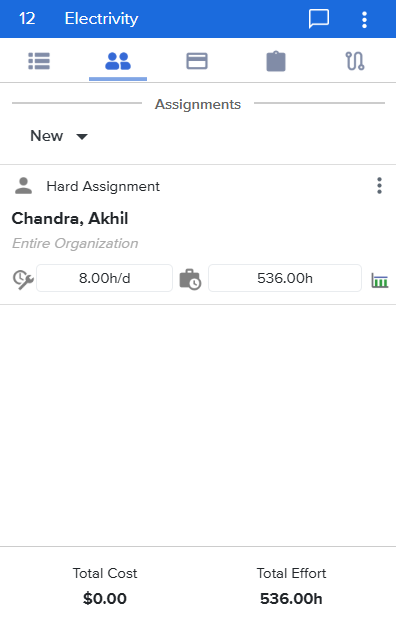


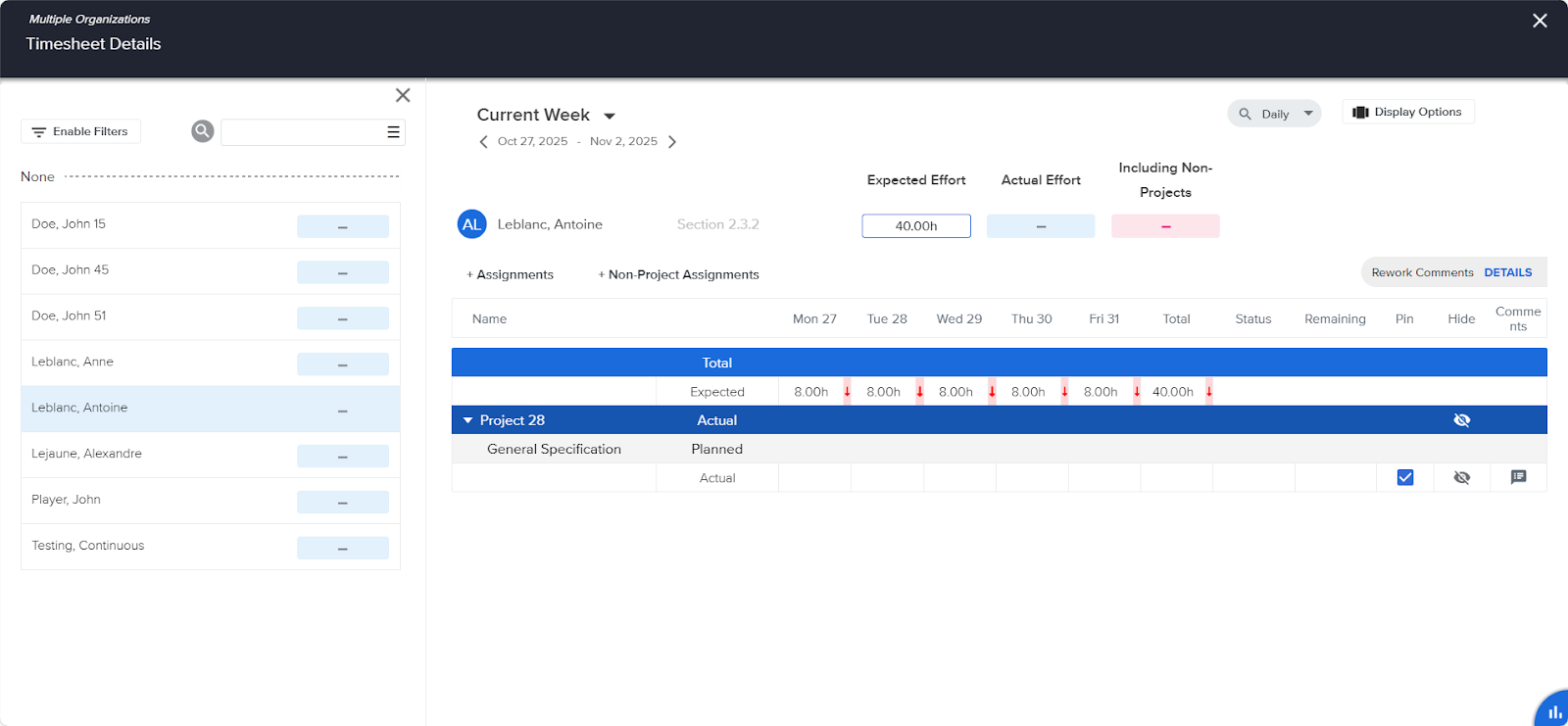
The former flash messages have been replaced with more modern toasters, which will be displayed in the lower right corner of the page.

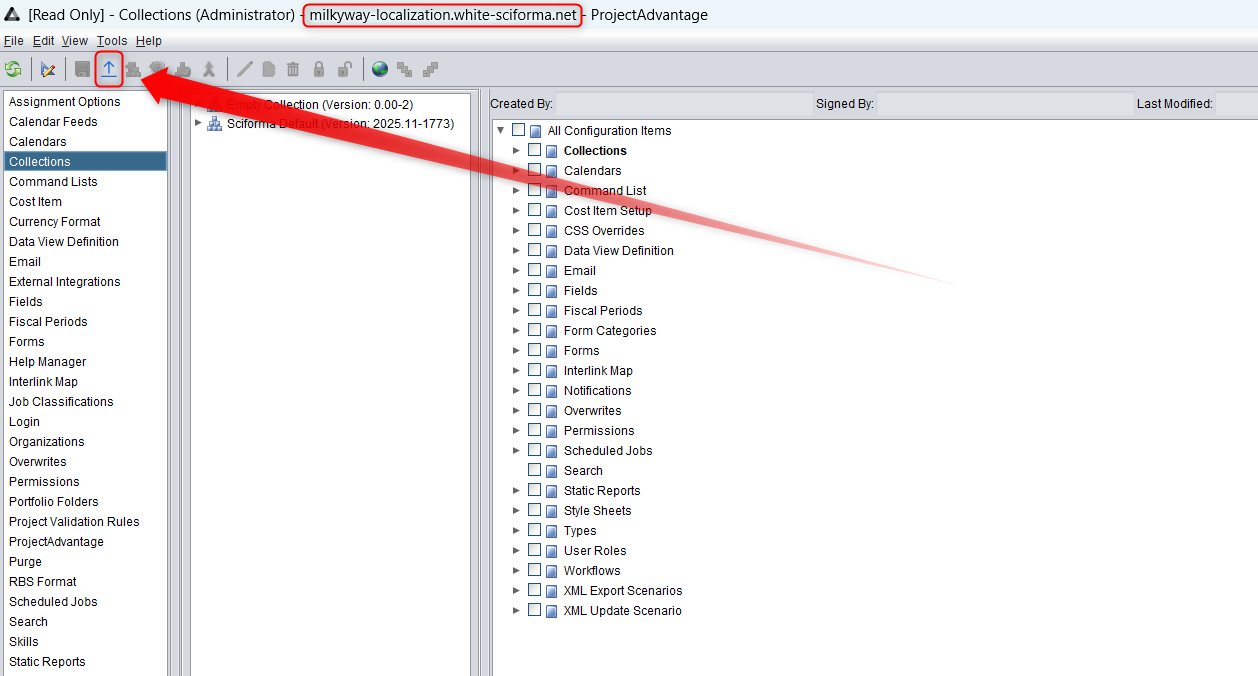
Finally, the “ProjectAdvantage” former product name has been replaced by the new “ProjectAdvantage” name, and logos and icons have been updated in the login popup, in the header and in all other popups in the Designer, as illustrated below.


The URL of the instance is displayed at the top of the Designer view. The icon to upload the Default Config has been modified.
Core Product Enhancements
Designer
#SCI-7124 - Unified Snaplogic Integration in the Designer
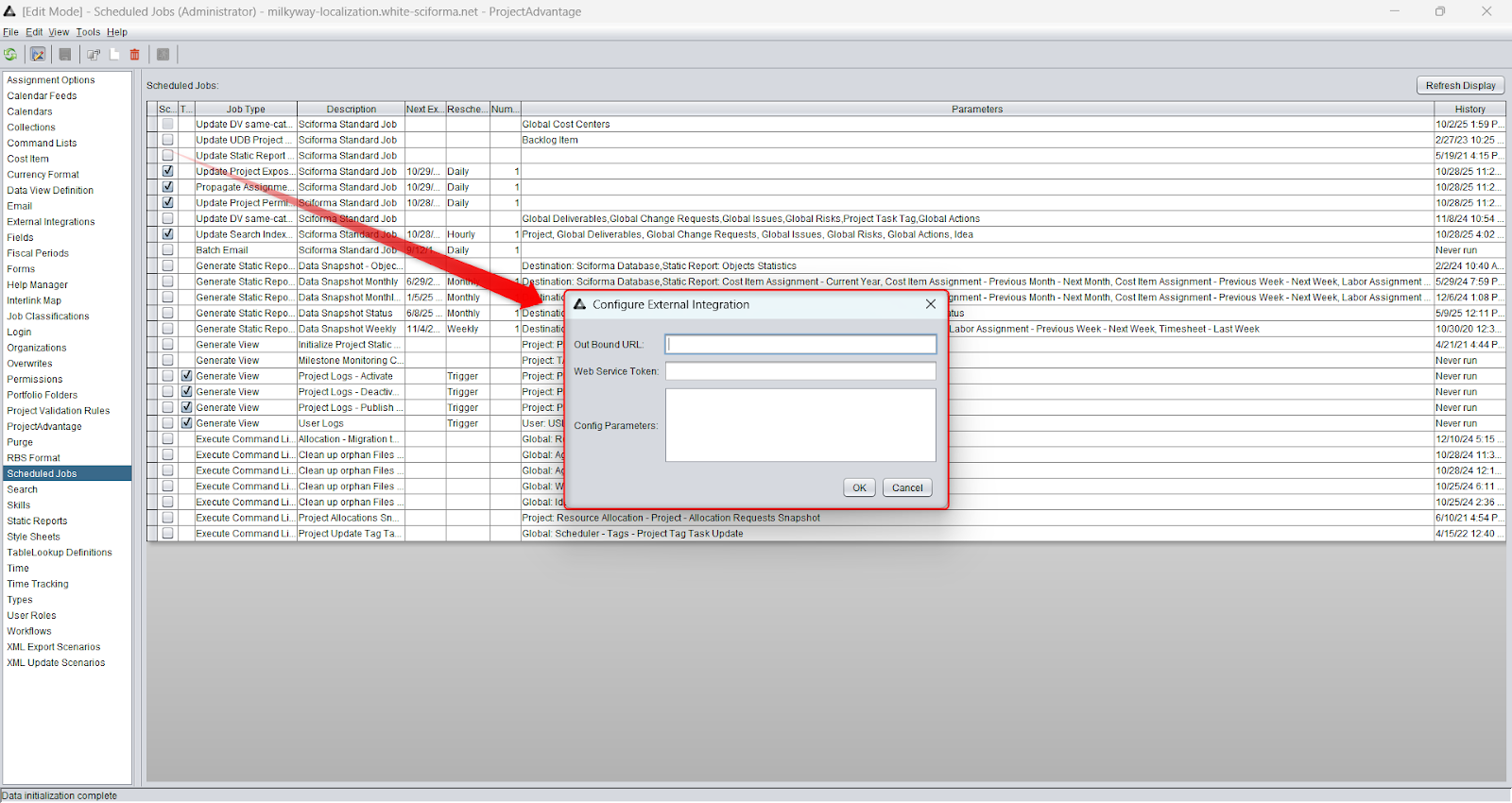
Snaplogic integrations can now be configured, triggered and monitored directly within the Designer, Scheduled Jobs view, allowing users to manage integrations end-to-end without accessing Snaplogic.
To configure the integration, users will need to follow the following step-by-step instructions.
- Log in to the Designer and select the Scheduled Jobs view.
- Turn on the Edit Mode (
 ).
- Click on the Insert a New Job (
 ) button and select the Configure External Integration type in the pick-list.
- In the Configure External Integration popup, fill in the Out Bound URL, Web Service Token, and Config Parameters fields.
- Click on the OK button to close the popup.
- Click on the Save (
 ) button.
- Turn off the Edit Mode (
 ).
Self-Service Reports
#SCI-6031 - New Chart panel available in the Reports workspace
In the Reports workspace, when users select a range of data in the grid and use the Chart Range command, a new Chart panel is now displayed below the grid.

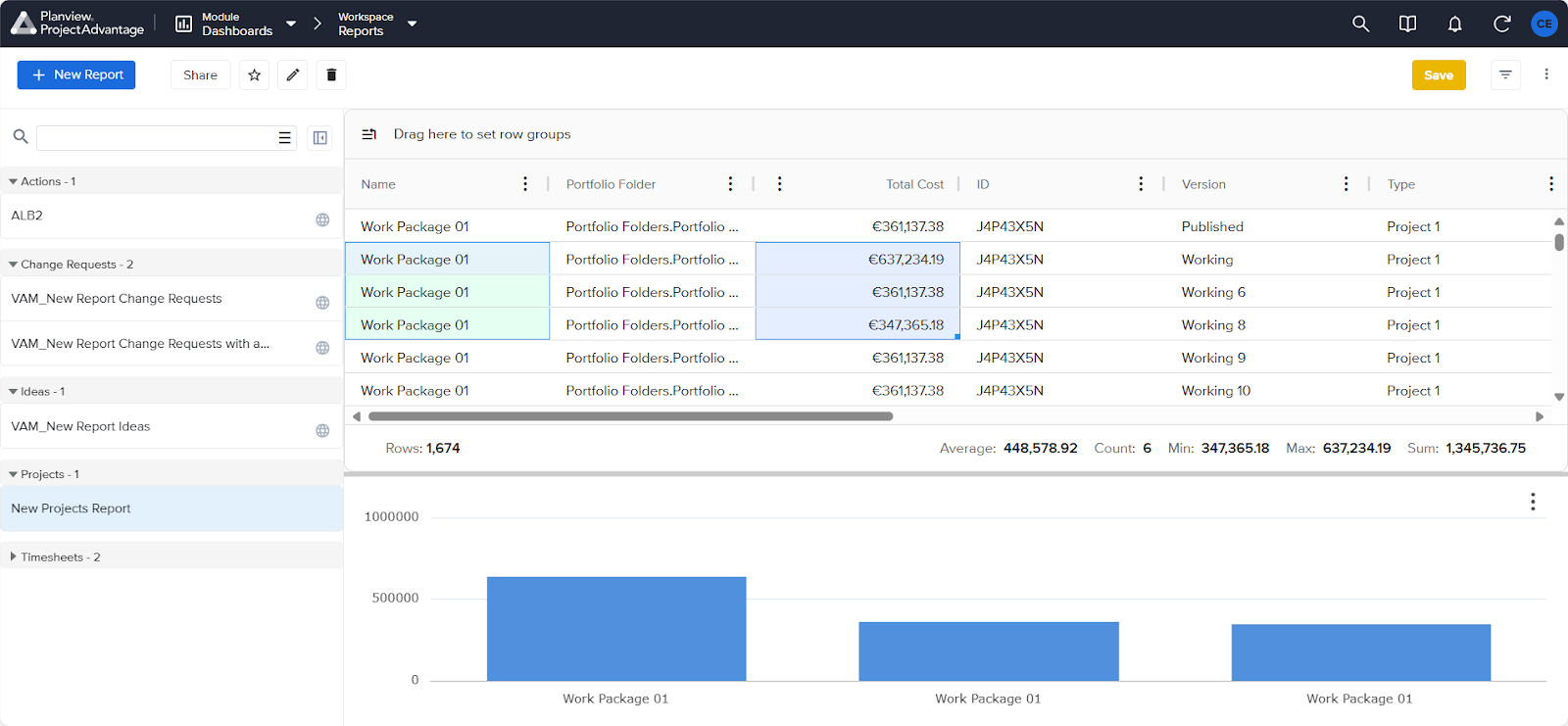
The data considered in the chart can be modified using the double arrow icon. The chart is then dynamically updated to reflect the new selection.


The selection can also be extended to another column using the double arrow icon.

Clicking on the More ( ) button available in the upper right corner of the Chart panel provides access to the following options:
Edit Chart ( ) – Displays the Chart Tool Panels, allowing the user to modify the selected chart type, and customize the data and chart formatting.
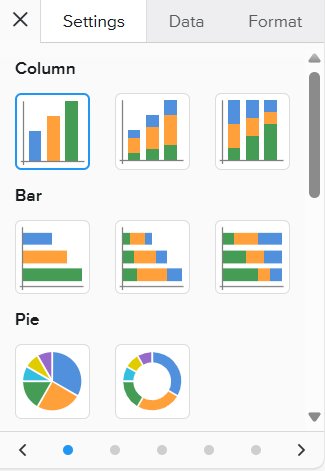
Unlink from Grid ( ) – Allows the user to unlink the chart from the grid.
By default, charts are linked to the selected data in the grid – if the data selection is modified, the chart is also dynamically updated. However, it is sometimes desirable to unlink a chart from the grid data. For instance, users may want to prevent a chart from being updated when subsequent sorts and filters are applied in the grid.
Note: Using the Unlink from Grid command clears the data previously selected in the grid. The data selection can be displayed again in the grid when selecting the Link to Grid command.
Download Chart ( ) – Allows the user to download the chart (.png format).
Delete Chart ( ) – Allows the user to clear the data selection in the grid and closes the Chart panel. The chart is then destroyed.
Core Product Corrected Issues
Administration - System Settings
#SCI-6178
In the System Settings workspace, Project Settings folder, Project Creation Options tab, Nature Options section, when users were connected in any language other than English, certain natures were incorrectly displayed in English. This issue has been fixed.
Built-in Workspaces - Data Snapshots
#SCI-5767
In the Data Snapshots workspace, when users were downloading a static report, the tags previously set in the Designer, Static Reports view, Edit Static Report Definition dialog box, were not included in the downloaded file name. This issue has been fixed.
Built-in Workspaces - Timesheet
#SCI-7032
In the Timesheet (built-in) workspace, when users were clicking on the Import ( ) button in the Timesheet cards panel, then selecting the Import projects and tasks with data option, the operation could take several minutes to complete. This issue has been fixed.
Execution - Timesheet
#SCI-5514
In the Timesheet (built-in) workspace, days previously set as non-working in the Designer, Calendar view, Edit Calendar dialog box, were incorrectly not grayed out and users were able to enter actuals. This issue has been fixed.
#SCI-1185
In the legacy Timesheet workspace, Timesheet view, when users were clicking on the Add Assignment ( ) at the Project level, the prompted Task popup was empty and no task could be selected. This issue has been fixed.
Legacy API
#SCI-7330
In some scenarios, users were unable to extract job classification data using the alias "Full Name" name via the legacy API. This issue has been fixed.
#SCI-7272
In the legacy API, some performance issues could be observed during the project loading operations. This issue has been fixed.
Printing
#SCI-5717
In the Projects Center workspace, Project Card, Gantt tab, when users were exporting the Gantt in PDF format, the timescale was incorrectly missing in the upper part of the exported document. This issue has been fixed.
Projects - Projects Center
#SCI-7700 (*Added on 11/28/2025)
Following an upgrade to a newer version, the actual effort displayed in the Projects Center workspace, Project Card, Gantt tab, Labor Assignment dialog box, Cost/Effort section, was differing from the actual effort displayed in the previous version, even when the “Actuals from Tracking Source Only“ was activated. This issue has been fixed.
Note: The aforementioned setting is located in the Projects Center workspace, Project Card, Administration tab, Work Features section, Tracking Advanced Attributes popup.
#SCI-7404
In the Projects Center workspace, Project Card, Dashboards tab, an error message was displayed when users were launching reports in a new browser page. This issue has been fixed.
#SCI-6331
In the Projects Center workspace, Project Card, Library Items tab, Lessons Learned sub-tab, Grid mode, when users were moving a lesson learned to a portfolio folder, the moved item was still displayed and only disappeared when refreshing the page. This issue has been fixed.
#SCI-5303
In the Projects Center workspace, Project Card, when users were saving the project in a different version by changing the ID in the Project Save As popup, the ID of the currently selected version was incorrectly modified. This issue has been fixed.
Projects - Projects Dashboards
#SCI-6333
In the Projects Dashboards workspace, Finance theme, Budget report, the “12 Months from project start” preset option was not working as expected. This issue has been fixed.
Resource - Resource Validation
#SCI-7318
In the Resource Validation workspace, Timesheets tab, if the user was selecting the “Specific Week” preset, then a day which was the first day of the week (typically defined as Monday), in certain scenarios, the displayed week was the previous week. This issue has been fixed.
Default Configuration Enhancements
Administration - Reports
#MIL-5715 - New Power BI report workspace
A new Power BI report workspace has been created under the Dashboards module to embed a Power BI report from an external URL link.

Note: For a Power BI report to be displayed, the administrator must select “Power BI” as the built-in form to be displayed, and fill in the “Power BI report link” field, in the Designer, Forms view, Edit General Object dialog box, Form tab.

The “Power BI report link” to be inputted must be created in the MS Power BI workspace using the process below:
- Open the MS Power BI workspace in any browser.

- Open the desired report.

- In the top bar, click on “File”, select the “Embed report” command, then the “Website or portal” option.

- Copy the link from the “Link to embed this content” field, and paste it in the “Power BI report link” field, in the Designer, Forms view, Edit General Object dialog box, Form tab.

Important: The “PowerBI report_Overwritable (Dashboards/PowerBI report)” form will need to be overwritten by the administrator.
Designer
#MIL-5709 - New “externalID” field in Data View Definition dialog box
In the Designer, Data View Definition view, Global Cost Centers (GLCostCenters) item, Data View Definition dialog box, a new “externalID” field has been created to facilitate the connection with external applications.

Execution - My Home Page
#MIL-5661 - New colors in the My Home Page workspace, Quick Actions block
In the My Home Page workspace, Quick Actions block, the colors of the Quick Actions icons have been changed. In addition, a gray background is now displayed when hovering over a quick action command.

Resource Forecast
#MIL-5718 - Forecasting
In the Projects Center workspace, Project Card, Resources tab, Resource Forecast sub-tab, when fulfilling a generic commitment or request, the “Organization” and “Job Classification” fields are now fulfilled automatically.

Resource - Resource Validation
#MIL-5692 - “Full Weeks” zoom option in Resource Validation workspace
In the Resource Validation workspace, Timesheets tab, Timesheet Details full screen view, when a monthly pivot is selected, a new “Full Weeks” chip button is now available in the upper right corner.

Default Configuration Corrected Issues
Administration - Corporate Data
#MIL-5772 (*Added 11/06/2025)
In the Corporate Data workspace, Resources tab, it was not possible to create new resources. This issue has been fixed.
Administration - Project Administration
#MIL-5732
In the HTML5 Client, an error message was sometimes displayed when users were changing a project’s workflow state vote in the Project Administration workspace, or when they were creating a new project from an existing project/a template. This issue has been fixed.
Budget/Finance
#MIL-5323
Some loading performance issues could be observed in the Projects Center workspace, Project Card, Finance tab, when the “Enable Project Cost Center Cost Reallocation in %” was enabled. This issue has been fixed.
Note: The aforementioned setting is located in the System Settings workspace, Budget/Finance Settings folder, Global Options tab, Budget section.
Execution
#MIL-5571
In the Work Objects Center workspace, when users were creating a new work object, then were creating a new connection in the Work Object Card, Details tab, Connections section, the newly created connection could incorrectly be added again when clicking on the Add existing button. This issue has been fixed.
Execution - Actions Center
#MIL-5716
In the Actions Center workspace, Action Card, Definition tab, when users were adding a resource for the "Other Assignees" field, the German translation was incorrect. This issue has been fixed.
Projects - Projects Center
#MIL-5720
In the Projects Center workspace, Project Card, Task tab, Filters popup, when using a low-resolution screen, the footer of the popup incorrectly overlapped the content. This issue has been fixed.
#MIL-5699
In the Projects Center workspace, an error message was displayed when users were creating a new project from a template. This issue has been fixed.
#MIL-5695
In the Projects Center workspace, Project Card, Administration tab, Setup sub-tab, Resource Management section, an error message was displayed when users were clicking on the “Allocations” option. This issue has been fixed.
#MIL-5694
In the Projects Center workspace, Project Card, Task tab, Tracking sub-tab, By Resources view mode, when users were clicking on the Previous ( ) button to display the previous period, only the Monday was displayed in the Timesheets Overview. This issue has been fixed.
#MIL-5651
In the Projects Center workspace, Project Card, Gantt tab, Labor Assignment dialog box, weekend days were incorrectly visible in the Time Distribution section, even when the “Hide Weekends” setting was activated. This issue has been fixed.
Note: The aforementioned setting is located in the System Settings workspace, Project Settings folder, Time Tracking Options tab, Display Options section.
Resource Forecast
#MIL-5701
In the Projects Center workspace, Project Card, Resources tab, Resource Forecast sub-tab, Build requests from soft assignments dialog box, the "Build requests" button was incorrectly grayed out, even when all requirements were respected. This issue has been fixed.
Resource - Organization Center
#MIL-5722
In the Organization Center workspace, Overview tab, Submitted Timesheets section, when users were clicking on the Open ( ) button for a specific Timesheet, the time frame displayed in the Resource Validation workspace, Timesheet tab, Timesheet Details full screen view, was incorrect. This issue has been fixed.
Resource - Resource Allocations
#MIL-5702
In the Resource Allocations workspace, Resource Allocations full screen view, Hard Allocations tab, Resources Overview sub-tab, Filters panel, when users were clicking on the Hamburger ( ) button to filter the resources to review, the Resource popup was empty. This issue has been fixed.
Resource - Resource Validation
#MIL-5656
In the Resource Validation workspace, Timesheets tab, Timesheet Details full screen view, in certain scenarios, the Submit, Review, and Rework buttons were not properly displayed. This issue has been fixed.
Status Report
#MIL-5676
In the Projects Center workspace, Project Card, Overview tab, Status Reports sub-tab, Last Submitted Status Report popup, the phases & gates symbols were incorrect in all languages other than English. This issue has been fixed.
Integrations Corrected Issues
REST API
#INT-2159
In the REST API, no values were returned for “Dated” type fields. This issue has been fixed.
System Requirements
There are frequent changes and additions to the set of specific versions of operating systems, application servers and database servers for which Planview ProjectAdvantage has been tested and certified. Please contact our teams for the latest information in this area.
Note: Users' system clocks must be regularly and accurately synchronized with the internet.
Servers
- Application Server: Apache Tomcat 9 with Oracle Java 8 or OpenJDK
- Data Server: PostgreSQL 14, PostgreSQL16
HTML5 Clients
- Display resolution: 1366 x 768 (technical minimum), 1600 x 1050 (minimum recommended), 1920 x 1080 or higher (generally recommended).
- Minimum of 4GB RAM allocated (8GB recommended).
- Browser
- Microsoft Edge
- Google Chrome
- Mozilla Firefox
- Apple Safari
Planview ProjectAdvantage Designer
- Recommended language: English
- Display resolution: 1366 x 768
- Minimum of 4GB RAM allocated
- Disk space: 200MB minimum available for Planview ProjectAdvantage.
- Oracle Java 8 or OpenJDK 8
- Operating Systems:
- Windows 7, 8.1, 10 or 11
- Mac OS X Lion or newer
- Alpine Linux 3.16.1
REST API
- Supported language: English
Timesheets Mobile Application
- Being hosted by Planview ProjectAdvantage
- Product version: 2022.08 and upper versions
Planview ProjectAdvantage platform
Users will need to enable third-party cookies to work within Planview ProjectAdvantage. For more information regarding third-party cookies, please refer to the “How to allow third-party cookies” documentation.
For customers who subscribed only to Plan
- Installation:
- POD 11 is required if hosted by Planview ProjectAdvantage
- An Hydra server is required if on premise
- Product version: 2023.01 and upper versions
For customers who subscribed to Plan and Deliver
- Installation:
- POD 11 is required if hosted by Planview ProjectAdvantage
- An Hydra server is required if on premise
- HPV2 activated on Deliver modules (activated by default for all new Deliver Clients after 2021 Q3)
- Product version: 2023.01 and upper versions
- Users will need to allow third-party cookies in their browser
Limitations
The data connector:
- Does not work in load balanced environments.
- Is not compatible with Cloud Scheduled Jobs.
- Is not compatible with dedicated API servers.
- Is not compatible with the Java API.