



2025.07
This document describes the enhancements, corrected issues, and new features that have been implemented in ProjectAdvantage 2025.07, both in the Core product and in the ProjectAdvantage Default Configuration, in Vantage and in Deliver.
ProjectAdvantage 2025.07 is a maintenance release of ProjectAdvantage 2025.
In the Core product, 6 enhancements have been implemented and 24 issues have been fixed.
In the ProjectAdvantage Default Configuration, 2 enhancements have been provided and 11 issues have been fixed.
In order to access the different sections, please click on the following links:
- Important Reminders for upgrade
- Core Product Enhancements
- Core Product Corrected Issues
- Default Configuration Enhancements
- Default Configuration Corrected Issues
- System Requirements
Important Reminders for upgrade
- To improve the performance of views displaying the Health Score of multiple projects, we are now using a Health Score that is pre-calculated upon publishing a project as opposed to on the fly. Therefore, upon upgrading to 2021.03 (or higher), please make sure you run once the following Scheduled Job to initialize the project Health Score values: Initialize Project Static Health Score.
Important: For systems with an overwritten Publish command, please make sure to add the new dedicated Command List for the Health Score pre-calculation upon publishing a project: “Project - Publish Project - Continue - Capture Health Score”.
- From the 2023.01 version, to support the implementation of the new Vantage navigation and modules, the Project Dashboards workspace should be added again in the User Roles section of the Designer as the Dashboards workspace doesn't exist anymore.
- In order to complete the upgrade to newer ProjectAdvantage versions, administrators must update the “Popup” column with the correct Forms in the Designer, Search view, as follows:
- “Global Actions” Category → Popup - Action Card (Briefs)
- “Global Change Requests” Category → Popup - Change Request Card (Briefs)
- “Global Deliverables” Category → Popup - Deliverable Card (Briefs)
- “Global Issues” Category → Popup - Issue Card (Briefs)
- “Global Risks” Category → Popup - Risk Card (Briefs)
- “Idea” Category → Popup - Idea Card (Briefs)
Core Product Enhancements
Data Visualization
#SCI-6837 – New default format options in Edit Grid Properties dialog box
When editing the distributed fields properties of a grid in the Designer, Forms view, Edit Grid Properties dialog box, Distributed tab, two new options are now available to set a “Default Rate Format” and “Default Effort Format”.
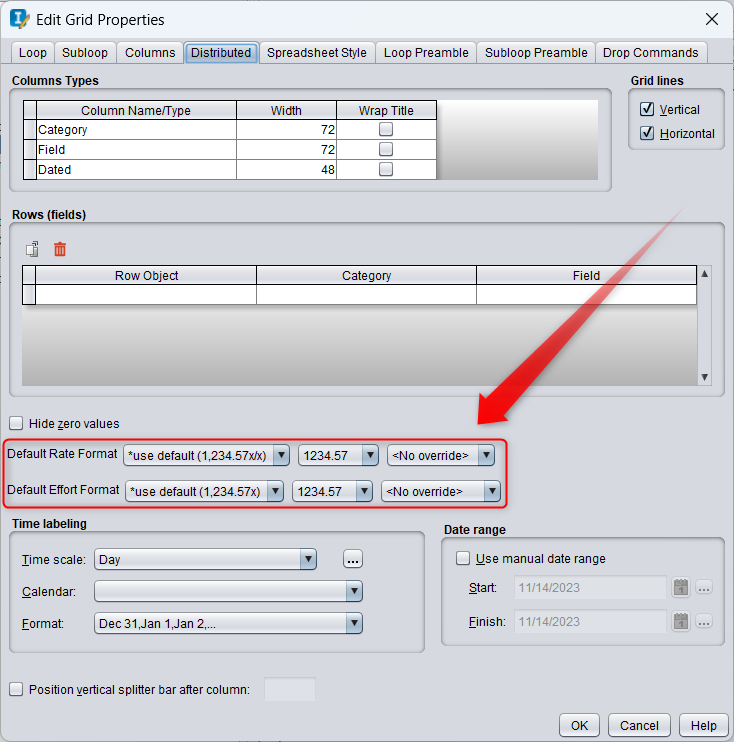
If a displayed rate or effort distributed field is not defined in the distributed options (for instance, for a View Control option in the HTML5 Client) by a user, these formatting options will now be used by default.
Designer
#SCI-6075 – Grid options now available in Grid toolbar
It is now possible to remove the Gear ( ) icon available on the upper right-hand side of grids so it is replaced with a More (
 ) button in the toolbar.

Upon clicking on the More ( ) button, the following commands can be displayed:
- Print (
 ) – Opens the grid in a new browser tab and displays the browser Print dialog box, in which users can select a printer.
- Export current view to Excel (
 ) – Downloads the current view in Excel format.
- Expand all rows (
 ) – Allows to expand all rows.
- Collapse all rows (
 ) – Allows to collapse all rows.
- Honor hierarchy (
 ) – Allows to display data with the intrinsic hierarchy honored.
- Ignore hierarchy (
 ) – Allows to display data with the intrinsic hierarchy ignored.
- Reset column display (
 ) – Resets the display to the default display.
To activate the More ( ) button in the toolbar, the user must tick the “Enable” checkboxes only (and not the “Display” checkboxes) for the relevant workspace in the Designer, Forms view, Edit View Control dialog box, as illustrated below for the Projects Center workspace.

In addition, the “Enable export hover menu” option must be deactivated in the Designer, Forms view, Edit Grid Properties dialog box, Loop tab.

Important: The More () button is now activated by default in the toolbar in all the Center workspaces.
Designer - Object/Field Edits
#SCI-6664 – New field data types available for user defined fields
In the Designer, Fields view, two new field data types are available for user defined fields: “Resource Request” and “Resource Commitment”. Fields with these data types can be set from a Set Field Values command.

Performance
#SCI-6751 – Optimization of Field Sets serialization
Permissions saving and reading from the database have been optimized when Field Sets are used in permissions.
Resource – Resource Requests & Commitments
#SCI-6103 - Resource Forecast feature
A new Forecast feature has been implemented, allowing users to plan their staffing needs, schedule their teams across projects, and optimize time to ensure project success.
Project Managers and Resource Managers have a critical role in matrix organizations:
- Project Managers are responsible for identifying resource needs based on resource profiles (organization, job classification and skills) by using project plans and rough estimations.
- Resource Managers fulfill the requests submitted by Project Managers with available resources.
The Forecast feature enables Project Managers and Resource Managers to cooperate and, therefore, optimize the utilization of their resources. The kind of cooperation between the Project Manager and the Resource Manager depends on different factors:
- The size of the organization
- The maturity of the organization
- The structure of the organization
- The methodologies involved
- The roles/responsibilities of the stakeholders
The kind of cooperation between the Project Manager and the Resource Manager is also activated by a Project setup option, to decide if:
- Only Commitments are considered – in this case, one specific screen is available for the Project Manager.
Important: The Project Manager must select the "Commitments" Project setup option in the Projects Center workspace, Project Card, Administration tab, Setup sub-tab, Resource Management section.
- Requests & Commitments are considered – in this case, one specific screen is available for the Project Manager to create the requests, and one specific screen is available for the Resource Manager to commit the requests.
Important: The Project Manager must select the "Requests & Commitments" Project setup option in the Projects Center workspace, Project Card, Administration tab, Setup sub-tab, Resource Management section.
Settings
In order to use the Forecast feature, different settings and options must be set:
- Meta setting
For the Forecast feature to be active, the "Activate Resource Forecast" setting must be activated and the "Activate Resource & Commitment Legacy" setting must be deactivated in the System Settings workspace, General Settings folder, Meta Settings tab, Meta Settings section.

- Object Edit Rights
The Effort format (effort in days or effort in hours) displayed in the grids and the related popups must be defined using the “Set Requested/Committed Effort Format” pick-list available in the System Settings workspace, Resource Settings folder, Allocations & Commitments tab, Requests & Commitments Options section.

Important: When upgrading their environment, customers using ProjectAdvantage versions older than the 2025.06 version, must set the “Set Requested/Committed Effort Format” to “Effort in days” or “Effort in hours” in the Projects Settings workspace, Resource Settings folder, Allocations & Commitments tab, Requests & Commitments Options section.
Commitments only
When no commitments have been created in the Projects Center workspace, Project Card, Resources tab, the Resource Forecast sub-tab displays an empty state enabling the Project Manager to:
- Create Generic Commitments from scratch
- Create Nominative Commitments from scratch

In the New nominative Commitment and New generic Commitment dialog boxes, the Project Manager is able to:
- Define the commitment format: Effort, or Rate
- Enter the commitment uniformly or non-uniformly
- Define the timeframe to consider (entire project or custom period), if the commitment is uniform
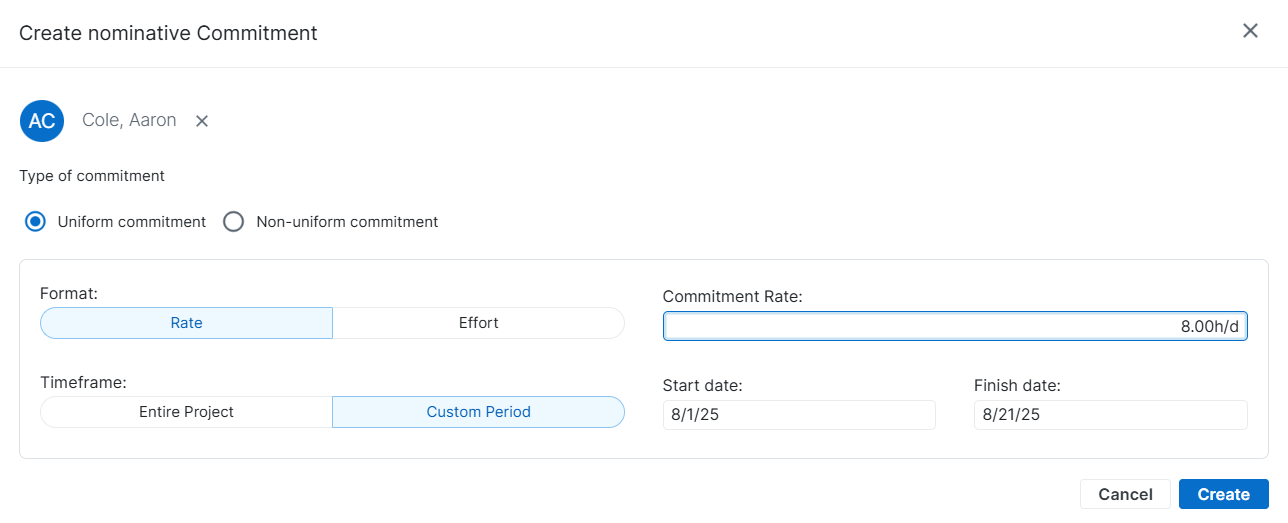

When the nominative or generic commitment has been created, it is displayed in the grid. The Project Manager can modify data directly in the Commitment Effort field or in the distributed cells depending on the distribution type (Uniform or Non-uniform).
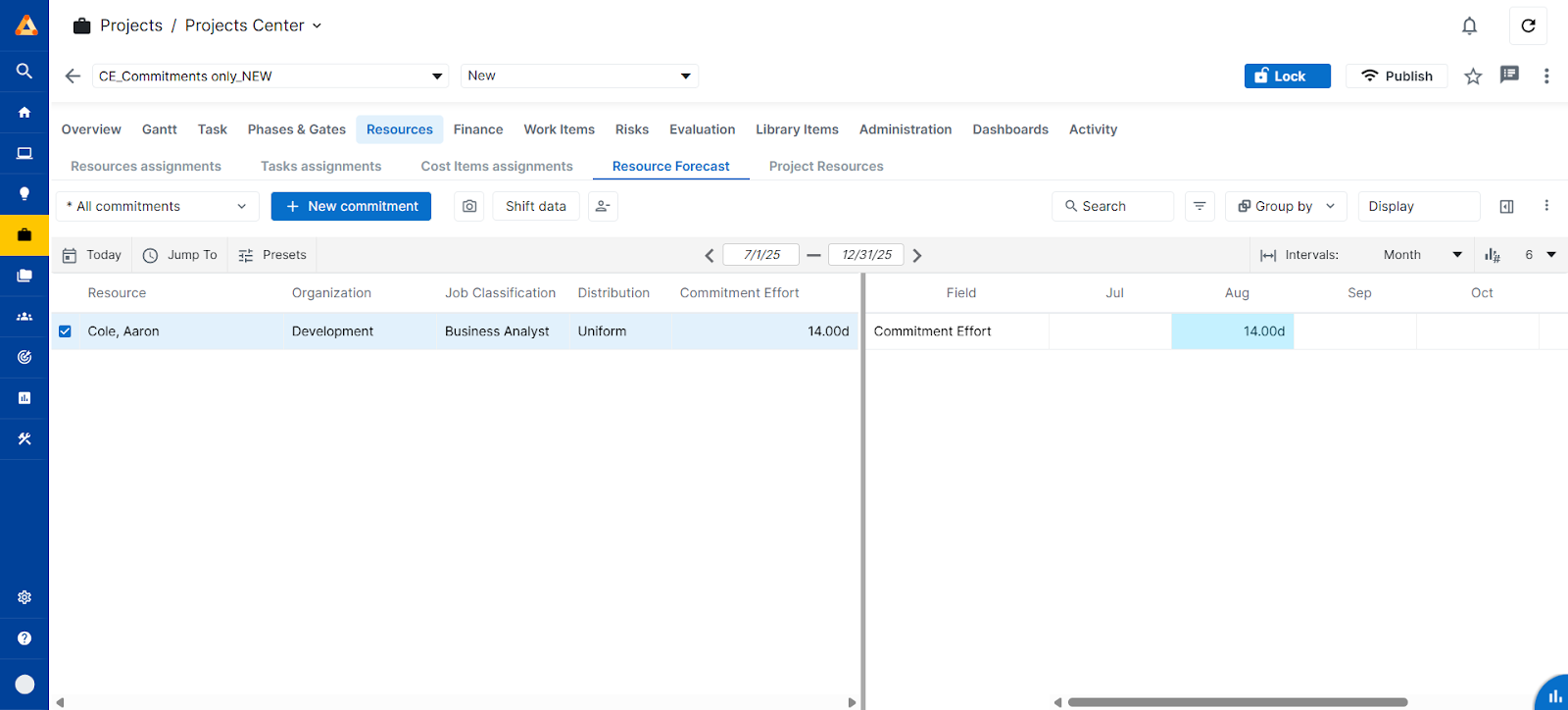
The Project Manager is also able to filter data, group data by the selected option, and save his own customized views. Distributed and summary rows can also be added to allow the Project Manager to go deeper in the analysis by clicking on the Display button.

In addition, the commitment alerts can be reviewed to identify potential issues.

Clicking on the More ( ) button available on the right hand-side of each resource field cell provides access to the Resource Card. The Forecast tab displays, for a given resource:
- The Capacity
- The Remaining Availability
- The Commitment effort per project

Once a generic commitment has been created, the Project Manager is able to fulfill it in the Fulfill Generic commitment dialog box, in which the list of resources that match the organization/job classification of the generic commitment are displayed.

When fulfilling the generic commitment for the first time, the resource is added considering its remaining availability. If other resources need to be added, the Fulfill button provides two options:
- With remaining availability – The commitment effort is fulfilled taking into account the remaining availability. If the gap effort is less than the remaining availability, the commitment effort will be equal to the gap effort.
- Split commitment effort equally – The commitment effort will be split equally between the committed nominative resources.
Requests & Commitments
For the Project Manager
When no requests have been created in the Projects Center workspace, Project Card, Resources tab, the Resource Forecast sub-tab displays an empty state enabling the Project Manager to create new requests from scratch.

In the Create request dialog box, the Project Manager is able to:
- Define the commitment format: Effort, or Rate
- Enter the commitment uniformly or non-uniformly
- Define the timeframe to consider (entire project or custom period), if the request is uniform
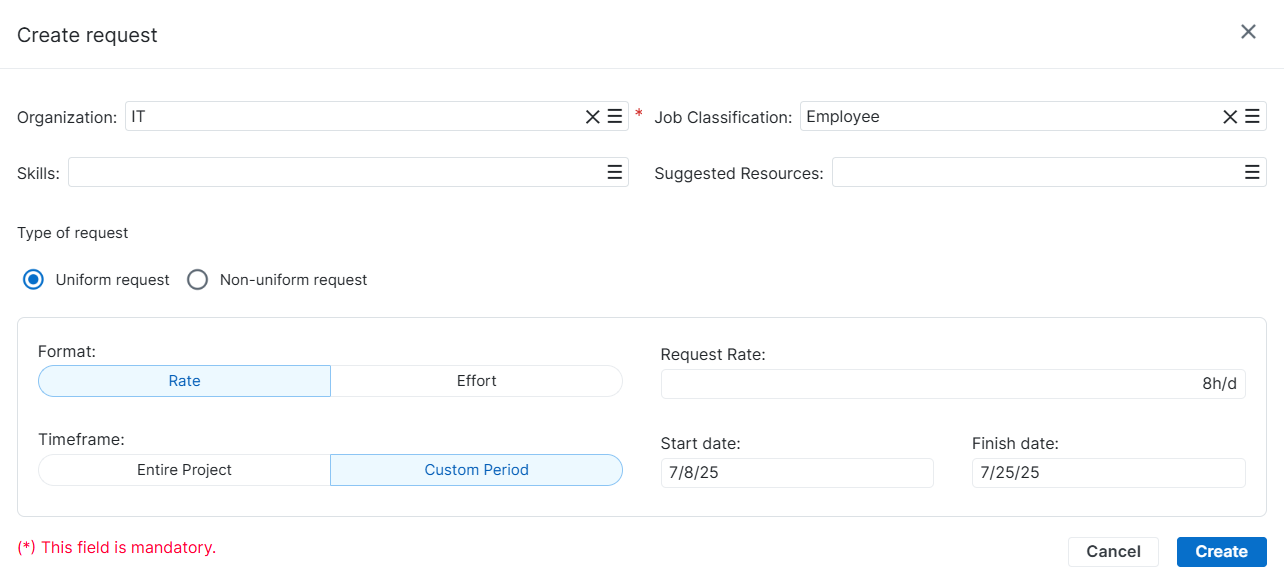
When the request has been created, it is displayed in the grid. The Project Manager can modify data directly in the Request Effort field or in the distributed cells depending on the distribution type (Uniform or Non-uniform).
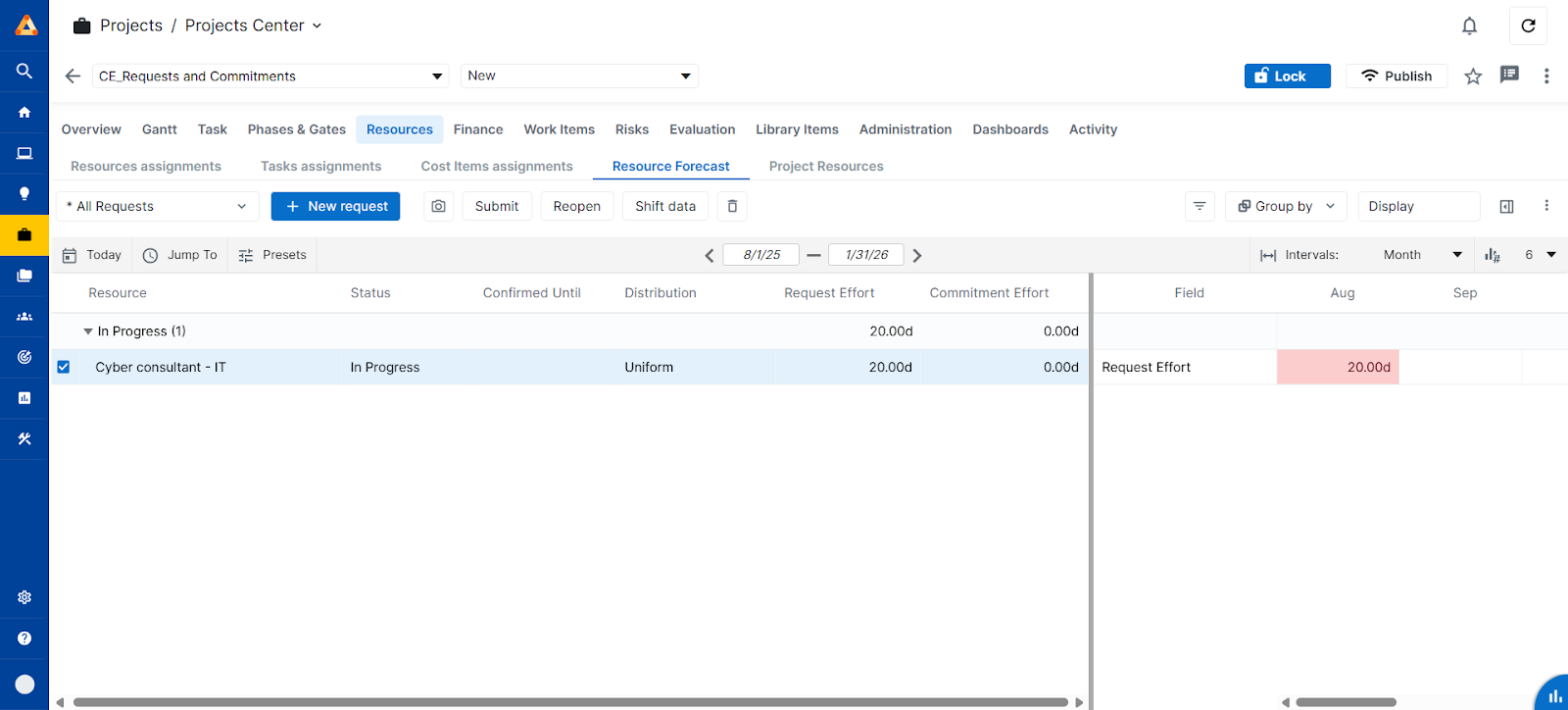
The Project Manager can indicate to the Resource Manager until which date the request is confirmed and needs to be committed. He is also able to filter data, group data by the selected option, display columns, distributed rows and summary rows, as well as save his own customized views. Distributed rows can also be added to allow the Project Manager to go deeper in the analysis.

When all information has been added, the Project Manager can submit his request to the Resource Manager using the Submit command. The request workflow state automatically changes to “To be committed”.
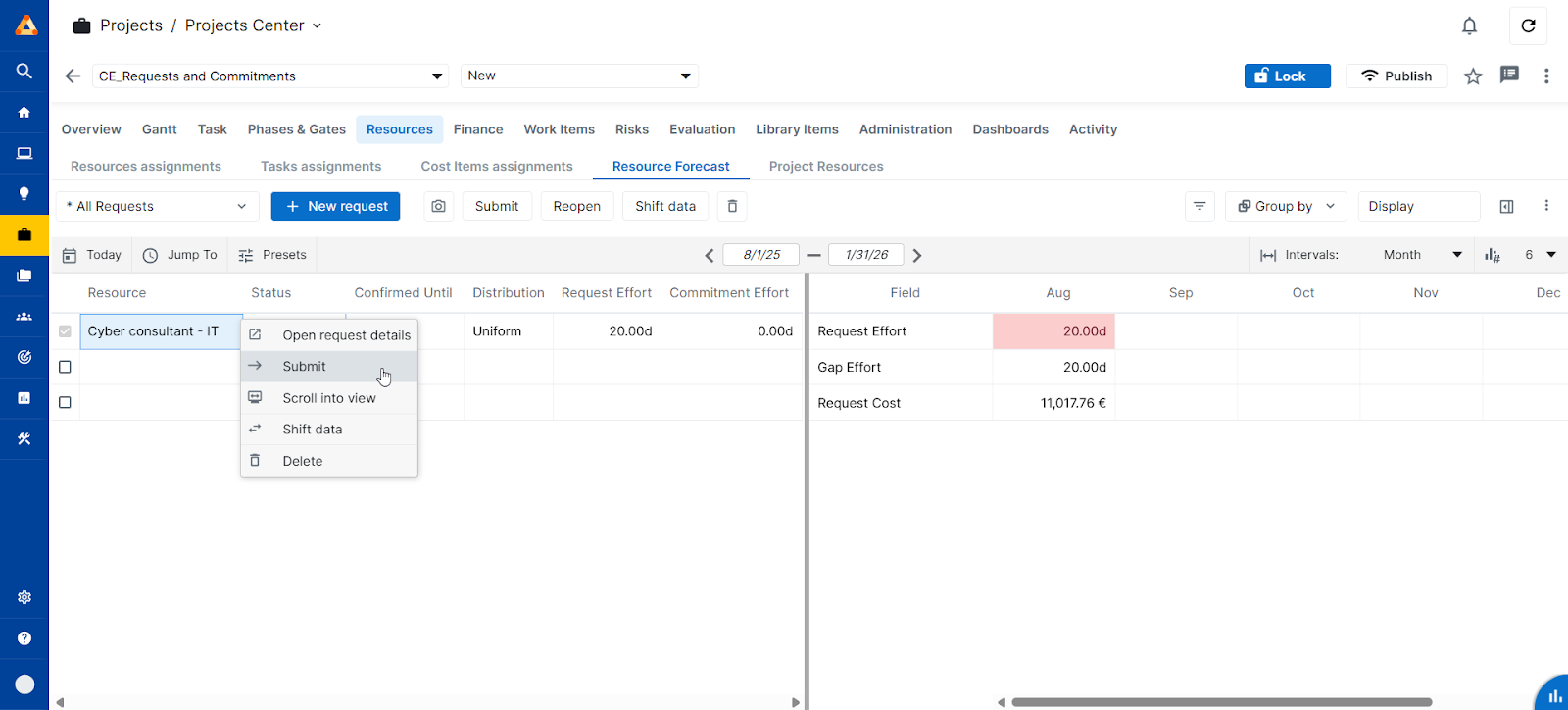
The More ( ) button available on the right hand-side of each resource field cell provides access to commands allowing the Project Manager to shift the request data or delete the request.
For the Resource Manager
After having selected Organization branches in the selector, the Resource Manager is able to review all the requests that have to be committed in the Resource Forecast workspace.

Once the requests have been reviewed, the Resource Manager is able to:
- Fulfill the requests
- Send the requests back to the Project Manager to be reworked

The Fulfill request dialog box allows the Resource Manager to fulfill the request either with multiple Nominative resources, or with a Generic resource.

When fulfilling the request for the first time, the resource is added considering its remaining availability. If other resources need to be added, the Fulfill button provides two options:
- With remaining availability – The commitment effort is fulfilled taking into account the remaining availability. If the gap effort is less than the remaining availability, the commitment effort will be equal to the gap effort.
- Split request effort equally – The request effort will be split equally between the committed nominative resources.
Note: If resources were previously suggested by the Project Manager, the Recommended () icon is displayed on the right-hand side of the resource name.
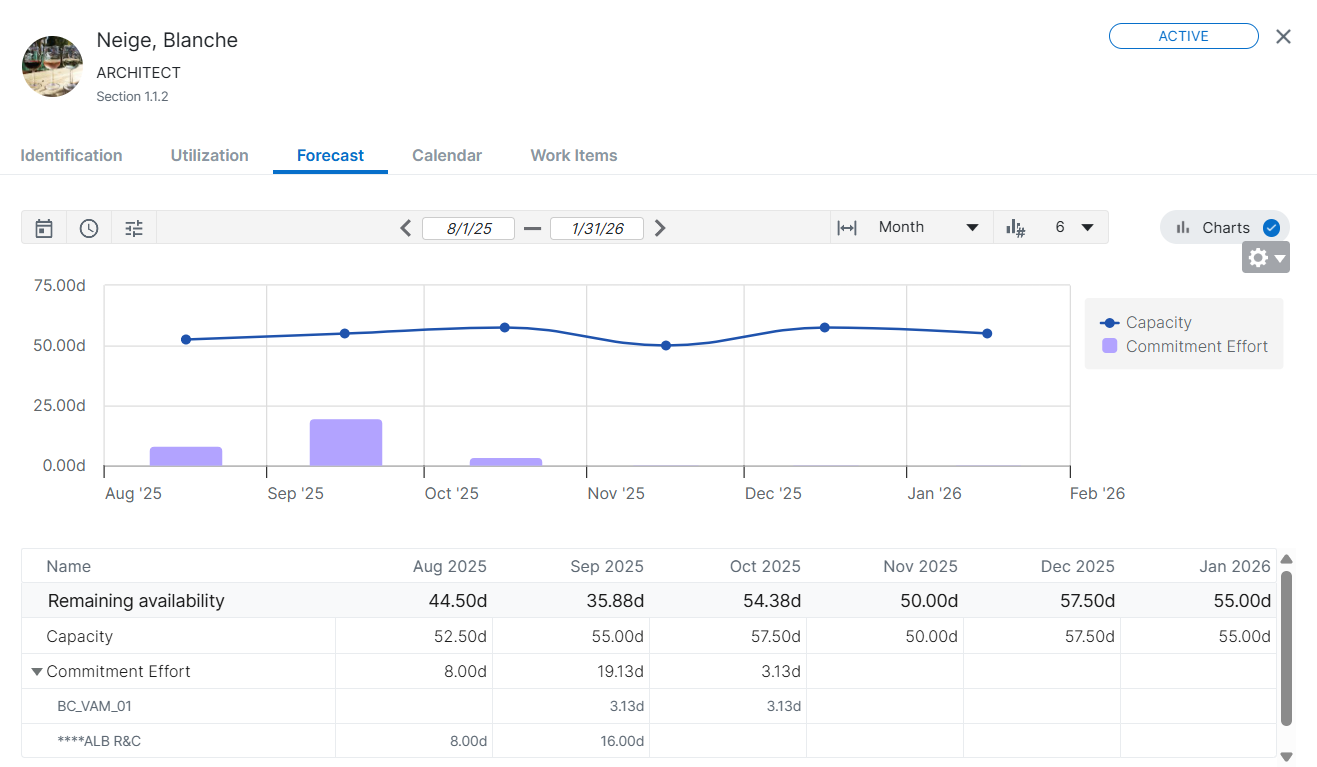
Clicking on the More ( ) button available on the right hand-side of each resource cell provides access to the Open resource details option, allowing the user to open the Resource Card. The Forecast tab displays, for a given resource:
- The Capacity
- The Remaining Availability
- The Commitment effort per project
Once the request has been fulfilled, the Resource Manager is able to:
- Save the commitment – The commitment can still be modified.
- Commit the request – The request is fulfilled and sent back to the Project Manager. The request workflow state changes to "Committed", and neither the Resource Manager nor the Project Manager can modify it anymore.

If the request workflow state is “To be committed”, the Resource Manager is able to modify the commitment in the grid. Colors are available to indicate if the request effort has been overcommitted or undercommitted.

The Resource Manager can then commit the request.
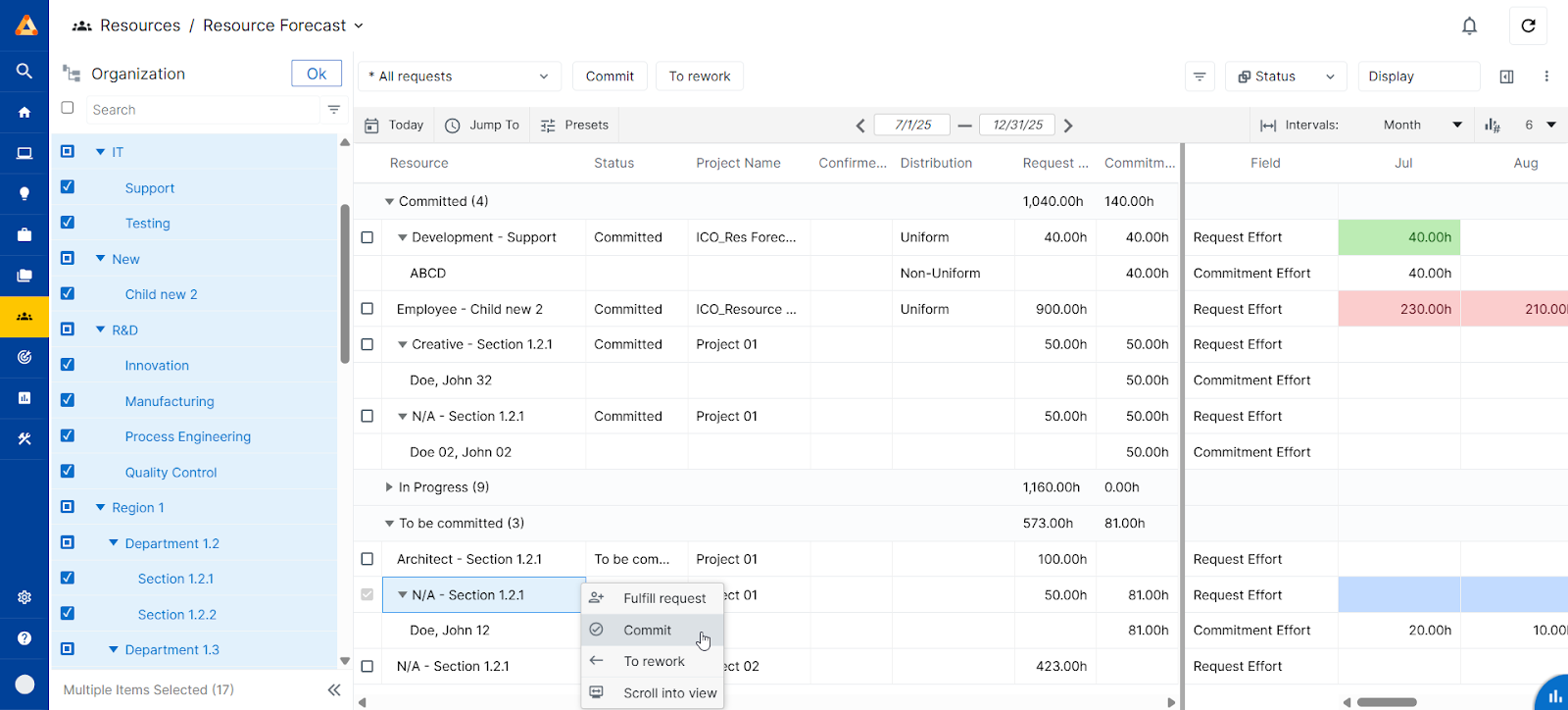
Note: Once committed, the request is read-only for the Resource Manager in the Resource Forecast workspace, as well as for the Project Manager in the Projects Center workspace, Project Card, Resource tab, Resource Forecast sub-tab. The Project Manager can reopen it and continue to work on the same request.
For more information, please refer to the Resource Forecast documentation.
Teams App
MSTEMS-2 - Grid and Boards available as a tab in Channels and Chats
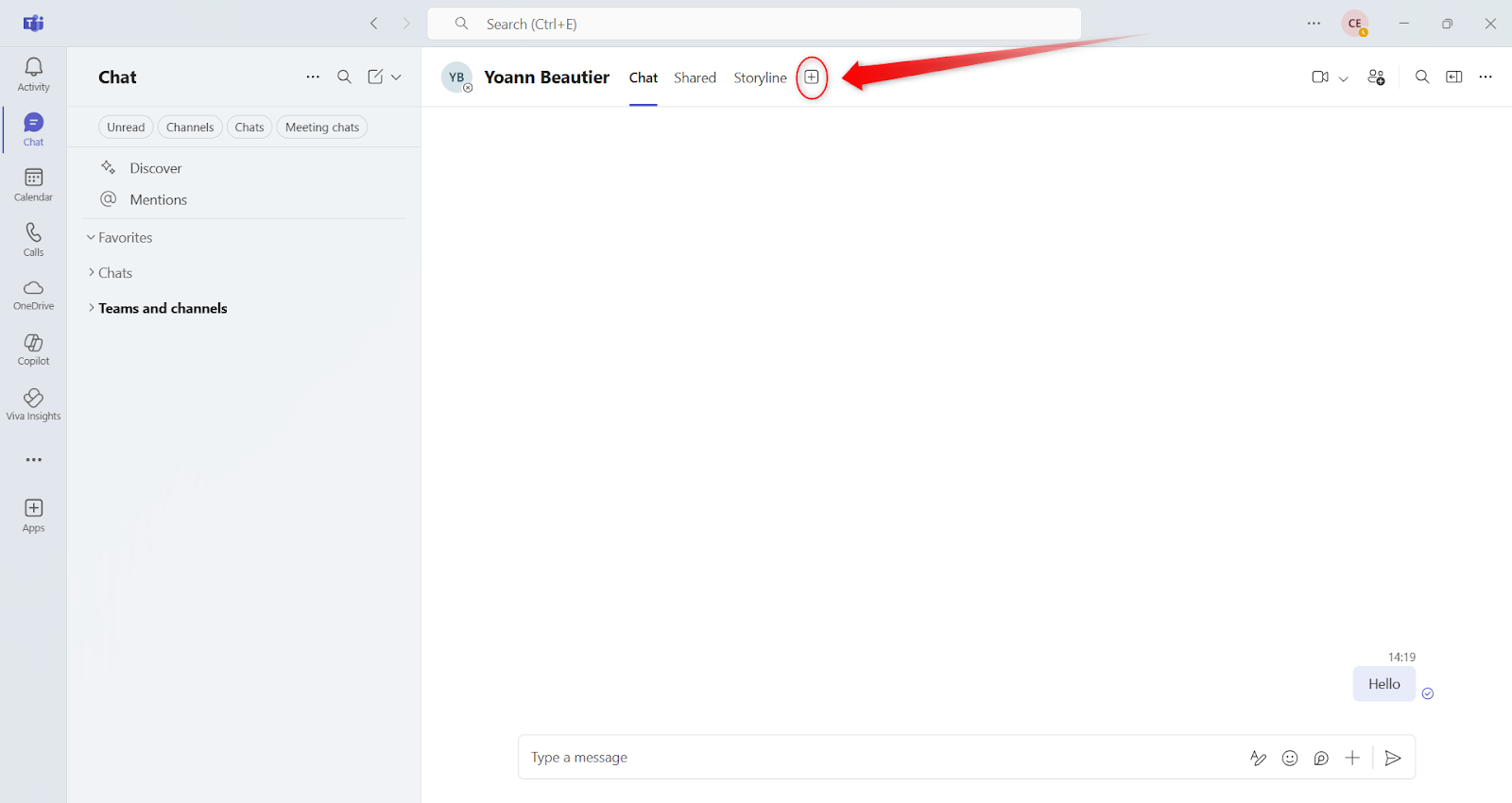
Grids and Boards can now be displayed in Chats and Teams Channels. Users will need to follow the process below:
- Click on the + button in the Chat or Teams header.
Chat
Teams channel

- In the prompted popup, select ProjectAdvantage Plan from the available applications.

- Enter the URL of your ProjectAdvantage instance, then click on the Login button and enter your credentials in the prompted login popup.

- Select the workspace and the view you wish to display in the chat or Teams channel.

- The workspace and view are displayed in the Chat/Teams channel.
Chat

Teams channel

Core Product Corrected Issues
Authentication
#SCI-6545
In the HTML5 Client, upon session timeout, a frozen gray screen was displayed with no timeout message nor redirection to the login page. This issue has been fixed.
#SCI-6328
In the HTML5 Client, in some scenarios, the session timeout functionality was not working. This issue has been fixed.
Build
#SCI-6821
In some scenarios, the dump could not be restored as the “Create/Update Table” operation was not completing. This issue has been fixed.
Built-in Workspaces - Timesheet
#SCI-6823
In the Timesheet (built-in) workspace, when viewing the timesheet using the “Fiscal Week” option, the “Import projects and tasks with data” and “Import projects and tasks” only” options were not available when clicking on the Import ( ) button. This issue has been fixed.
#SCI-6711
In the Timesheet (built-in) workspace, in certain scenarios, when users were clicking on the + Task(s) button, then typing a keyword in the search bar located in the upper section of the projects list, no results were returned, even if there were existing projects containing the typed keyword(s). This issue has been fixed.
#SCI-6624
In the Timesheet (built-in) workspace, pinned tasks with no actuals were incorrectly disappearing when the user was submitting his weekly timesheet. This issue has been fixed.
#SCI-6546
In the Timesheet (built-in) workspace, newly added tasks were incorrectly not visible and no error message indicating that the tasks display limit had been reached was displayed. This issue has been fixed.
#SCI-6542
In the Timesheet (built-in) workspace, the displayed previous week’s total effort was incorrect in the upper section of the Timesheet cards panel, as the last day of the previous fiscal period was not included in the calculation. This issue has been fixed.
#SCI-6523
In the Timesheet (built-in) workspace, users could experience performance issues and general slowness. This issue has been fixed.
#SCI-6158
In the Timesheet (built-in) workspace, Fridays were incorrectly displayed as non-working days and the Timesheet cards panel was showing an incorrect number of working days for the last period. This issue has been fixed.
#SCI-3740
In the Timesheet (built-in) workspace, when the user was entering actual effort in the week’s total effort cell, the actual effort was incorrectly distributed to non-working days. This issue has been fixed.
Data Visualization
#SCI-6600
The triggers for the timesheet data views were being executed in certain unnecessary scenarios, causing the TILogs_1 table to be updated with duplicate or missing records.This issue has been fixed.
Execution - Calendar
#SCI-5569
In the Calendar workspace, when the “Week” interval was selected, weekend days were incorrectly displayed in light gray instead of dark gray. This issue has been fixed.
#SCI-4681
In the Calendar workspace, events were not properly displayed in the calendar when the “Month” interval was selected. This issue has been fixed.
Execution - Center workspaces
#SCI-6625
In the Center workspaces, when clicking on the Display button in the main toolbar, users were unable to drag and drop a column from the Hidden to the Shown section. This issue has been fixed.
Projects - Projects Center
#SCI-6394
In the Projects Center workspace, Project Card, Gantt tab, an error message was displayed when the user was applying changes in the Gantt chart preferences dialog box. This issue has been fixed.
#SCI-6310
In the Projects Center workspace, Project Card, Task tab, Monitoring sub-tab, Tasks sub-tab, an error message was sometimes displayed when the user was deleting a view. This issue has been fixed.
#SCI-6172
In the Projects Center workspace, Project Card, an error message was sometimes displayed when the user was clicking on the “Back to Projects Center” button in the main toolbar. This issue has been fixed.
#SCI-5459
In the Projects Center workspace, when users were saving their own preferences (including filters) as a view in a specific language, then were sharing the view with the whole company, the view was displayed as blank and the applied filters were not correctly translated if other users were accessing the view in a different language. This issue has been fixed.
Resource - Resource Allocations
#SCI-6634
Some loading performance issues could be observed when navigating to the Resource Allocations workspace. This issue has been fixed.
Resource - Resource Validation - Calendars
#SCI-5285
In the Resource Validation workspace, Calendars tab, when users were clicking on a resource’s name to open the Calendar Details full screen view, a blank page with no data was incorrectly displayed. This issue has been fixed.
Resource - Resource Validation - Timesheets
#SCI-6184
In the Resource Validation workspace, Timesheets tab, Timesheet Details full screen view, in some scenarios, the timesheet’s status was sometimes corrupted after a calendar request had been approved, even when the Timesheet modifiable range was set for the duration. This issue has been fixed.
Scheduled Jobs
#SCI-5131
In the Designer, Scheduled Jobs view, when the user was running the “Data Snapshot Monthly” scheduled job, the “% Completed” was incorrectly populated as “0” for all projects in the generated static report. This issue has been fixed.
#SCI-3149
In the Project Administration workspace, the Project Logs data view was empty after users had previously published the project using the “Execute Command Lists” scheduled jobs in the Designer, Scheduled Jobs view. This issue has been fixed.
Default Configuration Enhancements
Projects - Projects Center
#MIL-5534 - New Resource Card Layout
The Resource Card has been redesigned to include a layout common to other cards (Work Item, Risk, Idea, and Task Cards) in the solution, thus improving the overall user experience. Specifically, information is now organized in the form of tabs, which have been implemented to simplify the navigation.
The Resource Card provides all the relevant information regarding a resource.
The upper left corner of the card displays the Resource's Name, Job Classification, and Organization. In addition, if the resource's Contract Type is set to "External", the External label will be displayed after the Resource's Name.
The Resource's Status is displayed in the upper right corner of the card, as well as the Close ( ) button, allowing the user to close the card.

The Resource Card is made up of the following tabs:
- Identification – Provides information regarding the resource’s main attributes.
- Utilization – Provides information regarding the resource’s assignments and utilization.
- Forecast – Provides information regarding the resource’s capacity, remaining availability, and commitment effort per project.
- Capacity – Provides information regarding the resource’s capacity acquisition.
- Allocations – Provides information regarding the resource's Direct and Confirmed Allocations.
- Calendar – Provides information regarding the resource’s upcoming unavailability.
- Work Items – Provides information regarding the Work Items the resource is assigned to.
Important: The Capacity and Allocations tabs are not visible when the "Activate Resource Forecast" setting is activated in the System Settings workspace, General Settings folder, Meta Settings tab, Meta Settings section.

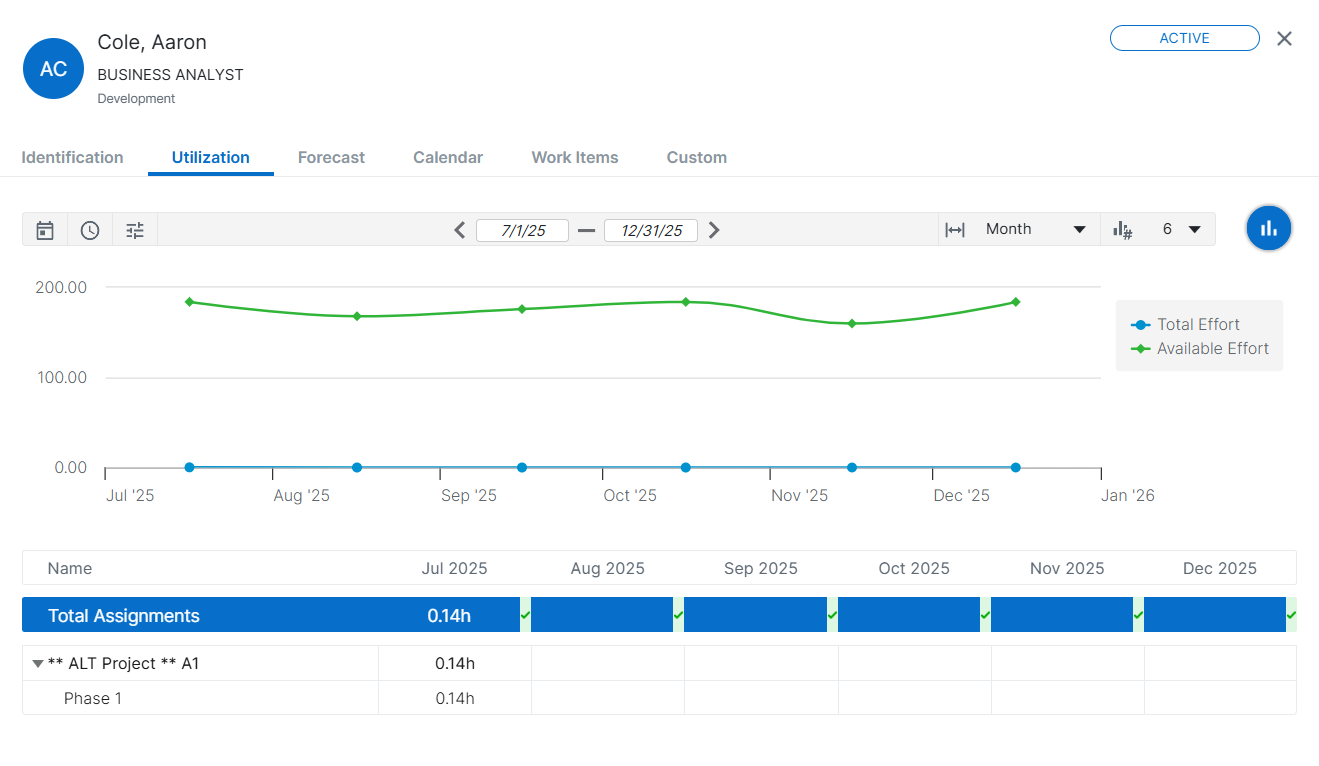


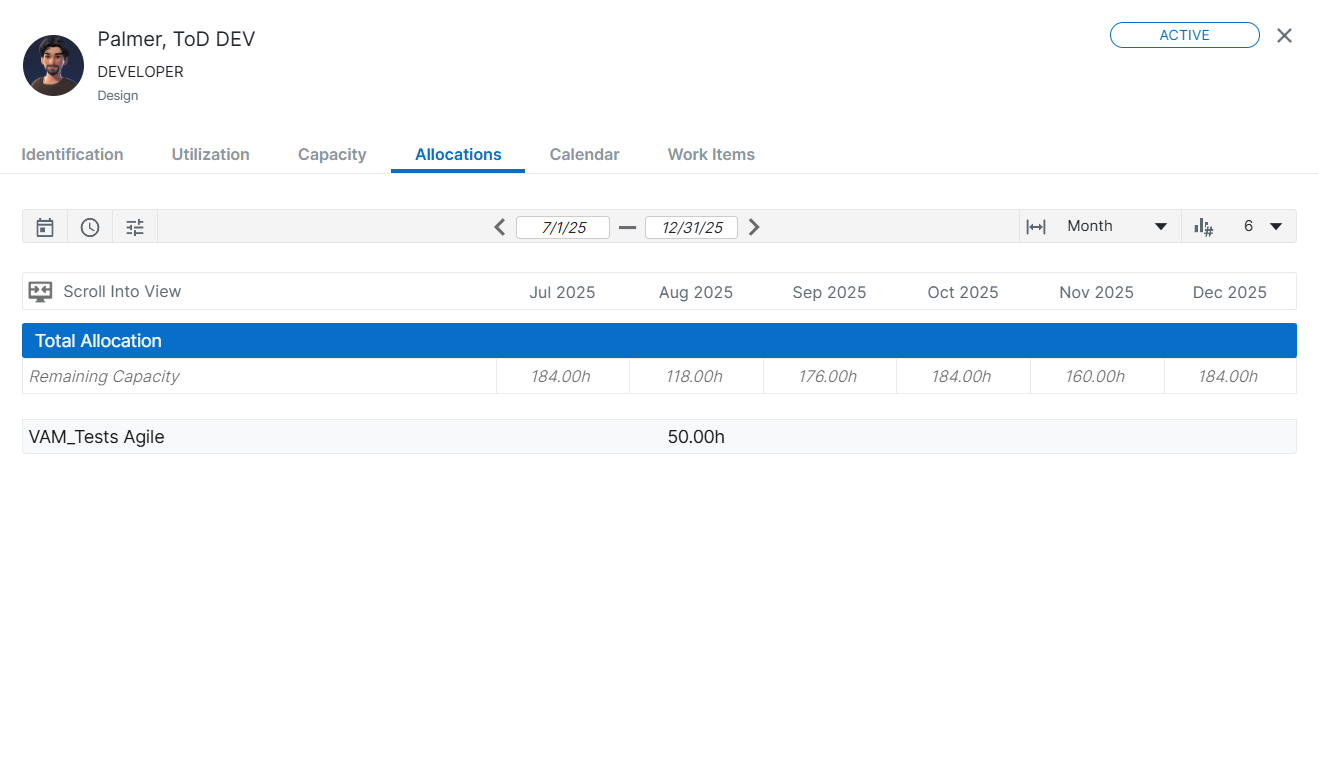


Important: A Custom tab can be added in the Resource Card, using the “Enable Resource Brief Custom Tab” setting in the System Settings workspace, Resource Settings folder, Display Preferences tab, Resource Brief section. This setting can be enabled for specific User Roles.

Note: The tabs available depend on the options set by the Administrator in the System Settings workspace, Resource Settings folder, Display Preferences tab, as well as in the System Settings workspace, General Settings folder, Meta Settings tab.
For more information, please refer to the Resource Card documentation.
Resource Assignments
#MIL-5604 - Improved formula for Resource category
In the Projects Center workspace, Project Card, Resources tab, Resource Assignments sub-tab, the “Overallocated” and “Underallocated” filters have been improved to display the resources from the selected project only.
Default Configuration Corrected Issues
Administration - System Data
#MIL-5597
In the System Data workspace, News Page tab, News Feed folder, the “Delete the News article” command was not properly anchored to the More ( ) button located in the top right corner of the News Details section. This issue has been fixed.
Documents
#MIL-5589
In the Projects Center workspace, Project Card, Library Items tab, Attachments sub-tab, documents which had previously been attached to work items in the Work Item Card or to risks in the Risk Card were incorrectly displayed. This issue has been fixed.
Execution - My Home Page
#MIL-5585
In the My Home Page workspace, My pending Approvals block, some loading performance issues could be observed while navigating to the Timesheets tab. This issue has been fixed.
#MIL-5584
In the My Home Page workspace, My favorite objects block, projects added to the favorites that were not attached to a portfolio folder were incorrectly not displayed in the My favorite objects block, Projects tab. This issue has been fixed.
#MIL-5583
In the My Home Page workspace, My Projects block, the “See All” button was displayed even when the list included less than 10 projects. This issue has been fixed.
#MIL-5578
In the My Home Page workspace, after the user had created a new project using the Create Project button available in the Quick Actions block, the newly created project was not immediately displayed in the My Projects block. This issue has been fixed.
Portfolio - Portfolio Dashboards
#SCI-5579
In the Portfolio Dashboards workspace, Most frequently used options right panel, long date formats (for instance, January 31, 2025) were incorrectly not entirely visible. This issue has been fixed.
Projects Dashboards
#MIL-5390
In the Projects Dashboards workspace, Finance theme, Budget report, incorrect values could be displayed in the Cost Center Breakdown chart. This issue has been fixed.
Projects - Projects Center
#MIL-5558
In the Projects Center workspace, Project Card, Gantt tab, Manage Baselines dialog box, when the user was copying a baseline, the “Enabled User Roles” setting was not honored. This issue has been fixed.
Note: The aforementioned setting is located in the System Settings workspace, Project Settings folder, Global Options tab, Baselines sub-tab, Enable Options section.
Resource - Resource Allocations
#MIL-5566
In the Resource Allocations workspace, Overview view and Resource Allocations full screen view, Hard Allocations tab, Resource Details tab, indicators were sometimes incorrect when the resource availability was null. This issue has been fixed.
Resource - Resource Dashboards
#MIL-5564
In the Resource Dashboards workspace, Team theme, Resource Capacity report, some loading performance issues could be observed in the Resource Utilization Overview view mode when single as well as multi organizations were selected. This issue has been fixed.
System Requirements
There are frequent changes and additions to the set of specific versions of operating systems, application servers and database servers for which ProjectAdvantage has been tested and certified. Please contact our teams for the latest information in this area.
Note: Users' system clocks must be regularly and accurately synchronized with the internet.
Servers
- Application Server: Apache Tomcat 9 with Oracle Java 8 or OpenJDK
- Data Server: PostgreSQL 14, PostgreSQL16
HTML5 Clients
- Display resolution: 1366 x 768 (technical minimum), 1600 x 1050 (minimum recommended), 1920 x 1080 or higher (generally recommended).
- Minimum of 4GB RAM allocated (8GB recommended).
- Browser
- Microsoft Edge
- Google Chrome
- Mozilla Firefox
- Apple Safari
ProjectAdvantage Designer
- Recommended language: English
- Display resolution: 1366 x 768
- Minimum of 4GB RAM allocated
- Disk space: 200MB minimum available for ProjectAdvantage.
- Oracle Java 8 or OpenJDK 8
- Operating Systems:
- Windows 7, 8.1, 10 or 11
- Mac OS X Lion or newer
- Alpine Linux 3.16.1
REST API
- Supported language: English
Timesheets Mobile Application
- Being hosted by ProjectAdvantage
- Product version: 2022.08 and upper versions
Vantage platform
Users will need to enable third-party cookies to work within Vantage. For more information regarding third-party cookies, please refer to the “How to allow third-party cookies” documentation.
For customers who subscribed only to Plan
- Installation:
- POD 11 is required if hosted by ProjectAdvantage
- An Hydra server is required if on premise
- Product version: 2023.01 and upper versions
For customers who subscribed to Plan and Deliver
- Installation:
- POD 11 is required if hosted by ProjectAdvantage
- An Hydra server is required if on premise
- HPV2 activated on Deliver modules (activated by default for all new Deliver Clients after 2021 Q3)
- Product version: 2023.01 and upper versions
- Users will need to allow third-party cookies in their browser
Limitations
The data connector:
- Does not work in load balanced environments.
- Is not compatible with Cloud Scheduled Jobs.
- Is not compatible with dedicated API servers.
- Is not compatible with the Java API.