



2020.09
This document describes the enhancements, corrected issues, and new features that have been implemented in ProjectAdvantage 2020.09 both in the Core product and in the ProjectAdvantage Default Configuration.
ProjectAdvantage 2020.09 is a maintenance release of ProjectAdvantage 2020.
In the Core product, 3 enhancements have been implemented and 18 issues have been fixed.
In the ProjectAdvantage Default Configuration, 33 enhancements have been provided and 37 issues have been fixed.
In order to access the different sections, please click on the following links:
- Important Reminders for upgrade
- Core Product Enhancements
- Core Product Corrected Issues
- Default Configuration Enhancements
- Default Configuration Corrected Issues
Important Reminders for upgrade
Since 7.1q there is a new way of managing languages in ProjectAdvantage thanks to the Language Packs feature. As a result of this new feature there is a change in the classpath used to launch API programs: we no longer have PSClient_xx.jar files for our translated language strings and now have new Language Pack jar files. So all PSClient_xx.jar files will now need to be replaced by the appropriate Language Packs. Please read carefully #41025 included in the Release Notes for ProjectAdvantage S7.1q.
Core Product Enhancements
Designer
#43324
In the Designer Choose Icon dialog box, Administration category, a new “More” ( ) icon has been added (32px).
Object Edits (Data Categories)
#43320
Transactions have been enhanced to allow the user to enter time-distributed Amounts (rather than a single Amount value at a given Date). To support this new capability, the following Transaction fields have been added:
- Distributed Amount Mode – This “Yes/No” field allows the user to define whether or not time-distributed values can be entered for Transactions.
When both the “Distributed Amount Mode” and “Include As Cost” fields are set to “Yes”, the Transaction “Distributed Amount” values will be taken into account for the calculation of the standard Cost fields (Actual Cost, Remaining Cost, Total Cost, ACWP). - Distributed Amount – This field allows the user to enter Amount values in different dated columns. This field will be read-only if the “Distributed Amount Mode” is set to “No’.
- Completed Date – Entering a Completed Date of the Transaction “Distributed Amount” will impact the calculation of the “Actual Cost” and “Remaining Cost” (when the “Include As Cost” and the “Distributed Amount Mode” fields are set to “Yes”). This field will be read-only if the “Distributed Amount Mode” is set to “No”.
As a consequence, some existing Transaction fields will behave differently when the “Distributed Amount Mode” field is set to “Yes”:
- Amount – Will no longer be editable, and its values will no longer be reflected in the standard cost fields (Actual Cost, Remaining Cost, Total Cost, ACWP).
- Date – Will no longer be editable.
- Date Formula – Will no longer be editable.
- Status – Will no longer be editable.
Cost-related fields will behave as follows when the “Distributed Amount Mode” and the “Include as Cost” fields are set to “Yes”:
- BCWP – Will match the “Baseline Cost” field up through the value of the “Completed Date” field.
- Actual Cost, Remaining Cost, Total Cost, ACWP – Will take into account the “Distributed Amount”.
In addition, the Transaction Baseline fields have been modified as follows:
- Baseline Cost (1 - 14) – Because the baseline may be saved when in “Distributed Amount Mode”, this field now contains distributed data (it is no longer a single value on a particular date).
- Baseline Date (1 - 14) – If the baseline is saved when in “Distributed Amount Mode”, this field will represent the Start date of the distributable data that is in the corresponding Baseline Cost (1 - 14) field.
UI Blocks
#43299
In the HTML5 Client, Gantt Grid and Grid Blocks, upon hovering over a cell whose content is truncated due to a lack of space, a tooltip will be displayed to show the full content of the cell.
Core Product Corrected Issues
Commands
#43300
The new “Expand All Rows” and “Collapse All Rows” commands introduced in ProjectAdvantage 2020.08 (#43255) were always displayed when clicking on the interactive Gear button ( ). This issue has been fixed; from now on, these commands will only be available for blocks that have hierarchically organized data rows.
#43141
Due to a concurrency error (i.e., error occurring when several actions are performed simultaneously in the database), view generated by Timesheet-triggered Scheduled Jobs could intermittently fail. This issue has been fixed.
Config Utility/Installation
#43365
Certain CUB files could no longer be successfully restored using the Configuration Utility. This issue has been fixed.
Designer
#43274
In the Designer, the “Reparse Invalid Formulas” option (available when clicking on the “Reparse Invalid…” option from the “Tools” menu) only attempted to fix invalid Formulas. This issue has been fixed; from now on, the feature will also attempt to fix invalid Filters.
#43070
In the HTML5 Client, in Text Blocks, when a Current Resource was displayed in a row, the context was not properly set for the corresponding Calendar popup. As a consequence, the Calendar was reverted to either the logged-in user’s Calendar (if the logged-in user was a resource), or the Default Calendar. This issue has been fixed.
#43069
Trying to run a Static Report Scheduled Job when the Static Report is filtered on a specific Organization led to a “NullPointerException” error, preventing the job from running successfully. This issue has been fixed.
Field Edits (Field Types)
#43388 (Added on 10.06.20)
The “ToCost” formula function was not properly supporting a Cost Code as an optional second parameter (e.g., ToCost($100.00,"JP")). This issue has been fixed.
#43314
In the HTML5 Client, when clicking in a cell containing read-only Rich Text data, the styling of the text was modified when the Hamburger icon became visible. This issue has been fixed.
#43280
In the HTML5 Client, images inserted in Rich Text fields could not be viewed if the database was restored at a different URL than where the images were initially saved. This issue has been fixed.
#43236
When selecting certain date formats in the Designer Fields view, Default Formats tab, users could encounter error messages in the HTML5 Client. This was due to the weeks not being parsed correctly. This issue has been fixed.
#43065
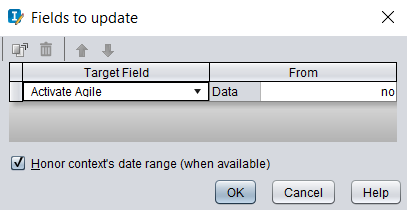
In the “Fields to Update” popup (available from the Edit Command dialog box, upon setting the Parameters), the “From” column can contain three types of values: Data, Field, or Formula. As sometimes it could be difficult to determine what type of value was originally entered into that column, the data type is now displayed in the left-hand side of the “From” column to avoid any confusion.
Gantt
#43139
In the HTML5 Client Gantt view, when using the graphic pane to modify the tasks (to delay or complete it, for instance), the tooltips displayed were only partially localized; the date format remained the English one. This issue has been fixed.
Import/Export XML
#43289
After using the “Export to XML” command, under certain circumstances, users could encounter various errors when navigating or refreshing workspaces. The source of the error was a “ClassCastException”. This issue has been fixed.
Object Edits (Data Categories)
#43256
When Types were defined with Type Filters, in some cases, they could still be displayed in the drop-down for Types selection in the HTML5 Client (especially when the filter was depending on the current row of a Grid or a Text Block). This issue has been fixed.
Performance
#43285
If a Data View used the Unique Internal ID as one of its keys, a superfluous update attempt was being made prior to inserting a new record, one which was always destined to fail due to the nature of how the Unique Internal ID field operates. This issue has been fixed.
UI Blocks
#43036 (Added on 09.30.2020)
In the HTML5 Client, some read-only fields do not wrap text correctly when overflowing the allocated space. This issue has been fixed; a tooltip now displays the full content of the field.
#43009
In the HTML5 Client, in a Text Block with frozen rows, when using the “Tab” key for navigation and moving the selection from a frozen row to a non-frozen row of the Text Block, an “Unexpected Exception” error occurred. This issue has been fixed.
Default Configuration Enhancements
Administration
#MIL-812
In the System Settings workspace, Budget/Finance Settings folder, Global Options tab, the new “Enabled User Roles for editing Portfolio Budget” option allows the Administrator to restrict permissions for data modifications in the Portfolio Center workspace, Budget tab (both view modes).
#MIL-728
In the System Settings workspace, Project Settings folder, Time Tracking Options tab, the new “Project Tracking Timesheet Status Display” setting allows the Administrator to define whether the Planning Scheduler workspace, Tracking tab should display Timesheets based on their “Summary Status” (which emphasizes the fact that something has been done in the selected time frame) or “Status” (which puts forward the fact that not all the selected time frame has been dealt with).
As opposed to the regular Status, the Summary Status has the advantage to express the “partial” Status for a given time frame. For example, when the “Current Month” time frame is selected, and if for this month only one week of a given Timesheet has been submitted, then the Summary Status would be “Submitted” while the Status would be “None”.
#MIL-551
In the System Settings workspace, Project Settings folder, Display Preferences tab, Work Packages section, a new “Enable Work Package Scheduler Custom Tab” setting has been added, allowing the Administrator to display a Custom placeholder in the Work Package Scheduler workspace.
#MIL-476
In the System Data workspace, for Work Items and Risks, it is now possible to define at which level (Portfolio, Project, and Work Package) a Type is available, by using the new “Type Availability” column.
Execution
#MIL-702
In the Calendar workspace, from now on, when a user submits a calendar request, the corresponding Organization managers will be notified by email. This new feature is conditioned by the “Enable Calendar Submit Email Notification” setting available in the System Settings workspace, Resource Settings folder, Global Options tab, Validation Options section.
Note: The same behavior is triggered when a user submits a calendar from the Resource Validation workspace, Calendars tab.
#MW-1529
In the Timesheet workspace, the user has now the ability to access the project Brief dialog box by clicking on the corresponding project's name.
Note: The same behavior has been implemented in the Resource Validation workspace, Resource Details full screen view.
General
#MIL-339
In the Notes dialog boxes (available for various objects across the default configuration), the user has now the capability to edit a Note if he/she is the author of the note. This new feature comes with “Enable Delete Notes” and “Enable Edit Notes” settings available in the System Settings workspace, General Settings folder, General Options tab.
Planning
#MIL-934
In the Planning Scheduler workspace, Status Reports tab, when creating a new Status Report, the content of the Info Stack has been updated to provide access to the project Brief dialog box, as well as the Work Items and Risks full screen views.
Note: The Gate Review report Info Stack has been updated as well.
#MIL-846
In the Planning Scheduler workspace, Agile tab, the Burndown charts have been optimized for better performances.
#MIL-824
In the Planning Scheduler workspace, Agile tab, Dashboards full screen view, Performance tab, a new Burn Up Chart sub-tab has been added. Once an Iteration has been selected in the left panel, this graph allows the user to compare the Story Points done as opposed to the ideal Story Points progression to complete the Iteration on time.
#MIL-811
In the Planning Scheduler workspace, Roadmap tab, upon approving a Gate, the prompted Manage Baselines dialog box will show a “Name” field already prefilled with the name of the approved Gate.
Note: The Manage Baselines dialog box is only prompted if the Administrator has enabled the “Enable Save Baseline upon Changing Gate State” setting available in the System Settings workspace, Project Settings folder, Workflow Options tab.
#MIL-810
In the Planning Scheduler workspace, Roadmap tab, upon approving a Gate, the user is now prompted to choose one of the following dates as the Gate Actual date:
- Planned date – Fills in the Actual date field with the planned date (i.e., the Start date)
- Today – Fills in the Actual date field with Today's date
- Specific date – Prompts the user to manually enter a date
#MIL-793
In the Backlog Item dialog box, Connections section, the “Create & Connect” and “Connect to Existing” commands now include Work Items (Actions, Change Requests, Deliverables, and Issues).
#MIL-668
In the project Advanced Attributes dialog box, Reporting Preferences folder, new filters have been implemented to allow the user to only include Work Objects of specific Types in the printable version of the Status Report.
#MIL-584
In the Planning Scheduler workspace, Planner tab, Scheduler view mode, the “Remaining Effort in the Past” alert (displayed in the Gantt Problems panel) will take into account the latest Completed Date of all the project Tasks when no “As of Date” has been defined.
#MIL-522
The Filters popup for project resources has been redesigned in the following views:
- Planning Scheduler workspace, Resources tab
- Planning Resources workspace, Project Team tab (as well as the corresponding dialog box)
- Planning Resources workspace, Project Allocations tab
- Assign Resources dialog box
In addition, a Custom section can be displayed for all these views (except the Project Allocations tab, Allocation Requests view mode) when the Administrator activates the “Enable Project Resource Filters Custom Section” option available in the System Settings workspace, Project Settings folder, Display Preferences tab, Project Resources section.
#MIL-513
In the project Brief dialog box, the Risks have been removed from the Work Objects folder and moved to the new Risks folder.
Note: The Work Objects folder has been renamed accordingly.
#MIL-493
In the Planning Scheduler workspace, Roadmap tab, Phases/Gates view mode, Charts section, hovering over a Phase or Gate symbol displays a tooltip indicating the name, the current dates, and the OTD baseline dates of the Phase or Gate.
#MIL-365
In the Planning Scheduler workspace, Roadmap tab, Overview view mode, Roadmap section, hovering over a Phase or Gate symbol displays a tooltip indicating the name, the current dates, and the OTD baseline dates of the Phase or Gate.
#MIL-266
In the project Advanced Attributes dialog box, Reporting Preferences folder, a new Status Report Preferences option has been added to allow the user to include or not Cost-related information in the printable version of the Status Report.
Note: The corresponding setting has been added in the System Settings workspace, Project Settings folder, Status Report Options tab.
#MIL-206
A new Task Tags feature has been implemented in ProjectAdvantage, allowing the user to create tags at the project level, and associate these tags to tasks. Task Tags can be used to:
- Filter Tasks in the Gantt by using the corresponding option available in the Gantt Filters dialog box
- Display some tasks in different colors in the Planning Scheduler workspace, Theater tab, full screen mode.
Tasks can be tagged by using the corresponding commands available across the Planning Scheduler workspace. For instance, the user will be able to access the Tags popup by clicking on the Gantt spreadsheet Cmd. ( ) command and then selecting the “Tag Task” option. Once a Task is tagged, the available tags are listed in the Gantt Task side panel, Task Form tab.
#MW-1278
In the project Advanced Attributes dialog box, Reporting Preferences folder, the Status Report preferences have been updated and redesigned to include Work Items, Risks, and Lessons Learned.
Portfolio
#MIL-832
In the Portfolio Center workspace, Budget tab, Budget Simulation full screen view, in the Simulation tab, when the “Show Initial Values” display option is activated, the “Reset” button has been removed from the Initial Values rows. The command remains available upon clicking on the More ( ) button available in the main rows.
#MIL-816
In the Portfolio Center workspace, Budget tab, in the Budget Simulation full screen view, upon using the Apply command, a Snapshot of the corresponding Projects Budget will now be taken automatically. This behavior is conditioned by the “Enable Project Budget Snapshot Before Apply” setting available in the System Settings workspace, Budget/Finance Settings folder, Portfolio Budget section.
#MIL-814
In the Portfolio Dashboards workspace, Overview report, Details view mode, a new Status Reports display option ( ) provides a spreadsheet regarding Status Report-related information for all the projects belonging to the selected Portfolio Folder(s).
#MIL-813
In the Portfolio Dashboards workspace, Phases & Gates report, Overview view mode, hovering over a Phase or Gate symbol displays a tooltip indicating the name, the current date, and the OTD baseline date of the Phase or Gate.
#MIL-790
In the Portfolio Center workspace, Budget tab, Budget Simulation full screen view, History tab, the user can now click on the Apply ( ) button for projects that were not applied at the same time as the scenario (because they were locked or deactivated).
#MIL-727
In the Planning Scheduler workspace, Tracking tab, the Time Frame selection has been enhanced with Previous ( ) and Next (
 ) buttons, allowing users to navigate between time periods.
#MIL-703
During the project creation process, if the user selects the “Create from Existing” creation option, the Status Reports of the selected project will not be copied into the new project.
Note: The same now occurs when using the “Save As” command.
Resource
#MIL-474
In the Resource Validation workspace, both the Timesheets and Calendars tabs have been redesigned in the same fashion as the Planning Scheduler workspace, Tracking tab. From now on, details regarding a resource's Timesheet or Calendar requests will be available in a full screen view, upon clicking on the Resource's Name.
Work Management
#MIL-540
In the Planning Work Management workspace, Risks tab, Dashboards full screen view, Overview tab, two new pie charts have been added to review the number of risks by Severity and Probability. In addition, the Matrix chart has been moved to the new Matrix tab.
Note: This enhancement has been applied to all the Work Management workspaces' Risks Dashboards.
#MIL-366
In all the Work Items views, in the Work Item full screen view Filters panel and in the Filters popup, Quick Filters section, a new “Unassigned” filtering option has been added, allowing the user to only display Work Items that have not been assigned to any user yet.
#MW-4354
In the Template Work Management workspace, a new tab is available to manage Actions for the project template.
Note: Upon creating a project from a Template or when using the “Insert Template” command, the user will now be prompted to choose whether he/she wishes to import the Template's Actions or not.
Default Configuration Corrected Issues
Administration
#MIL-839
In the System Settings workspace, Project Settings folder, Dashboards tab, Projects Dashboards section, the “Enable Baseline Comparison” setting was missing. This issue has been fixed.
Planning
#MIL-951
In the Planning Dashboards workspace, Finance report, Earned Value view mode, the value of the BCWP could be lower than expected. This issue has been fixed.
#MIL-891
In the Planning Center workspace, when creating a new project, an error occurred if the “Set Project Default Creation Methodology” setting was set to “CCPM”. This issue has been fixed.
Note: The aforementioned setting is located in the System Settings workspace, Project Settings, Project Creation Options tab.
#MIL-888
In the Planning Finance workspace, Costs tab, Inbound view mode, the “Last Snapshot” rows were empty. In addition, the Inbound sub-tab of the Snapshot Details popup was also empty. This issue has been fixed.
Note: The user can access the Snapshot Details popup by clicking on the “Manage Snapshot” button, and then clicking on the “Details” button available in the Snapshot History dialog box.
#MIL-886
In the Planning Finance workspace, the Cost Reallocation formulas caused some performance issues. This issue has been fixed.
#MIL-885
In the Manage Baselines dialog box, Baseline Details popup (accessible upon clicking on the Details ( ) icon), the baseline values displayed were always from the current baseline instead of the selected baseline. This issue has been fixed.
#MIL-867
In the Planning Scheduler workspace, Billing tab, Transactions view mode, when modifying a transaction in the Transaction dialog box (accessible upon clicking on the Gear ( ) icon), the values were not immediately updated in the spreadsheet once the dialog box was closed. This issue has been fixed.
#MIL-864
In the Planning Scheduler workspace, Planner tab, Scheduler view mode, Gantt Task panel, Links tab, the “New” button was not properly displayed in French due to lack of space. This issue has been fixed.
#MIL-858
In the Planning Scheduler workspace, Planner tab, Scheduler view mode, Gantt Task panel, Transactions & Cost Items tab, Cost Item Assignment dialog box (accessible upon clicking on the Cost Item assignment More ( ) button and selecting the “Edit” option), the “Organization” field was wrongly editable. This issue has been fixed.
#MIL-857
In the Planning Scheduler workspace, Planner tab, Task Utilization view mode, the values at the Project and Parent Tasks levels were not updated when filters were enabled. This issue has been fixed.
#MIL-854
In the Planning Scheduler workspace, Planner tab, Task Utilization view mode, the “Enable Filters” button was not highlighted when either the “Include Descendant Organizations” or “Include Descendant Job Classifications” options were activated, nor when the “Organization Scope” value differed from the default one. This issue has been fixed.
#MIL-842
In the Planning Center workspace, it was not possible to create a new project when the “Enable Skip Definition Steps” setting was deactivated. This issue has been fixed.
Note: The aforementioned setting is located in the System Settings workspace, Project Settings folder, Project Creation Options tab.
#MIL-831
In the Planning Scheduler workspace, Planner tab, Scheduler view mode, Gantt Problems panel, Parent Tasks were taken into account in the Planning Problems as “Task without baseline” even though they had a baseline. This issue has been fixed.
#MIL-829
In the Planning Finance workspace, Costs tab, Task Details dialog box (accessible upon clicking on the Task Details ( ) icon from the Key Facts section), Filters dialog box (accessible upon clicking on the Filters (
 ) icon), an error could occur when the Job Classifications field was populated. This issue has been fixed.
#MIL-827
In the Planning Finance workspace, Costs tab, Forecast view mode, the descriptions available in the empty state had some unwanted scrollbars displayed when logged in German with Firefox. This issue has been fixed.
#MIL-825
In the Planning Scheduler workspace, when the “Enable Define Process” setting was deactivated, the “Create” button was not displayed, preventing users from creating new projects. This issue has been fixed.
Note: The aforementioned setting is located in the System Settings workspace, Project Settings folder, Project Creation Options tab.
#MIL-819
In the Planning Finance workspace, Budget tab, Details view mode, Direct sub-tab, discrepancies existed between the Budget values of the spreadsheet and the chart. This issue has been fixed.
#MIL-798
In the Program Consolidation Dashboards workspace, tabs were not available if a Portfolio Folder had been selected from a Portfolio workspace beforehand. This issue has been fixed.
#MIL-784
In the Planning Dashboards workspace, Performance report, Overview and Effort Distribution view modes, the wrong colored indicator was displayed when the effort and cost values were identical. This issue has been fixed.
#MIL-783
In the Planning Scheduler workspace, Status Reports tab, Status Report History dialog box, Status Report popup, a long project name did not fit the dedicated space. This issue has been fixed.
Portfolio
#MIL-910
In the Portfolio Center workspace, Budget tab, Budget Simulation full screen view, Simulation tab, when organized by Cost Centers, the project Natures were not indicated. This issue has been fixed.
#MIL-899
In the Portfolio Center workspace, Budget tab, when using the Cost Centers filtering option (available in the Filters popup or in the main toolbar depending on Budget Type), the spreadsheet did not display any rows. This issue has been fixed.
#MIL-896
In the Portfolio Center workspace, Budget tab, Budget Simulation full screen view, in all three tabs, when the views were organized by “Projects”, it was not possible to distinguish Business Case nature occurrences from other natures if the projects had the same name; projects budget were therefore summed up in the same Cost Center line. This issue has been fixed.
#MIL-895
In the Portfolio Center workspace, Budget tab, Simulation Sandbox full screen view, Simulation tab, inactive projects were wrongly captured when creating a new scenario. This issue has been fixed.
#MIL-894
In the Portfolio Center workspace, Budget tab, Portfolio Budget view mode, the “Total Budget” column was wrongly editable. This issue has been fixed.
#MIL-866
In the Portfolio Simulation workspace, Simulation view mode (available after playing a scenario), upon activating the Charts display option and navigating through the charts using the left panel menu), the Charts section was not hidden when deactivating the Charts display option. This issue has been fixed.
#MIL-817
In the Portfolio Dashboards workspace, the Baseline Comparison report was still available after deactivating the “Enable Portfolio Dashboards Baseline Comparison” setting. This issue has been fixed.
Note: The aforementioned setting is located in the System Settings workspace, Portfolio Settings folder, Dashboards tab.
#MIL-806
In the Portfolio Center workspace, Budget tab, Portfolio Budget view mode, the Budget was not editable for “Effort” Cost Center Type when the “Enable Mixed Budget Type” setting was deactivated and the Budget Type set to “Effort”. This issue has been fixed.
Note: The aforementioned settings are located in the System Settings workspace, Budget/Finance Settings folder, Global Options tab.
Resource
#MIL-904
In the Organization Center workspace, Resource Details tab, Resource Utilization sub-tab, the Effort default format was not honored in the spreadsheet. This issue has been fixed.
Work Management
#MIL-880
In the Planning Work Management workspace, Risks tab, Dashboards full screen view, Activity Stream tab, the Date format was not consistent with the default format and differed from the format displayed in the Work Items tab’s Activity Stream. This issue has been fixed.
#MIL-840
In the Resource Dashboards workspace, Resource Utilization report, the colored indicators were wrong when a resource did not have any availability. This issue has been fixed.
Work Management
#MIL-993
In the Work Items workspace, when displaying the “Assigned to me” Work Items, the number of open Issues was wrong. This issue has been fixed.
#MIL-795
In the Planning Work Management workspace, Work Items tab, when creating new Work Items successively using the Done & New button of the Work Item dialog box, only one Notification was sent to a chat room. This issue has been fixed.
Note: The Chat Notification feature can be activated by activating the “Enable Chat Notification Integration” setting located in the System Settings workspace, Project Settings folder, Global Options tab, Miscellaneous sub-tab. Also, the feature needs to be set for the project through the Advanced Attributes popup, Chat Notifications folder.
#MIL-745
In the Planning Work Management workspace, Risks tab, adding a new note to a Risk did not send a Chat Notification. This issue has been fixed.
Note: Chat Notifications can be enabled and managed for each project in the Advanced Attributes dialog box, Chat Notifications folder.
#MIL-700
In the Planning Work Management workspace, when updating the Workflow State of any object or creating a new Note, the corresponding Chat Notification was not sent if the user was logged in French. This issue has been fixed.
Work Package
#MIL-860
In the Work Package Center workspace, the “My Work Packages” Preset Filter was wrongly available in the project Data Selector. This issue has been fixed.
#MIL-826
In the Work Package Center workspace, Contract tab, Deliverables section, the icons displayed when a Deliverable was Overdue or Planned beyond Due Date were not aligned with the dates. This issue has been fixed.