



2025.12
This document describes the enhancements, corrected issues, and new features that have been implemented in Planview ProjectAdvantage 2025.12, both in the Core product and in the Default Configuration.
Planview ProjectAdvantage 2025.12 is a maintenance release of Planview ProjectAdvantage 2025.
In the Core product, 5 enhancements have been implemented and 27 issues have been fixed.
In the Default Configuration, 12 issues have been fixed.
In order to access the different sections, please click on the following links:
- Important Reminders for upgrade
- Core Product Enhancements
- Core Product Corrected Issues
- Default Configuration Corrected Issues
- System Requirements
Important Reminders for upgrade
- To improve the performance of views displaying the Health Score of multiple projects, we are now using a Health Score that is pre-calculated upon publishing a project as opposed to on the fly. Therefore, upon upgrading to 2021.03 (or higher), please make sure you run once the following Scheduled Job to initialize the project Health Score values: Initialize Project Static Health Score.
Important: For systems with an overwritten Publish command, please make sure to add the new dedicated Command List for the Health Score pre-calculation upon publishing a project: “Project - Publish Project - Continue - Capture Health Score”.
- From the 2023.01 version, the Project Dashboards workspace should be added again in the User Roles section of the Designer as the Dashboards workspace doesn't exist anymore.
- In order to complete the upgrade to newer Planview ProjectAdvantage versions, administrators must update the “Popup” column with the correct Forms in the Designer, Search view, as follows:
- “Global Actions” Category → Popup - Action Card (Briefs)
- “Global Change Requests” Category → Popup - Change Request Card (Briefs)
- “Global Deliverables” Category → Popup - Deliverable Card (Briefs)
- “Global Issues” Category → Popup - Issue Card (Briefs)
- “Global Risks” Category → Popup - Risk Card (Briefs)
- “Idea” Category → Popup - Idea Card (Briefs)
- From the 2025.12 version, OpenJDK21 is required to launch the Planview ProjectAdvantage Designer and the Java Legacy APIs. For more information, please refer to the “Move to Java 21” product notice.
Core Product Enhancements
Designer
#SCI-7745 - New “SumFTE” function in Edit Formula dialog box
For formulas, a new SumFTE function has been added in the Edit Formula dialog box, Choose Function popup. This function calculates the sum of FTE values for individual fiscal periods over a date range.

Designer - Object/Field Edits
#SCI-5884 - New categories available in Edit Formula dialog box
In the Designer, Fields view, Fields tab, Organization category, Edit Formula dialog box, Fields section, two new categories are available, “Direct Users” and “All Users”, allowing all or direct users to be retrieved directly.

Power BI
#SCI-6055 - Power BI Integration
PA data can now be integrated in a Microsoft PowerBI report by using our PowerBI custom connector. Data can be pushed by using data snapshots through the connector and refreshing of data can be automated by setting up an On-premises Data Gateway.
For more information, please refer to the Power BI Connector documentation available on the right hand-side of this view.
Projects - Projects Center
#SCI-7423 - Project Cost Forecast feature
Some further enhancements have been applied to the Forecast feature to allow users to forecast costs, in addition to the resource forecast functionality previously deployed.

Settings
To activate the Forecast feature, Administrators will need to activate the “Activate Forecast” setting available in the System Settings workspace, General Settings folder, Meta Settings tab, Meta Settings section.
Upon activating the “Activate Forecast” setting, some Project settings will be added in the Project Card, Administration tab, Setup sub-tab:
- In the Resource Management section, Project managers will be able to choose between Commitments or Requests & Commitments to manage labor forecasts.
- In the Forecast section, Project managers will be able to activate or deactivate the Expenditure setting, enabling them to manage non-labor forecast costs (for instance, office rental, subcontractors, etc.) or not.
Note: As soon as the Commitments or the Requests & Commitments setting is activated, Project Managers will not be able to activate the legacy “Forecast Costs” setting available when the “Activate Forecast Cost” setting, located in the System Settings workspace, General Settings folder, Meta Settings tab, Meta Settings section, is enabled. The “Expenditure” project setting will be the new way to manage Forecast Costs.
1. Behavior
- If the Commitments or the Requests & Commitments project setting is activated, only the Expenditure project setting is available.
- If the Commitments or the Requests & Commitments project setting is not activated, Project Managers will be able to choose between the legacy “Forecast Costs” project setting or the new “Expenditure” project setting.
2. UI
- If the Commitments or the Requests & Commitments project setting is activated, and the Expenditure project setting is deactivated, both the Summary and the Labor sub-tabs will be displayed in the Project Card, Forecast tab.
- If the Expenditure project setting is activated, and the Commitments or the Requests & Commitments project setting is deactivated, the Summary and the Expenditure sub-tabs will be displayed in the Project Card, Forecast tab.
- If the Commitments or the Requests & Commitments project setting, as well as the Expenditure project setting, are activated, the Summary, Labor, and Expenditure sub-tabs will be displayed in the Project Card, Forecast tab.
Important: When the “Activate Forecast” setting is enabled in the System Settings workspace, General Settings folder, Meta Settings tab, Meta Settings section:
- The Capacity Forecasts tab is not displayed in the Organization Center workspace.
- The “Enable Organization Center Capacity Forecast” setting is not displayed in the System Settings workspace, Resource Settings folder, Display Preferences tab, Tab Options section.
Note: The “Soft Assignment Cost Source” project setting available in the Project Card, Administration tab, Setup sub-tab, Finance section, Finance Advanced Attributes popup, has been renamed “Soft Assignment & Labor Forecast Cost Source”.
The two options (Organization or Job Classification) will be used to calculate the Request cost as well as the Commitment cost when generic resources are committed.
Forecast tab
A new Forecast tab has been implemented in the Project Card.

It is made up of the following sub-tabs:
- Summary – Offering a view displaying consolidated Labor Effort Forecast, Labor Cost Forecast, and Project Cost Forecast data.
- Labor – Allowing users to plan their staffing needs and schedule their teams across projects.
Note: This feature was previously available under the Resources tab, Resource Forecast sub-tab).
- Expenditure – Allowing users to plan their non-labor costs, such as materials, financial costs, etc.
Summary sub-tab
The Summary sub-tab available in the Project Card, Forecast tab provides all the labor effort-, labor cost-, and project cost-related consolidated data for the selected project.

It is made up of the following sections:
- Labor Effort Forecast
- Labor Cost Forecast
- Project Cost Forecast
Labor sub-tab
Note: This feature was previously available under the Resources tab, Resource Forecast sub-tab. For more information, please refer to the Labor sub-tab (Commitments) and Labor sub-tab (Requests & Commitments) documentation.
Some further enhancements have been applied to the Labor sub-tab for better usability, with the implementation of a new Capacity plan panel. It is displayed upon clicking on the button available in the main toolbar and allows the user to review and analyze all the commitments/capacity of all resources that have been committed to the project.

The Capacity Plan panel is made up of different sections:
- Capacity plan panel toolbar
- Resource spreadsheet
- Distributed grid
Expenditure sub-tab
The Expenditure sub-tab allows users to create forecast costs for non-labor resources.
Note: For this feature to be active, the “Expenditure” Project setup option must be selected in the Projects Center workspace, Project Card, Administration tab, Setup sub-tab, Forecast section.
When no expenditures have been created yet, an empty state displays the + New expenditure button. Upon clicking on it, the Create expenditure dialog box is displayed, allowing the user to create expenditures from scratch.

When expenditures have been created, the Expenditure sub-tab is made up of different sections:

- Main toolbar
- Grid
- Distributed panel
Finance tab
The Finance tab available in the Project Card has also been enhanced to provide a more user-friendly interface and integrate the new Forecast feature.

Note: As soon as the “Activate Forecast” setting is enabled in the System Settings workspace, General Settings folder, Meta Settings tab, Meta Settings section, the Forecast cost is computed as follows:
Forecast cost = Project Commitment cost* + Project Expenditure cost
*The Project Commitment cost is equal to the cost of all commitments for projects for which the “Commitments” project setting is activated or the cost of all commitments attached to a request whose status is “Committed” for projects for which the “Requests & Commitments” project setting is activated.
Transaction tile
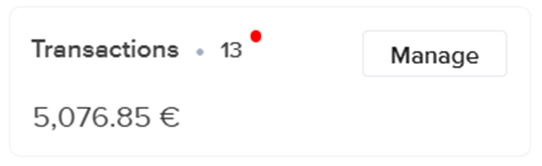
Upon clicking on the Manage button, the Transactions dialog box is displayed.
Note: The Transactions tile is displayed above the Detailed Indicators section only when the “Activate Forecast” setting is enabled in the System Settings workspace, General Settings folder, Meta Settings tab, Meta Settings section, and when the “Expenditure” Project setup option is selected in the Projects Center workspace, Project Card, Administration tab, Setup sub-tab, Forecast section.

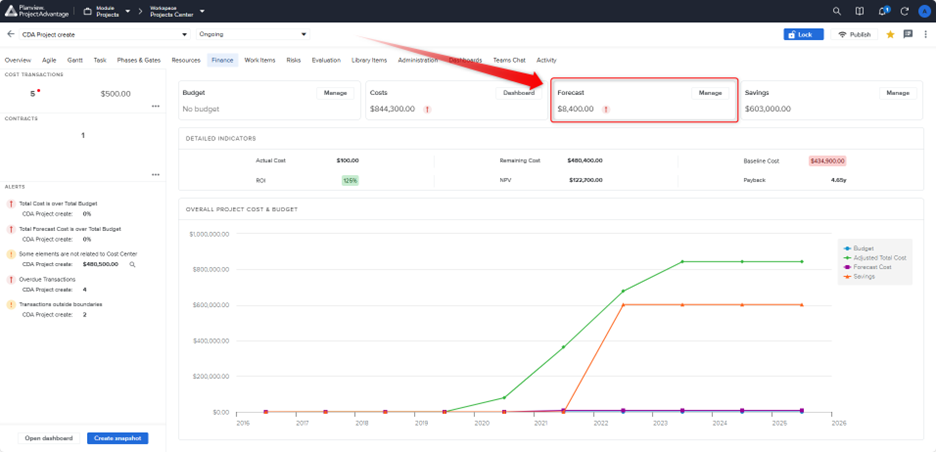
Forecast tile
The Forecast tile now displays a “Manage” button, which opens the Forecast dialog box.

Note: The Forecast tile is displayed only when the “Forecast Costs Legacy” project setting is selected in the Project Card, Administration tab, Setup sub-tab, Finance section.
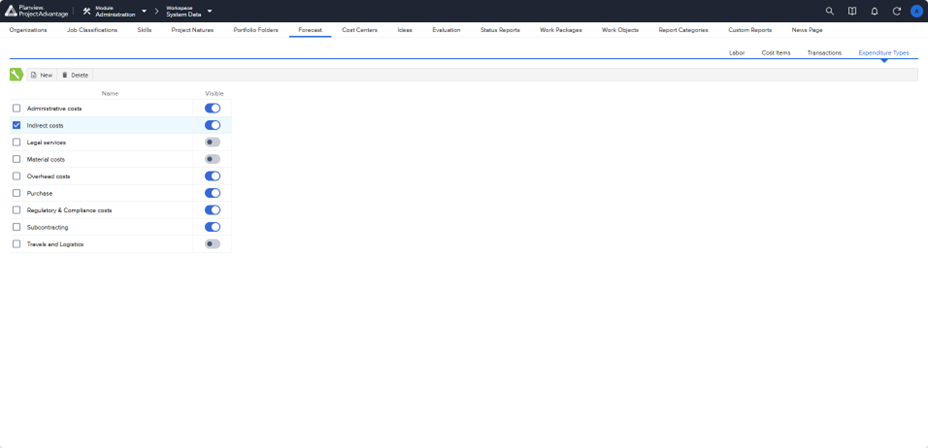
Forecast tab (System Data)
A new Expenditure Types sub-tab has been implemented in the System Data workspace, Forecast tab, allowing administrators to create new expenditure types in the Expenditure types sub-tab.
Note: The Forecast tab is only displayed when the "Activate Forecast" or the “Activate Forecast Cost Legacy” setting is enabled in the System Settings workspace, General Settings folder, Meta Settings tab, Meta Settings section.
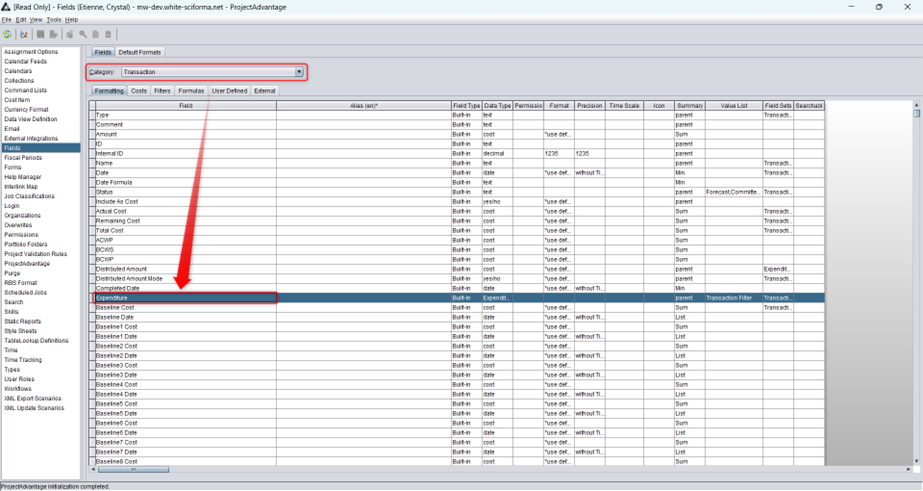
Fields view (Designer)
In the Designer, Fields view, Fields tab, a new Expenditure built-in category has been created to allow users to build non-labor forecast costs.

A new Expenditure field has also been added in the Transaction built-in category to allow users to attach a transaction to an expenditure.
Numerous other enhancements have been implemented; for more information, please refer to the Project Cost Forecast documentation available on the right hand-side of this view.
Reports
#SCI-7107 - Display of the “Save” button
In the Reports workspace, the Save button is now displayed in the main toolbar when the user:
- Increases/decreases the width of a column manually.
- Clicks on the More (
 ) button, then selects the Autosize this column option.
- Clicks on the More (
 ) button, then selects the Autosize All columns option.
- Clicks on the More (
 ) button when there is a Group by, then selects the Expand All option.
- Clicks on the More (
 ) button when there is a Group by, then selects the Close All option.
- Clicks on the More (
 ) button when there is a Group by, then selects the Value aggregation option.
Core Product Corrected Issues
Actions Center
#SCI-6679
In the Actions Center workspace, when users were clicking on the More ( ) button in the main toolbar, then selecting the “Expand all rows” or “Collapse all rows” commands, the Save button was incorrectly not displayed after the custom view name. All the Center workspaces were affected. This issue has been fixed.
Administration - Corporate Data
#SCI-5628
In the Corporate Data workspace, an error message was displayed when users were hovering their mouse over the right arrow ( ) in the selector, then pressing the “Shift” key and left clicking on the mouse to expand the row and all children. This issue has been fixed.
Corporate Data
#SCI-7827
In the Corporate Data workspace, Users tab, an error message was sometimes displayed when users were modifying a user’s organization. This issue has been fixed.
#SCI-7566
In the Corporate Data workspace, Users and Resources tabs, in some scenarios, user/resource entries could display some empty fields. This issue has been fixed.
Designer
#SCI-6186
In the Designer, Forms view, it was not possible to copy Command Lists and Set Field Values and paste them in Windows applications using the keyboard shortcuts. This issue has been fixed.
Health Check
#SCI-7674
In some scenarios, health checks were returning an "Orange" status, which was due to performance issues. This issue has been fixed.
Legacy API
#SCI-7587
In some scenarios, the legacy API was not terminating and was generating large amounts of logs. This issue has been fixed.
Legacy Timesheet
#SCI-7414
In the legacy Timesheet workspace, in some scenarios, users were not able to submit their timesheets as the “Yes” and “No” buttons were missing in the confirmation popup. This issue has been fixed.
#SCI-6078
In the legacy Timesheet workspace, when users were clicking on the “Submit” button, the rule name displayed in the Time Rules Evaluation Results popup was different from the name set in the Designer, Time Tracking view, Time Entry Rules tab. This issue has been fixed.
#SCI-7416
Users created through the legacy API were not updated in the cache, causing them to be missing in the application until the server was restarted. This issue has been fixed.
Notifications
#SCI-6142
In the Notification center, notifications were incorrectly displayed in English and not in the language of the user who had triggered the notification command. This issue has been fixed.
Project Administration
#SCI-7426
In the Project Administration workspace, an error message was displayed when accessing custom tabs. This issue has been fixed.
Projects Center - Project Card - Gantt tab
#SCI-7688
In the Projects Center workspace, Project Card, Gantt tab, the “Actual Finish” data could incorrectly be empty after upgrading to versions 2025.02 and 2025.10. This issue has been fixed.
#SCI-7622
In the Projects Center workspace, Project Card, Gantt tab, when the user was publishing a project, the “% Completed” was incorrectly modified to 100% for all tasks. This issue has been fixed.
#SCI-4293
In the Projects Center workspace, Project Card, Gantt tab, when the zoom was set to weeks, the number of weeks displayed for 2025 was 53 instead of 52. This issue has been fixed.
Projects Center - Project Card - Overview
#SCI-7629
When the user was adding a project to his favorites, the “Modified By” and “Last Modified on” fields, displayed in the Project Card, Overview tab, Definition sub-tab, were incorrectly updated. This issue has been fixed.
Projects Center - Project Card - Resources
#SCI-7667
In the Projects Center workspace, Project Card, Resources tab, Tasks assignments sub-tab, in some scenarios, data related to labor assignments data were incorrectly modified after upgrading to version 2025.09.This issue has been fixed.
Projects Center - Project Card - Task
#SCI-7481
In the Projects Center workspace, Project Card, when users were selecting the “Apply Actuals” command in the Task tab, the “Finish” date (at the project and task level) and “Duration” (at the project level) displayed in the Gantt tab were incorrect. This issue has been fixed.
Projects Legacy - Work - Gantt
#SCI-7714
In the Work workspace, Gantt tab, tasks’ progress and labor assignment actuals were not updated after users had previously applied “0.00h” actuals in the Timesheet Details full screen view. This issue has been fixed.
Resource Dashboards
#SCI-7812
In the Resource Dashboards workspace, Time Tracking theme, Project Actuals report, an error message was displayed when users were filtering the report by resource. This issue has been fixed.
#SCI-7513
In the Resource Dashboards workspace, in some scenarios, duplicate rows could be displayed in custom reports after the user had clicked on the organization branch or the “OK” button in the selector. This issue has been fixed.
Resource Validation - Timesheet
#SCI-7814
In some scenarios, a blank page was incorrectly displayed when users were closing the “Outstanding Timesheet Details” popup. This issue has been fixed.
Scheduled Jobs
#SCI-5006
In the Designer, Scheduled Jobs view, some scheduled jobs were taking a long time to execute. This issue has been fixed.
#SCI-4562
In the Designer, Scheduled Jobs view, Cloud scheduled jobs were randomly failing when performing heavy operations on the cache. This issue has been fixed.
Timesheet (built-in)
#SCI-7815
In the Timesheet (built-in) workspace, when users were entering a note in the Add a New Note popup, then were clicking on the “OK” button, the note was not added and a blank page was displayed. This issue has been fixed.
#SCI-7565
In the Timesheet (built-in) workspace, when users were submitting their timesheets, the Friday entry from the previous week was still displayed with the “Working” status and the “Submit” button was still visible. This issue has been fixed.
#SCI-7508
In the Timesheet (built-in) workspace, when users were submitting their timesheets, the “Submit” button was incorrectly still displayed and actuals could be modified for Sundays. This issue has been fixed.
Default Configuration Corrected Issues
Administration - Corporate Data
#MIL-5809
In the Corporate Data workspace, Resources and Users tabs, some of the tooltips, commands, view names, and Group by options were not translated when users were connected in Hebrew, Japanese, or German. These issues have been fixed.
Administration - Project Administration
#MIL-5814
In the Project Administration workspace, the Publish ( ) button was incorrectly displayed in the main toolbar for projects other than the “Working” version, meaning the “Working 2”, “Working 3”, etc. versions could wrongly be published. This issue has been fixed.
Administration - System Dashboards
#MIL-5838
The "Strategy Dashboards" workspace, available under the Administration module, was incorrectly translated in French. This issue has been fixed.
Execution - Change Requests Center
#MIL-5815
In the Change Requests Center workspace, Change Request Card, Details tab, when users were connected in German, the date format was incorrect for the “Committed Date” and “Completed Date” fields. This issue has been fixed.
Execution - My Home Page
#MIL-5824
In the My Home Page workspace, when users were clicking on the Create Work Object button in the Quick Actions block, the tooltips displayed when hovering the mouse over the Project, Portfolio Folder, and Work Package were incorrect. This issue has been fixed.
Home - My Home Page
#MIL-5855
In the My Home Page workspace, Company news block, a gray circle was incorrectly displayed when the author was not identified. This issue has been fixed.
Portfolio - Portfolio Simulation
#MIL-5821
In the Portfolio Simulation workspace, when users were playing a scenario, no projects were displayed in the Simulation mode until clicking on the “OK” button in the selector. This issue has been fixed.
Projects Center
#MIL-5856
In the Projects Center workspace, Project Card, Administration tab, Connections sub-tab, Contract Details dialog box, some attributes were not editable. This issue has been fixed.
#MIL-5823
In the Projects Center workspace, Project Card, Gantt tab, Resource Panel, when users were adding “Planned” resources in the Project Resources dialog box, the newly added planned resources were incorrectly not displayed in the Resource Panel. This issue has been fixed.
Resource - Organization Center
#MIL-5803
In the Organization Center workspace, Resources List tab, Resource Identification dialog box, the Advanced Skills section was editable, even when the "Enabled User Roles for Resource Modification" setting excluded the logged-in user’s user role. This issue has been fixed.
Note: The aforementioned setting is located in the System Settings workspace, Resource Settings folder, Display Preferences tab, Tab options section.
Resource - Resource Validation - Timesheets
#MIL-5782
In the Resource Validation workspace, Timesheets tab, when users were clicking on the “Submit” command, the confirmation popup was incorrectly displayed multiple times. This issue has been fixed.
Template Scheduler
#MIL-5843
In the Template Scheduler workspace, Transactions tab, Status Report History full screen view, Print Selection popup, it was not possible to close the popup as no “Cancel” button was displayed. This issue has been fixed.
System Requirements
There are frequent changes and additions to the set of specific versions of operating systems, application servers and database servers for which Planview ProjectAdvantage has been tested and certified. Please contact our teams for the latest information in this area.
Note: Users' system clocks must be regularly and accurately synchronized with the internet.
Servers
- Application Server: Apache Tomcat 10.1 with Oracle Java 21 or OpenJDK21
- Data Server: PostgreSQL 14, PostgreSQL16
HTML5 Clients
- Display resolution: 1366 x 768 (technical minimum), 1600 x 1050 (minimum recommended), 1920 x 1080 or higher (generally recommended).
- Minimum of 4GB RAM allocated (8GB recommended).
- Browser
- Microsoft Edge
- Google Chrome
- Mozilla Firefox
- Apple Safari
Planview ProjectAdvantage Designer
- Recommended language: English
- Display resolution: 1366 x 768
- Minimum of 4GB RAM allocated
- Disk space: 200MB minimum available for Planview ProjectAdvantage.
- Oracle Java 21 or OpenJDK 21
- Operating Systems:
- Windows 7, 8.1, 10 or 11
- Mac OS X Lion or newer
- Alpine Linux 3.16.1
REST API
- Supported language: English
Timesheets Mobile Application
- Being hosted by Planview ProjectAdvantage
- Product version: 2022.08 and upper versions
Planview ProjectAdvantage platform
Users will need to enable third-party cookies to work within Planview ProjectAdvantage. For more information regarding third-party cookies, please refer to the “How to allow third-party cookies” documentation.
For customers who subscribed only to ProjectAdvantage
- Installation:
- POD 11 is required if hosted by Planview ProjectAdvantage
- An Hydra server is required if on premise
- Product version: 2023.01 and upper versions
For customers who subscribed to ProjectAdvantage and Deliver
- Installation:
- POD 11 is required if hosted by Planview ProjectAdvantage
- An Hydra server is required if on premise
- HPV2 activated on Deliver modules (activated by default for all new Deliver Clients after 2021 Q3)
- Product version: 2023.01 and upper versions
- Users will need to allow third-party cookies in their browser
Limitations
The data connector:
- Does not work in load balanced environments.
- Is not compatible with Cloud Scheduled Jobs.
- Is not compatible with dedicated API servers.
- Is not compatible with the Java API.