Bulk Update Changes
Introduction
You can save time by bulk updating Changes. When bulk updating a field or a tab, data will either be replaced (in the case of text fields and drop-down menus) or added (in the case of combo boxes).
Pre-requisite
You must have ‘Update Change’ user permission.
Navigation
Release > Change
Bulk Update Changes
To bulk update Changes:
- Navigate to the ‘Change’ page.
- Search for the Changes that you want to update. You can use the filter options available on this page.
- Select the Changes checkbox.
- Click
.png?revision=1) .
. - Click Bulk Update.
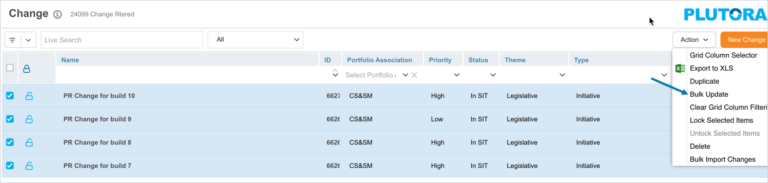
The ‘Bulk update’ pop-up displays. Fill in the fields as per the requirement. For more information on these fields, see Add or Edit Change.
Click .png?revision=1) .
.

The Change records will be updated.
- Only unlocked Changes will be updated. Users will be notified by pop up if any of the Changes are locked.
- If any Change is being updated by another user, the following message will appear, noting that saving the Change will override the other user’s updates: ‘Another user has made changes to this record. Saving will override those changes.’ You can then choose to continue with the save and override the updates or they can close the Change and not save their updates.
- If any Email Template Wizard emails are set to trigger when a Change record’s Status changes, they will trigger after clicking .