Release Schedule
Introduction
The Release Schedule page gives you a view of your Releases on a timeline.
Pre-requisite
You must have the ‘Release Manager’ user permission to be able to view the ‘Release Schedule’ option in the Release menu.
Navigation
Release > Schedule
Release Schedule Page Layout
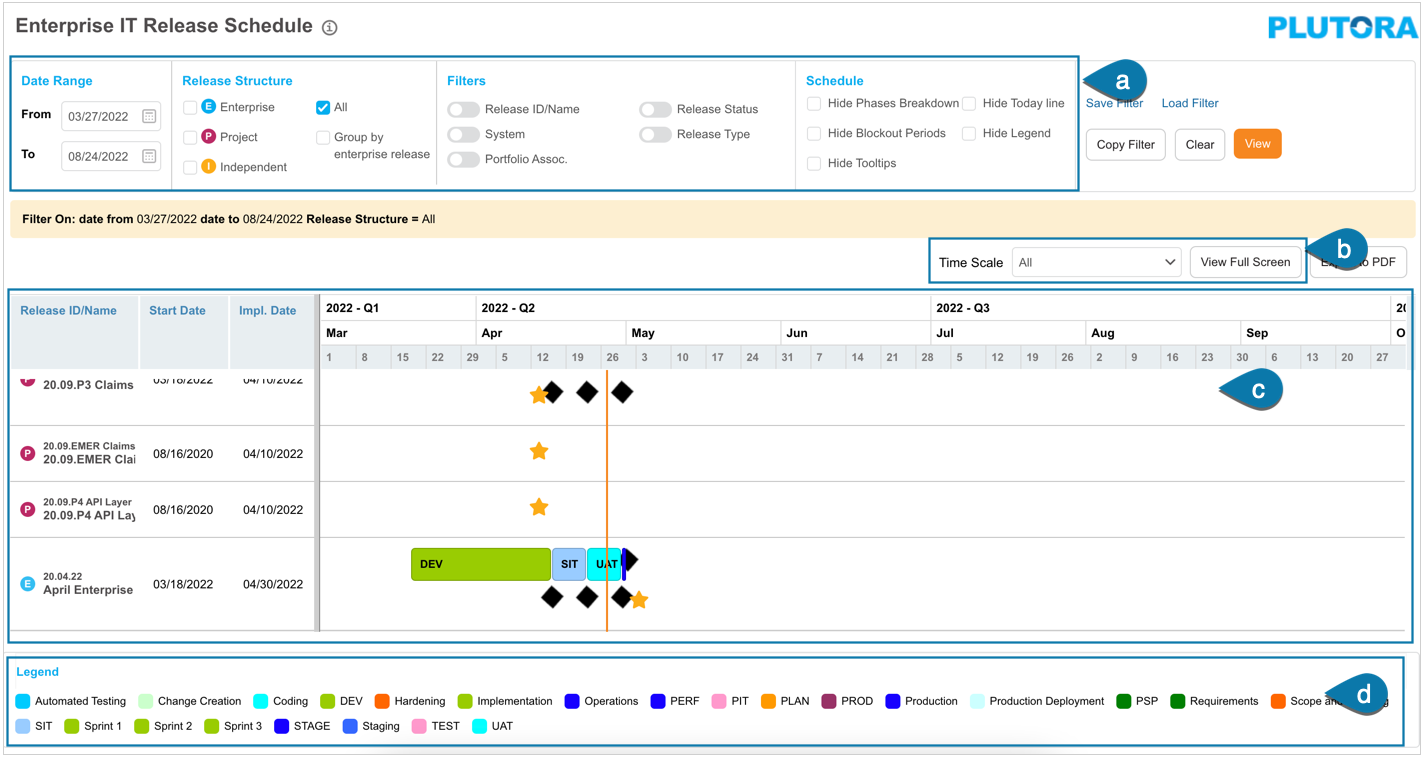
Navigate to Release > Schedule. The ‘Enterprise IT Release Schedule’ page displays.
a: Filter options
b: View options
c: Releases scheduled based on the filter and view selected.
d: The color legend for the phases displayed.
Filter Options
The following filter options are available:
| Fields | Description |
|---|---|
| Date Range | Select a From and To date (Implementation Date) from the calendar. |
| Release Structure | Select one or more of the following checkboxes:
|
| Filters | Select the toggle button as required and fill in the prompt. |
| Schedule | Select one or more schedule options. |
Click  . The schedule displays as per the filter applied.

The filter information bar displays under the filter section.
Save and Load Filters

Save Filter
To save your filter pattern so it can be loaded later:
- Click Save Filter.
- On the ‘Save Filter’ pop-up enter the Filter Name and Description.
- Select who can view this filter on Viewable by.
- Click
 .
.
Load Filter
To open a saved filter:
- Click Load Filter.
- Select one of your saved filters from the My Filters drop-down
or select a public filter from the Public Filters drop-down. - Click
 .
.
The filter will load and the schedule will be displayed.
Copy Filter
Click  to copy the link to Release Schedule that contains all your filters and settings. Then paste the URL into an email or another document.
you must be logged in to Release & Verify to open the link.
Clear Filter
To clear the filter you have applied, click  .
.
Delete Filter
To delete a saved filter, click Load Filter and select the filter that you want to delete from the My Filters or Public Filters drop-down. Then click  .
.
View Options
Time scale
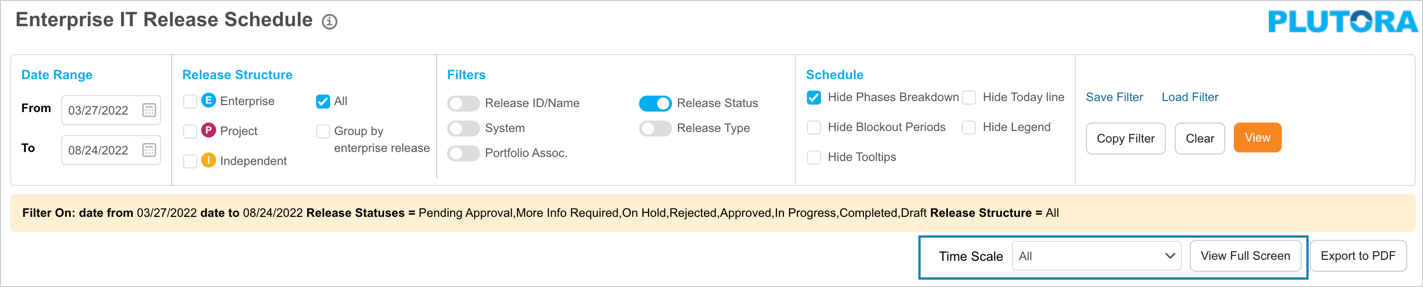
To change the time scale view, select a time, for example, Weekly, from the Time Scale drop-down menu.
To revert back to the default scale, select All.
View Full Screen
To view the release schedule full screen, click  .
.
Click Exit Full Screen View to go back.
Release Schedule
Based on the applied filter and the view option, Release Schedule is displayed:

Export Release Schedule to PDF
To export a release schedule to PDF, click  .
.
| Field | Description |
|---|---|
| Export Range | Select a range from the drop-down:
|
| Export Mode | Select a mode.
|
| Paper Format | Select a paper format. |
| Orientation | Select Portrait or Landscape orientation. |
| Add Page Number | If more than a single page is being exported, check to add the page number. |
Click  .
.
Legends
The bottom of the page displays the legend of the phase per Release in the Release Schedule. You can customize the color in Release Phases.
You can hide the legends by selecting Hide Legend in Filter Options.
More Information
View Release Information
Hover over the Release to view the Release information.
