Release Phases Customization
Release Phases are selected when adding or editing an Enterprise, Project, or Independent Release.
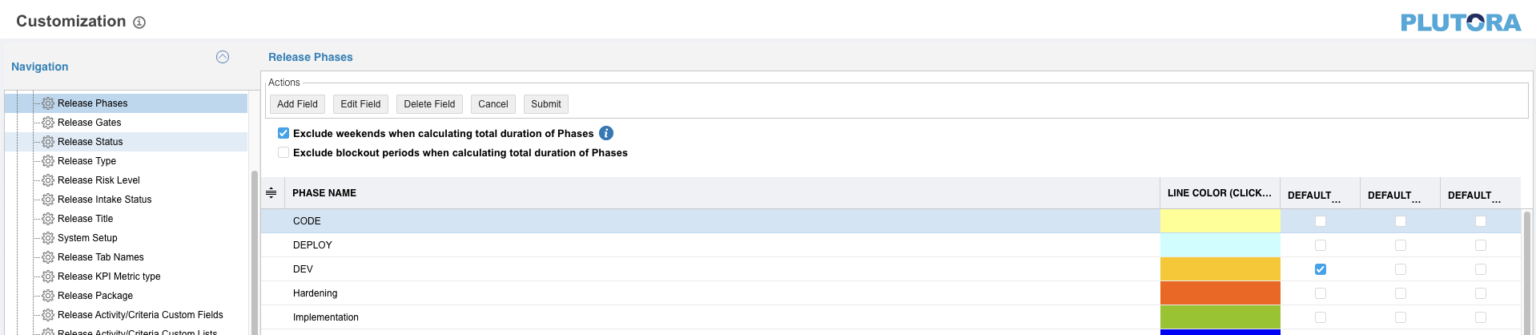
Location of Release Phases
To locate Release Phases:
- Go to Release > Manager.
- Click the Releases toggle button (if present).
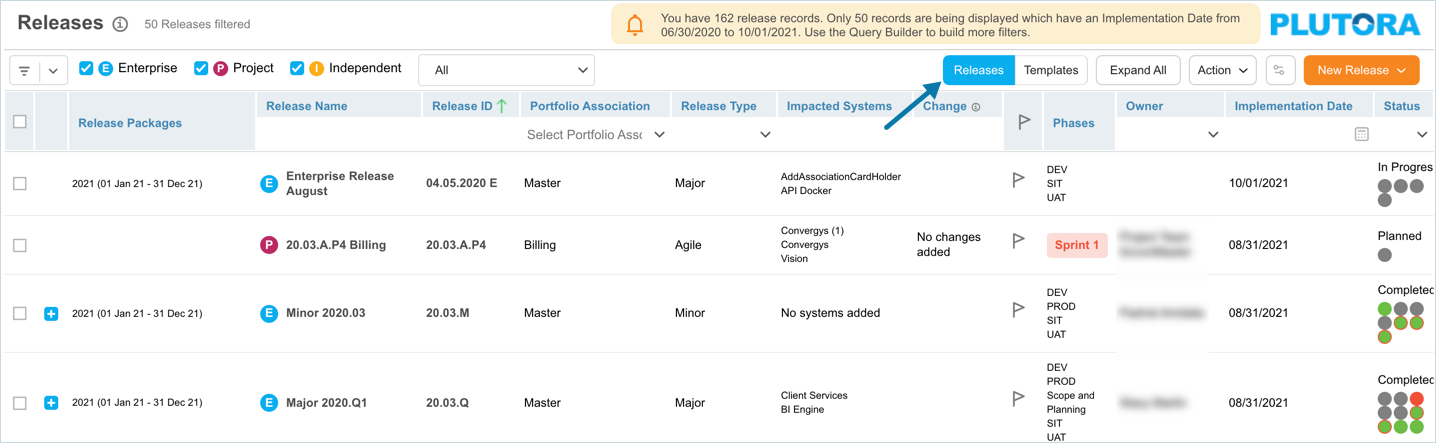.png?revision=1)
- Click to open a Release.
- Click Show.

- The Phases and Gates panel opens.

Include or Exclude Weekends or Blockout Periods in Release Phase Duration
To include or exclude weekends or Blockout Periods from Release Phases in the Duration column:
- Go to Settings
.png?revision=1) > Customization > Releases.
> Customization > Releases. - Click Release Phases.
- Click to select or deselect one or more of the following checkboxes:
.png?revision=1)
- Exclude weekends when calculating total duration of Phases.
- Exclude blockout periods when calculating total duration of Phases.
- Click Submit.
The yellow Your changes have been saved pop up opens and closes.
If you click away from the Customization page without clicking Submit, your changes will not save.
Add a Release Phase
To add a Release Phase:
-
Go to Settings
> Customization > Releases. - Click Release Phases.
- Click Add Field
- Type the new Phase Name.
- Double click the Line Color (Click to Edit) column and select a color from the drop-down menu or enter a Hex value.
- Click to select one or more of the Default checkboxes to make the item the default selection for Enterprise
 , Project
  or Independent
  Releases.
 - Click Submit.
The yellow Your changes have been saved pop up opens and closes.
If you click away from the Customization page without clicking Submit, your changes will not save.
Edit a Release Phase
To edit a Release Phase:
- Go to Settings > Customization > Releases.
- Click Release Phases.
- Click to select the Release Phase.
- Click Edit Field
- Edit the Phase Name.
- Double click the Line Color (Click to Edit) column and select a color from the drop-down menu or enter a Hex value.
- Click to select one or more of the Default checkboxes to make the item the default selection for Enterprise , Project or Independent Releases.
- Click Submit.
The yellow Your changes have been saved pop up opens and closes.
If you click away from the Customization page without clicking Submit, your changes will not save.
Sort Release Phases
Sort Manually
Sorting Release Phases manually changes their order in drop-down menus.
NOTE
Refresh your browser to sort manually after sorting alphabetically.
To sort Release Phases manually:
- Go to Settings > Customization > Releases.
- Click Release Phases.
- Hover your mouse cursor over the sort column.
The sort handle (six gray dots) appears.
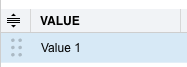.png?revision=1)
- Left click and drag the sort handle to resort the Release Phase.
- Click Submit.
The yellow Your changes have been saved pop up opens and closes.
If you click away from the Customization page without clicking Submit, your changes will not save.
Sort by Column Header
Sorting Release Phases by column header only changes their order on the Customization page.
To sort alphabetically on the Customization page by column header:
- Go to Settings > Customization > Releases.
- Click Release Phases.
- Click a column header.
The Release Phases will revert to their previous order when you click away from the Customization page.
Delete a Release Phase
Deleting a Release Phase will not delete it from Releases. But it will no longer be available when creating new Releases.
To delete a Release Phase:
- Go to Settings > Customization > Releases.
- Click Release Phases.
- Click to select the Release Phase.
- Click Delete Field.
- Click Submit.
The yellow Your changes have been saved pop up opens and closes.
If you click away from the Customization page without clicking Submit, your changes will not save.