Introduction to PIR
Plutora’s PIR (Post-Implementation Review) item is designed to support lessons learned and post-mortem activities performed after a release is implemented into Production.
PIR item captures any issues that may have occurred during the life of the release, or during its go-live. It supports warranty or hyper-care phases and ensures that any mistakes are captured, rectified, and not repeated on subsequent releases.
Any environment-related issues can be brought into PIR item through integrations with Incident and Defect Management applications, to assist with non-Production environment uptime/availability reporting.

A PIR item can answer the following questions:
- Were the project objectives met? Does the release do what it was meant to do?
- Can your delivery process be improved upon?
- Are there lessons that need to be learned so that problems do not reoccur?
- Are there any ways you could maximize your project delivery benefits?
Pre-requisite
You must have customized the PIR menu by using the PIR Customization feature.
Navigation
PIR > Manager
PIR Manager Grid Layout & Features
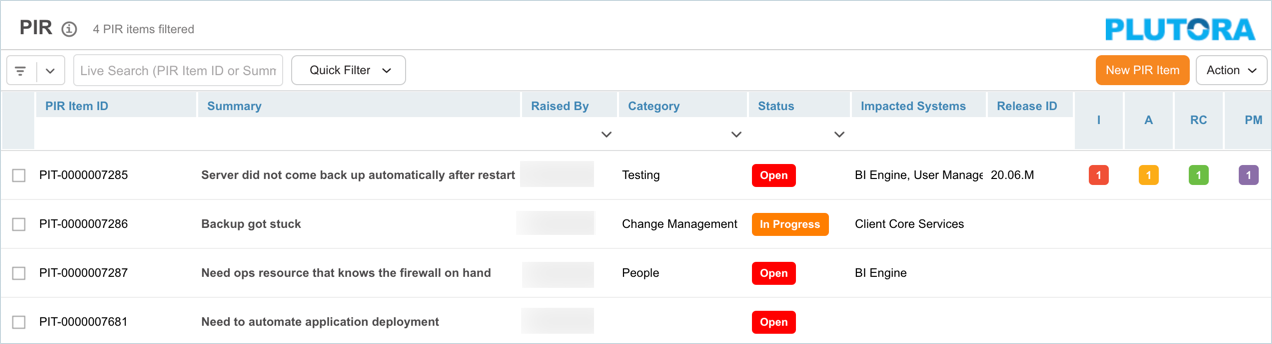
On the PIR Manager page, you can:
- View, search and filter PIRs items
- Add and edit PIR items
- Add or Edit PIR Activity
- Delete PIR Items
Search and Filter Options
Quick Filter
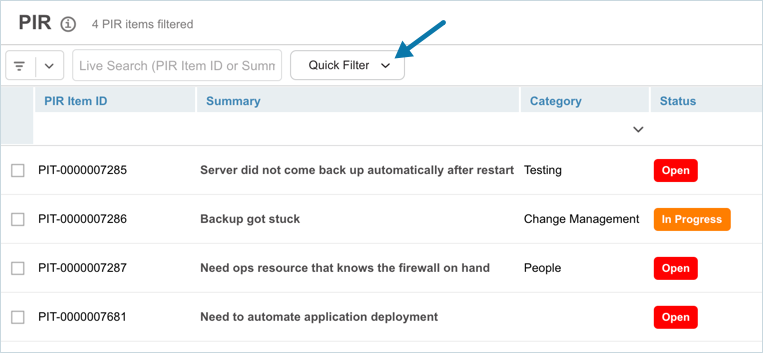
To filter using the Quick Filter, click Quick Filter and fill in the template:
| Fields | Description |
|---|---|
| Search Release ID/Name | Select one or more Releases from the drop-down. Selecting an Enterprise Release that has child Releases with associated PIR Items will filter those child Release PIR Items. |
| Show Items with open RCA, Actions & Preventative Measures | Click to toggle to filter PIR Items that have one or more Root Cause Analyses, Actions, or Preventative Measures that have an ‘Open’ status. |
| Show Items with overdue Actions & Preventative Measures | Click to toggle to filter PIR Items that have one or more overdue Actions or Preventative Measures. |

Click  .
.
Grid Column Filter
The grid column filter is the set of search fields and menus at the top of the data columns, under the column headers.

To filter PIR Items using the Grid Column filter,
- Search field: Type a search term.
- Drop-down menu: Click to select a list item.
- Combo box: Click to select one or more checkboxes.
- Date field: Select a date and click Done.
Press the Enter key to run the filter. To clear the filter, click the cross.
Filter Using Live Search
Use Live Search to filter on PIR Item ID or Summary. Enter a full or partial PIR Item ID or Summary and press the Enter key to search.

Filter PIR items with Custom Fields columns
You can also filter PIR item using their custom fields columns. To add custom field columns to the PIR Manager page, select Grid Column Selector from the ‘Action’ drop-down menu.
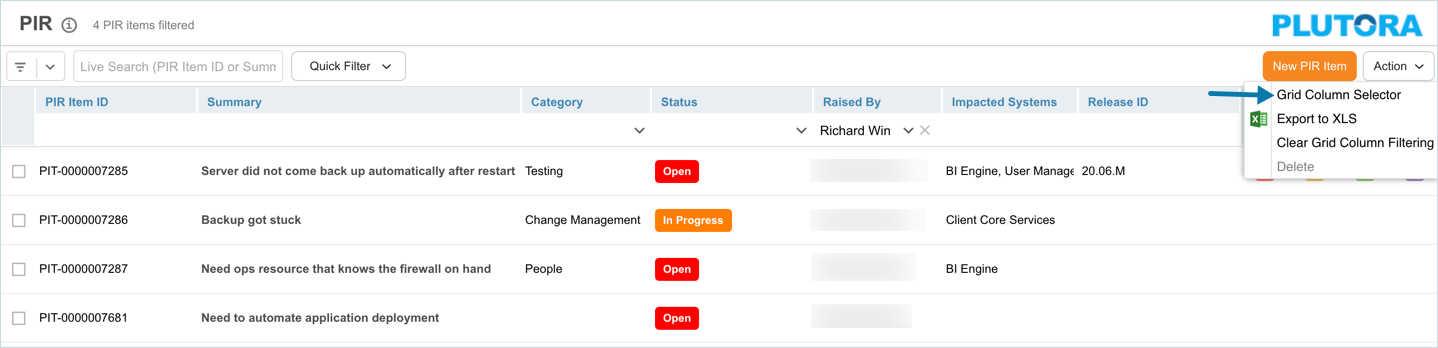
On the ‘Select Additional Columns’ dialog drag and drop custom fields into Selected Columns.
The Fields can be made uneditable or hidden by administrators using these PIR Custom Fields Customization.
Click  . The selected custom fields will appear as new columns to the right of the ‘PM’ column.
Filter Using Query Builder
Query Builder allows you to create and save your own private searches and use public searches. To use Query Builder, click  on PIR Manager. See Manage Query Builder for more information.
You must have the ‘Create/Delete Post Implementation Review Item Public Query Builder’ user permission to create, edit or delete public queries.
View PIR items
The PIR Manager grid displays the list of PIR items you have added. Use any of the search and filter options listed above to search for the required PIR item.
View Release Associated with the PIR Item
To view the Release Title and Release Types of the Releases associated with PIR items hover your mouse cursor over items in the Release ID column. A tooltip will open showing the associated Releases and their Release Title (whether they are Enterprise, Project, or Independent.

View Actions, Impacts, Root Causes, and Preventative Measures
You can view Impacts, Actions, Root Causes, and Preventative Measures on the PIR Manager page. Click on the number under one of the columns I, A, RC, or PM to display the ‘PIR Items Name’ dialog.

- Click to toggle whether I, A, RC, or PM show.

- Click View Details to open the ‘PIR’ pop up.
Show/Hide Columns
PIR Manager grid has a number of default columns, you can show or hide these columns using the grid column selector. Hover your mouse cursor over the column header to see  .
.

Click the button and select Columns. The list of columns available on the PIR Manager grid will be displayed. Select or deselect the checkboxes to show or hide columns.
Customize PIR Item
The following customizations are available for PIR item:
- Show or hide PIR menu on the navigation menu: Menu Setup
- Add and customize fields in the ‘Additional Information’ section: PIR Item – Custom Fields
- Add and customize PIR item status: PIR Item – Status
- Add and customize PIR item type: PIR Item – Type
- Customize PIR item theme: PIR Item – Theme
- Add and customize PIR item category and sub-category:PIR Item – Category and PIR Item – Sub-Category.
- Add and customize PIR item action: PIR Item – Action Status
- Root cause status and type customization: PIR Item – Root Cause Status and PIR Item – Root Cause Type.
- Customize Impact type: PIR Item – Impact Type
- Customize Action type: PIR Item – Action Type
Export PIR Items to XLS
To export your PIR Items to XLS:
- Navigate to PIR > Manager.
- On the ‘PIR Manager’ page search and filter the PIR items that you want to export.
- Click
 .
. - Click Export to XLS.

Your Excel file should start downloading immediately. If it doesn’t, check your pop-up blocker settings.
Save the file to your hard drive if prompted.