Add or Edit PIR Activity
Introduction
This article provides an overview of steps to add a new or edit an existing PIR Activity (Action, Impact, Root Cause, or Preventative Measure) on the PIR Item dialog.
Pre-requisite
To be able to add or edit a PIR Activity, you must have the following user permissions:
- Create PIR Item
- Update PIR Item
- Create Action
- Update Action
- Create Preventative Measure
- Update Preventative Measure
- Create Root Cause
- Update Root Cause
- Create Impact
- Update Impact
You must have created a PIR Item. Refer to Add Or Edit PIR Items for more information.
Navigation
PIR > Manager
PIR Activities
On the ‘PIR Item’ dialog, in the ‘Analyses & Activities’ section, you can document the following aspects of each PIR Item:
- Impacts: What effects it will have.
- Actions: Assigned tasks related to solving the problem. For example, one Action could be finding out the Root Cause of a problem and suggesting some Preventative Measures.
- Root Causes: What caused the problem.
- Preventative Measures: Measures to be put in place to prevent the problem from happening again.

Add/Edit PIR Activity
To add or edit a PIR Activity,
- Navigate to PIR > Manager
- Search and open the PIR Item to which you want to add the PIR Activity. ‘PIR Item’ dialog displays.
- Scroll down to the ‘Analyses and Activities’ section.
- Click
 to add a new activity. To edit an existing activity click on the activities listed to open the ‘Details’ of the activity.
New Impact
List the effects of the problem:
| Fields | Description |
|---|---|
| Summary | Mandatory; Enter a summary of the impact. |
| Description | Enter a description of the impact. |
| Impact Type | Select the impact type from the drop-down. You can customize this field from PIR Item - Impact Type Customization. |
New Action
Suggest what should be done to solve the problem:
| Fields | Description |
|---|---|
| Summary | Mandatory; Enter a summary of the action. |
| Description | Enter a description of the action. |
| Action Type | Mandatory; Select the action type from the drop down. You can customize this field from PIR Item - Action Type Customization |
| Assignee | Select one or more assignees. Assignees can be users in Release & Verify or external users added through the Invite Public Users feature. |
| Status | Select the status from the drop-down. You can customize this field from PIR Item - Action Status Customization. |
| Priority | Select the priority from the drop-down. You can customize this field from PIR Item - Actions Priority Customization. |
| Due Date | Select a due date for the action completion. If the Action item passes this due date, the status will turn red. |
| Completed On | Enter the date when the action is completed. Leave blank for the new Actions. |
| System | Select the affected system(s) from the drop-down. Selected Systems will appear in the 'Impacted Systems' field of the PIR Item. |
| Future Releases | Select the Release(s) from the drop-down to show what Releases will be affected in the future. |
New Root Cause
List what caused the problem:
| Fields | Description |
|---|---|
| Summary | Mandatory; Enter a summary of the Root Cause item. |
| Description | Enter a description of the Root Cause item. |
| Root Cause Type | Select a Root Cause type from the drop-down menu. You can customize this field from the PIR Item - Root Cause Type Customization. |
| Status | Mandatory; Select a Status. You can customize this field from the PIR Item - Root Cause Status Customization. |
New Preventative Measure
A measure to put in place to prevent the problem from happening again:
| Fields | Description |
|---|---|
| Summary | Mandatory; Enter a summary of the preventive measure. |
| Description | Enter a description of the preventive measure. |
| Preventative Measure Type | Select the action type from the drop-down. You can customize this field from PIR Item - Preventative Measure Type Customization |
| Assignee | Select one or more assignees. Assignees can be users in Release & Verify or external users added through the Invite Public Users feature. |
| Status | Mandatory; Select the status from the drop-down. You can customize this field from PIR Item - Preventative Measure Status Customization |
| Priority | Select the priority from the drop-down. |
| Due Date | Select a due date for the action completion. If the item passes this due date, the status will turn red. |
| Completed On | Enter the date when the preventive measure item is completed. Leave blank for the new PIR item. |
| System | Select the affected system(s) from the drop-down. Selected Systems will appear in the 'Impacted Systems' field of the PIR Item. |
| Future Releases | Select the Release(s) from the drop-down to show what Releases will be affected in the future. |
After making the required edits and additions to the PIR Activities, click  .
.

The ‘PIR Item’ dialog will close and the ‘PIR Manager’ page will be back to display.
Duplicate PIR Activity
To duplicate a PIR Activity (Action, Impact, Root Cause or Preventative Measure), on ‘PIR Item’ dialog:
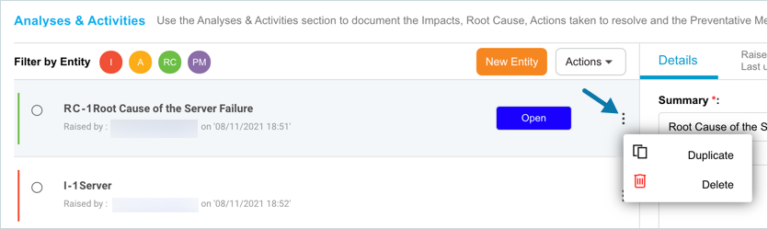
- In ‘Analyses and Activities’ section, click
 against the PIR activity that you want to duplicate.
 - Click Duplicate.

The system creates the duplicate activity and you can make edits to it as required.
Sort PIR Activity
To sort the PIR Activities (Actions, Impacts, Root Causes, or Preventative Measures), click to select an activity. Then drag and drop the activity to sort.
Delete PIR Activity
There are several ways to delete a PIR Activity (Action, Impact, Root Cause, or Preventative Measure):
Delete one Activity
- Click
.png?revision=1) against the activity that you want to delete.
against the activity that you want to delete. - Select Delete.
- Click
 on the confirmation prompt to confirm.
Delete via ‘Action’ drop-down
- Click to select the activity(s).
- Click
 .
. - Click Delete Selected Item/s.
- Click
 on the confirmation prompt to confirm.

Delete All
- Click
.png?revision=1) .
. - Click Delete All.
- Click
.png?revision=1) on the confirmation prompt.
on the confirmation prompt.

More information
Filter PIR Activities
Toggle the visibility of the PIR Activities (Actions, Impacts, Root Causes, or Preventative Measures) by clicking the toggle Harvey Balls.
Click a Harvey Ball to show only those types of activities. Click the Harvey Ball again to show all types of activities.

PIR Activity Traffic Light Status
Preventative Measures, Actions, or Root Causes have traffic light statuses, controlled by:
- PIR Item – Preventative Measure Status Customization.
- PIR Item – Action Status Customization.
- PIR Item – Root Cause Status Customization.
When a PIR Activity has passed its due date, the status turns red.
