Deployment Plan Library
Introduction
Deployment Plan Library allows you to view, search and filter the Deployment Plans.
Pre-requisite
You must have ‘Deployment Manager’ user permission to be able to view and access the ‘Deployment Plan Library’ page.
Navigation
Deployment > Manage
Deployment Plan Library Layout and Features

a: Filter fields
b: Deployment Plan status
c: Actions you can perform on the Deployment Plan page.
d: Deployment Plan grid displaying Master, Child and Independent Deployment Plans
You can perform the following tasks on this page:
- Add and edit Deployment Plans (Master and Child)
- Bulk import Deployment Plans
- Duplicate Deployment Plans
- Bulk update Deployment Plans
- Delete Deployment Plans
- Export Deployment Plans
Deployment Plan Status
Deployment Plan Status define the stages of a Master or child Deployment Plan. Plans can be moved between the Statuses (by those who have the correct user permissions) by clicking Action buttons on the Status bar under the Information tab.
There are four statuses:
Draft
When you create a Deployment Plan (Master Deployment Plan, child Deployment Plan or Independent Deployment Plan), it is saved in the Draft status. On the grid, the plans in draft status are displayed with the abbreviation ‘DR’.
The following information can be added or edited in this status:
Master Deployment Plans:
- Information.
- RACI Matrix (users and Stakeholders).
- Activities.
- Activity Sets.
- Checkpoints.
- Issues and Issue Questions.
- Additional Information.
Child or Independent Deployment Plans :
- Information.
- RACI Matrix (users and Stakeholders).
- Activities.
- Additional Information.
Approved
The Deployment Plans with this status mean that they are approved and are ready to be executed. On the grid, the plans in Approved status are displayed with the abbreviation ‘AP’. As the approved plans should not be altered, the only records that can be added or edited are:
Master Deployment Plans:
- Information (some fields)
- RACI Matrix (users and Stakeholders)
- Activities
- Issues (You can add Issue Questions only in Draft mode)
- Additional Information.
Child or Independent Deployment Plans :
- Information (certain fields)
- RACI Matrix (users and Stakeholders).
- Activities.
- Additional Information.
Execution
The Deployment Plans are set to be executed in this status. On the grid, the plans in Execution status are displayed with the abbreviation ‘EXE’.
The following information can be added or edited:
Master Deployment Plans:
- You can send the broadcast emails.
- Run the Activities and update their Status updated (to In Progress, Completed, and so on).
- Access Activity Sets to see the progress of Activities within the Activity Set.
- Answer the Checkpoint Questions.
- Add or delete the Issues.
- Fill in the Additional Information fields.
Child or Independent Deployment Plans
- You can send the broadcast emails.
- Run the Activities and update their status (to In Progress, Completed, and so on).
- Fill in the Additional Information fields.
Completed
This status indicates that the execution of the Deployment Plan is complete and is represented with a ‘✓’. You cannot add or edit anything in this status. This status is intended to be a record of past events. Deployment Plans with  indicates that it is incomplete beyond their end date.
Deployment Plan Status Color
The colors have the following meanings:
- Blue: the current status
- Green: Completed (past) status
- Grey: Not yet completed (future) status
Master/Child/Independent Deployment Plan
| Master Deployment Plan | Child/Independent Deployment Plan | |
|---|---|---|
| Purpose | Enables you to aggregate information across multiple Deployment Plans in order to get an overall view of the deployment. | Child/Independent Deployment Plans allow you to distribute the build, approval, and execution of plans to expert operations teams. The Child Deployment Plan is linked to Master Deployment Plans and Independent Deployment Plans do not have a linked Master Deployment Plan. |
| Checkpoints tab | The Checkpoints tab provides administrators a summary of their deployment health | The Checkpoints tab is not available. |
| Issues tab | The Issues tab allows you to raise any incidents or issues that have arisen during deployment. | The Issues tab is not available. |
| Activity Sets tab | In Activity Sets tab you view the high-level progress of Activities within the Activity Set. | The Activity Sets tab is not available. |
Search and Filter Options
Filter by Query Builder
Query Builder allows users to create and save their own private searches and use public searches. (Users must have the Create/Delete Deployment Plan Public Query Builder user permission to create, edit or delete public queries.)
To use Query Builder, click .png?revision=1) on Deployment Plan Library. See Query Builder for more information. Clicking
on Deployment Plan Library. See Query Builder for more information. Clicking opens the quick access menu, which lists private and public queries.
Live Search
You can search for the Deployment Plans using the ‘Live Search’ option. Enter the plan name or description and press Enter to view the result.
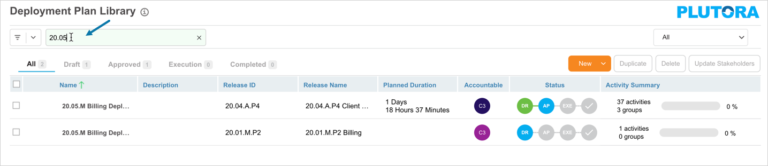
‘My Filter’ Drop-down
Click on the ‘All’ drop-down to view the ‘My Filter’ options.

- All: Show all Deployment Plans.
- My Portfolio Association: This shows Deployment Plans from your portfolio association. You can check which Portfolio Association you belong to in Profile.
- I’m a Stakeholder: Show Deployment Plans for which you are a stakeholder.
View Options
Show/Hide Columns
You can show or hide these columns using the grid column selector. Hover your mouse cursor over the column header to see .png?revision=1) . Click the button and select Columns. The list of columns available on the grid will be displayed. Select or deselect the checkboxes to show or hide columns.
. Click the button and select Columns. The list of columns available on the grid will be displayed. Select or deselect the checkboxes to show or hide columns.

Show by Deployment Plan Status
You have the following statuses available on the Deployment Plans page. To know more about the status, see Deployment Plan Status.
- All: Click to display all the Deployment Plans.
- Draft: Click to display the Deployment Plans in Draft status.
- Approved: Click to display the Deployment Plans in Approved status.
- Execution: Click to display the Deployment Plans in Execution status.
- Completed: Click to display the Deployment Plans in Completed status.