Environment Setup Customization
Introduction
Environment Setup customization allows administrators to:
- Toggle the Linked Environments feature in Environment pop up.
- Set up the default values for the Environment Schedule.
- Enable Health Check Dashboard.
Pre-requisite
To be able to customize the Environment Setup, you must have ‘Access Customizations’ User Permission.
Navigation
Settings .png?revision=1) > Customization > Environments > Environment Setup
> Customization > Environments > Environment Setup
Linked Environments
The Linked Environments feature allows to group any number of Environments as parent, child, or grandchild. This saves time when booking because when the parent Environment is booked (in the TEBR dialog, or the Enterprise, Project, or Independent Release dialog), the child and grandchild Environments are booked too. (To locate the linked environments in Release & Verify, see Location of Linked Environments)
For example, the screenshot below shows an Environment in the Environments tab of an Enterprise Release. The number of children and grandchildren are displayed. If the parent Environment was dragged and dropped into a Phase, the parent and its child and 3 grandchildren Environments will be booked too, booking a total of 4 Environments with a single drag and drop.

Toggle Linked Environments
To toggle Linked Environments feature on and off:
- Navigate to the ‘Customization’ page and double-click Environments.
- Click Environment Setup. ‘Environment Setup’ page displays.
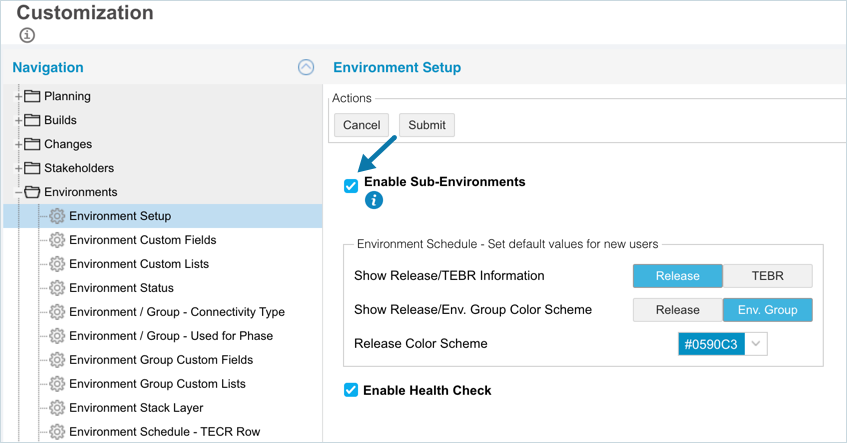
- To turn linked Environments on, select the Enable Sub-Environments checkbox.
- Click
.png?revision=1) .
.
Your changes will be saved and a confirmation message will display.
To turn linked Environments off deselect the Enable Sub-Environments checkbox and Click .
Environment Schedule
To set the default values in Environment Schedule Environment Group View navigate to the ‘Environment Setup’ page.
If you click Release in ‘Show Release/TEBR Information’:
- Clicking Release in ‘Show Release/Env. Group Color Scheme’: TEBRs and Environment Bookings appear in the Environment Schedule Environment Group view as rectangles showing the selected Release Color Scheme color.
- Clicking Env. Group in ‘Show Release/Env. Group Color Scheme’:
- Environment Bookings made through TEBRs that are associated with Releases are flagged with a triangle on their bottom-left corner in Environment Schedule Environment Group view.

- Environment Group bookings appear as rectangles in Environment Schedule Environment Group view showing their Environment Group color.
- Environment Bookings made through TEBRs that are associated with Releases are flagged with a triangle on their bottom-left corner in Environment Schedule Environment Group view.
If you click TEBR in ‘Show Release/TEBR Information’:
- Clicking Release in ‘Show Release/Env. Group Color Scheme’:
- TEBRs appear as rectangles in Environment Schedule Environment Group view that are the color of their TEBR Type, with a color bar at the bottom showing their TEBR Status color.

- Environment bookings appear as rectangles in Environment Schedule Environment Group view showing their Release Color Scheme color below.
- TEBRs appear as rectangles in Environment Schedule Environment Group view that are the color of their TEBR Type, with a color bar at the bottom showing their TEBR Status color.
- Clicking Env. Group in ‘Show Release/Env. Group Color Scheme’:
- TEBRs appear as rectangles in Environment Schedule Environment Group view the color of their TEBR Type, with a color bar at the bottom showing the color of their TEBR Status.
- Environment Group bookings appear as rectangles in Environment Schedule Environment Group view showing their Environment Group color.
Select a color from the Release Color Scheme drop-down menu or enter a Hex value. Click .
Your changes will be saved and a confirmation message will display.

Enable Health Check Dashboard
Health Check Dashboard will provide a view of Environment health.
To enable Health Check Dashboard:
- Select Enable Health Check checkbox.
- Click .
Your changes will be saved and a confirmation message will display.
More Information
Location of Linked Environments
To locate Linked Environments:
- Navigate to Environment > Manager.
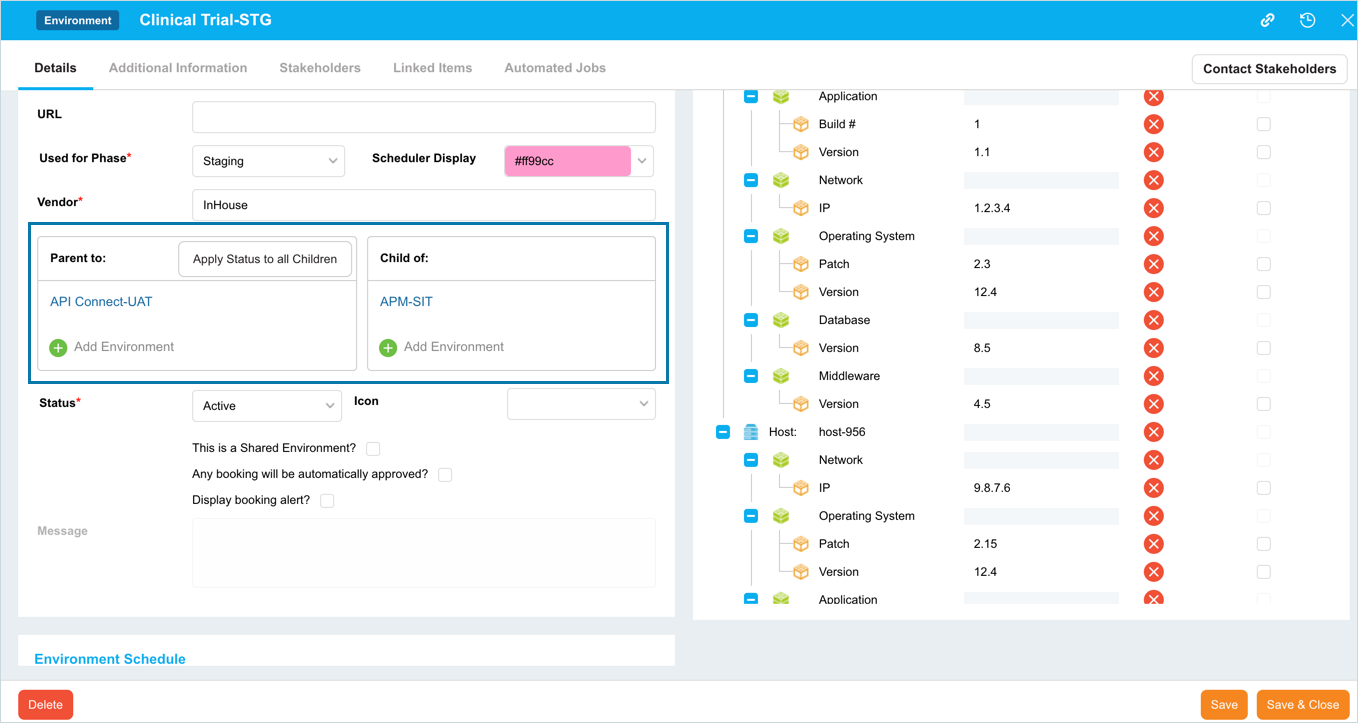
- Click to open an Environment. Linked Environments can be seen under the Vendor field.
Location of Environment Schedule
To locate Environment Schedule, navigate to Environment > Schedule.
Location of the Health Check Dashboard
To locate the Health Check Dashboard navigate to Environment > Health Check.