Manage Change Stakeholder
Introduction
The Stakeholders feature enables you to add and manage the stakeholders to the Change. You can choose a user or a user group as a Change Stakeholder.
There are four types of Stakeholders Roles, you can select one or more these types:
- Responsible (R)
- Accountable (A)
- Consulted (C)
- Informed (I)
Pre-requisite
To be able to view the Stakeholders tab, you must have ‘View Stakeholders Tab’ user permission.
To edit a Change, you must have ‘Update Change’ user permission.
Navigation
Release > Change
Access ‘Stakeholders’ tab
To access the Stakeholders tab:
- Navigate to the ‘Change’ page.
- Search for the Change on which you want to manage the Stakeholders. You can use the filter options available on this page.
- Open the Change by clicking on the ID or Name.
- Click the Stakeholders tab.
The existing Stakeholders are displayed here.

Add Stakeholder
To add a Stakeholder, on the ‘Stakeholders’ tab, click  . ‘Add New Stakeholder’ pop-up displays. Fill in the fields on this pop-up as follows:
| Fields | Description |
|---|---|
| Name or User Group | Select a user or user group from the drop down as the Stakeholder |
| Role | Select one or more roles for this Stakeholder |
| This field auto-populates the email ID of the Stakeholder if you had selected a user. For the user group, this field is disabled. | |
| Stakeholder RACI | Select one or more Stakeholder roles for this Stakeholder. |

Click  . The new Stakeholder is added and available on the grid.
If you add the same Stakeholder more than once, on the grid they will appear only once with all their Roles and Stakeholder RACI Roles merged. For example, if a stakeholder with Role A and all the RACI Roles was added again with Role B and no RACI Roles, the Stakeholder would appear only once with Roles A and B and all the RACI Roles.
Edit Stakeholder
You can edit the Stakeholder Role and Stakeholder RACI roles on this grid. To edit, click on the Stakeholder to open the ‘Edit Stakeholder’ pop-up. Edit the fields as required. Refer to the above table for more details.
After making changes click  .
.
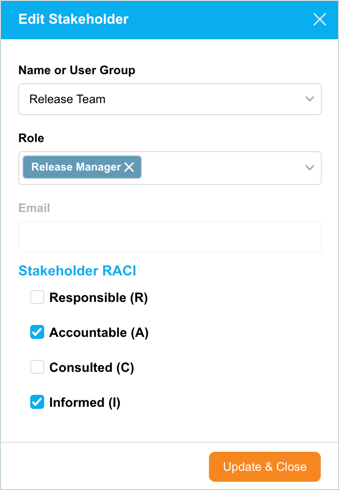
The Stakeholder displays with the updated details on the grid.
Remove Stakeholder
To remove (or delete) a Stakeholder, click on the Stakeholder on the grid and then click  . Release & Verify will remove the Stakeholder from the grid and will no longer be Responsible, Accountable, Consulted, or Informed for this Change.
More Information
View Group Members
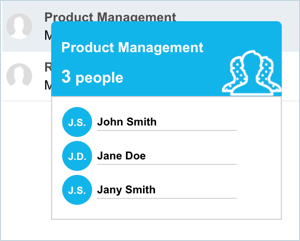
If the Stakeholder is a user group, hovering your mouse cursor over the user group shows the group members.
Grid Filter Option
You can show/hide columns displayed on the grid column selector. Hover your mouse cursor over the column header to see .png?revision=1) . Click the button and select Columns. The list of columns available on the grid will be displayed. Select or deselect the checkboxes to show or hide columns.
. Click the button and select Columns. The list of columns available on the grid will be displayed. Select or deselect the checkboxes to show or hide columns.