Manage Builds in System
Introduction
You add or edit Builds to the System in the Recent Builds section in the Systems pop-up. This article provides a brief overview of the steps to add/edit Builds to the Systems manually and via automated jobs. See Builds for more information.
Pre-requisite
You must have the following user permissions:
- Create Builds
- Edit Builds
- Delete Builds
Ensure that Enable Builds is selected in Build Setup.
Navigation
Environment > Systems
Access ‘Recent Builds’ section
To access the Recent Builds section:
- Navigate to the ‘Systems’ page.
- Search for the System in which you want to add/edit the Builds. You can use the filter options available on this page.
- Open the System by clicking on the System Name.
The Systems pop-up displays. Scroll down to the ‘Recent Builds’ section. The existing Builds that are added to the System, if any, are displayed here.

Add a Build Manually
Builds created manually have fewer fields and can be added via Systems or via the Builds grid.
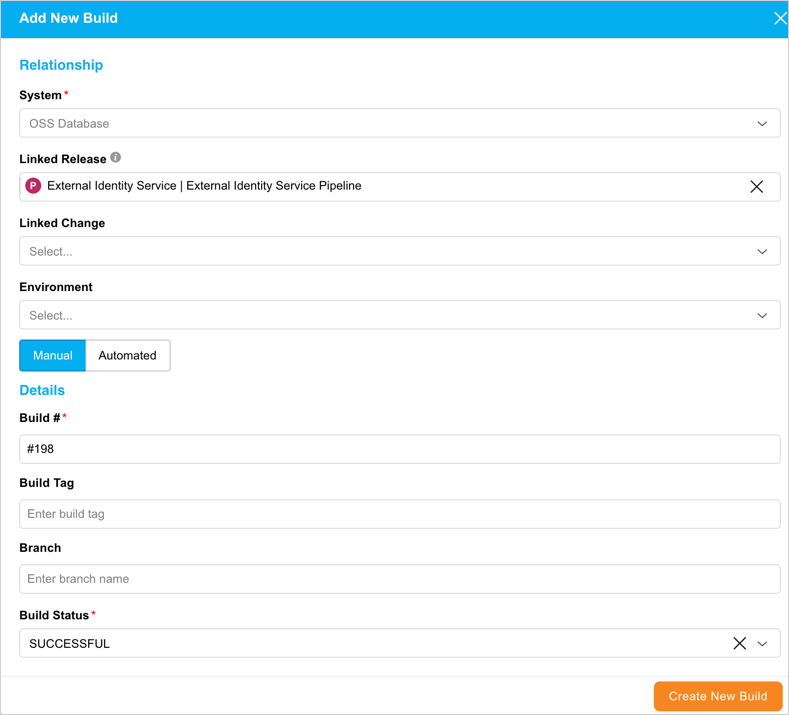
To add a Build click  . ‘Add New Build’ pop up displays:
| Fields | Description |
|---|---|
| System | Grayed out, with the current System or Subsystem selected |
| Linked Release | Linked Releases available for selection are:
|
| Linked Change | Linked Changes available for selection are:
|
| Environment | Environments that are linked to the System or Subsystems are available for selection. |
| Build Instance | For Subsystems only, select the build instance to replace or create a new one and update the build note |
| Manual/Automated | Select Manual |
| Build # | Mandatory; Enter the build number. Usually, the internal version number. |
| Build Tag | Enter the build tab, usually the external version number such as 3.1.1. |
| Branch | Enter the name of the branch from the source control management tool. |
| Build Status | Mandatory; Select a Build Status. |
After making the entries, click  .
.
The new Build displays in the ‘Recent Builds’ section.
Add Build using Automated Jobs
To add Jenkins jobs to Builds from a System:
| Fields | Description |
|---|---|
| System | Grayed out, with the current System or Subsystems selected |
| Linked Release | Linked Releases available for selection are:
|
| Linked Change | Linked Changes available for selection are:
|
| Environment | Environments that are linked to the System or Subsystems are available for selection. |
| Build Instance | For Subsystems only, select the build instance to replace or create a new one and update the build note |
| Manual/Automated | Select Automated |
| Automated Jobs | Select the checkboxes of Automated Jobs (sourced from Jenkins or Integration Hub). |
| Parameters | Select Parameters: Click  and select or type the parameters. If default parameters were set, their values can be edited at this point but new parameters cannot be added. and select or type the parameters. If default parameters were set, their values can be edited at this point but new parameters cannot be added. |
After making the entries, click .
The new Build displays in the ‘Recent Builds’ section.
Click  on the Systems pop-up.
View Build Details
The ‘Recent Builds’ section loads the 25 most recent Builds for the System. The Build Status updates in real-time when a Build is run.
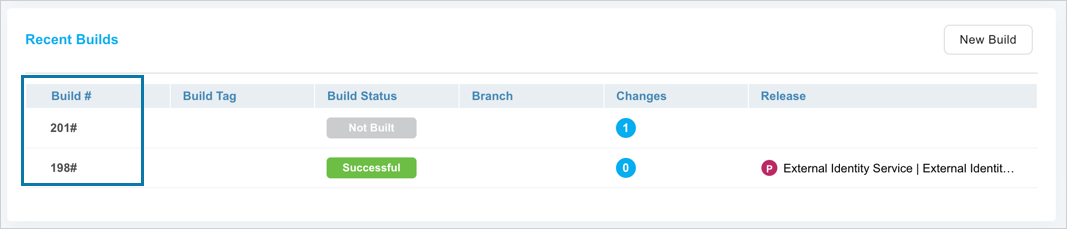
To see all the Builds for this System, go to Environment > Builds and filter by System.
Edit Builds
To edit Builds, click Build # to open the ‘Builds’ pop-up and update the Build details as required. For more information, see Add/Edit Builds.