Release Calendar
Introduction
The Release Calendar allows you to view and filter your Releases, Blockout Periods, Release Events, TEBRs, and TECRs by date.
Pre-requisite
You must have the ‘Release Manager’ user permission to be able to view the ‘Release Calendar’ option in the Release menu.
Navigation
Release > Calendar
Release Calendar Page Layout
Navigate to Release > Calendar. The ‘Release Calendar’ page displays.

a: Filter options
b: View options
c: Calendar displaying the Releases scheduled based on the filter and view selected.
Filter Options

Query Builder
Query Builder allows you to create and save your own private filters and use public filters. You must have the ‘Create/Delete Release Public Query Builder’ user permission to create, edit or delete public queries.
You can create a Query Builder using the Release and TECR fields.

For more information, see Quick Tips.
My Filters
You can filter the Releases using the My Filter drop-down option.

Calendar
Select a date in the calendar. The calendar has the following options:
- Click
 or at the top of the calendar to scroll through months.
 - Click Today to see a day view of the current day.
- Click the month and year to open and select a month and year.

Releases
Click the Releases toggle switch to filter the following:
| Fields | Description |
|---|---|
| Release Details | Select to view:
|
| View by | Select view by Release ID or Release Name. Click + to expand the menus. |
| Release Types | Select one or more Release Types. Click + to expand the menus. |
| Release Statuses | Select one or more Release Types. Click + to expand the menus. |
| System Deployments | Filter by System Deployments:
|
| Blockout Types | Select one or more Blockout Types. Click + to expand the menus. |
Environments
Click the Environments toggle switch to filter the following:
| Filter | Description |
|---|---|
| Activity | Select the TECR/TEBR as required. |
| Change Request Status | Click + to expand and select one or more Change Request Status. |
| Booking Request Status | Click + to expand and select one or more Booking Request Status. |
| Change Request Type | Click + to expand and select one or more Change Request Type. |
| Booking Request Type | Click + to expand and select Booking Request Type. |
The availability of the filter fields vary based on the calendar view (see below).
View Options
Click Day, Week, Month, or Year to change the calendar view.
The filters available per view is as follows:
Day/Week/Month
- Releases
- Blockout Periods
- System Deployments
- TECRs
- TEBRs
Year
- Release Types
- Blockout Types
- TECR Types
View Full Screen
Click  to view the calendar in full screen. Press the Escape key to exit the full screen.

Release Calendar
Based on the applied filter and the view option, Release Calendar is displayed:

Share Calendar
To share your Release Calendar’s filtered view with other users, click  . This will copy the URL to your clipboard, which can be pasted into another application or document, and opened by other users.
After opening the URL and logging into Release & Verify if necessary, Release Calendar will open with the same filters. The filters will be active but disabled so that they cannot be changed. You can click the Calendar data and update.
NOTE
Note will be disabled if 'My Portfolio Association' or 'I'm a Stakeholder' are selected, as the data is user-specific
More Information
View List of Events
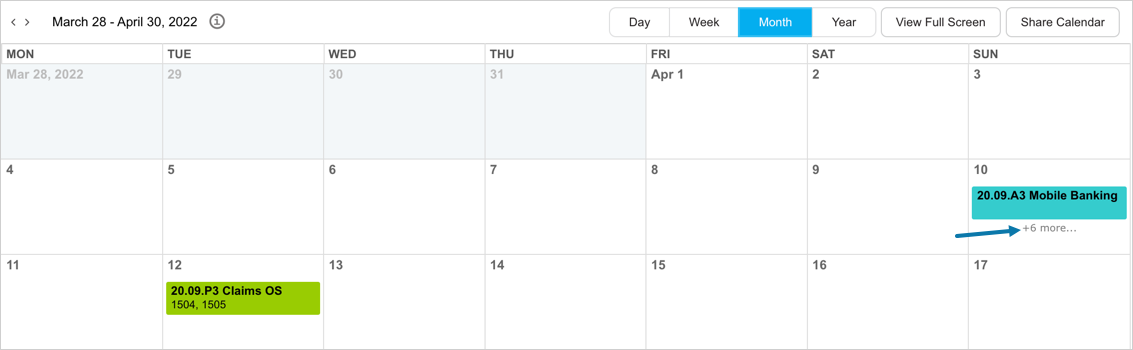
Click more… to open a pop-up with the full list of events on that day.
View Release Information
Hover your mouse cursor over a Release to see a pop-up with more information.
View Release Details
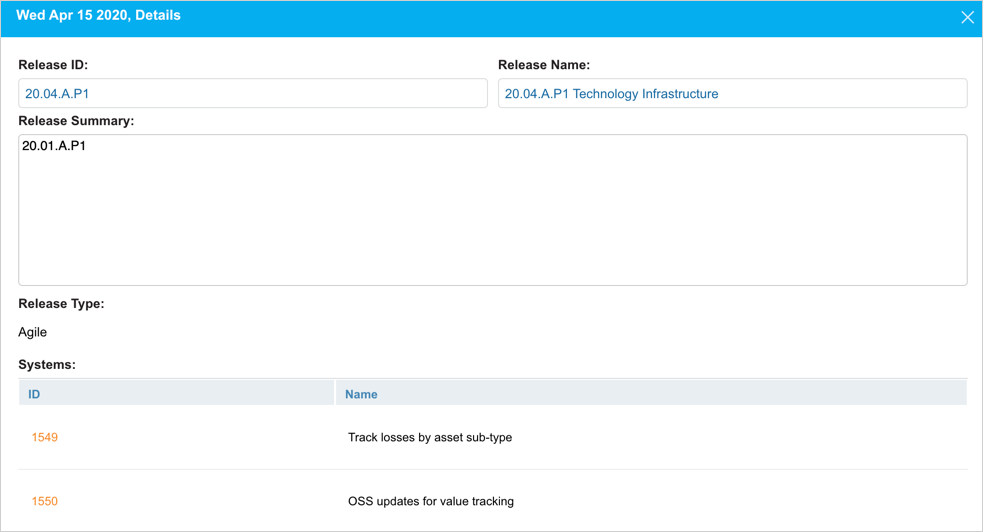
Click on a Release to open and view the Release details.