Manage Phases and Gates
Introduction
This feature enables you to add Phases and Gates to a Release in Release & Verify. Phases are periods in a Release where Activities need to be completed, e.g. design, development, testing, deployment, etc. Whereas, Gates are milestone points in time where a Criterion or approval needs to be met for the Release to remain on schedule.
You can set to push the Phases and Gates from Enterprise Release to Project/Independent Release.
This article provides an overview of steps to add and manage Phases and Gates in Release & Verify. You can add Phases and Gates to a Release as well as to a Release Template.
Pre-requisite
You must have already created a Release or Release Template to add Phases and Gates.
Navigation
Release > Manager
Phases and Gates Panel
- Navigate to the ‘Release Manager’ page.
- Search and open a Release by clicking on the Release ID or Release Name. To see the search and filter options on this page, see Search and Filter Options.
-
Click on the Phases & gates tab

Add Phase/Gate
Add Phase/Gate manually
To add new Phases and Gates manually:
- Navigate to the ‘Phases and Gates’ tab.
- On ‘On Phases and Gates’ panel, click
 and choose Phase or Gate. A new line will appear in the list for the Phase/Gate.
 - Double-click Click to add phase name or Click to add gate name and select the Phase or Gate name from the drop-down menu. To manage the available Phases and Gates see Release Phase Customization and the Release Gate Customization.
- Double-click Start Date and End Date and choose a date and time.

- Click
 .
.
The new Phase/Gate is now available for this Release.
Push Phases/Gates from Parent to Child Release
If an Enterprise Release has Child Releases linked to it (Project and/or Independent Releases), you can choose to copy the Phases/Gates to the Child Releases. To view the Child Release(s) of Enterprise Release see Release Manifest tab.

To push, select the Child Push checkbox of the Phase or Gate and then click  .
.

A pop-up displays for your confirmation. Click 
A list of Child Push Updates will display. Click  to copy updates. Click the X at the top right to close the pop up.
Click  . The pushed Phase/Gate will now be available in the Child Release.
NoteIf you add a Phase/Gate to Project/Independent Release, then add that child Release to an Enterprise Release, and then if you delete the Phase/Gate from the Enterprise Release, it will be treated as inherited and suggested to be deleted.
Delete Phases/Gates
An Enterprise Release Phase and Gates, that are copied to the child release (Project and Independent Release), can only be deleted from the Enterprise Release. You can opt to ‘Ignore’ such phase/gate in the child release(s).
You can delete the Phase/Gate that you had added manually to a Child Release.
To delete a Phase/Gate, select one or more of the Phases/Gates using the checkbox. Then click  .
.
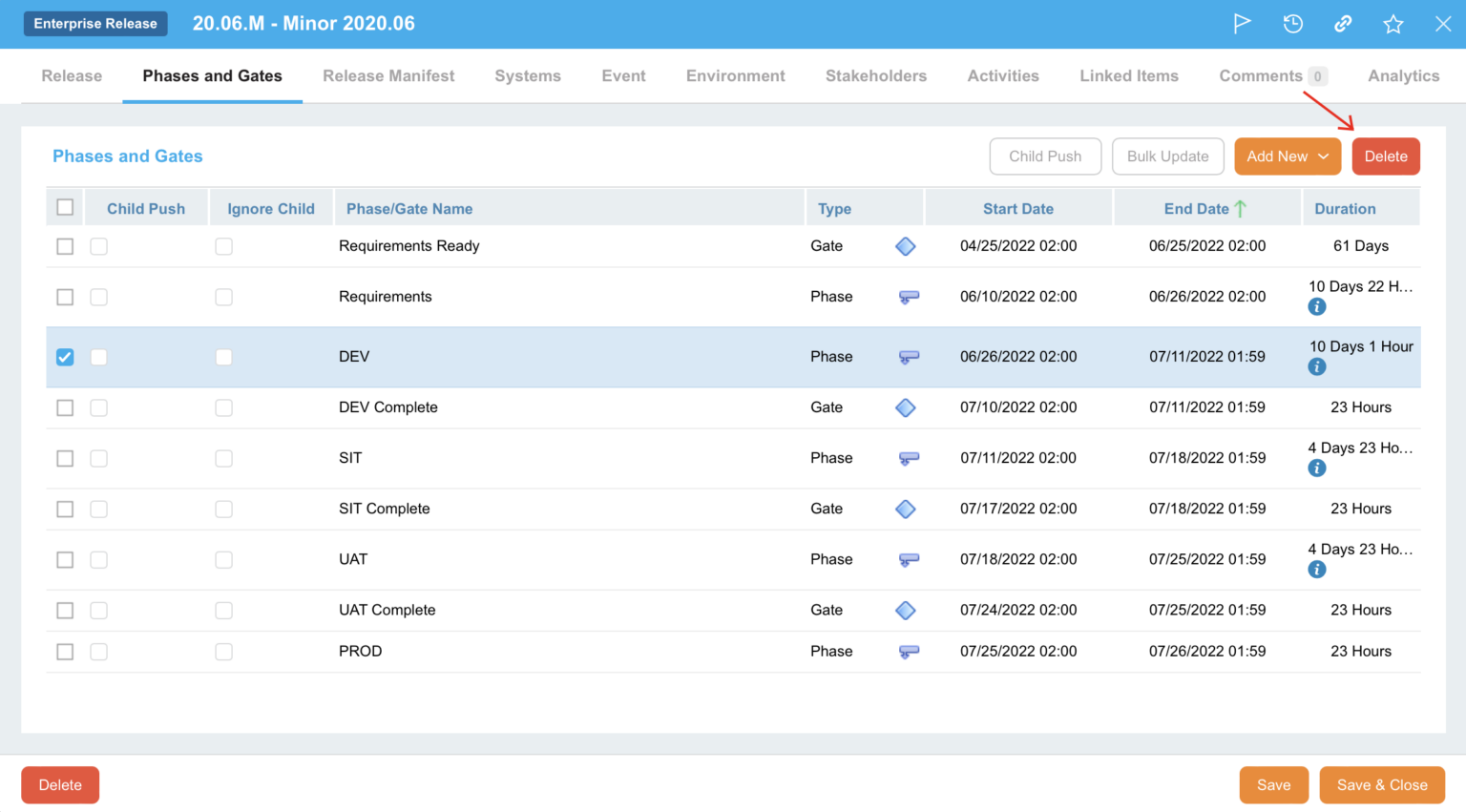
In an Enterprise Release, if you had pushed the Phase or Gate to the Child Release(s), confirm whether you want to delete the Phase or Gate from them as well.

The Phase/Gate will be deleted as per your selection.
Ignore Phase/Gate
Ignore
‘Ignore’ feature enables you to block a Phase/Gate to be migrated from one Parent to the other Parent Release on the Phases/Gates migration pop-up.
This feature is available in Project and Independent Release. To ignore a Phase/Gate on Project or Independent Release tick the Ignore checkbox on the ‘Phases and Gates’ panel. Then click .png?revision=1) .
.

Release & Verify will ignore the selected Phases/Gates when you move the Child (Project/Independent) Release to another Parent (Enterprise) Release.
Ignore Child
‘Ignore Child’ feature enables you to ignore the Phases/Gates, that were pushed to the Child Release, at the Enterprise Release level. This feature is available in Enterprise Release only. To ignore a Phase/Gate in the Child Release(s), in the ‘Phases and Gates’ panel in Enterprise Release tick Ignore Child. Then click  .
.

The selected Phase/Gates will be ignored in the Child Release(s) and will no longer be available for Environment Booking.
Update Phase/Gate
You can change the date and time of a Phase or Gate. To change:
- Double click the Start Date or End Date column.
- Edit the date and time.
- Click
 .
.

- Click .
Affect on Associated Activities/Criteria
If the updated Phase/Gate has associated Activities/Criteria and the option When changing Phase and Gate dates, copy the dates to their Activities and Criteria is selected in Release Setup, Release & Verify will update the associated Activities/Criteria date with the updated Phase/Gate date in the following strategy:
Update Phase/Gate Start Date:
- Activities/Criteria Start Date updates to the new Phase/Gate Start Date.
- Activities/Criteria Due Date remains the same.
- Activities/Criteria Forecast Date remains the same.
Update Phase/Gate End Date:
- Activities/Criteria Start Date remains the same.
- Activities/Criteria Due Date updates to the new Phase/Gate End Date.
- Activities/Criteria Forecast Date updates to the new Phase/Gate End Date.
Affect on Environment Bookings
If Environments are associated with the Phase or Gate, the Environment Booking Smart Alerts pop up will open:

Select one of the options:
- Accept all conflicting booking dates and keep its current values: This is the default value. It keeps the old Booking dates, even though the date of Phase or Gate may have changed. Selecting this option may mean that the Environments are no longer correctly booked for the Phase or Gate.
- Shift all conflicting bookings dates to new phase dates: Move the old Booking dates to the new Phase dates. If you choose to shift all conflicting Bookings, the status of those Bookings will be reset to ‘Pending’ (unless the Environment or Environment Group has been set to auto-approve).
- Manage booking dates one by one: Have each Booking opened one by one so you can select a Start Date and End Date.
Click the Reset all booking statuses to Pending toggle switch if required. The default state is On. Ensure that the Environment Booking Approver is set for the associated System and Its Environments.
Click  .
.
NoteIf you update the Independent/Project Release with a new Enterprise Release via API, it will not remove previously inherited Phases/Gates as well as won’t inherit anything from the new Enterprise Release.
Bulk Update Phase/Gate
To Bulk Update the dates of Phases and Gates:
- Select two or more of the Phases and Gates using the checkbox column on the left.
- Click
 .
.

- The ‘Bulk Update’ pop-up opens. Change dates in one of the following ways:
| Options | Steps |
|---|---|
| Shift Dates |
|
| Select New | Select a new Start Date and End Date. |
- Select the Also update and move activity/criteria dates for this release checkbox if you want to update and move the dates for Activities and Criteria too.
Click.
NoteAdministrators can choose to include or exclude weekends or Blockout Periods from Phase or Gate durations using the Release Phase Customization or the Release Gate Customization.
What’s Next
The next step after adding the Phases/Gates:
- for an Enterprise Release is to add Child Release(s) using the Release Manifest feature.
- for Project/Independent Release is to add Systems.
More Information
Phases/Gates Migration Pop-Up
If you decide to link a Project (or Independent) Release to an Enterprise Release for the first time or move your Project Release from its current Enterprise Release to another one (e.g. if there is a Change running late or rescheduled Release Implementation Dates), Release & Verify will ask you to select how the Phases/Gates and their associated Activities/Criteria and Environment Bookings need to be handled.

There are three scenarios:
Maintain ALL Phases/Gates
Select this option to maintain all the Phases/Gates, Activities/Criteria, and Environment Bookings from the Child Release.
The following options are available in the ‘Inheritance of Enterprise Phase/Gate’ section:
- Inherit ALL Phases/Gates: Select this option to inherit all the Phase/Gate and Activities/Criteria. If the same Phase, that exists in the Child Release, is inherited from the new Parent release, and it has Bookings in the Child Release, then the ‘Environment Booking Smart Alerts’ wizard will appear asking if you want to adjust Bookings dates.
- Do not inherit Phases/Gates: Select this option if you do not want to inherit any Phases/Gates and Activity/Criteria from the Parent Release. This option will keep all the Child Phases/Gates, Activities/Criteria, and associated Bookings and not inherit anything from the Parent Release.
- Remove ALL previously inherited Phases/Gates checkbox: If the Project Release is currently associated with a different Enterprise Release, selecting this option will delete all the Phases/Gates, Activities/Criteria, and the associated Bookings that were inherited from the previous Parent Release.
Maintain ONLY Phases/Gates that have Start Date less than or equal to today
This option will retain Phases/Gates with the Start Date less than or equal to today (and their associated Bookings, and Activities/Criteria), and will remove everything else. It will also delete the Bookings associated with Phases that are to be deleted.
The option Inherit FUTURE Phases/Gates in the ‘Inheritance of Enterprise Phase/Gate’ section will be selected by default. It will inherit all the Phases/Gates in the future with their Activities/Criteria from the new Parent Release.
Remove ALL Phases/Gates
This option will delete all Phases/Gates, Activities/Criteria, and Bookings from the Child Release. It will also delete the Bookings associated with Phases that are to be deleted.
The option Inherit ALL Phases/Gates in the ‘Inheritance of Enterprise Phase/Gate’ section will be selected by default. It will inherit the Phase/Gates and Activities/Criteria from the new Parent Release.