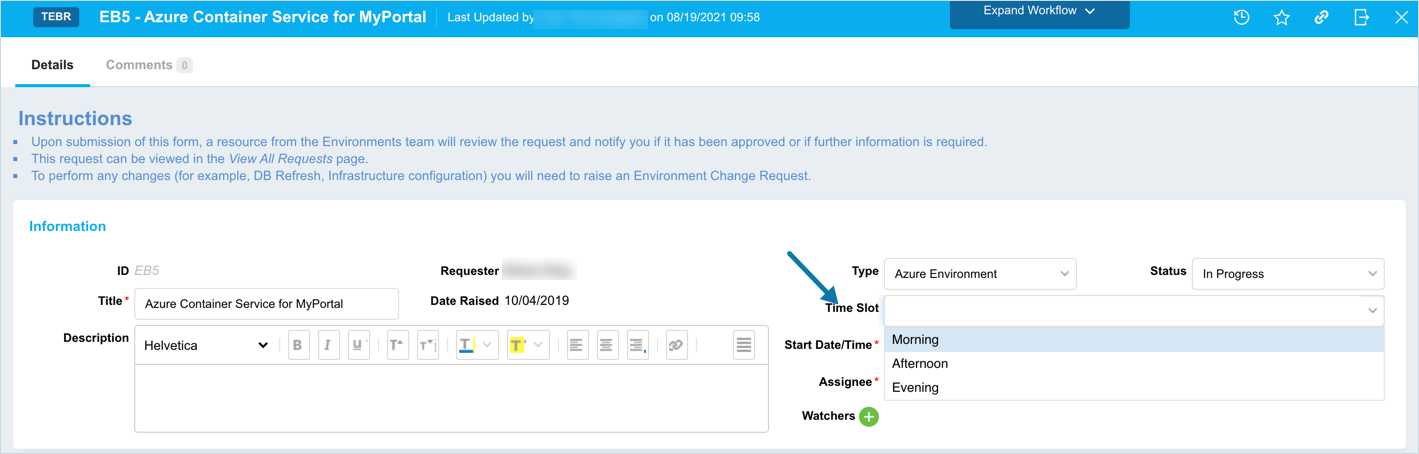
TEBR Time Slots Customization
Introduction
TEBR Time Slots allows you to book a period of time when adding or editing a TEBR with or without a Release. They reduce the number of idle Environments by making it easier to book for just a few hours, instead of whole day.
Pre-requisite
To be able to customize the TEBR Time Slots, you must have ‘Access Customizations’ User Permission.
Navigation
Settings .png?revision=1) > Customization > Environments > TEBR Time Slots
> Customization > Environments > TEBR Time Slots
Toggle the visibility of the TEBR Time Slots field
To toggle the visibility of the TEBR Time Slots field:
- Navigate to the ‘Customization’ page and click Environments.
- Click TEBR Time Slot.
- Select or deselect the Enable Time Slots checkbox.
- Click Submit.
Checking Enable Time Slots allows you to select the time slots when booking a TEBR.
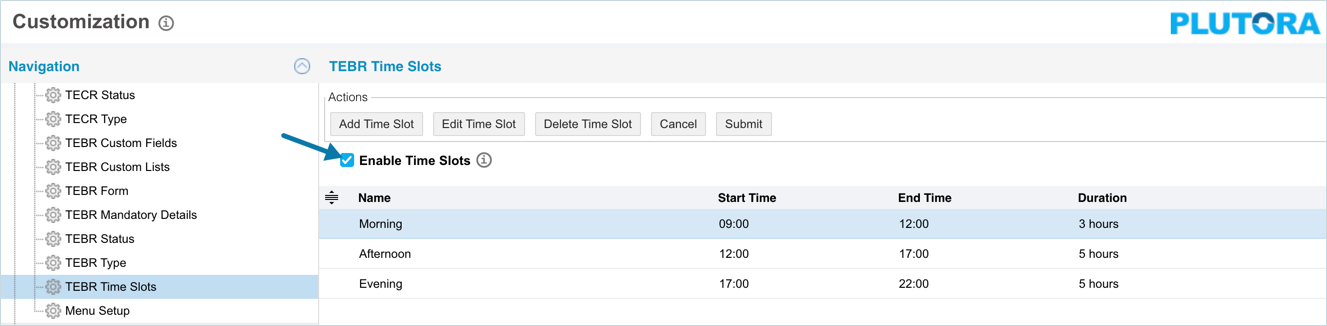
Add/Edit TEBR Time Slot
To add a TEBR Time Slot:
- On the ‘TEBR Time Slot’ page click
 . The system adds a line on the grid for the new slot. To edit an existing slot, search and click on the slot from the grid and then click
  .
. - Enter/update the time slot Name.
- Double click the Start Time to enter the start time for the slot. Slide the hour and minute sliders until the correct time shows or click the time field and type the time.

- Click
 .
. - Double click the End Time and enter the end time for the slot.
- Click .
- The Duration field automatically displays the calculated number of hours.
- Click
.png?revision=1) .
.
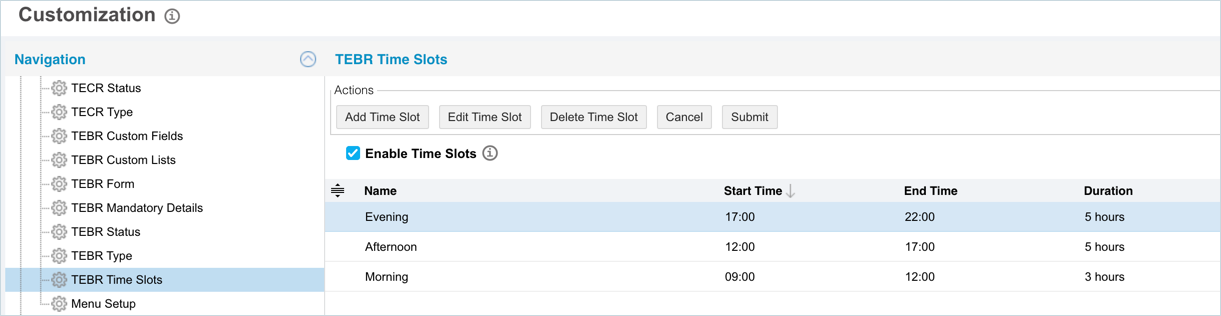
Sort TEBR Time Slots
Sort Manually
Sorting TEBR Time Slots manually changes their order in drop-down menus.
To sort manually:
- On the ‘Customization’ page, navigate to Environments > TEBR Time Slots.
- Hover your mouse cursor over the sort column of the Value that you want to sort.
.png?revision=1) appears.
appears. - Drag and drop the slot as you require.
- Click .
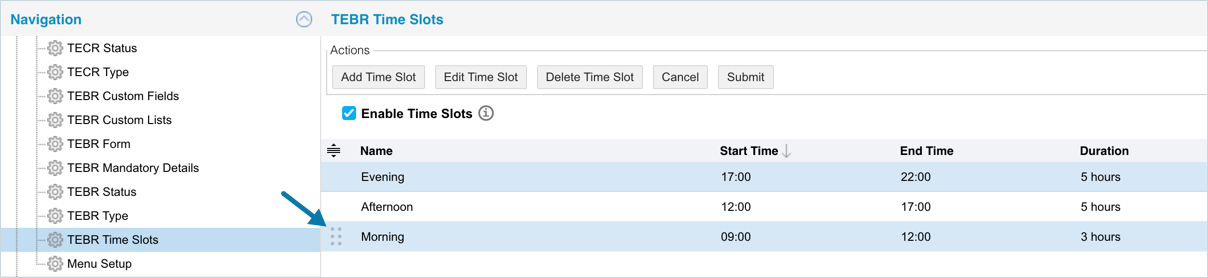
Your changes will be saved and a confirmation message will display.
Sort by Column Header
Sorting by column header only changes their order on the ‘Customization’ page.
To sort alphabetically on the ‘Customization’ page by column header, click on the column header. ↑ or ↓ displays indicating the ascending or descending column sort.
Delete a TEBR Time Slot
Deleting a TEBR Time Slot will not delete it from Release & Verify. But it will no longer be available when creating a new TEBR.
To delete a TEBR Time Slot:
- On the ‘TEBR Time Slot’ page, select the slot that you want to delete.
- Click
 .
. - Click .
Your changes will be saved and a confirmation message will display.
More Information
Location of TEBR Time Slots
To locate TEBR Time Slot, go to Environment > Requests > TEBR. On the TEBR pop-up the Time Slot field is located on the top right.