System Custom Lists Customization
Introduction
System Custom Lists allows you to add, edit or delete items from the following field types created in System Custom Fields:
- List fields (drop-down menus).
- List select (combo boxes).
Pre-requisite
- To be able to customize the System Custom Lists, you must have ‘Access Customizations’ User Permission.
- You must have already created the System Custom Fields with Data Type ‘List Fields’ or ‘List Select’.
Navigation
Settings .png?revision=1) > Customization > Environments > System Custom Lists
> Customization > Environments > System Custom Lists
Add/Edit Items to a System Custom List
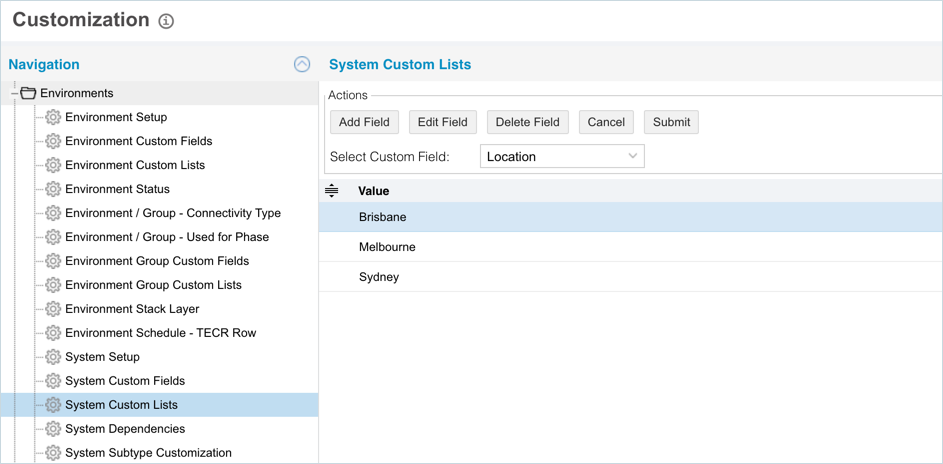
To add or edit items to a System Custom List:
- Navigate to ‘Customization’ page and click Environments.
- Click System Custom Lists.
- Select a Custom Field from the Select Custom Field drop-down.
- Click
.png?revision=1) . The system adds a line on the grid for the new field. To edit an existing custom list, search and click on the custom list from the grid and then click
. The system adds a line on the grid for the new field. To edit an existing custom list, search and click on the custom list from the grid and then click .png?revision=1) .
. - Enter/update the System Custom List item into the Value field.
- Click
.png?revision=1) .
.
NOTE
The page will remain grayed out until a Custom Field is selected from the Select Custom Field drop-down menu.
Your changes will be saved and a confirmation message will display.
Sort System Custom Lists
Sort Manually
Sorting System Custom Lists manually changes their order in drop-down menus.
To sort manually:
- On the ‘Customization’ page, navigate to Environments > System Custom Lists
- Hover your mouse cursor over the sort column of the Value that you want to sort.
.png?revision=1) appears.
appears. - Drag and drop the Value as you require.
- Click .
NOTE
Refresh your browser to sort manually after sorting alphabetically.

Your changes will be saved and a confirmation message will display.
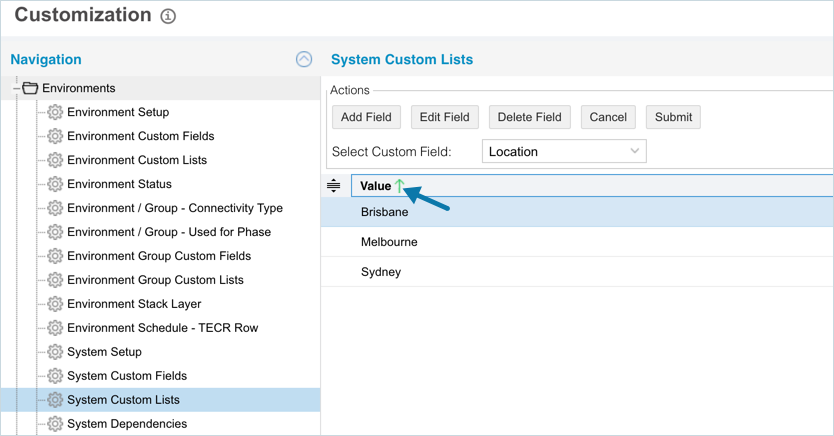
Sort by Column Header
Sorting by column header only changes their order on the ‘Customization’ page.
To sort alphabetically on the ‘Customization’ page by column header, click on the column header. ↑ or ↓ displays indicating the ascending or descending column sort.
Delete or Replace a System Custom List
Deleting a System Custom List will not delete it from System records. But it will no longer be available when adding or editing a System.
While deleting, you can either select another item that will replace the item to be deleted or simply delete the item from the list. Replacing a custom list will replace it in existing records.
To delete or replace a System Custom List:
- Navigate to the ‘Customization’ page and double click Environments.
- Click System Custom Lists.
- Select the custom list that you want to delete or replace.
- Click
.png?revision=1) .
. - The ‘Replace with existing value’ dialog displays.
- To replace: select the item that will replace the item to be deleted from Replace with. Then click
.png?revision=1) .
. - To simply delete the item, click
.png?revision=1) .
.
- To replace: select the item that will replace the item to be deleted from Replace with. Then click

The item is now deleted and the page navigates back to the Status page.
More Information
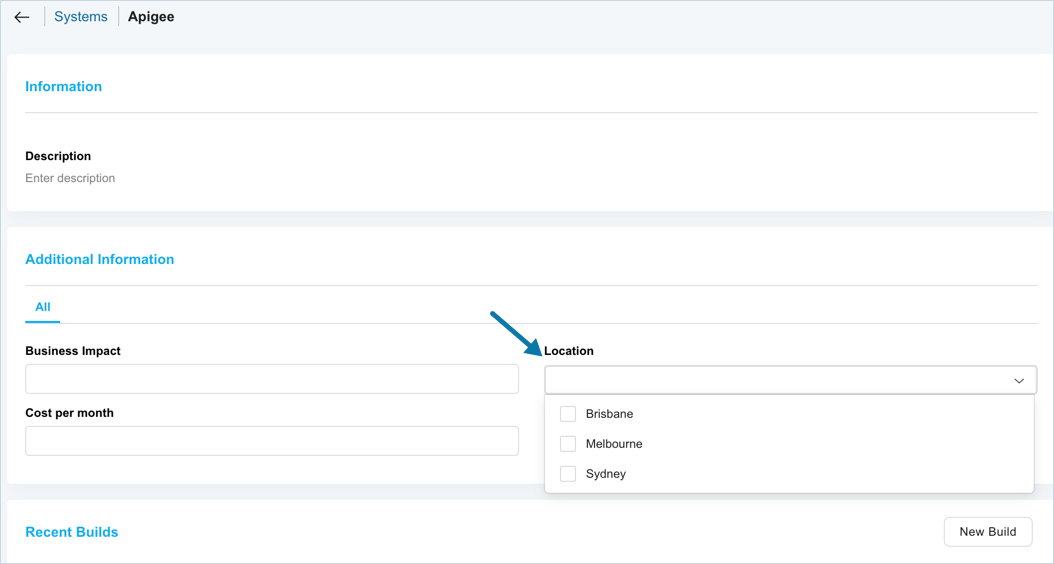
Location of System Custom Lists
To locate the System Custom Lists:
- Go to Environment > Systems.
- Click to open a System.
- The System Custom Fields are located under the Additional Information panel.