Release System Enterprise Setup Customization
Release System Enterprise Setup customizes the column titles in the Release Manager Systems tab and the list items of the Enterprise Type drop-down menu.

Location of Release System Enterprise Setup
To locate Release System Enterprise Setup:
- Go to Release > Manager.
- Click the Releases toggle button (if present).

- Click to open an Enterprise Release. (Project and Independent Releases do not have this feature.)
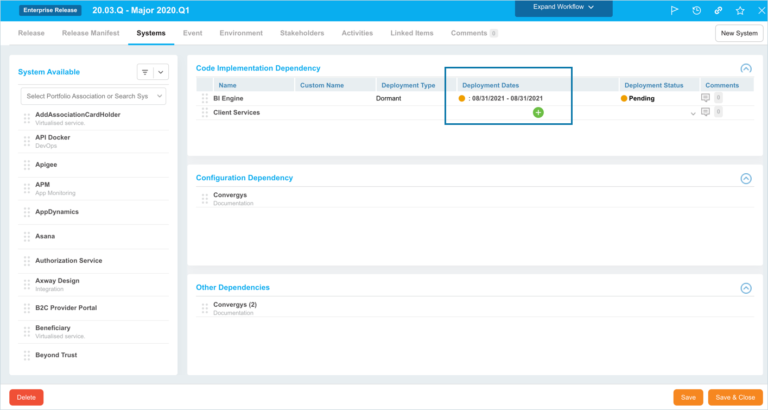
- Click the Systems tab. The Code Implementation Dependency panel contains:
- Enterprise Type Column Label: The items under the Release System Enterprise Setup Value column appear in drop-down menus in this column.
- Deployment Type Column Label.
- Enterprise Dates Column Label.
- If they are not displayed, hover your mouse cursor over the right-hand side of a header until the header menu button appears.

- Click the header menu button and select Columns.
- Select all the column checkboxes.
- To see the rest of the Release System Enterprise Setup customizations:
- Click one of the Deployment Dates.

- The Deployment Dates pop up contains the following:
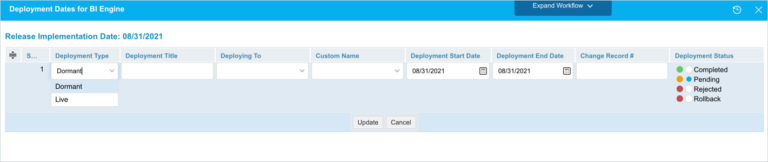
- Deployment Type Column Label.
- Deploying To.
- Enterprise Type Column Label: The items under the Release System Enterprise Setup Value column appear here.
- Deployment Start Date.
- Deployment End Date.
- Deployment Status.
- Deployment Dates Window Title.
- Click one of the Deployment Dates.
Enable Dependency
Enabling the Enable Dependency checkbox means that when a user updates a Deployment Date’s Enterprise Type value, the selected value will be applied to other Deployment Dates with the same Deployment Type.
To enable dependency:
- Go to Settings
 > Customization > Releases.
 - Click Release System Enterprise Setup.
- Click to select the Enable dependency between values of ‘Enterprise Type’ for ‘Deployment Type’ column.

- Click Submit.
The yellow Your changes have been saved pop up opens and closes.
If you click away from the Customization page without clicking Submit, your changes will not save. - To view this feature in action when the checkbox is selected:
- Go to Releases > Release Manager.
- Click a blue-linked Release ID or Release Name to open an Enterprise Release. (This feature does not work with Project or Independent Releases.)
- Click the Systems tab.
- Click a Dependency Date in the Enterprise Dates Column in the Code Implementation Dependency panel.
.png?revision=1)
- Double click a Deployment Type column field and select a new value.
.png?revision=1)
- Click Update.
Customize Systems Tab Column Titles
To customize the Enterprise Release Systems Tab and Deployment Dates Window:
- Go to Settings > Customization > Releases.
- Click Release System Enterprise Setup.
- Click the field next to column labels and type your custom label.
.png?revision=1)
- Click Submit.
The yellow Your changes have been saved pop up opens and closes.
If you click away from the Customization page without clicking Submit, your changes will not save. - Log out of Release & Verify and back in to see your changes.
Add a Release System Enterprise Setup Drop-Down Menu Item
To add Release System Enterprise Setup items, which will appear in a drop-down menu under the Enterprise Type column:
- Go to Settings > Customization > Releases.
- Click Release System Enterprise Setup.
- Click Add Field.
- Type the new Value.
- Click to select the Default checkbox to make the item appear by default in the drop-down menu.
- Click Submit.
The yellow Your changes have been saved pop up opens and closes.
If you click away from the Customization page without clicking Submit, your changes will not save.
Edit a Release System Enterprise Setup Drop-Down Menu Item
To edit a Release System Enterprise Setup item:
- Go to Settings> Customization > Releases.
- Click Release System Enterprise Setup.
- Click to select the Release System Enterprise Setup.
- Click Edit Field.
- Edit the Value field.
- Click to select the Default checkbox to make the item appear by default in the drop-down menu.
- Click Submit.
The yellow Your changes have been saved pop up opens and closes.
If you click away from the Customization page without clicking Submit, your changes will not save.
Sort Release System Enterprise Setups
Sort Manually
Sorting Release System Enterprise Setup items manually changes their order in drop-down menus.
TIP
Refresh your browser to sort manually after sorting alphabetically.
To sort Release System Enterprise Setups manually:
- Go to Settings> Customization > Releases.
- Click Release System Enterprise Setup.
- Hover your mouse cursor over the sort column.
The sort handle (six gray dots) appears.

- Left-click and drag the sort handle to resort the Release System Enterprise Setup items.
- Click Submit.
The yellow Your changes have been saved pop up opens and closes.
If you click away from the Customization page without clicking Submit, your changes will not save.
Sort by Column Header
Sorting Release System Enterprise Setup items by column header only changes their order on the Customization page.
To sort alphabetically on the Customization page by column header:
- Go to Settings> Customization > Releases.
- Click Release System Enterprise Setup.
- Click a column header.
The Release System Enterprise Setup items will revert to their previous order when you click away from the Customization page.
Delete or Replace a Release System Enterprise Setup Item
Deleting a Release System Enterprise Setup item will not delete it from Release records. But it will no longer be available when adding or editing a Release.
Replacing a Release System Enterprise Setup item will replace it in existing Release records.
To delete or replace a Release System Enterprise Setup item:
- Go to Settings> Customization > Releases.
- Click Release System Enterprise Setup.
- Click to select the Release System Enterprise Setup item.
- Click Delete Field.
- Choose one of the following:
- Delete and Replace:
- Select the item that will replace the deleted Release System Enterprise Setup item from Replace with.
- Click Delete and Replace.
TIP
Your updates will be automatically saved. There is no need to click Submit.
- Delete:
- Click Delete.
TIP
Your updates will be automatically saved. There is no need to click Submit.
- Click Delete.
- Delete and Replace: