Bulk Actions
Introduction
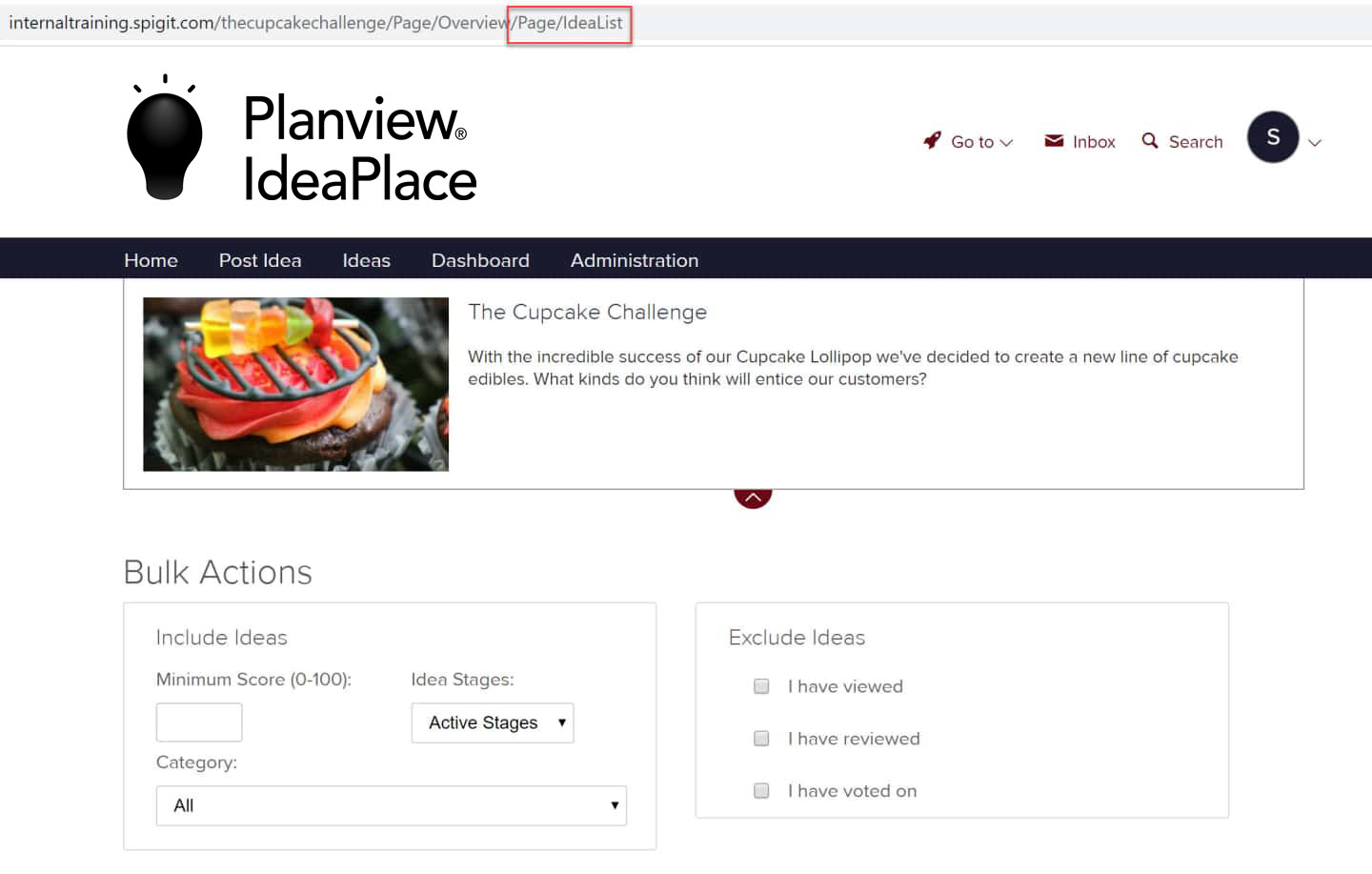
The Bulk Action feature lets you scroll through, filter, move ideas to a different stage, and sort all ideas by idea stage, score, and categories including and excluding:
- Filtering parameters
- Choosing specific ideas you want to include
- Selecting multiple ideas at once for a set of actions
- Applying a set of actions to selected ideas
NOTE
You cannot move an idea in the last stage to an earlier stage. This will be fixed in a future release. In order to work around it, you can use the Bulk Action (/Page/IdeaList) to move it backwards, as detailed below. However, if the site is using the French language, you'll need to change it to English in order to use the Bulk Action page. Once you are done, revert the site back to French.
WARNING
You may want to disable emails until bulk actions are complete unless you want notifications to be sent out.
How it Works
You can make bulk actions a global task, and you can select which of the bulk processing actions you want to take. This puts the assigned reviews into the Global stage for the ideas to which they are assigned. Global stage is the last stage listed on the Evaluation tab of an idea.
The Bulk Action feature is not visible by default, and must be added as a top-level tab through the Site Editor.
The Bulk Action page provides the ability to:
- Filter parameters for ideas
- Select multiple ideas at once
- Apply a set of actions to the selected ideas
How to Perform a Bulk Action
1. To access the Bulk Actions page, append your challenge's URL path with /Page/IdeaList and then press the Enter key on your keyboard. This will bring up the Bulk Actions page:
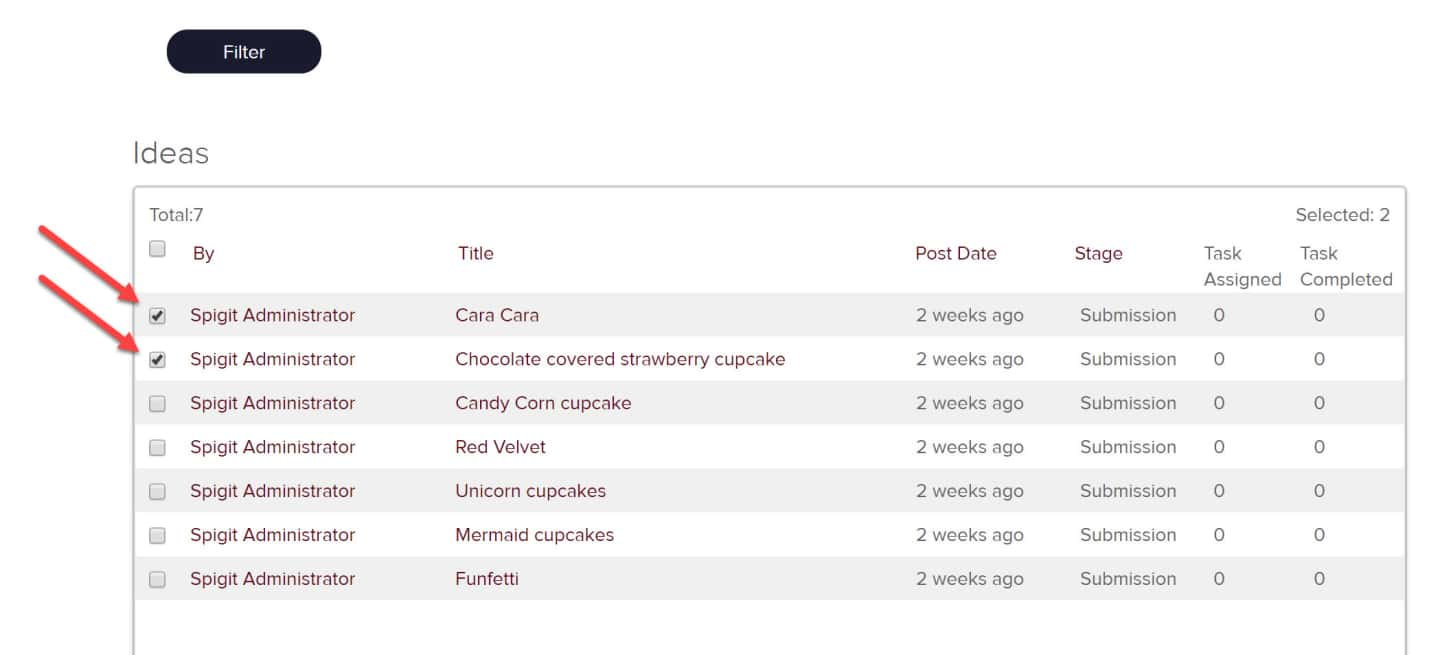
2. Select desired ideas by clicking the checkbox next to them. Select any number of ideas in the list. There is also a Check All button. You can also sort the list using the Posted by Title, Post Date, or Stage columns.
3. Scroll down the page until you can see the Apply Action dropdown:
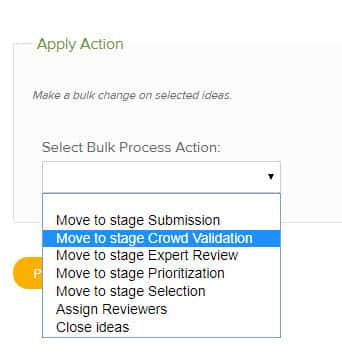
4. Select the desired action from the dropdown menu and then click the Process Ideas button. The chosen action will now be applied to the selected ideas.
NOTE
Don't forget that the current IdeaPlace URL format is as follows:
|
URL/Address Type |
Original URL |
New URL |
|
IdeaPlace Instance |
customer.spigit.com |
|
|
Community |
customer.spigit.com/community |
|
|
Challenge |
customer.spigit.com/challenge |
FAQs
Q. Can I elect to not update the mandatory fields when closing an idea as unsuccessful?
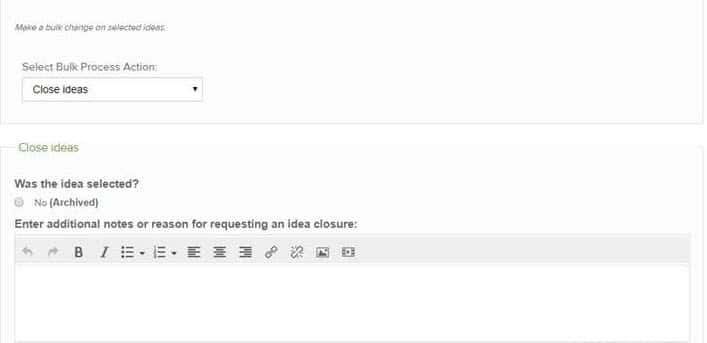
A. Yes. If you wish to close ideas as unsuccessful without including the required Close Form fields, in other words, bypassing the Close Idea Form, you may use the Bulk Action feature. Administrators can use the Bulk Action (/Page/IdeaList) to close ideas unsuccessfully with just the original description box to complete. Simply select the ideas to close, use the Close option, put in the reason why it was closed and you’re done. In the next release, the Closed Idea Template for unsuccessful ideas will be the original description box, no extra required fields.
Q. On the Closed Idea Template, can I remove the required fields?
A. Clients cannot remove the required fields, but they can be modified via the language file to change the description/use of the field.