Google Analytics
Google Analytics: Pros, Cons, and Security
For those customers who are looking for Web Analytics and page tracking, above and beyond what a standard implementation offers, IdeaPlace supports the use of a Google Analytics Tracking Code.
The Tracking Code will allow you to use Google Analytics to track and monitor the Page Level web traffic of your IdeaPlace Community. Ensure you use a unique tracking code per URL.
Configuring the IdeaPlace Community for Google Analytics is easy; just provide your Google Analytics tracking code to IdeaPlace and the team will configure the community for you. There are two ways communicate this information to IdeaPlace. First, log a support ticket at support.spigit.com and make sure to include the tracking number and the URL and community name to be tracked by Google Analytics. The second way is email this same information to your IdeaPlace Customer Success Manager and they will also be able to perform this configuration.
Not sure how to get the Google Analytics Tracking Code? Here are a few simple steps to follow for new aspiring data analysts:
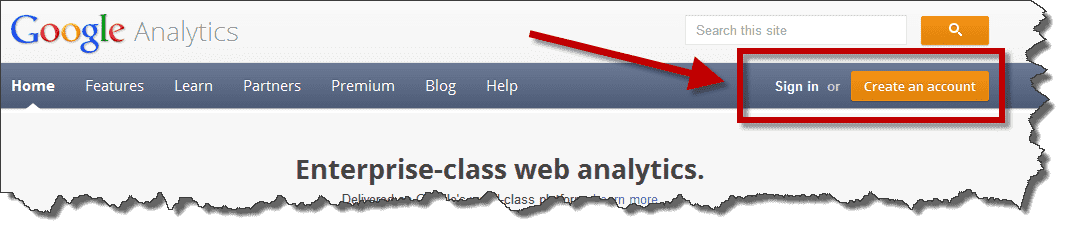
- Log in or create a Google Analytics account at the following URL:
http://www.google.com/analytics/
.png?revision=2&size=bestfit&width=897&height=197)
2. Once logged in, a new account can be created from the Account Page, Admin option.
Here is the Account Home page and the admin button on the top right of the screen:
.png?revision=2&size=bestfit&width=622&height=190)
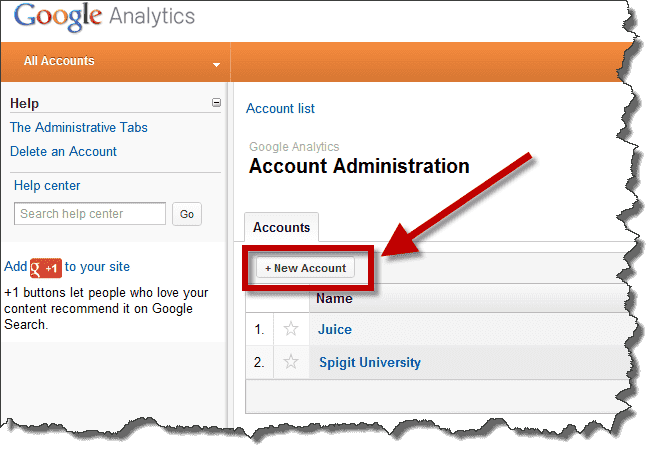
3. Once in the Administration area, select the New Account option. In this example you can see there are already two existing accounts. The advantage here is you can manage multiple sites from One Google Analytics account if you choose.
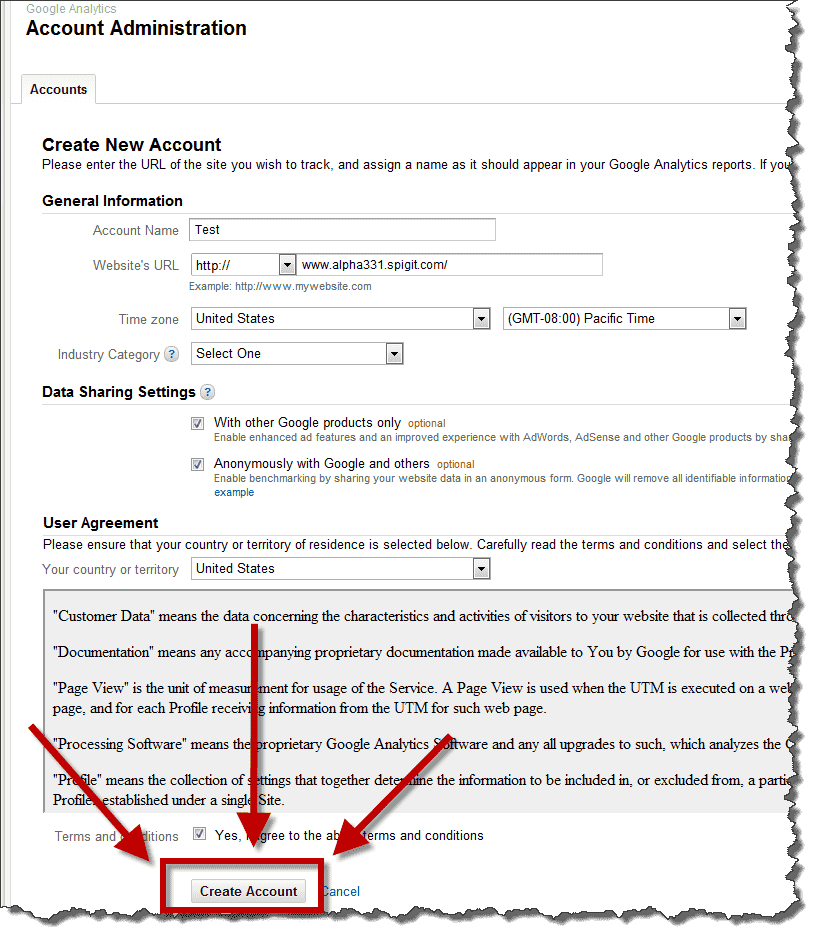
4. Fill in the required information and select the Create Account button.
.png?revision=2)
5. On the next page you will have your brand new Tracking ID! This is the number you need to provide to IdeaPlace.
.png?revision=2)
Pros, Cons, and Security
Now that your IdeaPlace Community is up and running on Google Analytics, here are a few tips on the Pros, Cons, and Security aspects of working with Google.
Pros
- Detailed info on page visits, unique visits, usage, time spent per page, bounce rate, flow through site, browser type, mobile devices.
- Has rich visual data such as charts, graphs etc. and can be exported to Excel.
- Can monitor data in real time (useful for very busy sites).
- Can measure/compare multiple page attributes against one another.
- Has geographic demographics to determine where traffic is coming from.
- One account can track multiple sites making comparisons easy.
- Can be tracked on a per community basis via DPA setting.
Cons
- Reports don’t include identifiable data about the site's users.
- Does not track actions such as downloads.
- Data collected has no correlation to metrics tracked byIdeaPlace such as ideas, posts, comments, logins etc.
Security According to Google
- All transactions between IdeaPlace site and Google use SSL (Secure Socket Layer).
- Visitor information is secure as reports don’t include identifiable data about the sites users.
- There is an opt-out browser add on which will allow visitors to “Opt-Out’ of being tracked as required or desired by Google Analytics account owner.
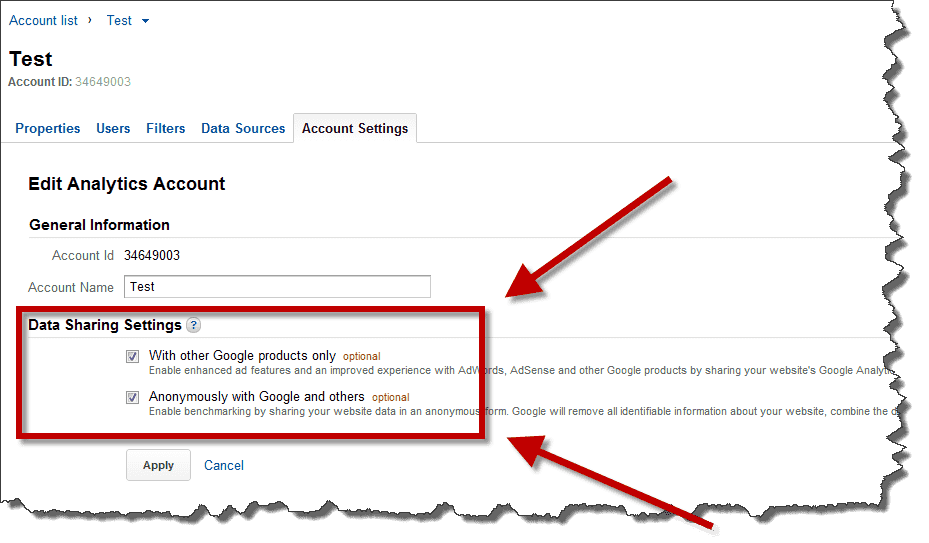
- Data Sharing with other Google applications can be controlled and turned off by the Account owner in the settings area.
- Only authorized access is granted to the Google Analytics representatives so they can provide support.
- Each access requires written approval – email, support ticket etc.
- Access to data is limited to the time frame specified by the account owner.
- All support representatives must use Google approved computers and all access is over SSL and logged for security review.
It is also possible to anonymously share the metrics/data from the analytics module to all of Google. The system strips out any information which could lead to the discovery of the originating site. This allows for benchmarking of a specific site against all that is Google.
These options are controlled by the Analytics account owner and can be completely disabled so no data is shared or transferred. These can be a bit tricky to discover so here are some easy to follow step to access these options.
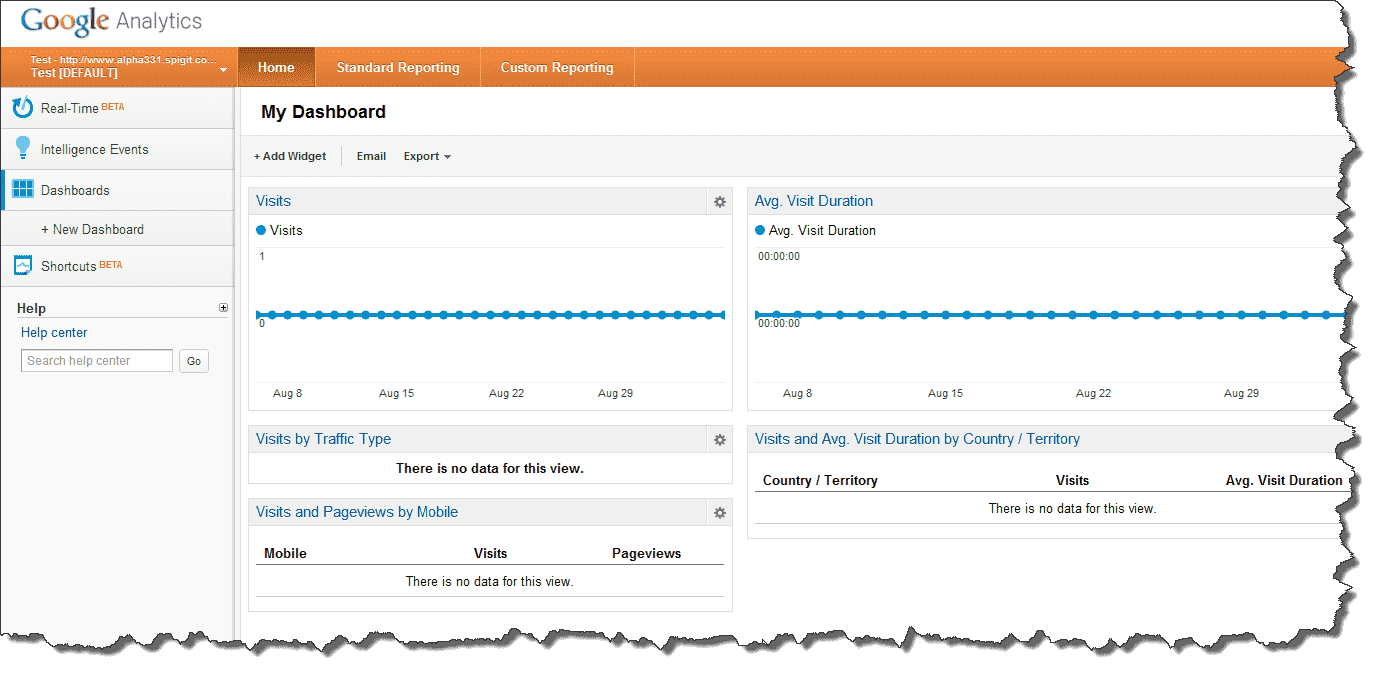
- A common starting point to access the admin settings is from the Home page of the newly created account. In our example the account is called “Test”. This home page will look similar to the image below. Notice how there is already graphs and metric structures available, but since we just created this account, there is no data. Google take approximately 24 hours to populate, so patience is a virtue.
.png?revision=2&size=bestfit&width=916&height=446)
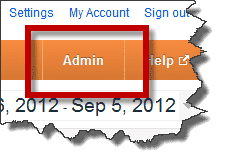
2. Click the Admin button on the top right of the screen.
.png?revision=2)
And now the screen will change and look similar to the following. Notice the bread crumb trail… this allows for admin settings for each aspect of the account we just created.
.png?revision=2&size=bestfit&width=730&height=395)
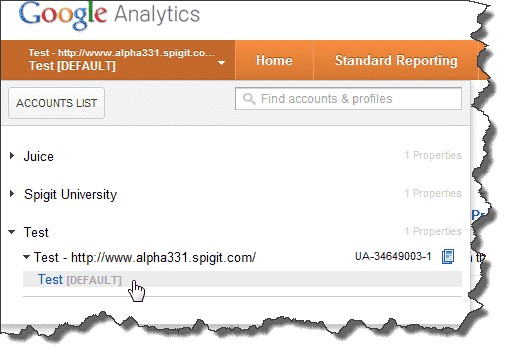
This bread crumb is analogous to the Accounts List pull-down at the top left of the screen. You can access this admin area from either the Account List or the site home page as we have done above.
Here is a picture of the pull-down for reference.
Each level of the test site corresponds to the breadcrumb.
.png?revision=2)
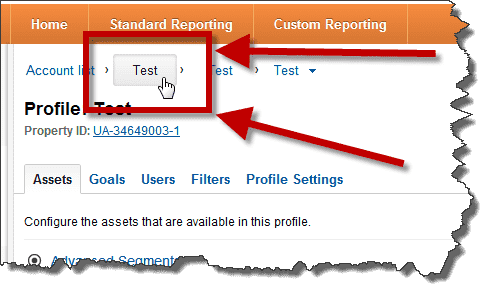
3. The controls we are after are located at the top level of the account, so select the first Account name.
.png?revision=2)
4. From the new page, select the Account Settings tab. Notice how the name of our account and the URL are listed.
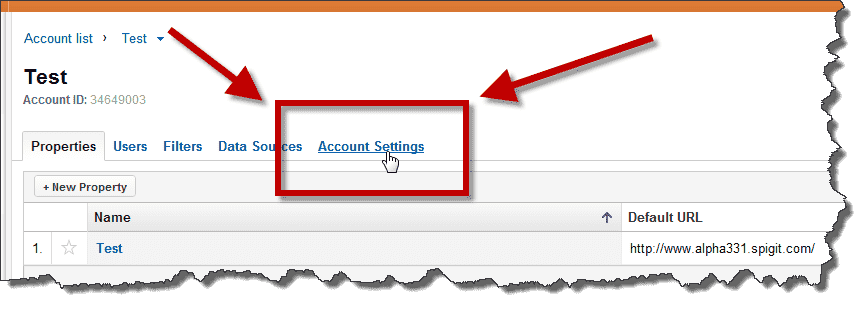
5. Now we can finally control the default Data Sharing options. By default, these options will be On so if data privacy is a concern, disable these options. Notice how you can also change other aspects of the account like the name or delete it all together.
Google Analytics Tracking of /User/Login in IdeaPlace
Following feedback from clients that leverage Google Analytics to track their click and site level data, increased tagging has been added.
This means that the pages that exist within the site but are prior to authentication or login will now be tagged. This capability will extend to the /User/Login page and the /User/Register pages within all communities and challenges.