User Profile Components
Overview
The user profile is the fourth most visited page in Planview IdeaPlace. Profiles are where you learn about, collaborate and connect with other users.
How it Works
Each user sees their information displayed in the same design, no matter which challenge they access the profile from. This also extends to their About, Activity and Social sections, which all display the same data globally. Should an idea reside in a permission-controlled challenge, those ideas will be hidden to any users without the relevant access permission.
The sections themselves are grouped to provide a simple experience in understanding user details, the user’s activity, and to what or to whom the user is connected within IdeaPlace. These three sections, or lenses, permit users to learn about each other, while offering the opportunity to foster connections and collaboration directly from the profile page.
Administrators configure directly on the Profile page, rather than manipulate widgets and layouts. Thus, the Myprofile and UserProfile pages are not accessible through the Site Editor.
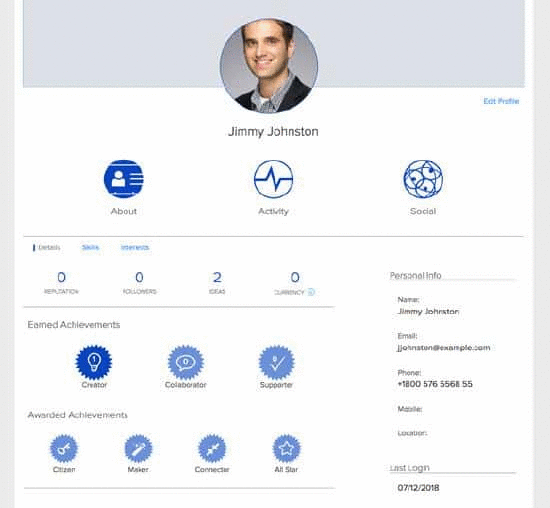
Figure 1: User Profile About section and tabs
About Section
The About section houses the core user details including:
- Global Statistics including Idea Count, Followers, Reputation Rank, Currency. This section will adapt depending upon features in use by each client. Should a feature such as Reputation Rank not be in use, it will not display here.
- Personal Information provides a summary of the user profile and is typically pulled from a Single Sign On integration, if in use. The visibility of information here will remain in the control of the administrator via the User Profile Template section of Administration > User Settings.
- Role(s) are displayed within the profile as well as being contextual to the community or challenge that the profile is being accessed from. For example, if a user holds the moderator role in Challenge A but is a standard user in Challenge B, the Role section will reflect this difference when viewing the profile within Challenge A and B respectively.
NOTE
Moderator and Expert roles do not appear under Administration > Users Management > Roles; just the default IdeaPlace roles.
- The About section displays Skills & Interests and Achievements & Endorsements as detailed in these two articles, respectively.
NOTE
The Bio, if used, displays within the About section, below the statistics and can be used even when Achievements have been activated.
Activity Section
The Activity section houses everything you need to know about a user’s activity within the platform. The section allows idea image and user avatars into each of its sub tabs.
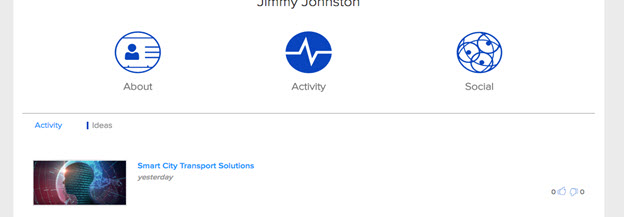
Figure 2: User Profile Activity section and tabs
The two sub tabs contained within the page are:
- Activity - This displays all activity that the user has carried out and behaves in the same way as the widget does in previous versions.
- Ideas - Lists the ideas that the user has posted and now contains the idea image. If viewing your own profile, you will see draft ideas clearly marked in this space with the ability to access them directly from the tab.
Social Section
The Social section incorporates all of the user connection details such as ideas, conversations, teams and users that the user follows. Team invitations are managed here as well as following/unfollowing (via the hover profile) users and ideas.
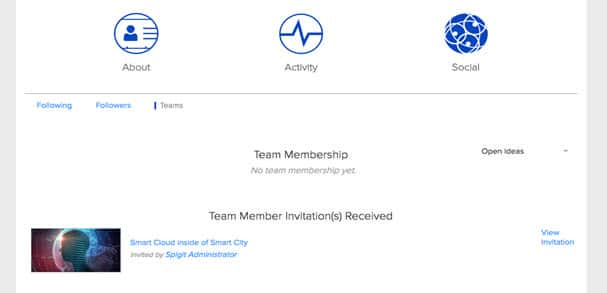
Figure 3: User Profile Social section and tabs
Managing and tracking team memberships is housed within the Teams sub tab and contains options for:
- Accepting/rejecting invites
- Tracking which teams the user is a member of
- Managing any invites that have been sent for ideas that the user owns.

Figure 4: Example of Team Member Invitation

Figure 5: Example view of an active team membership
The Settings option (Reset Password, Notifications, Language) that is in the Settings Section on the user avatar dropdown.