Voting with Pairwise
Overview
Planview IdeaPlace provides the flexibility to leverage multiple voting mechanisms depending on culture, use cases, and methodologies. Pairwise Voting is one of these mechanisms, using iterative idea comparisons to ensure each idea is given equal consideration by the crowd. When used in a Challenge Stage, participants are presented with two ideas side by side and asked to vote for the better of the pair. Once a pair has been voted on, additional pairs will continue to be displayed until the voter decides to stop, all pairs are completed, or the stage ends. As with many IdeaPlace features, leaderboards are available for use with Pairwise Voting.
 How It Works - Basic Elements
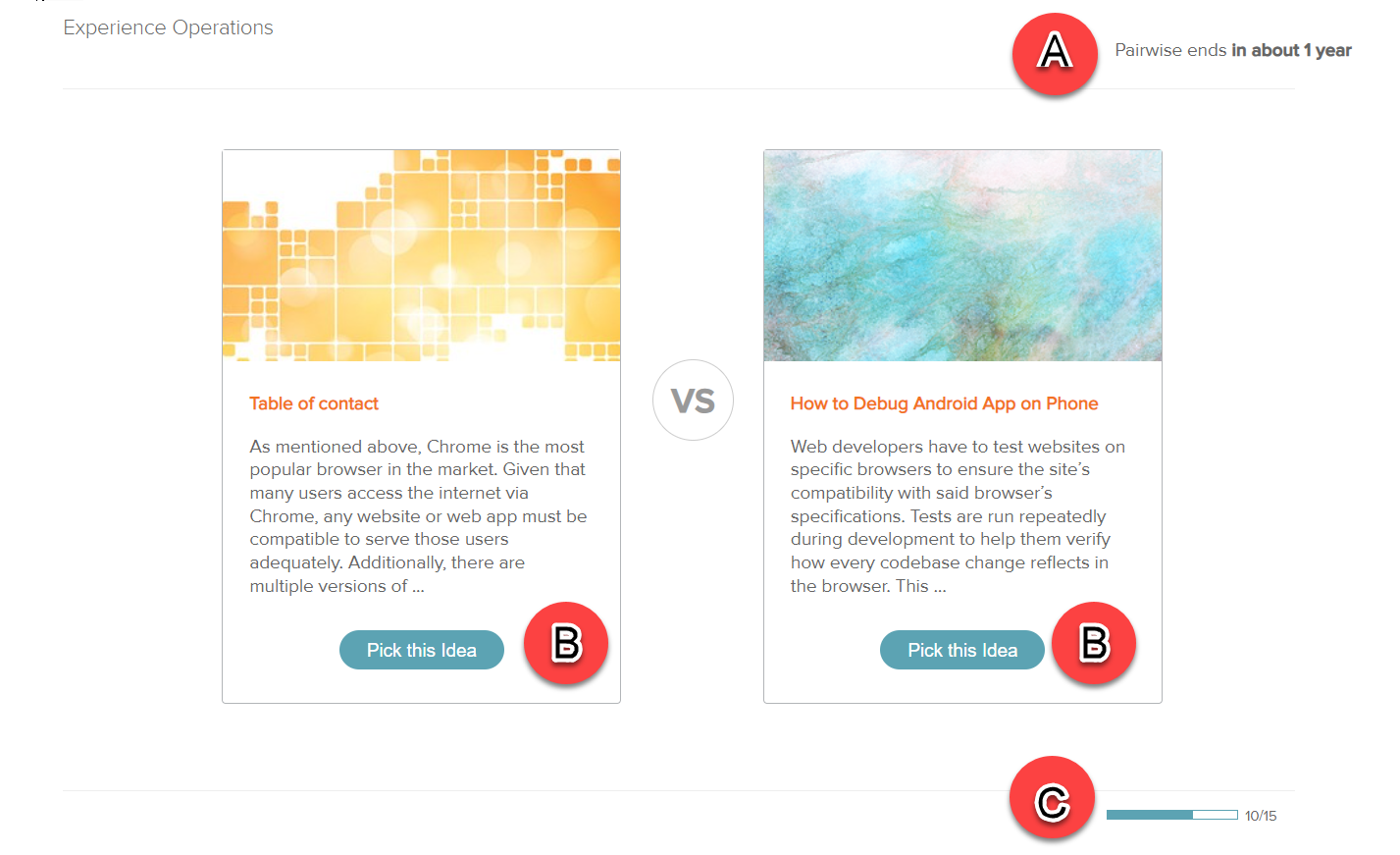
The figure above shows the elements of a Pairwise screen.
- A : Pairwise Timer.
- B : Pick this idea. Choose the idea to vote.
- C: Pair Counter. Displays the number of pairs completed in a set.
Use Cases
- Typically, Pairwise is used in later stages of an innovation process, to help rank and prioritize a subset of ideas.
- Some clients use Pairwise as the sole ranking mechanism for a challenge, when idea building and collaboration are not as important.
Pairwise Training Video
Pairwise voting can be configured for a specific voting period based on start and end dates or for a select stage in the idea lifecycle. It can also be restricted to specific member roles.
WARNING
It is not possible to change the Pairwise settings after the challenge phase that includes Pairwise voting has started. Settings must be selected before the phase starts.
NOTES
Reputation does not influence what ideas appear in Pairwise voting. Also, the idea owner's reputation is not influenced by the pairwise results.
Within challenges, it is not possible to change the Pairwise settings after the Pairwise challenge phase has begun.
How to Configure Pairwise Voting in a Non-challenge Community
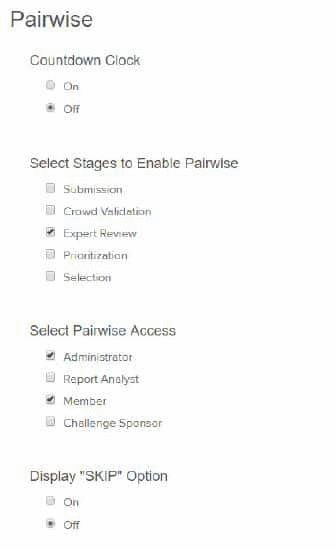
Go to a non-challenge community, then Admin > Feature Management > Pairwise.

| Field | Description | |
|---|---|---|
|
Countdown Clock |
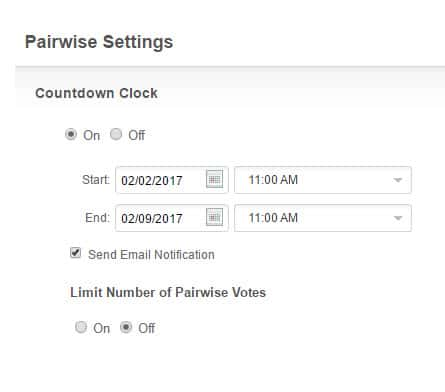
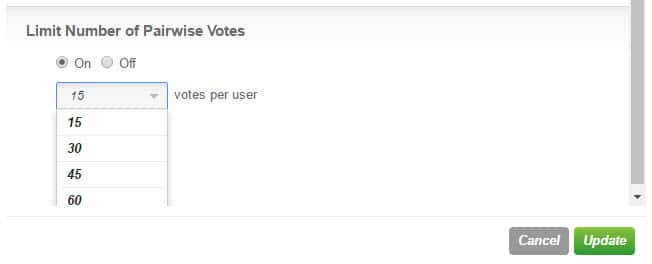
When set to On, additional fields appear and are modifiable: Start/End Date, Send Email Notification and Limit Number of Pairwise Votes.
|
|
|
Limit Number of Pairwise Votes |
|
|
|
Select Stages to Enable Pairwise |
Selects the specific idea life cycle stages in which Pairwise voting will be enabled. |
|
|
Select Pairwise Access |
Limits Pairwise voting to the selected roles. Users in other roles can access the Pairwise voting to view the results, but may not vote on ideas. |
|
|
Display "Skip" Option |
Displays the "SKIP" button on the Pairwise page. |
|
|
Display Category Selector |
This enables the ability to allow Pairwise voting on ideas from selected categories. This is standard behavior for all non-challenge communities. |


How to Configure Pairwise Voting from within a Challenge
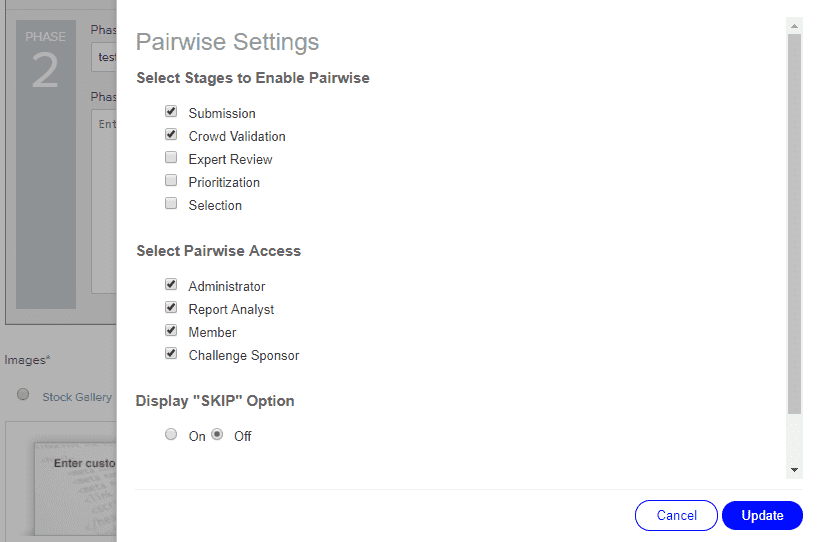
In the challenge's Edit Challenge page, expand the Phase Editor and select Pairwise Voting to open the popup.
NOTE
The Pairwise Voting checkbox must be checked to access this popup in the screen shot below.
| Field | Description |
|---|---|
|
Select Stages to Enable Pairwise |
Selects the specific idea life cycle stages in which Pairwise voting will be enabled. |
|
Select Pairwise Access |
Limits Pairwise voting to the selected roles. Users in other roles can access the Pairwise voting to view the results, but may not vote on ideas. |
|
Display "SKIP" Option |
Displays the "SKIP" button on the Pairwise page. |
|
Limit number of Pairwise Votes |
A toggle that allows selection of maximum Pairwise votes per user.
|
|
Update |
Saves and applies the current settings.
NOTE It is not possible to change the Pairwise settings after the challenge phase that includes Pairwise voting has started. Settings must be selected before the phase starts.
|
For additional reading, refer to this Voting Dynamics PDF.