User: Blogs
Introduction
Blogs are great tools for posting write ups for others to reference for regular updates. On your profile page, there is also a My Blog button, which is how you get to the area where you can write a blog description, create new blog entries, and edit your blog settings.
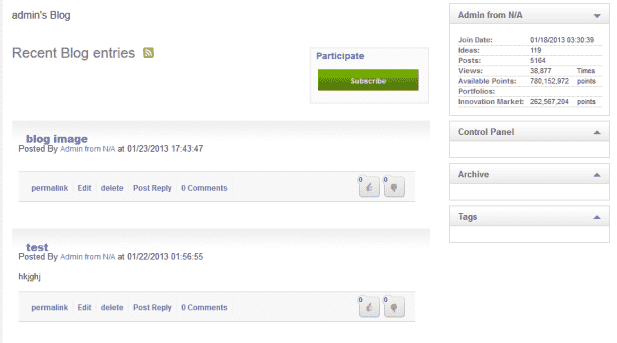
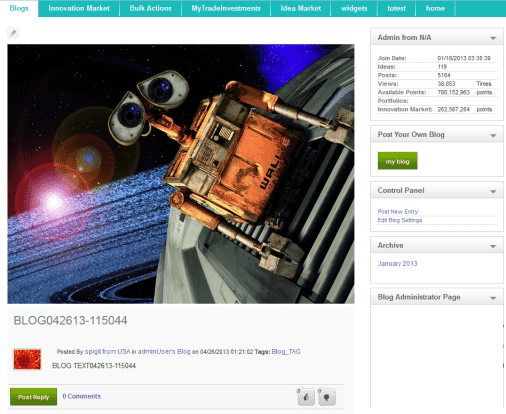
Your Administrator may also have set up a blog page similar to the one below.

As a user, you can do any of the following:
- Subscribe to a blog
- Create a blog
- Edit a blog
How to Create a Blog Entry
When you create new material for a blog, you may want to create a partial entry and come back and finish it at a later time. How it’s saved depends on what you do at the bottom of the Post New Entry page (see step 5 below).
If you have the required permissions, you can create and submit new material for a blog,
To create a new entry for your blog space:
1. Under the Blog Control Panel, menu, click Post New Entry.

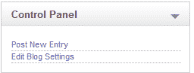
The Blog Entry page appears.

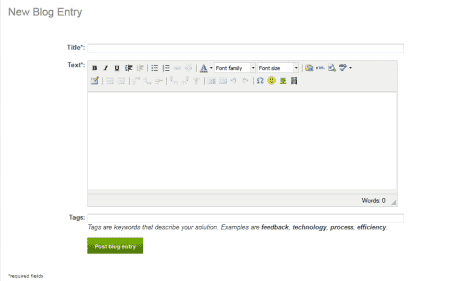
2. Enter the blog information.
Type the title of your entry in the Title field.
Under Text, type your entry in the text box. The text box is highly customizable using the editing tools.
Under Tags, type in keywords that describe your Idea (e.g., feedback, technology, process, etc.).
At the bottom, click Post Blog Entry to post your entry.
How to Edit Blog Settings
You can configure your blog settings to control whether your blog page is moderated and who can post to your blog.
Your Administrator must enable your permission to edit these settings.

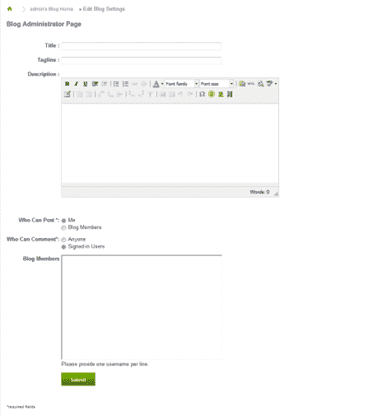
To change your settings:
- In the Title field, type a title for your blog.
- In the Tagline field, type a tagline for your blog.
- In the Description field, type a description of your blog.
- Under Who Can Post, choose one of the following (required):
-Me
-Blog Members - Under Who Can Comment, choose one of the following (required)
- Anyone
- Signed In Users
- Members - Under Blog Members, type in the user names of those users you want to be members of your blog. User names must be one user name per line.
- When you’re finished, click Submit.
How to Subscribe to a Blog
To subscribe to a blog, access the blog page and click Subscribe.